Google Docs voice typing is a free, built-in dictation tool that turns speech into text directly inside a Google Doc, using Chrome’s speech recognition engine. It sits under Tools > Voice typing, requires an internet connection and a microphone, and works only in the desktop Chrome browser — not in Firefox or the mobile app.
It’s Google’s answer to dictation for anyone who doesn’t want to install anything extra: students drafting essays, writers doing a first pass, anyone whose hands need a break from typing. Voice typing in Google Docs has existed since 2016 and hasn’t changed dramatically since — it recognises speech reasonably well but treats punctuation and formatting as separate spoken commands rather than something it infers for you.
Want the full picture? Every Genie 007 walkthrough, from Google Docs to Gmail, Slack and Excel, is listed on one page in our voice typing guides library.
If you only dictate inside Docs today, this speech to text chrome extension comparison shows what you gain by extending the same dictation to Gmail, Slack and every other site.
If your microphone icon has stopped responding altogether, see our dedicated guide on Google Docs voice typing not working for the full 11-step fix list.
That’s the trade-off worth knowing before you rely on it for anything longer than a paragraph: it transcribes what you say, but it doesn’t understand what you mean, and it stops working the moment you leave Chrome or lose your connection. The same limitation applies to Google’s other apps — if Word is more your daily tool than Docs, the setup and trade-offs are similar, and our guide on how to dictate in Word covers that version in detail.
How to Enable Voice Typing in Google Docs
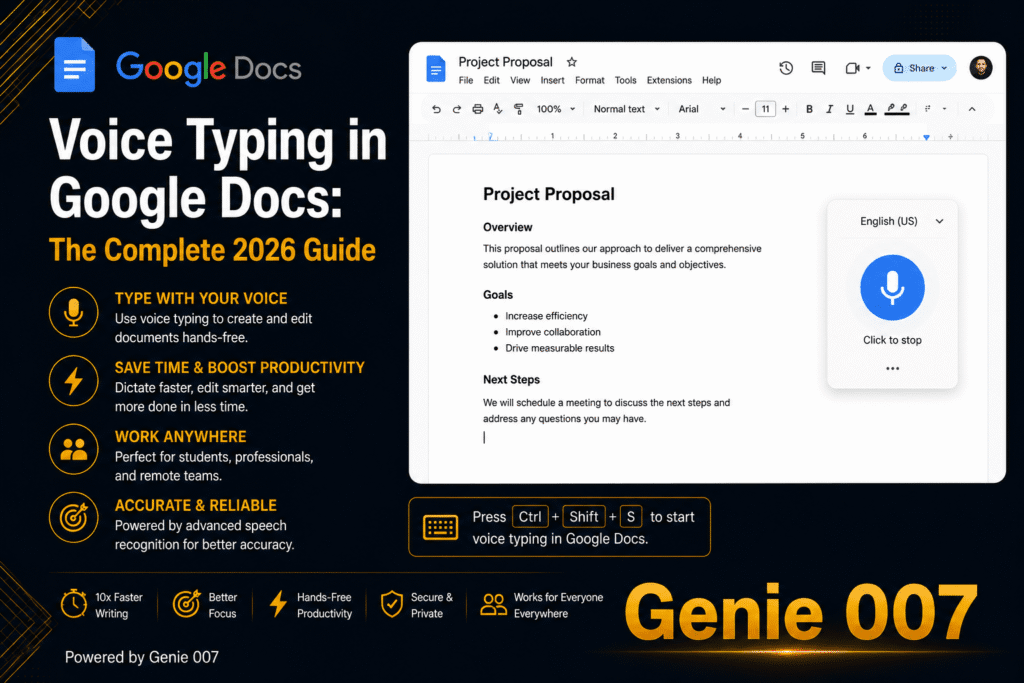
A lot of people search for where is voice typing in google docs because the option isn’t on the main toolbar — it’s tucked inside a menu. Open a document at docs.google.com in Chrome, click Tools in the top menu bar, then select Voice typing. A floating microphone icon appears in the left margin of the page, usually a little below where your cursor is.
There’s also a keyboard shortcut some users prefer once they know it’s there: Ctrl+Shift+S on Windows and Chromebook, Cmd+Shift+S on a Mac. It doesn’t always fire the mic reliably in every document, so the Tools menu route is the one to fall back on if the shortcut does nothing. To enable voice typing in google docs at all, three things need to be true: you’re using desktop Chrome, your microphone is connected and permitted, and the document’s language (File > Language) matches the language you’re about to speak — if it doesn’t, the Voice typing option can fail to appear in the Tools menu at all. Google’s own support documentation covers the official setup steps for typing with your voice in Docs if you want the source directly.
The browser will usually prompt for microphone access the first time you click the mic icon in a new document — click Allow, not Block, or the icon will sit there doing nothing with no obvious error message. If you’ve already dismissed that prompt by accident, Chrome doesn’t ask again automatically; you have to go back into site settings and reset the permission for docs.google.com manually. Worth checking, too: Voice typing is a per-document toggle, not a global browser setting, so opening a new document means clicking Tools > Voice typing again rather than assuming it carries over from the last file you had open.
How to Voice Type on Docs: Voice Typing and Voice Commands
Once the microphone icon is visible, click it and start speaking at a normal pace — it changes colour when it’s actively listening. The core mechanic for how to voice type on docs is straightforward: say your words as you’d write them, and say punctuation and formatting out loud as separate commands, because voice typing does not add commas or capitalise sentences automatically the way a phone keyboard often does.
Speak in complete sentences and pause briefly between them — the feature listens for natural breaks and can lose your place mid-sentence if you talk over yourself while correcting a word. It performs best in a quiet room, close to the microphone, and it keeps listening through short pauses, so you don’t need to click the mic again between sentences.
Google Docs Voice Commands
Google Docs voice commands cover punctuation, formatting, editing, and navigation, and none of them are optional — say them, or the words get typed as literal text. Some of the ones worth learning:
- Punctuation: “comma”, “period” or “full stop”, “question mark”, “exclamation point”, “new line”, “new paragraph”
- Formatting: “bold”, “italics”, “underline”, “align centre”, “insert bullet point”
- Editing: “delete”, “select [word]”, “select all”, “undo”, “redo”
- Navigation: “go to the end of the line”, “go to the beginning of the paragraph”
These commands only work while Voice typing is actively listening, and there are dozens more covering tables, headings, and page layout. Keeping a shortlist of the common ones nearby for the first few sessions saves a lot of “delete that” moments.
Accents and background noise both affect accuracy more than most people expect — a clear, consistent speaking pace with a decent headset microphone will outperform a laptop’s built-in mic in an open office almost every time. If a word keeps getting mistyped, saying it more slowly and deliberately usually works better than repeating it faster and louder. It’s also worth remembering that Voice typing only recognises the language set for that document, so bilingual writers switching mid-paragraph will see the second language typed as gibberish rather than translated or transcribed correctly.
Google Docs Voice Typing Not Working
Google Docs voice typing not working usually comes down to one of five causes, and they’re worth checking in order. First, confirm you’re in Chrome — Voice typing does not work in Firefox at all, regardless of settings or extensions. Second, check the microphone permission: go to chrome://settings/content/microphone and make sure docs.google.com is allowed — permissions get silently revoked after Chrome, macOS, or Windows updates more often than people expect.
Third, check File > Language matches the language you’re speaking — a mismatch stops the feature from listening properly, or hides the Tools > Voice typing option entirely. Fourth, browser extensions built for privacy, ad-blocking, or VPN routing can silently break the connection Voice typing relies on to send audio to Google’s servers; open an Incognito window with extensions disabled and test there to isolate the problem. Fifth, remember the connection itself has to be stable — Voice typing is cloud-based, not offline, so it will drop out or stop listening after a period of silence or patchy Wi-Fi, which is expected behaviour rather than a fault.
If the mic icon is visible but nothing happens when you speak, restart Chrome completely rather than just reloading the tab — a stale browser session is a common, unglamorous cause. It’s also worth testing the microphone in another Chrome tab, such as a video call site, to rule out a hardware or operating-system permission issue before assuming Google Docs is at fault.
On a work or school laptop, there’s a sixth possibility worth ruling out: managed Chrome profiles and school or corporate networks sometimes block the audio-streaming connection Voice typing needs at the firewall level, even when every setting on the machine looks correct. If Voice typing works fine on a personal Wi-Fi network but not on a managed one, that’s a strong signal the network itself is the block, and it’s worth flagging to whoever administers the account rather than troubleshooting Chrome further.
Voice Typing on Different Devices
The Tools > Voice typing feature described above is a desktop Chrome feature — it doesn’t exist inside the Google Docs mobile app. On phones and tablets, dictation works through the operating system’s own keyboard instead, which is a different feature with different behaviour.
That distinction trips people up because Google uses the phrase “voice typing” loosely: the branded Tools menu feature lives only on desktop Chrome, while phone dictation is Apple’s or Google’s own keyboard technology, not a mobile version of the same tool. The practical result is the same either way — spoken words turn into typed text in your document — but the setup, accuracy, and punctuation behaviour differ by device.
Voice Typing Google Docs Android
For voice typing google docs android users, the route is the Gboard microphone: open a document in the Google Docs Android app, tap into the text, tap the microphone icon on the Gboard keyboard, and speak. Gboard’s dictation auto-punctuates more than desktop Voice typing does, though it’s still worth reviewing the transcript before saving, especially for names and technical terms.
Some Android phones also support saying “period” or “comma” out loud through Gboard if auto-punctuation guesses wrong, so the two systems aren’t entirely incompatible in habit — just don’t expect the Google Docs Tools menu to appear anywhere in the mobile app itself, because it doesn’t exist there at all.
Google Docs Voice Typing iPhone
Google Docs voice typing iPhone works the same way in principle: open the document in the Google Docs iOS app, tap the text field, then tap the microphone key on the iOS keyboard to start Apple’s built-in dictation. It isn’t the Tools menu feature from the desktop — it’s iOS dictation working inside whatever app has focus, Docs included.
iOS dictation tends to handle punctuation commands (“comma”, “new paragraph”) more consistently than Gboard does, and it works offline for short bursts on newer iPhones, which desktop Voice typing never does. The trade-off is that it’s tied to whatever language is set for your iPhone’s keyboard, not the document’s own language setting inside Google Docs, so the two need to match for accurate results.
Google Docs Voice Typing Mac
On a Mac, google docs voice typing mac means opening docs.google.com in Chrome — the desktop Voice typing feature works fine on macOS, but only inside Chrome. Safari isn’t supported, so switching away from Chrome on a Mac is the single most common reason people think the feature has disappeared, when really it never worked outside Chrome to begin with.
macOS also has its own separate, system-level dictation (Edit menu > Start Dictation, or a function-key shortcut), which is a different tool again — it works in any app, including Safari, but it isn’t the same feature as Google Docs Voice typing and behaves differently for punctuation and commands. Knowing which one you’re actually using saves a lot of confused troubleshooting.
The Honest Limits of Google Docs Voice Typing
Even set up correctly, Google Docs voice typing has a low ceiling. It only runs in Chrome, so anyone on Safari, Firefox, or Edge as their daily browser has to switch just to dictate. It’s cloud-based rather than on-device, so a patchy connection on a train or in an office with restrictive Wi-Fi will cause it to cut out mid-sentence, sometimes without any obvious warning.
The bigger limitation is punctuation and formatting: it does not infer sentence breaks, commas, or emphasis the way modern AI dictation tools do — everything has to be spoken as an explicit command, which breaks your flow and adds a layer most people forget until they’re mid-sentence. And it only works inside Google Docs itself — switch to Gmail, Slack, or a CRM to write the reply that document was probably feeding into, and the microphone icon simply isn’t there.
There’s also no way to teach it your own vocabulary or writing style. Industry jargon, product names, and people’s names get mistranscribed the same way every time, with no memory of the correction you made yesterday. For a quick note or a short first draft, none of this matters much. For anyone dictating for an hour a day — long reports, client emails, meeting write-ups — the repeated corrections and the constant “comma… period… new paragraph” narration add up to real time lost.
Google Docs Voice Typing Extension
A google docs voice typing extension that fixes the punctuation and single-app problem is what Genie 007 is built to be. It’s a browser extension (plus Windows, Mac, and mobile apps) that adds voice input inside Google Docs itself — no switching to a separate dictation tool, no copy-pasting a transcript in from somewhere else.
The practical difference shows up the moment you start talking. Draft a report in Google Docs by speaking naturally — no announcing “comma” or “new paragraph” — and Genie 007’s Voice Typing mode punctuates, capitalises, and formats it in your own writing style as you go. Switch to Genie Mode and describe what you want instead of dictating it word for word: say “turn this into a two-paragraph summary for my manager” and it drafts that, in the same document, without you writing a single sentence longhand. Writers who dictate first drafts regularly get more out of this than a one-off fix — see voice typing for writers for workflow examples beyond Docs.
It also isn’t limited to Docs. The same extension carries into Gmail, Slack, Notion, LinkedIn, and anywhere else you write, and it understands 140+ languages with live translation — speak in one language and get the document in another, which the built-in Google Docs tool doesn’t offer at all. A team spread across a UK office and a Spanish-speaking client, for instance, can draft a proposal in Google Docs by speaking English and hand over a Spanish version without anyone opening a separate translation tab.
Genie 007 encrypts your audio in transit, processes it in real time and stores no recordings and no transcripts. Plans start low and there’s a free trial with no card required — see Genie 007 pricing for current plans.
Google Docs Voice Typing vs Genie 007
The table below lays out the practical differences side by side, based on everything covered above.
| Google Docs Voice Typing | Genie 007 | |
|---|---|---|
| Platforms | Chrome browser only | Windows, Mac, mobile, and browser extension |
| Punctuation | Spoken commands (“comma”, “period”) | Automatic, in your own writing style |
| Works outside Google Docs? | No | Yes — Gmail, Slack, Notion, LinkedIn and more |
| Languages | One language at a time, set per document | 140+ languages, with live translation |
| Offline reliability | Cloud-based; drops out on weak connections | Needs a connection; nothing stored |
Both do the same basic job — turning speech into text — but they solve different problems. Google Docs voice typing is free and built in, which is enough for short, single-app dictation. Genie 007 is built for people who write across multiple apps and want the tool to handle formatting so they don’t have to think about it.
Google Docs Voice Typing FAQ
Does Google Docs have a dictation feature?
Yes. Google Docs includes a built-in dictation feature called Voice typing, accessed through Tools > Voice typing in the desktop Chrome browser, which converts spoken words into text in real time, though it requires you to speak punctuation commands like ‘comma’ and ‘period’ rather than adding them automatically.
Can you dictate in Google Docs?
Yes, dictation is available two ways: on desktop, Chrome’s Tools > Voice typing feature transcribes speech directly into a document, while on Android and iPhone, you dictate using the phone keyboard’s built-in microphone (Gboard or iOS dictation) inside the Google Docs mobile app.
Why does Google Docs voice typing keep stopping?
It usually stops because Voice typing needs a live, stable internet connection and pauses after a few seconds of silence by design — it’s a cloud service, not an offline feature. Revoked microphone permissions, privacy or VPN browser extensions, and a mismatched document language are the other common causes.
Is Google Docs voice typing free?
Yes, Voice typing is completely free and built into every Google Docs account by default — there’s no separate download, subscription, or paid add-on required, just a Google account, the Chrome browser, a working microphone, and a stable internet connection to use it.
Is there a Google Docs voice typing extension?
Google’s own voice typing is a menu item (Tools > Voice typing) rather than an extension, and it only works in Chrome. Extensions add what it lacks: a shortcut that works outside Docs, text that keeps flowing after a pause, and the same tool in Gmail, Sheets and every other site. Genie 007 for Chrome is one; it types into Docs and any other page.
Why is the microphone not working in Google Docs voice typing?
Usually Chrome does not have permission to use the microphone on docs.google.com, or the wrong input device is selected. Click the lock icon left of the address bar, set Microphone to Allow, then check chrome://settings/content/microphone shows the microphone you actually use. The Google Docs voice typing not working guide has the full list of fixes.
If Apple Dictation does nothing inside a Google Doc on your Mac, our Mac dictation troubleshooting guide explains how to tell a browser problem from a macOS one.
Ctrl+Shift+S is only one of several options, and our voice typing shortcut key guide shows the matching shortcuts for Windows, Mac, Word, Outlook and Chromebook, plus which ones you can change.
Writing a deck instead of a document? Google’s tool also reaches Slides, but only in the speaker notes; our guide to voice typing Google Slides shows the steps and how to dictate onto slides.
Need the same trick in a design tool? Draft by voice here, then see our guide to voice typing in Canva for pasting it into Canva Docs.
Try Genie 007 Free
If Google Docs voice typing has been cutting out, mangling your punctuation, or leaving you stuck the moment you close the tab, Genie 007 picks up where it stops — inside Google Docs and everywhere else you write.
Download Genie 007 free — available for Windows, Mac, mobile and as a browser extension. No credit card required.
Written by Bill Kiani, founder of Genie 007.
Mac users can also skip Google Docs’ own voice typing tool entirely and use Apple’s system-wide Dictation instead — see our full guide to dictating on Mac for setup, shortcuts, and accuracy tips.
Once Gemini has helped you research a draft, see our guide to voice to text Google Gemini for dictating the prompt itself before you move into Docs. For a complete walkthrough, see our guide on voice typing on Android.
If you use Google Docs on a Windows 11 machine, our full roundup of free speech to text options on Windows 11 compares Docs voice typing against Win+H, Voice Access and Word Dictate.
If your drafts end up in WordPress rather than Docs, our guide to WordPress voice typing shows how to dictate straight into the block editor instead.