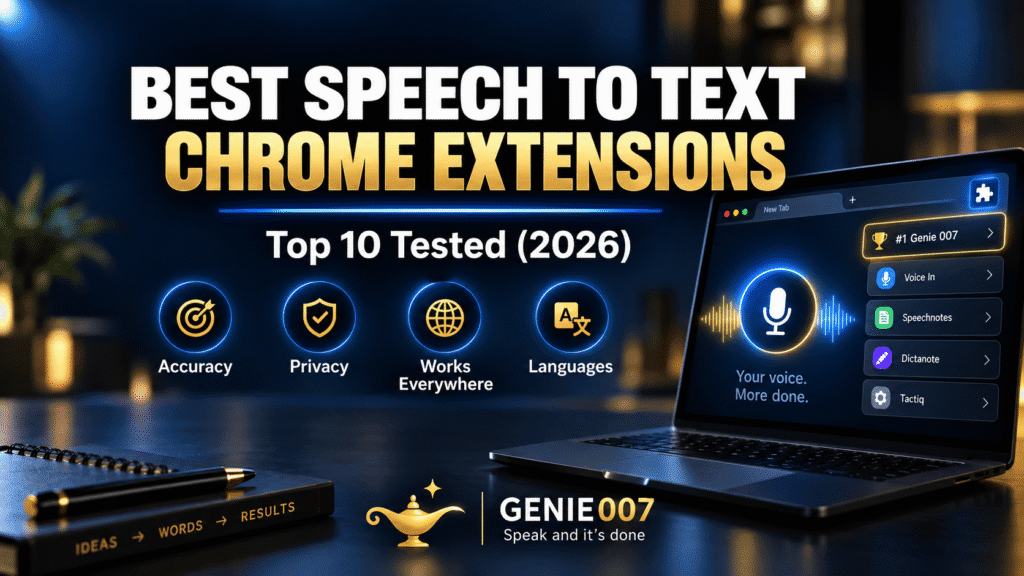
The best speech to text chrome extension turns spoken words into accurate text inside Gmail, Google Docs, Slack and any other site, without you touching the keyboard. Genie 007 encrypts your audio in transit, processes it in real time and stores no recordings and no transcripts.
The Chrome Web Store lists hundreds of tools that claim to do this, and most of them lean on the same free engine under the bonnet: the browser’s built-in Web Speech API. That API works well in Chrome, Edge and Safari, but Firefox still keeps it behind an experimental flag, which is one reason results vary so much between browsers.
Looking for a specific app or workflow? Every Genie 007 walkthrough is listed on one page in our voice typing guides library.
Before installing another extension, rule out the simpler causes with our Google Docs voice typing not working checklist.
This guide sorts the real options into three categories — basic transcription extensions, AI powered voice tools, and built-in tools like Google’s own voice typing — so you can pick the right speech to text chrome extension for how you actually work, not just the one with the flashiest listing.
What Makes a Good Speech to Text Chrome Extension
Before comparing tools, it helps to know what separates a genuinely useful speech to text chrome extension from one that looks fine in the Chrome Web Store screenshots but falls apart the first time you use it on a real website.
Recognition engine. Extensions typically use one of three approaches: the browser’s free Web Speech API (cloud-based, decent for clear English, patchy for accents), a paid third-party cloud API, or a local AI model that processes audio on your own device. The engine choice drives accuracy, speed and privacy all at once.
Website compatibility. Some tools only work in plain text boxes and break the moment you open Notion, Slack or a CRM with a custom text editor. The extensions that hold up everywhere tend to inject text the way a keyboard would, rather than trying to manipulate each page’s underlying code.
Punctuation and formatting. Having to say “comma” and “full stop” out loud defeats the point of dictating in the first place. A modern chrome speech to text tool should add punctuation automatically from context, not force you to narrate it.
Privacy. Dictation often includes client names, financial figures or medical notes read aloud.
Browser support. Coverage isn’t universal. Chrome (from version 25), Edge (from version 87) and Safari on macOS and iOS all support the underlying Web Speech API natively, while Firefox still keeps speech recognition behind an experimental flag rather than shipping it by default. That’s part of why “it works in one browser but not another” is such a common complaint in extension reviews.
Categories of Chrome Speech to Text Tools
Rather than reviewing individual listings that reshuffle every few months, it’s more useful to understand the three categories a speech to text chrome extension will fall into. Once you know the category, you know roughly what to expect. Search for a voice to text google chrome extension and nearly every Chrome Web Store result will be one of these three, wearing different branding.
Basic Transcription Extensions
These are the oldest and most common type: a browser add-on that turns on your microphone, runs the Web Speech API, and types what it hears into whichever field is focused. If you’ve searched for a voice in chrome extension — something simple that just gets your words into a text box — this is the category you’re thinking of.
They’re usually free or cheap, work on popular sites like Gmail and Google Docs, and often cap free daily usage at 30–60 minutes. Because they rely on Google’s cloud speech engine, accuracy is solid for clear, standard-accent English and drops noticeably with background noise, technical vocabulary or a strong regional accent.
AI Powered Speech to Text Extensions
A newer generation of tools runs a proper AI language model instead of the bare Web Speech API. The model understands context, so it handles homophones, industry jargon and accented speech far better, and it adds punctuation without being told to. This is where Genie 007 sits, and it’s the category worth choosing if accuracy and privacy actually matter to your daily work.
Built-In Browser and Google Tools
You don’t always need an extension. Google Docs has its own voice typing built directly into the app, and Chrome, Windows and macOS all ship some form of native dictation. A google docs voice typing extension isn’t strictly needed for Docs itself — the feature lives under the Tools menu — but it is needed the moment you want the same dictation in Gmail, Slack, your CRM or anywhere outside that one document.
Genie 007: Best Speech to Text Chrome Extension for 2026
It supports 140+ languages with automatic detection, adds punctuation and formatting on the fly, and works inside Gmail, Slack, Notion, LinkedIn, your CRM and effectively any text field on the web, not a hand-picked list of “supported” sites. Because it operates at the browser and system level rather than trying to parse each website’s code, it doesn’t break every time a site redesigns its comment box.
Genie 007 also goes further than plain transcription. Straightforward speech to text is genuinely useful for short dictation, but it hits a ceiling fast: read your output back and it’s still just what you said, filler words, false starts and all. Genie Mode, Genie 007’s second mode, works from your intent instead. Say “draft a two-line follow-up to Sarah about the Thursday deadline” and it writes the follow-up — no dictating every word, and no cleanup pass afterwards.
Social proof from actual users backs this up: an operations director cut a two-hour email backlog down to twenty minutes, an agency director manages social copy for six client brands and reclaims roughly a day a week, and a legal consultant specifically cites the on-device processing as the reason client-sensitive dictation finally felt safe to do at a laptop in a shared office.
Comparison Table: Chrome Speech to Text Options at a Glance
| Category | Where audio is processed | Automatic punctuation | Website coverage | Typical price |
|---|---|---|---|---|
| Basic transcription extensions | Cloud (Web Speech API) | Limited on free tiers | Popular sites only | Free with daily limit, or £6–£8/mo |
| AI powered extensions (Genie 007) | Real-time, nothing stored | Automatic | Every text field | Free to try; paid plans from £5/mo |
| Built-in tools (Google Docs voice typing) | Cloud | Manual voice commands | Google Docs only, desktop Chrome | Free |
How to Transcribe Audio to Text with a Chrome Extension
It’s worth separating two different jobs that get lumped together under the same search terms. A live dictation extension listens to your microphone as you speak and types in real time. A transcribe audio to text chrome extension, by contrast, is built to process a recording — a meeting capture, a voice memo, a podcast clip — after the fact, and convert that existing audio into a written document.
If what you actually need is the second job — a recorded meeting, a voice memo, or a podcast clip — the workflow is slightly different from live dictation but starts the same way.
- Install the extension from the Chrome Web Store and pin it to your toolbar so it’s one click away.
- Grant microphone access when Chrome prompts you. This is a standard browser permission, not something specific to any one extension, and Chrome now lets you approve it for “this time only” rather than permanently if you’d rather keep control tight.
- Click into a text field — an email, a document, a notes app — or open the extension’s own panel if it offers a dedicated transcription window.
- Speak naturally at a normal pace. A good chrome speech to text tool doesn’t need you to slow down or over-enunciate.
- Review and send. Voice-typed text is indistinguishable from keyboard-typed text once it lands in the field, so proofread it exactly as you would anything you typed yourself.
Most people are comfortable dictating within their first 15–30 minutes. The awkwardness of talking to your laptop fades quickly once you see how much faster an email or a set of notes gets written.
Chrome Dictation Extension vs Google Docs Voice Typing Extension: Which Should You Use?
Google Docs’ built-in voice typing is genuinely good for what it is: open Tools, choose Voice typing (or press Ctrl+Shift+S), grant microphone access, and start talking directly into a document. It supports well over 100 languages and needs no installation at all.
The catch is scope. It only works inside Google Docs, only in Chrome on desktop, and it still expects you to say “period” and “comma” out loud for every mark of punctuation. The moment you switch to Gmail, a CRM, Slack or a form on any other website, that built-in tool has nothing to offer — you need a proper chrome dictation extension for that, which is exactly the gap Genie 007 fills.
If most of your writing happens in one Google Doc, the built-in option is a reasonable free starting point — our full Google Docs voice typing guide covers setup and troubleshooting in detail. If your day spans multiple apps and sites, a browser-wide extension saves you from learning two different tools for the same task.
Common Problems with Chrome Voice to Text Tools
The same handful of complaints show up in reviews of almost every chrome voice to text tool, and knowing them in advance helps you pick one that avoids them.
It stops working after a Chrome update. Extensions that lean on specific browser internals can break when Chrome changes how those internals behave. Tools that operate at the system input level, rather than reading and rewriting page code, are far less exposed to this.
Dictation fails on certain sites. Notion, Slack and many CRMs use custom text editors that don’t behave like a plain HTML text box. An extension built only for simple inputs will type nothing, or type in the wrong place, on pages like these.
Noticeable lag between speaking and seeing text. Cloud processing means your voice travels to a server and back before text appears — typically half a second to two seconds. On-device processing removes that round trip entirely.
Accuracy drops with accents. Basic speech recognition is trained heavily on standard American and British pronunciation. Non-native speakers and strong regional accents see accuracy fall noticeably with simpler tools, while AI models that understand context and meaning hold up far better.
Permission confusion. Chrome now offers an “Allow this time” option alongside the standard permanent grant for microphone access, so you can test a new chrome speech to text tool for a single session before deciding whether it deserves standing access to your microphone. If a tool ever asks for more than microphone access — full page content, browsing history, or similar — that’s worth questioning before you install it.
How to Set Up Dictation for Chrome in Under 5 Minutes
Getting dictation for chrome working properly takes less time than reading this section. Here’s the fastest route:
- Install Genie 007 from the Chrome Web Store and pin the icon.
- Allow microphone access the first time you activate it — Chrome’s own permission prompt, revocable any time from chrome://settings/content/microphone.
- Click into any text field on any website and press the shortcut or icon to start speaking.
- Speak in whichever of the 140+ supported languages you’re most comfortable in — the extension detects it automatically.
Everything runs free with no credit card required, and full pricing for the paid tiers (needed only once you outgrow the free allowance) is listed on the Genie 007 pricing page. The same account also covers Windows, Mac and mobile, including the Android voice typing app, if you want dictation to follow you off the browser entirely.
The setup is the same whether you’re clearing an inbox, drafting a LinkedIn post, or leaving comments in a shared document — click in, speak, and let dictation for chrome handle the typing while you focus on what you’re actually trying to say.
Who Actually Needs a Chrome Speech to Text Extension
Developers dictate prompts into Copilot or Cursor rather than typing out long context blocks by hand. Writers compose long-form drafts at speaking pace, which typically runs three to four times faster than typing. Business professionals clear an email backlog on a commute or between meetings, and multilingual teams switch language mid-sentence without opening a settings menu.
The common thread across all of these is the same limitation: plain transcription only gets you words on a page. It still requires you to compose the sentence in your head before you say it, catch your own filler words, and clean up the output afterwards. That’s fine for short messages, but it stops saving real time once the writing gets longer or more repetitive — which is exactly where Genie Mode’s intent-based drafting, described above, takes over.
Which Chrome Dictation Extension Works on Every Site?
No chrome dictation extension works on literally every page, but you can get close. These quick steps get one typing wherever Chrome allows it.
- Install the extension from the Chrome Web Store with Add to Chrome, then Add extension. This is not possible in Incognito or guest mode (Chrome Web Store Help).
- Allow the microphone when Chrome asks. To change it later, open Settings, Privacy and security, Site settings, then Microphone (Chrome Help).
- On the extension’s Details page, set site access to On all sites.
- Click into a text box and start the extension with its own button or shortcut.
- Test it in Gmail, Google Docs and a chat app. Reload any page that ignores it.
Where each option types is the real difference. Google Docs voice typing works only in Docs, plus speaker notes in Slides. Windows voice typing (Windows logo key + H) types into a text box you have clicked in (Microsoft), and Mac Dictation lets you speak text anywhere you can type it. An extension types only on sites you have given it access to.
Genie 007 is built around think-to-text: you say what you want done and it understands the context. It runs on Windows, Mac and mobile, and as a browser extension.
What is the best transcription extension for Chrome?
It depends on the job. For live dictation, pick a chrome dictation extension with site access on all sites and automatic punctuation. For turning an existing recording into text, you need a transcription tool built for files, as most dictation extensions only listen live.
Is there a dictation extension for Gmail?
Yes. Any extension with site access to Gmail can type into the compose window. Windows voice typing and Mac Dictation also work in a Gmail text box.
Which AI dictation Chrome extension is best?
Look for one that adds punctuation for you, understands context and works on all sites. Genie 007 is one example, and it writes what you ask for rather than a word-for-word transcript.
Does a Chrome voice to text extension work on every website?
Not always. It works only where you have given it site access, so check the extension’s Site access setting if it stays silent on a page.
Does Chrome have built-in speech to text?
Chrome has no dictation switch of its own for every page. Use Google Docs voice typing inside Docs, or your computer’s dictation (Windows logo key + H, or Mac Dictation) in other text boxes.
Does Chrome Have Built-In Voice to Text? Talk to Type vs a Speech to Text Chrome Extension
Yes. Desktop Chrome now has Talk to Type, a feature of the browser itself that is powered by Gemini, so you can dictate into a web text box without installing anything. Here is what Google Chrome Help says you need to know before you turn on Chrome’s Talk to Type.
- It is desktop only: macOS, Windows, Linux and ChromeOS.
- You must be signed in to Chrome, outside an Incognito window, with microphone access allowed.
- The first time, click in the text box, right-click, choose Talk to Type and opt in.
- After that, press Ctrl + Space (Windows, ChromeOS) or Option + Space (Mac).
- Switching tabs stops listening, and text changes are not yet available in Google Workspace apps. To help rewrite your text, Chrome collects your voice recording, typed words and page details.
Where Talk to Type stops, a speech to text Chrome extension or a desktop app can take over: Incognito windows, a Chrome you are not signed in to, and the apps you write in outside the browser. Genie 007 works in desktop apps such as Word, Outlook and Slack as well as the browser, on Windows, Mac and mobile, in 140+ languages. It also understands the context and writes the finished message, not only the words you said. Press Q (or any key or combination you choose) to start.
Frequently Asked Questions
Is there a free chrome dictation extension worth using?
Yes. Genie 007 is free to try with no credit card required, and basic transcription extensions are usually free with a daily limit.
Does Google have its own google docs voice typing extension?
You don’t need a separate google docs voice typing extension because voice typing is built into Google Docs itself, under the Tools menu. It only works inside Docs on desktop Chrome, so a browser extension is still needed for Gmail, Slack or any other site.
Why does my chrome speech to text extension not work on some websites?
Sites like Notion, Slack and many CRMs use custom text editors instead of plain HTML fields, which confuses extensions built only for simple inputs. Tools that inject text at the system level, like Genie 007, handle these custom editors far more reliably.
Can a chrome extension transcribe audio to text automatically, without me talking live?
Most dictation extensions listen to your live microphone rather than existing audio files. To transcribe audio to text from a recording, you generally need a dedicated transcription tool rather than a live dictation extension, since the two solve different problems.
Do chrome speech to text extensions send my voice to the cloud?
Most do, because they rely on the browser’s free Web Speech API or a third-party cloud service.
For background on the technology behind all of this, the MDN Web Speech API documentation covers what browsers support natively, and Google’s own Voice typing help page documents exactly what its built-in tool can and can’t do.
Slides has a built-in option that needs no extension: our guide to voice typing Google Slides shows how to dictate speaker notes and what to do for text on the slides.
Designers who work in the browser often ask whether they can dictate into design tools too, and our guide to voice typing in Canva explains what works.
Many of these extensions rely on a browser feature Firefox keeps switched off, so Firefox users should read our guide to voice typing in Firefox before installing anything.
Try Genie 007 Free
Download Genie 007 free — available for Windows, Mac, mobile and as a browser extension. No credit card required.
Written by Bill Kiani, founder of Genie 007.
Bloggers who publish in WordPress can take the same extension straight into the block editor — see our guide to WordPress voice typing for the Gutenberg-specific setup.