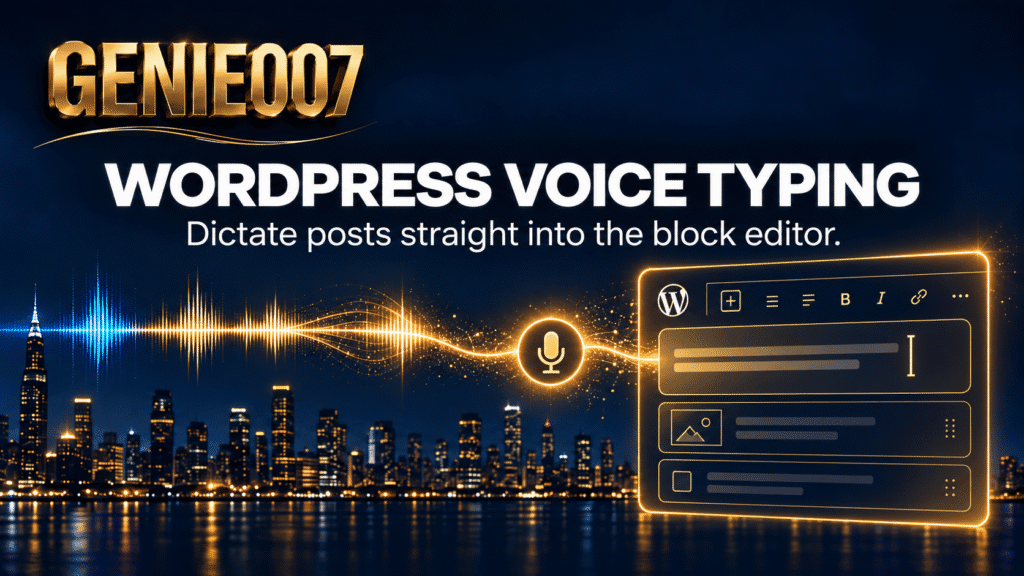
WordPress voice typing means dictating a blog post straight into the block editor instead of typing every word. WordPress itself has no built-in dictation feature, but OS-level voice typing on Windows and Mac, plus browser extensions such as Genie 007, work directly inside the Gutenberg editor — turning spoken sentences into clean, formatted paragraphs as you draft.
That gap surprises a lot of bloggers. You’d expect the world’s biggest publishing platform to have a microphone button somewhere near the “Add block” icon. It doesn’t, and it likely never will — WordPress core stays deliberately lean and leaves input methods to the browser and the operating system underneath it. The good news is that this actually works in your favour once you know where to look.
Why WordPress Has No Native Dictation Button
The block editor (Gutenberg) is just a web page. Every paragraph block, heading block, and the post title field is a standard editable text area rendered in your browser. WordPress doesn’t need to build its own speech recognition because anything that can type into a browser field — a keyboard shortcut, an operating system feature, a browser extension — can type into a Gutenberg block too.
That’s actually a feature, not a limitation. It means you’re not locked into whatever transcription engine a plugin author decided to ship in 2019. You get to choose between free OS-level dictation and a dedicated voice typing tool, and switch between them without touching a single WordPress setting.
How to Turn On Voice Typing in wp-admin (Windows and Mac)
Both major operating systems ship dictation features that work the moment you click into a WordPress paragraph block, with no plugin installation required.
On Windows, click into any block in the editor and press Windows key + H. A small dictation toolbar appears, and Windows types what you say directly into that block. Microsoft’s own support documentation confirms the shortcut works in any text field system-wide, including inside a browser tab running wp-admin. If it does nothing, check Settings > Accessibility > Keyboard and confirm the dictation shortcut toggle is on.
On Mac, place your cursor in a block and press the Fn key twice (or tap the dedicated microphone key on 2021-and-later MacBook Pro and Air keyboards). Apple’s dictation drops text into whichever field is focused, Gutenberg block included, and needs no extra setup beyond enabling it once in Keyboard settings.
Both options are free and require zero configuration inside WordPress. The catch is that neither was designed with long-form writing in mind. Native dictation transcribes literally, often needs spoken punctuation commands like “comma” or “new paragraph,” and doesn’t learn your personal formatting habits or writing style over time — every session starts from zero.
Using a Browser Extension for WordPress Voice Typing
A browser extension sits a layer above native OS dictation and works the same way across every site you write on, WordPress included. The workflow is simple: open a post in the block editor, click into the paragraph block you want to fill, activate the extension’s microphone, and speak the section. The extension outputs a formatted paragraph in that block, and you move to the next one.
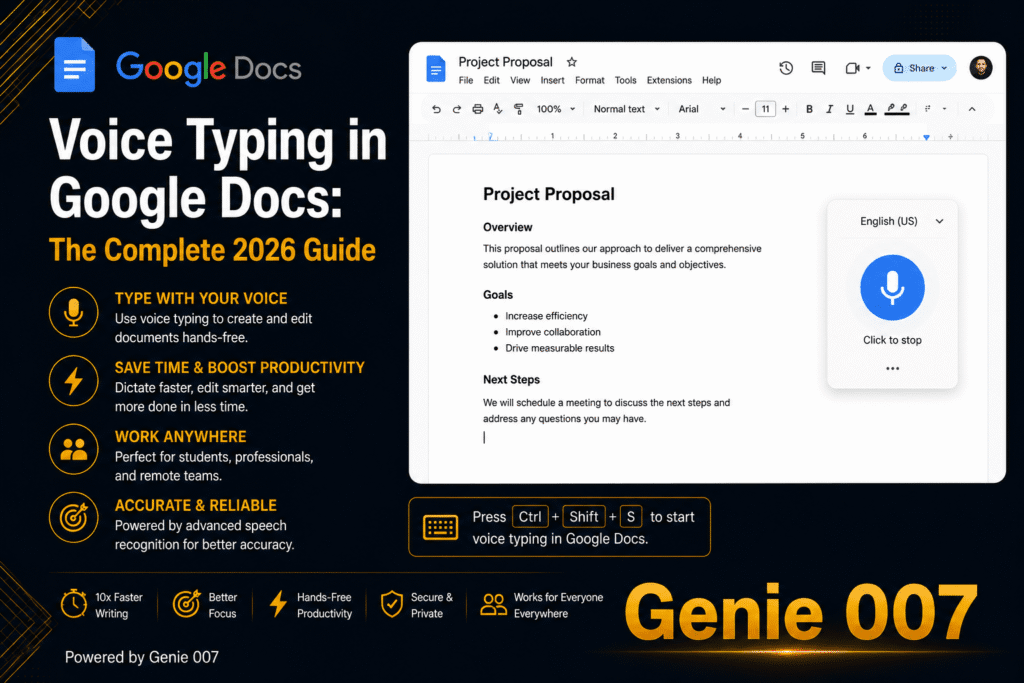
Genie 007 runs this way inside the WordPress block editor. Click a block, describe the section, and it delivers clean paragraphs with punctuation and formatting handled automatically — no “comma, period” voice commands needed. It also picks up your personal writing style over time, so a paragraph you dictate in month three reads more like you than one dictated on day one. Because it’s built as a browser extension alongside dedicated Windows, Mac, and mobile apps, the same dictation habit travels with you into Google Docs, email, and social media without relearning a new tool for each surface. For bloggers comparing extension options more broadly, our guide to the best speech-to-text Chrome extensions breaks down what to look for beyond WordPress.
| Feature | Native OS voice typing (Win+H / Fn twice) | Genie 007 browser extension |
|---|---|---|
| Setup inside WordPress | None needed | One-time extension install |
| Works across every app, not just the browser | Yes (OS-wide) | Yes (browser + Windows/Mac/mobile apps) |
| Punctuation and formatting | Often needs spoken commands | Automatic |
| Learns your writing style | No | Yes |
| Cost | Free | Free trial, paid plans from £5/mo |
The Blogger’s Voice-to-Draft Workflow
The bloggers who get real speed gains from voice typing don’t dictate a post word-for-word from a blank screen — that produces rambling first drafts that take longer to fix than they saved. Instead, they outline first: five or six bullet points covering what each section needs to say. Then they dictate section by section directly into the block editor, one H2 at a time, and do a single focused edit pass at the end rather than stopping to fix every sentence as they go.
The maths behind why this works is straightforward. A 2018 study out of Aalto University, based on 136 million keystrokes from more than 168,000 volunteers, put average typing speed at 52 words per minute. Conversational speech runs closer to 130–150 words per minute — roughly two-and-a-half to three times faster. Even accounting for a genuine editing pass afterward, drafting by voice and then tightening the copy typically beats typing the same post from scratch.
It also helps that most bloggers are already working in the exact editor this applies to: WordPress powers well over 40% of all websites, according to CMS market-share tracking, so the block editor is the default drafting surface for a huge share of the writing web already does. If you’re building the voice-to-draft habit for the first time, it’s often easier to test it somewhere with less formatting to worry about — our piece on voice typing in Google Docs covers the same muscle memory in a simpler surface before you bring it into WordPress. And if long-form writing is your main use case rather than the occasional blog post, it’s worth comparing dedicated options in our roundup of the best dictation software for writers and authors.
Where Plain Dictation Hits a Ceiling
Here’s the honest limitation, whether you’re using Win+H, Mac dictation, or a browser extension that only transcribes: all of them still give you back exactly what you said, filler words and false starts included. If you ramble through a paragraph, dictation faithfully writes down the ramble. It can’t restructure a messy thought into a clean sentence, because transcription was never designed to think — only to listen and type.
That’s the ceiling every “voice typing” tool built purely on speech-to-text eventually hits. The next step up isn’t a better microphone or a bigger vocabulary model — it’s a tool that understands what you meant, not just what you said. Genie 007 calls this Genie Mode: instead of transcribing every word, you describe the point a paragraph needs to make, and it drafts finished text that matches your intent and your voice. Our explainer on what think-to-text actually means goes deeper into how that differs from ordinary dictation, and it’s the difference that turns a voice-to-draft workflow into something closer to a full first draft, section by section, straight in the block editor.
Does WordPress have built-in voice typing?
No. WordPress core has no dictation feature of its own. Because the block editor runs as editable text fields in your browser, OS-level dictation (Windows key + H, Mac’s Fn key twice) and browser extensions both work inside it without any WordPress plugin required.
How do I dictate directly into the WordPress block editor on Windows?
Open your post in wp-admin, click into any paragraph block, and press Windows key + H to open the dictation toolbar. Speak naturally and the text appears in that block. If nothing happens, enable the shortcut under Settings > Accessibility > Keyboard.
Can I use Mac dictation inside the WordPress block editor?
Yes. Click into a block in the editor, then press the Fn key twice (or the dedicated microphone key on newer MacBook keyboards) to start dictating. Apple’s dictation types directly into the focused Gutenberg block, the same as it would in Word or Notes.
Is voice typing accurate enough for publishing blog posts?
Modern voice typing is accurate enough for a solid first draft, but plain dictation still transcribes filler words and rambling sentences literally. Most bloggers dictate section by section, then run one focused editing pass before publishing rather than fixing every sentence live.
Is a WordPress voice typing plugin better than a browser extension?
A browser extension usually wins because it works everywhere you write, not just inside wp-admin, and doesn’t add another plugin to maintain on your WordPress install. Extensions like Genie 007 dictate directly into the block editor with the same setup used on Gmail, Docs, or social media.
Try Genie 007 Free
If you’re already drafting posts in the WordPress block editor, the fastest upgrade isn’t a new plugin — it’s dictating those posts directly, then letting Genie Mode turn your spoken points into clean, publish-ready paragraphs as you go.
Add the Genie 007 browser extension free and start dictating straight into the block editor today. See plans on our pricing page — no credit card required to try it.
Written by Bill Kiani, founder of Genie 007.