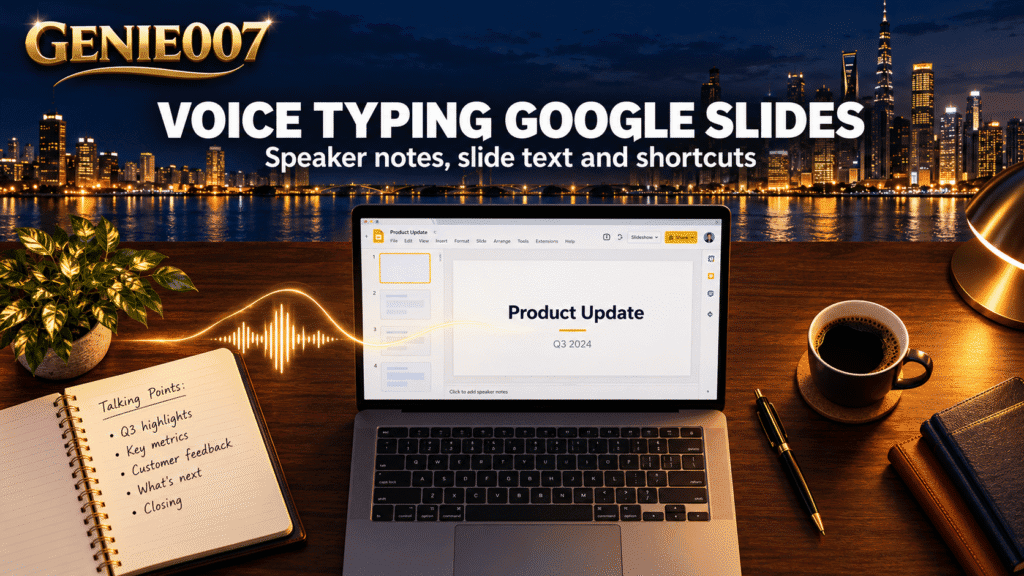
Voice typing Google Slides works in the speaker notes, and Google documents it nowhere else. Open your deck in Chrome, Edge or Safari, choose Tools, then Dictate speaker notes, and click the microphone box. The text boxes on your slides need a different route, which this guide covers step by step, along with captions and the limits.
Voice typing Google Slides: speaker notes only
Google’s help page for typing with your voice says you can use your voice to type and edit a document in Google Docs, and to work with speaker notes and captions in Google Slides. That is the full list. It describes no microphone option for the titles, text boxes or shapes on a slide itself.
So a search for voice typing Google Slides can mean three different things, and Google covers two of them. If you are writing a document rather than a deck, our guide to voice typing in Google Docs covers the fuller Docs version.
| What you want | Built into Slides? | How to start it |
|---|---|---|
| Dictated speaker notes | Yes | Tools > Dictate speaker notes |
| Live captions while you present | Yes | More options > Captions preferences > Toggle captions on the Present screen |
| Spoken text on the slide itself | Not documented by Google | Your computer’s own dictation, see below |
Google Slides speaker notes voice typing: step by step
This is the method Google documents for voice typing Google Slides notes, and it takes about ten seconds.
- Open your presentation in the latest Chrome, Edge or Safari on a computer.
- In the menu bar, click Tools > Dictate speaker notes. The speaker notes open and a microphone box appears.
- If your browser asks for microphone permission, allow it.
- Click the microphone, speak at a normal pace, then click it again to stop.
- Fix any mistakes with the keyboard, then move to the next slide.
Work one slide at a time: dictate the notes, stop the microphone, then move on. Google says your browser controls the speech-to-text service, so accuracy depends on your microphone and room. Its page lists many languages and regional accents.
Is there a voice typing Google Slides shortcut?
Google’s Slides shortcut list has a row for opening the speaker notes panel, Ctrl + Alt + Shift + S on Windows and ChromeOS or Command + Option + Shift + S on Mac, but it does not list a voice typing shortcut.
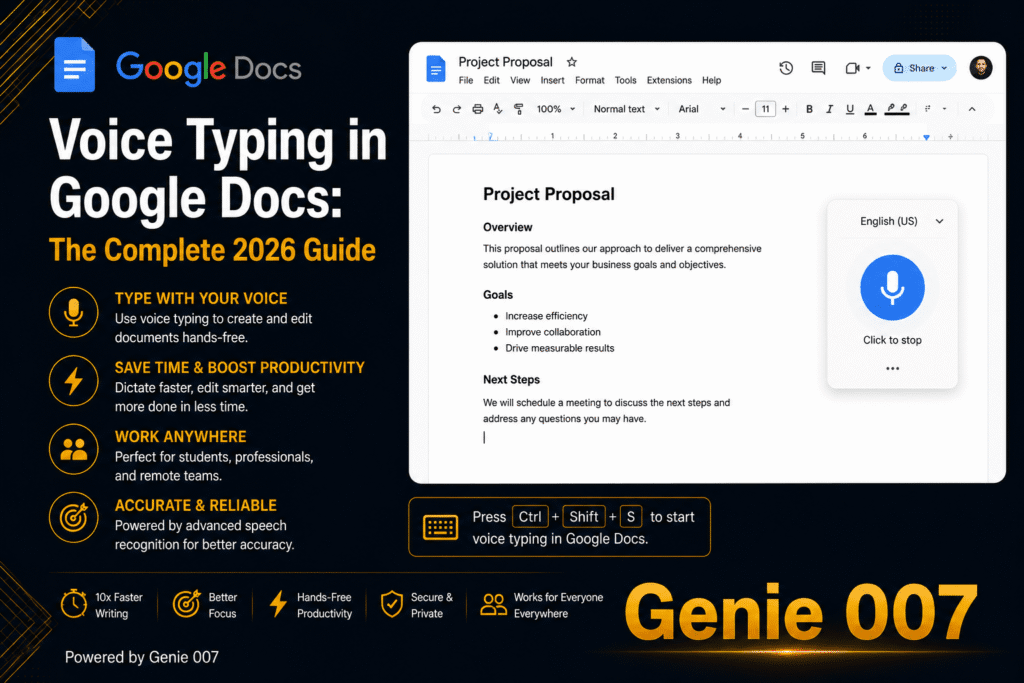
Google’s Docs shortcut list gives Ctrl + Shift + S (Windows) or Command + Shift + S (Mac) to start voice typing in Chrome, and an educator’s 2019 write-up says the same keys work in Slides speaker notes. Treat that as unofficial: if nothing happens, use the Tools menu. Our guide to the voice typing shortcut key covers every platform.
How to dictate in Google Slides onto the slide itself
Google’s voice typing stops at the notes, so slide text needs another route. The simplest is to dictate in the speaker notes, then copy the lines you want and paste them into a text box.
The second route is your device’s own dictation, which types wherever your cursor is. Click into a text box on the slide first, then start it:
| Device | Tool | How to start it |
|---|---|---|
| Windows 11 | Voice typing | Press Windows logo key + H, then wait for the ‘Listening…’ alert |
| Mac | Dictation | Press the Microphone key or your Dictation shortcut, or choose Edit > Start Dictation in the menu bar |
| Chromebook | Dictation | Turn it on under Settings > Accessibility > Keyboard and text input, then press Search + D |
| Android phone or tablet | Gboard voice typing | Tap the microphone icon at the top of the keyboard |
Microsoft says Windows voice typing needs an internet connection, and Apple says standard Dictation is switched off while Voice Control is on. None of these pages mentions Google Slides, so test a short phrase in a Slides text box before dictating a whole slide.
Captions in Slides are a different feature
Anyone searching for Google Slides speech to text may really want captions. They show your spoken words on screen while you present, and they write nothing into the deck. Turn them on from the Present screen, or press Ctrl + Shift + C on Windows and ChromeOS or Command + Shift + C on Mac.
Google’s captions page says captions are not stored, have no punctuation and may not be fully accurate. Captions help your audience follow along, but they are not a way of voice typing Google Slides content.
Limits of voice typing in Google Slides
These are the limits of voice typing Google Slides users should know, taken from Google’s help pages and a Workspace Updates post:
- Notes only: the documented feature covers speaker notes, not slide text boxes.
- No voice commands in notes: Google says voice commands aren’t available in Slides speaker notes, so you cannot say ‘bold’ or ‘select’. Voice commands are English only, and punctuation might not be available in every language.
- Browsers: the latest Chrome, Edge and Safari are supported. Firefox is not on Google’s list.
- Desktop only: Google says voice typing and automatic captions are available only on desktop.
- Admin control: your organisation’s administrator may have turned the feature off.
If the microphone box appears but nothing is typed, check browser permission, the input device and other apps using the microphone. Our guide to Google Docs voice typing not working walks through those fixes. Google’s voice typing page covers Docs and Slides only; for spreadsheets, see voice typing in Google Sheets.
A faster way for whole decks
Even when it works, voice typing Google Slides notes only writes down what you say. Building a deck is mostly composing: finding the point of each slide, cutting it to five words, writing notes you can say aloud. Google’s Gemini in Slides can draft slides from a prompt, but Google’s page on generating presentations describes a prompt in a side panel, never mentions voice input, needs an eligible Workspace or Google AI plan and is English only.
Genie 007 starts from the other end: you tell it what you want done, not word by word, just the order. Voice typing mode is fast dictation with automatic punctuation and grammar, so you never say ‘comma’. Genie Mode takes an instruction and delivers the finished text in your tone. It works in any website or app, so Slides is not a special case, and you can speak in one language and get text in another across 140+ languages.
You say: ‘Speaker notes for the budget slide. We finished four percent under budget, thank finance, keep it under a minute.’
Genie 007 understands the context and writes: ‘We closed the quarter four percent under budget. Thank you to the finance team for tracking it so closely. That is the headline, and I am happy to take questions.’
It is private by design, and nothing is stored. Learn how it works in what is think-to-text, or browse more in our voice typing guides.
Related guides: voice typing in Canva and speech to text in Firefox.
Frequently Asked Questions
Can you voice type in Google Slides?
Yes, but only in the speaker notes: choose Tools then Dictate speaker notes in Chrome, Edge or Safari on a computer, while text boxes on the slides themselves are not covered by Google’s voice typing, so use your computer’s own dictation or paste text across from the notes.
Why does voice typing only work in speaker notes?
Google’s help pages do not explain why, they simply list speaker notes and captions as the two places where voice features work in Slides, so dictation into slide text boxes has to come from your operating system or another tool, and you can paste dictated notes onto a slide afterwards.
What is the voice typing shortcut in Google Slides?
Google’s Slides shortcut list has no voice typing shortcut, but Google’s Docs list gives Ctrl + Shift + S on Windows and Command + Shift + S on Mac for Chrome, and educators report the same keys work in speaker notes, so try them there and use Tools then Dictate speaker notes if nothing happens.
Does voice typing in Google Slides work in Safari or Edge?
Yes, Google’s help lists the latest versions of Chrome, Edge and Safari as supported for voice typing and captions in Slides, while Firefox is not on that list, and because the Ctrl + Shift + S shortcut is described as available in Chrome browsers, Edge and Safari users should start from the Tools menu.
Are Google Slides captions the same as voice typing?
No, captions show your spoken words on screen while you present and write nothing into the deck, whereas voice typing types into your speaker notes, and Google says captions are not stored, have no punctuation and can be toggled during a presentation with Ctrl + Shift + C or Command + Shift + C.
Can I use voice typing in the Google Slides app on my phone?
Google says voice typing and automatic captions in Slides are available only on desktop, so on a phone or tablet use the microphone on your keyboard instead, such as Gboard voice typing on Android, which types into the text fields you tap.
Try Genie 007 Free
Voice typing Google Slides gets your notes written. Genie 007 does your work, not your words: say what each slide needs and get the finished text back.
Free to try, no card needed. Add the browser extension, use it on mobile, or request access to the desktop apps for Windows and Mac.
Written by Bill Kiani, founder of Genie 007.