Voice typing Google Sheets isn’t a feature Google actually built — there’s no Tools > Voice typing menu the way there is in Google Docs. The honest answer: you dictate into Sheets today using your computer’s built-in system dictation, your phone’s keyboard microphone, or a dedicated browser extension that types straight into whichever cell is selected.
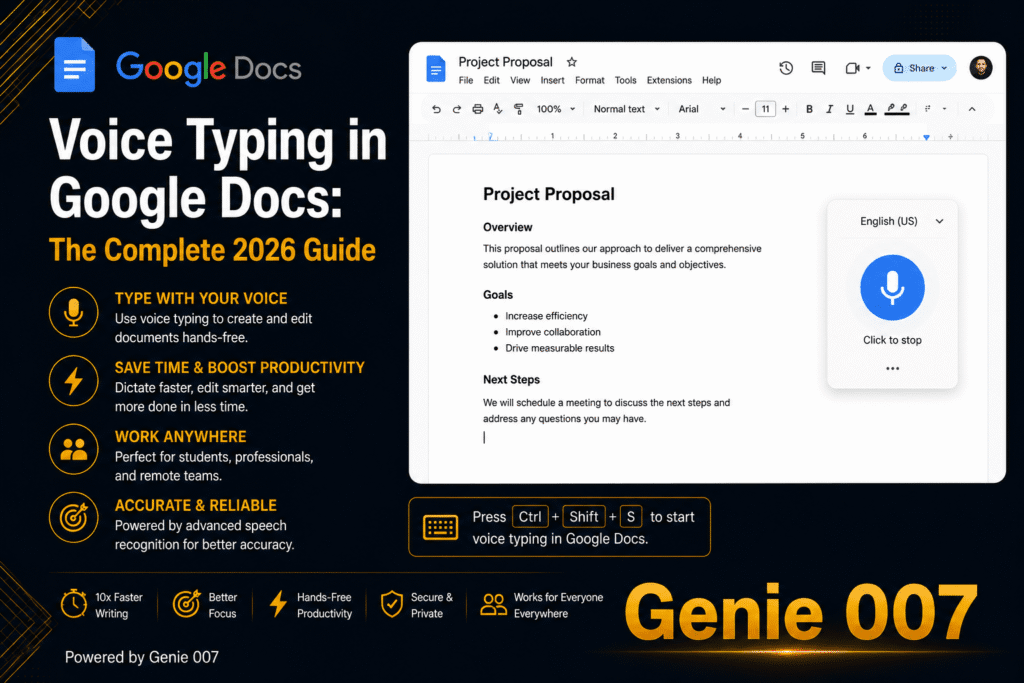
That’s a genuine gap, not a settings issue you’ve missed. Docs, Gmail, and Keep all have voice input built directly into the interface, but Sheets — arguably the app where dictating rows of data, notes, and comments would save the most time — has never shipped one. Our full breakdown of the app that does have it — voice typing in Google Docs — covers the Tools menu feature Sheets was never given.
Why Doesn’t Google Sheets Have Voice Typing?
Google’s Voice typing in Docs was designed around continuous prose: you speak a sentence, it lands as a sentence, and the cursor keeps moving forward. Sheets doesn’t work that way — it’s a grid of thousands of individual cells, and dictating “data” means filling one short cell, jumping to the next, then jumping again, a navigation pattern Docs’ speech engine was never built to handle.
That mismatch is the most likely reason the feature has never arrived, even as Google keeps expanding voice input elsewhere — 2026’s push to bring voice prompting into Docs, Keep, and Gmail didn’t touch Sheets at all. For a tool finance teams, ops managers, and analysts use daily, that’s a conspicuous gap.
How to Dictate Into Google Sheets on Windows and Mac
Without a native option, the most reliable workaround on desktop is your operating system’s own dictation, since it types into whatever text field currently has focus — including a selected Sheets cell inside Chrome, Edge, or Safari.
Windows: Win+H
Click the cell you want to fill, press Windows key + H to open the dictation toolbar, and start speaking — your words appear directly in that cell. Say “press tab” or “press enter” to move to the next cell before dictating again, and “stop dictating” to close the toolbar.
Mac: Built-In Dictation
On a Mac, click into the cell, then trigger system dictation — either through Edit > Start Dictation in your browser’s menu bar or the keyboard shortcut set under System Settings > Keyboard. Speak your entry, then click or tab away to confirm it before moving to the next cell.
Both routes work, but they weren’t built for spreadsheet navigation, so expect to click between cells manually more often than the voice commands alone can manage.
Voice Typing Google Sheets on Mobile (Android and iPhone)
On the Google Sheets mobile app, dictation comes from your phone’s keyboard rather than from Sheets itself. Tap the cell you want to fill, tap the microphone icon on Gboard (Android) or the iOS keyboard, speak the entry, then tap the blue checkmark to confirm it into that cell.
This is genuinely the smoothest of the built-in workarounds — phone keyboards are made for exactly this pattern. It’s still cell-by-cell, though, and neither keyboard knows anything about your spreadsheet’s structure, so numbers and formulas still need a quick check before you move to the next row.
The Google Docs Workaround for Bulk Data Entry
For longer lists, a lot of people skip Sheets entirely for the dictation step. Open a Google Doc, dictate your list of items, names, or figures using Docs’ native Voice typing (Tools > Voice typing), separating each entry with “new line,” then copy the finished list and paste it into Sheets. Google splits pasted line breaks into separate rows automatically, which turns one continuous dictation session into a properly formatted column.
It’s a genuine time-saver for longer lists, but it’s still an extra app and an extra copy-paste step every time — not something you’d want to repeat for comments and notes scattered through a working sheet.
The Limits of These Built-In Workarounds
Every option above gets words into a cell, but none were designed for spreadsheet work, and the cracks show quickly. System dictation and Gboard both require you to speak punctuation and navigation commands out loud — “comma,” “press tab,” “new line” — which breaks your train of thought mid-sentence. None of them understand what you’re building; they transcribe exactly what you say, with no sense of whether you’re entering a formula, a comment, or a note.
Comments and notes are the weakest spot of all. There’s no dedicated way to dictate into a Sheets comment thread — you’re stuck reusing the same general-purpose tool and hoping it behaves the same way in a comment box as it does in a cell, which it often doesn’t. And every workaround here is single-purpose: switch to Gmail to draft the email your data feeds into, and you’re setting up dictation again from scratch.
Voice Typing Google Sheets With Genie 007
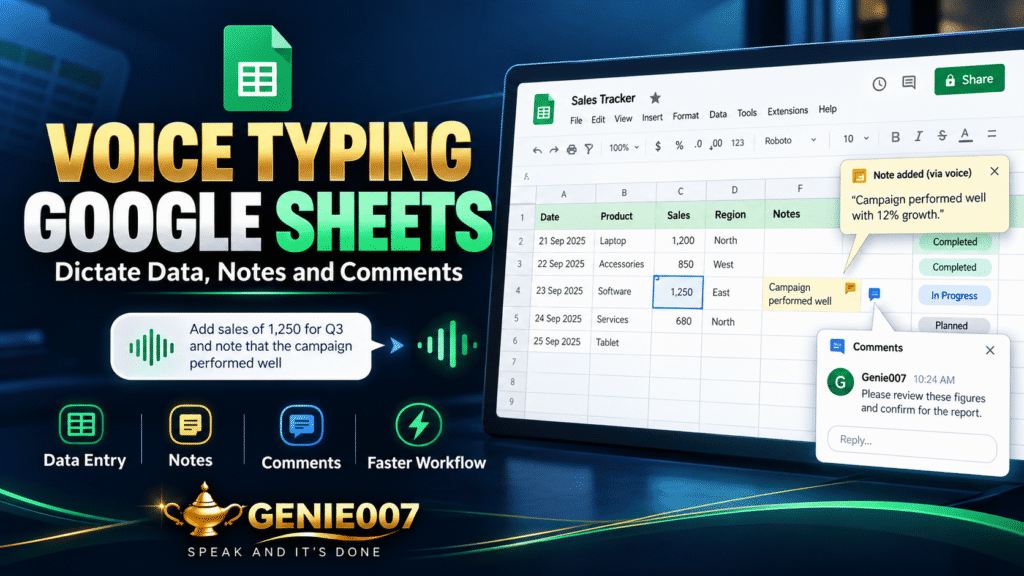
This is the gap Genie 007 was built to close. As a browser extension, it adds a microphone directly to Google Sheets — cells, comment threads, and cell notes alike — so you’re not borrowing a tool built for something else. Click into a cell, dictate your entry naturally, and Genie 007 punctuates and formats it in your own style without a single spoken command.
The same extension handles what built-in dictation can’t. Leaving a note explaining an assumption behind a formula, or replying inside a comment thread, works exactly like filling a cell — no separate app, no copy-paste from Docs. Genie 007 encrypts your audio in transit, processes it in real time and stores no recordings and no transcripts, so your figures and client data are never kept.
Genie Mode goes a step further than plain dictation. Rather than reading out a note word for word, describe what you want — “explain to the team why this column uses last quarter’s tax rate” — and Genie 007 drafts the comment for you, ready to edit or send. That’s the idea behind think-to-text: you share the intent, and the tool produces the finished text. Live translation carries into Sheets too — a colleague in Madrid can leave a note in Spanish and your English-speaking teammate reads it in English.
If Excel is more your daily spreadsheet than Sheets, Microsoft ships its own built-in Dictate button — see our guide on how to dictate in Excel for that setup. For dictation extensions beyond spreadsheets, our roundup of the best speech-to-text Chrome extension options is worth a look too.
Built-In Workarounds vs Genie 007
| Windows/Mac/Gboard Dictation | Genie 007 | |
|---|---|---|
| Works directly in Sheets cells | Yes, with manual navigation | Yes, one click per cell |
| Dictate comments and notes | Inconsistent | Yes, built for it |
| Punctuation | Spoken commands required | Automatic, in your own style |
| Executes intent (Genie Mode) | No | Yes |
| Languages | One at a time, OS-dependent | 140+ with live translation |
| Data privacy | Varies by OS/keyboard | Encrypted in transit, nothing stored |
A quick, one-off cell entry doesn’t need a new tool — Win+H or Gboard handles that fine. The moment you’re dictating regularly across cells, comments, and notes, that’s where the built-in options run out of road.
The speed case is worth noting too: a widely cited Stanford study on speech recognition found dictation ran roughly three times faster than typing, with a 20% lower error rate. That gap holds up in a spreadsheet as much as in a message — filling twenty rows of notes by voice takes a fraction of the time typing does.
Voice Typing Google Sheets FAQ
Does Google Sheets have voice typing?
No. Google Sheets has no built-in voice typing menu the way Google Docs does. To dictate into Sheets you need your operating system’s dictation tool (Windows Win+H, Mac’s built-in dictation), your phone keyboard’s microphone, or a browser extension such as Genie 007 that types directly into the selected cell.
Why doesn’t Google Sheets have voice typing like Google Docs?
Sheets is built around individual cells rather than continuous paragraphs, so Google’s Tools > Voice typing feature — designed for flowing text — was never adapted for cell-by-cell grid navigation. Despite voice features expanding across Docs, Gmail and Keep, Sheets has gone without native dictation for years.
How do I use Windows key + H to dictate in Google Sheets?
Click the cell you want to fill, press Windows key + H to open the dictation toolbar, then speak. Say ‘press tab’ or ‘press enter’ to move to the next cell before dictating again — the shortcut works in any browser tab, Sheets included.
Can I dictate voice notes into Google Sheets comments?
Not with any Google-built tool — comments and notes in Sheets have no dictation option of their own. Genie 007’s browser extension adds a microphone to any text field including comment boxes, so you can dictate a note or explanation without switching to another app.
Is there a speech to text option in Google Sheets?
Not built in. Google puts Voice typing in Docs and in Slides speaker notes, but Sheets has no Tools > Voice typing menu. To speak into a cell you need either your operating system’s dictation (Win + H on Windows, the Dictation shortcut on a Mac) or a Chrome extension such as Genie 007 that types into whichever cell you have selected.
Does Google voice typing work in Excel too?
Google’s voice typing only exists inside Docs and Slides, so no. Recent Microsoft 365 versions of Excel have their own Dictate button on the Home tab, and Excel for the web accepts Windows voice typing (Win + H) in the selected cell. The same Chrome extension approach that works in Sheets works in Excel for the web.
Try Genie 007 Free
If you’re tired of clicking between cells for Win+H, or copy-pasting from Google Docs just to get a list into Sheets, Genie 007 puts a working microphone directly in your spreadsheet — cells, comments, and notes included.
Download Genie 007 free as a browser extension, or see Genie 007 pricing for plans across Windows, Mac, mobile, and browser. No credit card required.
Written by Bill Kiani, founder of Genie 007.