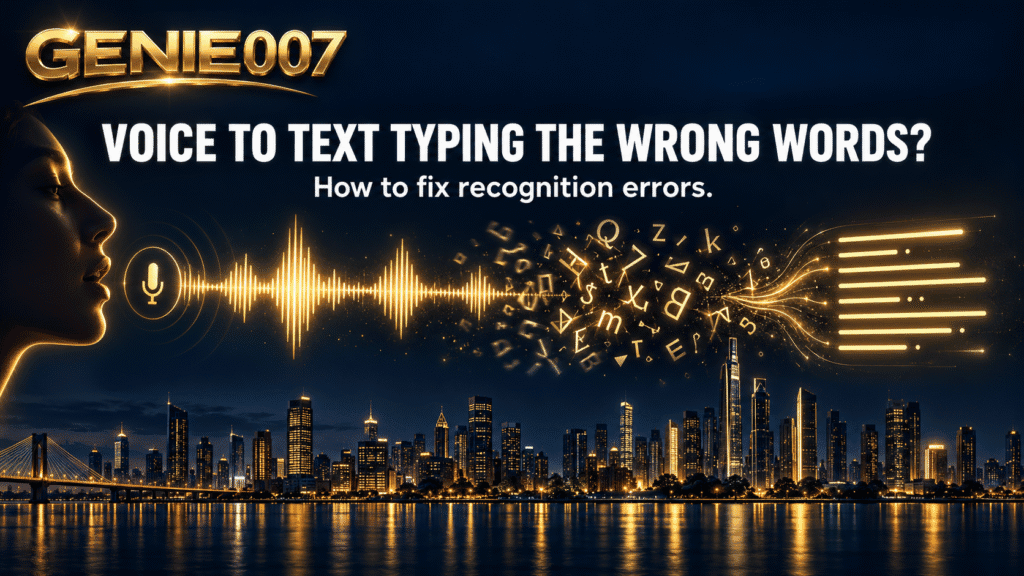
Voice to text wrong words usually comes down to five causes: a poor or distant microphone, background noise, speaking too fast or too flatly, the wrong language or dialect setting, and vocabulary the engine has never learned. Fix the microphone and language settings first, slow down slightly, and add unfamiliar names to your personal dictionary.
No speech engine — not Apple’s, not Google’s, not Microsoft’s — actually “hears” words the way a person does. It hears sound waves, guesses at phonemes, and predicts the most statistically likely sentence. Most of the time that guess is right. When it isn’t, the fix is almost always one of a handful of known causes, not a broken app. Below is exactly what causes it, and the settings that fix each one on Gboard, Apple devices, and Windows.
Why Voice to Text Gets Words Wrong
Independent benchmarking gives a sense of scale: Google, Microsoft and Amazon’s speech recognition systems post word error rates of roughly 15.82%, 16.51% and 18.42% respectively across mixed real-world audio, according to data compiled by Clari’s word error rate research. On clean, quiet, single-speaker audio, frontier cloud engines can drop that to 2–5% — but the same systems climb back to 10–18% the moment real-world noise, accents or unfamiliar vocabulary enter the picture.
The causes behind that gap repeat across every platform. Microphone distance and quality matter most — a laptop mic six inches too far away drops the consonants an engine needs to tell similar-sounding words apart. Background noise masks those same consonants and forces a guess. Speaking pace trips people up both ways: one word at a time removes the sentence context needed to pick the right homophone, while rushing blurs word boundaries. Wrong language or dialect settings — UK selected while speaking US English, or vice versa — cause visibly garbled output. And missing vocabulary — names, brand terms, jargon — isn’t in most dictionaries, so the closest common word gets substituted instead.
Homophones deserve a special mention because no setting fully fixes them. Words like “there/their/they’re” sound identical, and choosing correctly depends entirely on context — something AssemblyAI’s research on transcription errors flags as one of the hardest unsolved problems in speech recognition, since a computer has to infer meaning, not just sound.
The Quick Fixes That Work on Any Device
A handful of habits fix a surprising share of voice to text wrong words, regardless of app or operating system.
- Keep the microphone 15–20cm from your mouth and pointed at you, not across the room.
- Dictate in full phrases or sentences, not single words — context is what lets the engine pick the correct homophone.
- Speak at a normal, steady pace. Too fast blurs word boundaries; too slow and flat removes the natural rhythm the model relies on.
- Double-check the dictation language matches the regional variant you actually speak (US vs UK vs Australian English, for example).
- Move to a quieter room, or at minimum turn away from the loudest noise source.
- Add names, brand terms and jargon to your device’s personal dictionary or custom vocabulary list so they stop being guessed at.
If background noise is your recurring problem, our full guide to dictating accurately in noisy places covers hardware and settings in more depth, and our best microphone for dictation roundup is worth reading before assuming the software is at fault. If the issue is really an accent the engine wasn’t trained on, see our guide to voice typing with an accent.
Fix Voice to Text Wrong Words on Gboard (Android)
Android’s most common cause is a language mismatch between Gboard and the device itself. Open Gboard’s voice typing settings and confirm the primary language matches your device language exactly — if multilingual typing is on, turn it off unless you genuinely alternate languages mid-sentence, since it forces the engine to guess between two vocabularies at once.
Next, go to Settings, then Privacy, and under “Improve Gboard & voice typing” turn Personalize for you on — this lets Gboard learn from words you correct, compounding accuracy over time. If accuracy dropped suddenly rather than gradually, check the Google app’s microphone permission and clear the cache for Gboard and the Speech Recognition & Synthesis app, since a corrupted cache is a common cause. Our dedicated voice typing on Android guide covers the full troubleshooting path.
Fix Voice to Text Wrong Words in Apple Dictation
On iPhone and Mac, wrong words trace back to a language mismatch, autocorrect overriding a correctly heard word, or Voice Control running alongside Dictation. Check Settings, then General, then Keyboard, then Keyboards, and confirm the dictation language matches how you speak. If Voice Control is on under Settings, then Accessibility, turn it off when you only need dictation — running both at once is a documented cause of duplicated or scrambled words.
Autocorrect can also quietly rewrite an unusual but correctly heard name into a more common word; turning off Auto-Correction under Settings, then General, then Keyboard stops that interference. If accuracy has degraded over weeks, clearing the dictation history under Settings, then Apple Intelligence & Siri, then Siri and Dictation History can help — accuracy dips briefly while the system relearns your voice, then improves.
Fix Voice to Text Wrong Words on Windows
Windows voice typing (Windows key + H) shares the same core failure: the wrong language variant selected. Press Windows key + Spacebar to check which is active — English alone has separate US, UK, Australian, Canadian and Indian entries, and picking the wrong one is a common cause of garbled output.
Beyond language, check Settings, then System, then Sound, and confirm the correct microphone is selected with the input volume raised — Windows voice typing needs a stronger signal than most apps. Speak in sentence-length phrases, and pause between sentences rather than mid-word. If problems persist, Genie 007’s Windows app runs its own recognition layer independent of the built-in engine, sidestepping this failure mode entirely.
| Cause | What it looks like | Fastest fix |
|---|---|---|
| Microphone too far or low quality | Whole words dropped or swapped for similar sounds | Move mic to 15–20cm, or use a dedicated external mic |
| Background noise | Random unrelated words appear mid-sentence | Quieter room, or noise-suppression setting if available |
| Wrong language/dialect selected | Consistently garbled, unrelated output | Match dictation language to your exact regional accent |
| Missing vocabulary (names, jargon) | Same term substituted wrong every time | Add to personal dictionary/custom vocabulary |
| Homophones | Correct sound, wrong spelling (there/their) | Dictate full sentences so context can disambiguate |
When Fixing Settings Isn’t Enough
Here’s the ceiling every one of those fixes hits: even a perfectly tuned microphone, correct language setting and quiet room can’t fix the fact that plain transcription only knows what you said, not what you meant. Homophones are the clearest example — no amount of settings tweaking changes that a transcription engine is choosing based on probability, not understanding.
This is the problem Genie 007 was built to solve at the root rather than patch around. Instead of transcribing literally and hoping the guess is right, Genie 007’s think-to-text approach takes the intent behind what you say and produces context-aware output — not a word-for-word guess. Say “email Priya the Q3 numbers are ready, ask if Thursday still works” and Genie Mode writes the finished email using names and terms it has learned from your writing, rather than substituting the closest phonetic match for an unfamiliar name. Voice Typing mode still handles straight dictation with automatic punctuation and your personal style, across Windows, Mac, mobile and browser, in 140+ languages. Read more on our what is think-to-text page.
Frequently Asked Questions
Why does voice to text keep getting words wrong?
The five most common causes are a poor or distant microphone, background noise, speaking too fast or too slowly, the wrong language or dialect setting, and vocabulary — names, jargon, brand terms — the engine has never learned. Homophones add a further layer, since correct word choice depends on sentence context that engines can’t always infer.
How do I fix Gboard voice typing wrong words?
Confirm your Gboard language matches your device language exactly, and turn off multilingual typing unless you genuinely need it. Turn on Personalize for you under Settings, then Privacy, so Gboard learns from your corrections, and clear the Gboard and Speech Recognition & Synthesis cache if accuracy dropped suddenly rather than gradually.
How do I improve dictation accuracy on iPhone?
Check Settings, then General, then Keyboard, then Keyboards, and confirm the dictation language matches how you speak. Turn off Voice Control if Dictation is also active, since running both causes scrambled words, and consider turning off Auto-Correction, which can quietly override correctly heard but unusual names and terms.
Does a better microphone actually fix voice to text mistakes?
Often, yes. Microphone distance and quality are among the biggest single factors in word accuracy, because a distant or low-quality mic drops the exact consonants a speech engine needs to distinguish similar-sounding words. Moving a built-in mic to 15–20cm away, or switching to a dedicated external microphone, resolves a large share of everyday voice to text wrong words.
Can voice to text learn my accent or vocabulary over time?
Most built-in tools improve gradually as you correct mistakes, since features like Gboard’s personalisation and Apple’s dictation history use those corrections to adjust future guesses. Adding names and jargon to a personal dictionary speeds this up immediately rather than waiting for the engine to learn them through repeated correction.
Try Genie 007 Free
Settings fixes solve most voice to text wrong words — but if you’re tired of correcting the same names and terms every day, context-aware think-to-text fixes the problem at the root instead of patching around it.
Download Genie 007 free — available for Windows, Mac, mobile and as a browser extension. See pricing for the full plan breakdown. No credit card required.
Written by Bill Kiani, founder of Genie 007.