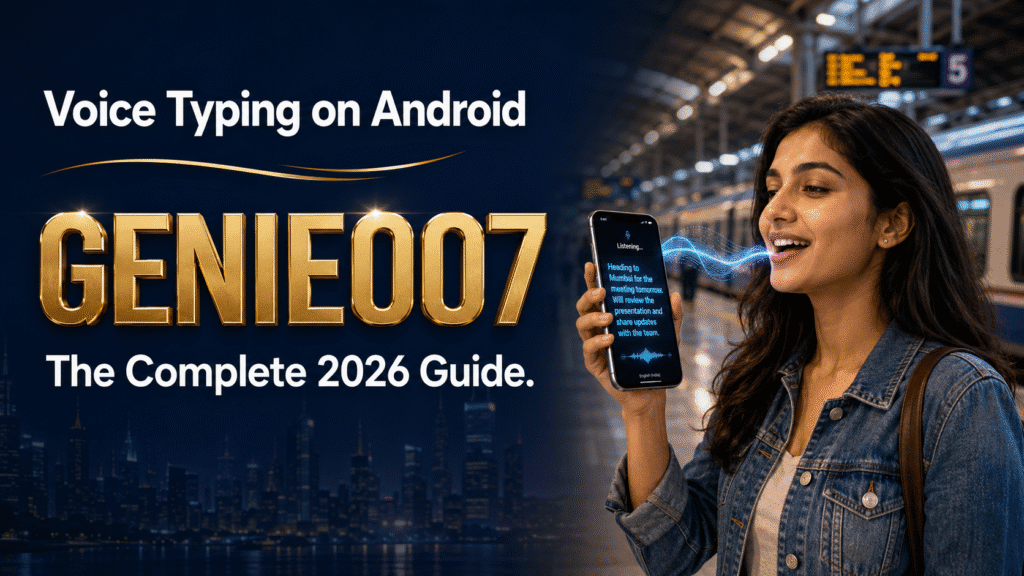
Voice typing on Android turns your speech into text using Gboard’s microphone key, Pixel’s on-device Assistant voice typing, or Samsung Keyboard’s voice input — no extra app required. Tap the mic icon in any text field, speak naturally, and words appear as you talk. Turn on offline packs for speed and privacy; expect automatic punctuation only on newer Pixel and Samsung phones.
Every Android phone ships with some form of android voice input built into the keyboard, but which tool you get, how well it punctuates, and whether it works offline depends entirely on your phone and keyboard app. This guide covers how to use voice typing on Android properly — Gboard’s mic setup, Pixel’s Assistant voice typing, Samsung Keyboard’s voice input, the fixes for punctuation and dropped connections, and where all three run out of road.
How to Voice Type on Android: Setup in Under a Minute
Most people already have a working voice keyboard and don’t know it. Here’s how to voice type on Android on any phone running Gboard, which comes preinstalled on the majority of non-Samsung devices and can be installed free from the Play Store on the rest:
- Open any app you can type in — Messages, Gmail, WhatsApp, Notes.
- Tap a text field so the keyboard appears.
- Tap the microphone icon in the top-right corner of the Gboard toolbar.
- Say what you want to write once you see “Speak now.” Text appears in real time as you talk.
- Tap the microphone again, or pause for a few seconds, to stop dictating.
If you don’t see a microphone icon, voice typing has been switched off. Long-press the comma key, or tap the settings cog on the toolbar, then go to Voice typing and turn on Use voice typing. That’s the short answer to enable voice typing on Android when the mic key has vanished after a system update.
Grant microphone permission first
Android voice input relies on one permission most people never check. If the mic icon is greyed out or nothing happens when you tap it, go to Settings → Apps → Gboard → Permissions and confirm Microphone access is allowed. Many voice input Android problems trace back to this single toggle being denied during setup, often silently, after a phone reset or OS update. Google’s own Gboard voice typing help page covers the same steps if your Android version looks slightly different.
If you’re troubleshooting how to activate voice typing in Android after switching phones or restoring from backup, this permission is almost always the missing piece — restoring an app list doesn’t restore microphone grants.
Gboard: Android’s Default Voice Typing Keyboard
Gboard is the default voice typing Android keyboard on the vast majority of phones, and it’s also the engine behind google voice typing android features in Search and other Google apps. Its microphone button is the standard way to do android voice to text, and once permissions are sorted it needs no further configuration to work.
If you’re specifically hunting for the best voice keyboard Android has built in rather than a separate app, Gboard is it — free, preinstalled on most devices, and reasonably accurate in quiet rooms with a strong connection.
Download offline language packs
Tucked inside Gboard settings → Voice typing → Faster voice typing is an option to download an on-device speech model, typically 50–100MB depending on the language. Once it’s installed, dictation keeps working with no signal at all, responds noticeably faster because it isn’t waiting on a round trip to Google’s servers, and your audio never leaves the phone. If you dictate anything sensitive, or spend time somewhere with patchy signal, this is the first setting worth changing. Gboard speech to text Android accuracy holds up well offline for common languages, though rarer dialects still lean on the cloud model.
Turn on auto punctuation
On many non-Pixel phones, Gboard’s automatic punctuation is inconsistent — you’ll often need to say “comma,” “full stop,” or “question mark” out loud to get them inserted. Look for an Auto punctuation toggle under Voice typing settings; its availability depends on your phone, language, and Gboard version. This inconsistency is one of the most common complaints about voice typing on Android, and it’s the single biggest reason people go looking for an alternative.
Assistant Voice Typing on Pixel Phones
If you own a Pixel 6 or newer, including the Fold and Tablet, you get a meaningfully better system called Assistant voice typing, powered by the Tensor chip. It processes speech on the device itself, so text keeps pace with natural speech, and behaves less like a tape recorder than a typist:
- Automatic punctuation that actually works — full stops, commas, and question marks land as you speak, with no voice commands needed.
- Voice editing commands — say “clear,” “delete,” “undo,” “next,” or “send” to edit and dispatch a message hands-free.
- Emoji by voice — “smiling face emoji” inserts the icon rather than typing the words out.
- Hands-free flow — dictation stays active between messages instead of cutting out after every pause.
To turn it on, open Gboard settings, tap Voice typing, and switch on Assistant voice typing. One catch that trips people up: your primary Gboard language has to match your device language, or the toggle simply won’t appear. Google documents the full command list on its advanced voice typing help page.
In day-to-day use, this is the best free android voice dictation experience on any current phone, and it’s a big reason Pixel owners say they can’t go back to a standard Gboard setup once they’ve used it.
Samsung Keyboard: Talk to Text on Galaxy Phones
Samsung’s own keyboard handles talk to text Android duties a little differently from Gboard, and the microphone icon lives in a less obvious spot depending on your One UI version. If you searched android talk to text expecting Samsung-specific steps rather than Google’s, here’s the setup:
- Open Settings → General management → Samsung Keyboard settings.
- Tap Voice input and make sure Samsung voice input is switched on.
- If you can’t see a microphone key on the keyboard, switch on the Keyboard toolbar in the same settings menu.
- Open any text field, tap the microphone icon — on newer Galaxy phones it can hide behind the three-dot toolbar menu — and start speaking.
- Tap the blue microphone icon again to stop, or let it time out after a few seconds of silence.
You can also install Gboard from the Play Store and set it as your default keyboard on a Samsung phone if you’d rather have Assistant-style features than Samsung’s native voice input, though Assistant voice typing itself stays Pixel-only.
Fixing Punctuation and Formatting Problems
Punctuation is the single biggest source of frustration with voice typing in Android phone settings across the board, because the experience varies by manufacturer, language, and keyboard version rather than following one consistent rule. On a Pixel 6 or newer with Assistant voice typing switched on, punctuation is inserted automatically. On most other phones, you either enable Auto punctuation where Gboard offers it, or say the marks aloud as you dictate.
Voice texting on Android should, in theory, work identically whether you’re online or off, but offline models are occasionally slower to catch punctuation cues than the cloud version — one more reason to test both before committing to offline mode for anything punctuation-sensitive, like formal emails.
Common Fixes When Android Voice Typing Stops Working
Most “voice typing suddenly broke” reports on Android come down to a short list of causes, roughly in order of likelihood:
- Voice typing toggled off — check Gboard or Samsung Keyboard settings; a system update or a factory reset can silently reset it.
- Missing microphone permission — recheck under Settings → Apps → [your keyboard] → Permissions, especially after restoring a backup.
- Outdated keyboard app — update Gboard or Samsung Keyboard from the Play Store or Galaxy Store; voice models occasionally break on old builds.
- Missing or corrupted language pack — re-download it under Voice typing → Faster voice typing if offline dictation stalls or stays silent.
- Cached data buildup — clearing the keyboard app’s cache (not its data, which wipes your dictionary) resolves a surprising number of stubborn cases.
- Multilingual typing enabled — having two or three input languages active at once can confuse voice recognition; try switching temporarily to a single language.
Work through that list in order and you’ll fix the overwhelming majority of android voice to text failures without needing to reinstall anything or factory reset the phone.
The Honest Limits of Built-In Android Voice Typing
Everything above is genuinely worth setting up, and for occasional hands-free texting it’s more than enough. But after a few weeks of daily use, most people run into the same handful of walls:
It types what you said, not what you meant. Outside Pixel’s Assistant features, every Android keyboard is a stenographer. Every “um,” every restarted sentence, every rambling clause lands in the text field, and you end up thumb-editing the transcript afterwards — which quietly cancels out much of the speed you gained by dictating in the first place. Our breakdown of how voice typing works explains why raw speech-to-text engines are built this way.
The experience is fragmented. Punctuation behaves differently on a Galaxy phone with Samsung Keyboard than on a Pixel with Gboard, and differently again per language. A fix that works on one phone — clearing the cache, disabling multilingual typing — often does nothing on another.
It has no idea where you’re typing. The same flat transcript comes out whether you’re writing a LinkedIn post, a Slack reply, or a formal client email. Tone, structure, and formatting are entirely your problem to solve after the fact.
The best features are gated to flagship hardware. Assistant voice typing needs a Pixel 6 or newer. On many non-Pixel devices, some languages are still processed in the cloud rather than on-device — worth knowing if you regularly dictate client, financial, or medical information.
Genie 007 on Android: From Transcription to Think-to-Text
Built-in voice typing answers “what did I say?” The more useful question is “what did I mean?” — and that’s the idea behind think-to-text. The Genie 007 mobile app brings it to any Android phone, not just this year’s Pixel, through two modes:
Voice Typing mode is dictation done properly: automatic punctuation and formatting on every device, no “comma, full stop” commands needed, and output shaped to your own writing style rather than a raw transcript. Speak in one of 140+ languages and, if you want, get the text out in a different one — live translation is built in, not bolted on as an afterthought.
Genie Mode skips dictation entirely. You state the intent — “reply to Priya, confirm Thursday works, ask her to send the deck before the call” — and it writes the complete message, matched to the platform: casual for WhatsApp or Slack, professional for email. You refine it by voice if the first draft isn’t quite right, with nothing to copy and paste between apps.
| Gboard voice typing | Assistant voice typing | Genie 007 mobile | |
|---|---|---|---|
| Works on | Any Android phone | Pixel 6 and newer only | Any Android phone, plus Windows, Mac and browser |
| Punctuation | Patchy, device-dependent | Automatic | Automatic, styled to you |
| Understands intent | No — verbatim transcript | No — verbatim transcript | Yes — Genie Mode drafts the message |
| Languages & translation | Many languages, no translation | Limited language support | 140+ languages with live translation |
| Privacy | Cloud for some languages | Real-time, nothing stored | Nothing stored after processing |
| Price | Free | Free (with the phone) | From £5/month, free trial |
Honest verdict: if all you need is occasional hands-free texting, Gboard is free and good enough — use it. Genie 007 earns its place when you write for a living on your phone: email, sales messages, social posts, multilingual work. Genie 007 encrypts your audio in transit, processes it in real time and stores no recordings and no transcripts. It is GDPR compliant.
Advanced Voice Typing Workflows Worth Stealing
Whichever tool you settle on, the real gains come from changing habits, not just settings. Three workflows Genie 007 users lean on daily:
Commute inbox triage. Open email on the train and, instead of dictating each reply word by word, state the outcome: “decline politely, suggest next week, keep it to three sentences.” One operations director working this way told us her morning inbox went from two hours to about twenty minutes.
Cross-language messaging. Speak your reply in the language you think in; send it in the language your client reads. A non-native English speaker can dictate in their mother tongue and send polished, native-sounding English — no translate-app round trips.
Long-form capture, voice-first editing. Draft blog sections, meeting notes, or reports by speaking in messy, natural bursts, then refine by voice: “tighten the second paragraph, make the tone more formal.” Speech runs at 130–150 words per minute against roughly 40 for practised thumb-typing, so even with editing you finish far sooner — the full maths is in our dictation vs typing speed comparison.
FAQ: Voice Typing on Android
How do I turn on voice typing on my Android phone?
Open any app you can type in, tap a text field, then tap the microphone icon at the top of the Gboard keyboard and speak once “Speak now” appears. If the icon is missing, enable it under Gboard settings → Voice typing and grant microphone permission; Samsung Keyboard has an equivalent voice input toggle under General management.
Why is voice to text not working on my Android?
The usual causes are a disabled voice typing toggle, missing microphone permission, an outdated keyboard app, or a language pack that never finished downloading — check Gboard or Samsung Keyboard settings, then App permissions, then update the keyboard app in the Play Store. Clearing the keyboard’s cache and temporarily switching off multilingual typing fixes most of the stubborn remaining cases.
Does Android voice typing work offline?
Yes — download the on-device speech model, roughly 50–100MB per language, under Gboard settings → Voice typing → Faster voice typing, and dictation then works with no internet connection, responds faster, and keeps your audio on the phone. Pixel 6 and newer devices process Assistant voice typing on-device by default.
How do I get punctuation when voice typing on Android?
On a Pixel 6 or newer with Assistant voice typing enabled, punctuation is inserted automatically as you speak; on most other Android phones you either switch on Auto punctuation in Gboard’s voice typing settings, where it’s available, or say the marks aloud — “comma,” “full stop,” “question mark.” AI dictation apps such as Genie 007 punctuate automatically on any device.
How do I set up voice typing in Android phone settings if I switched from Samsung to a Pixel?
Voice typing in Android phone settings isn’t tied to your Google account, so switching brands means setting it up again from scratch: enable Gboard’s voice typing toggle, grant microphone permission, and turn on Assistant voice typing if you’re now on a Pixel 6 or newer, since that feature has no Samsung equivalent.
Is there a typing assistant on Android that writes messages for me?
Gboard’s microphone only transcribes. For an assistant that writes the message from a short instruction, in your tone, you need a separate app. Genie 007 for Android is on a waitlist: join it from the mobile page. On a desktop the Windows, Mac and Chrome versions are available now.
Why does voice texting on Android stop after a few seconds?
Gboard stops listening after about 3 seconds of silence, and battery saver can cut it off sooner. Keep talking without long pauses, turn off battery saver while dictating, and check Gboard has microphone permission under Settings > Apps > Gboard > Permissions. The full list of fixes is in the voice to text not working on Android guide.
If the Gboard mic vanishes or types nothing in your chats, follow our step by step guide to WhatsApp voice typing not working on Android and iPhone, starting with the keyboard’s microphone permission.
Gboard’s microphone works in Google Keep as well, and our guide to Google Keep voice to text explains the difference between a Keep voice note and keyboard dictation.
Want to answer your Android texts from a desk instead of the phone? Our guide shows how to send text messages from computer by voice with Phone Link or Google Messages for web.
Try Genie 007 Free
You now know every setting built-in Android voice typing has to offer. When you’re ready for a keyboard that writes what you mean instead of just recording what you said, Genie 007 is the next step — on any Android phone, not just this year’s flagship.
Download Genie 007 free — available for Windows, Mac, mobile and as a browser extension. No credit card required.
Written by Bill Kiani, founder of Genie 007.
If Android cuts your dictation short, our guide on voice typing keeps stopping on Android walks through the timeout settings and permanent fixes.
Just getting started with voice input? Our dictation tips for beginners walk through the habits that make any phone or desktop tool more accurate.
Want the same voice typing on desktop Chrome as well as Android? Compare the top options in our speech to text chrome extension guide.
iPhone owners hitting the same kind of frustration should see our companion troubleshooting guide on iPhone dictation not working, which covers the equivalent fixes for iOS.