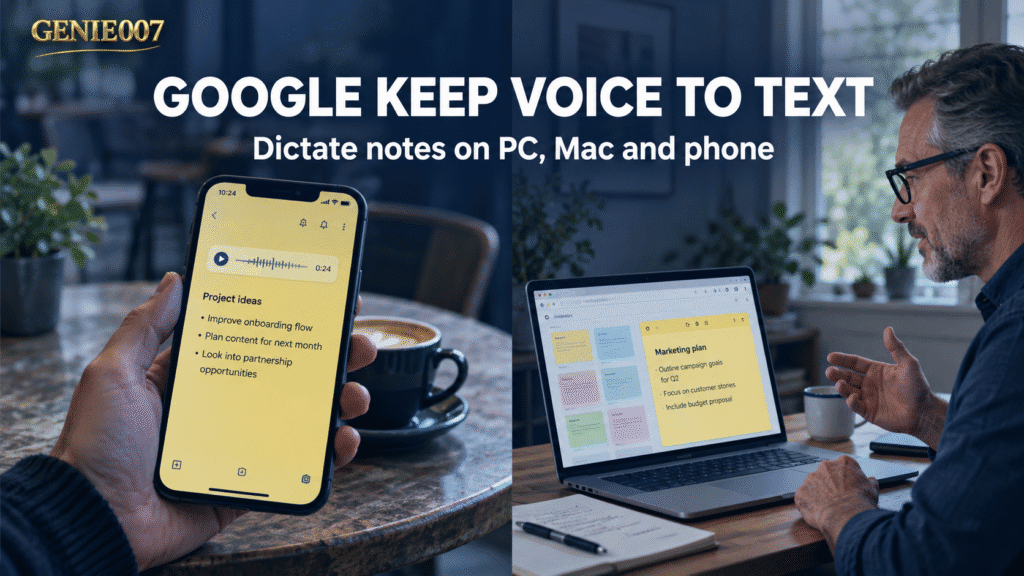
Google Keep voice to text is built into the Android and iPhone apps: record a voice note and Keep saves the audio with a written transcript. Keep on a computer has no voice option, so on Windows, Mac or a Chromebook you dictate into the note with the speech tool your system already has.
Where Google Keep Voice to Text Works, and Where It Doesn’t
Google’s own help page on creating a note in Keep comes in three versions: computer, Android, and iPhone and iPad. The Android and iPhone versions each have a section called “Create a note with your voice”. The computer version has no voice section, and the Keep keyboard shortcuts for PC and Mac include nothing for voice.
The phone feature does more than record. Google’s Keep listing on Google Play says: “Record a voice memo and Keep will transcribe it so you can find it later.” So on a phone, Google Keep voice to text gives you the clip and the words. On a computer, Keep itself gives you neither.
| Where you use Keep | Voice built into Keep? | What you get |
|---|---|---|
| Android app | Yes: Recording in a note | Audio clip plus transcribed text |
| iPhone and iPad app | Yes: Speak | Audio clip plus transcribed text |
| Apple Watch app | Yes: Text note, then Microphone | A spoken note |
| Android with a Google AI Pro or Ultra plan | Yes: generate notes with your voice (Gemini) | An organised note or list |
| keep.google.com on Windows, Mac or Chromebook | No | Use your computer’s own dictation |
How to Record a Voice Note in Google Keep on Android and iPhone
On a phone, Google Keep voice to text takes a few taps. The steps below follow Google’s help page, so the button names match what you see.
On Android:
- Open the Google Keep app and tap Create at the bottom right, then Text.
- At the bottom left of the note, tap Create, then Recording.
- At the bottom, tap Speak. When the microphone appears, say what you want in the note.
- Tap Play to listen back, or Delete to remove the clip.
On iPhone or iPad: open the Google Keep app, tap Speak at the bottom, and talk when the microphone appears.
Google Keep voice notes save the audio. For text only, use your keyboard’s microphone. Google’s Gboard help even uses Keep as its example: tap where you can type, tap Microphone at the top of the keyboard and speak when you see “Speak now”. Our guide to voice typing on Android covers the settings. On iPhone, turn on Settings > General > Keyboard > Enable Dictation, then tap the Dictate key, as Apple’s dictation guide shows.
There is also a newer Gemini option. Google’s page on generating notes with your voice says Keep can turn spoken ideas into new or updated notes, such as “Add ingredients for pesto to my grocery list”. Google lists it for Android only, on Google AI Pro and Ultra plans.
How to Dictate Into Google Keep on a Computer
Google Keep voice typing on a computer works through your operating system. Keep runs in a browser (Google’s requirements page lists Chrome, Firefox, Edge on Windows and Safari on Mac), and system dictation types into whatever text box has your cursor. Open keep.google.com, press c to start a new note, click into the note body, then start dictating.
Windows: voice typing with Windows key + H
- Click into the Keep note, then press Windows logo key + H.
- Wait for the “Listening…” alert and speak.
- Say “Stop listening” or click the microphone on the voice typing menu to stop.
Microsoft’s voice typing guide says you need an internet connection, a working microphone and your cursor in a text box. The gear icon on the voice typing menu turns on Automatic punctuation, so you stop saying “full stop”. Our voice typing shortcut key guide lists the keys for every platform.
Mac: Dictation
- Choose Apple menu > System Settings > Keyboard, go to Dictation and turn it on.
- Click into the Keep note in Safari or Chrome.
- Press the Microphone key if your keyboard has one, use your Dictation keyboard shortcut, or choose Edit > Start Dictation.
- Press Escape when you have finished.
Apple’s Dictation guide says you can dictate text of any length, but Dictation stops on its own after 30 seconds with no speech. Our guide on how to dictate on Mac explains how to change the shortcut.
Chromebook: Dictation
- Select the time at the bottom right (or press Alt + Shift + S), then Settings > Accessibility.
- Under Keyboard and text input, turn on Dictation.
- Click into the Keep note and press Search + D (or Launcher + D), or select the Speak button.
- Say “Cancel” to stop.
Google’s Chromebook dictation help warns that speech won’t work if the language you speak doesn’t match the device language. For more ways to get Google Keep voice to text on ChromeOS, see our guide to dictation software for Chromebook.
Long notes: dictate in Google Docs, then save to Keep
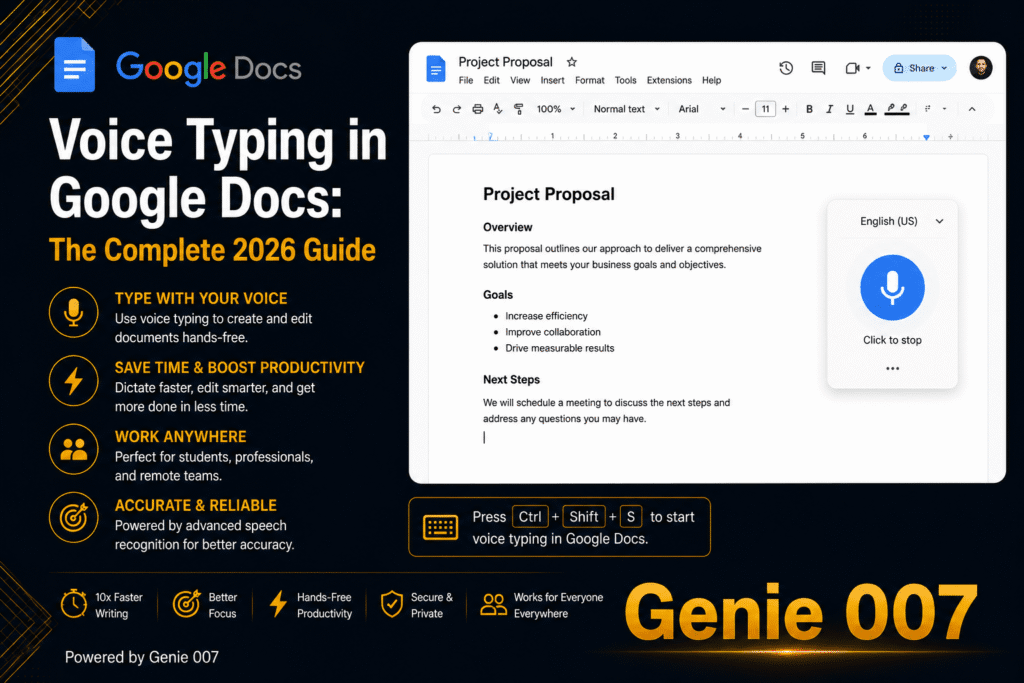
For a long note, Google Docs gives you a bigger page and its own voice tool. In a document, choose Tools > Voice typing; Google’s Docs voice typing help says it works in the latest Chrome, Edge and Safari. Then highlight the text, right-click and choose Save to Keep, as Google’s help on using Keep in a document explains. Our Google Docs voice typing guide covers the voice commands.
| Computer | Turn it on | Start | Stop |
|---|---|---|---|
| Windows 11 or 10 | Built in; needs internet | Windows key + H | Say “Stop listening” |
| Mac | System Settings > Keyboard > Dictation | Microphone key, Dictation shortcut or Edit > Start Dictation | Escape |
| Chromebook | Settings > Accessibility > Dictation | Search + D or Launcher + D | Say “Cancel” |
| Any computer, long notes | Google Docs: Tools > Voice typing | Click the microphone | Click it again, then Save to Keep |
Where Built-In Keep Dictation Falls Short
Every route to Google Keep voice to text above is transcription. Google Keep speech to text, Windows voice typing, Mac Dictation and Chromebook Dictation all write down what you said, in the order you said it. A two-minute ramble on the walk to the station comes back as a two-minute ramble, false starts and all.
Each tool has its own catch too. Built-in Google Keep dictation lives on the phone. Windows voice typing needs a connection. Mac Dictation stops after 30 seconds of silence, which can catch you out when you pause to think. Chromebook Dictation needs the spoken language to match the device. The Gemini note feature is Android only, on paid Google plans.
None of them can take “remind Sam about the invoice, nicely” and turn it into the message you would actually send. That last step is still typing.
Genie 007 in Google Keep: Say What the Note Should Say
Genie 007 changes what Google Keep voice to text means. It is built around think-to-text: you say what you want, not every word of it. In Genie Mode you press your hotkey in a Keep note and give the order: “Packing list for the two-night Leeds trip: laptop charger, printed contract, gym kit, and remind me to book a taxi.” Genie 007 understands the context and writes a tidy list into the note, ready to tick off.
When you do want your exact words, voice typing mode is fast dictation with automatic punctuation and grammar, so voice typing in Google Keep stops being a fight with “comma” and “full stop”. You can also speak in one of 140+ languages and get the note in another, so a thought in Urdu or Polish lands in Keep as clear English.
It works in Keep on the web and in any other app you can type into, on Windows, Mac, mobile and as a browser extension. It is private by design: nothing is stored. Read what think-to-text means, or if your notes also live elsewhere, see our guides to dictating in OneNote and voice typing in Apple Notes.
Google Keep Voice to Text Workflows Worth Copying
- Capture on the phone, finish at the desk. Record a voice note on the way home; it syncs, so the transcript is waiting at keep.google.com. Paste it into Gmail and tell Genie 007: “Turn this into a short update for Sam: what we agreed, what happens next, friendly.”
- Meeting debrief in 60 seconds. Straight after a call, open a Keep note on your laptop and, in Genie Mode, say: “Three decisions from the supplier call, then actions with an owner and a date.” You get a note you can share, not a transcript to tidy.
- Shared lists that read well. Dictate the weekly shop into a shared Keep list with Windows key + H, pressing Enter between items; everyone on the list sees it on their phone.
- Two languages, one notebook. Speak in the language you think in; keep the note in English for colleagues.
For more guides like this, browse the full voice typing guides library.
Google Keep Voice Transcription Feature: What Google Keep Voice to Text Does and Where It Stops
The Google Keep voice transcription feature is the phone app’s microphone button. Google’s 2017 post on Keep says you can “record voice memos within Google Keep on your Android or iOS device”, and “when you’re done talking, the recording will automatically end”. Google does not publish a fixed length; the recording ends when you stop talking.
- Open Keep on your phone and tap the microphone icon at the bottom right.
- Say the note; Google Keep voice to text ends the recording when you go quiet.
- Check the text of your message, shown next to the audio file.
- Open keep.google.com: Google says the note “is automatically synced with the web app, too”.
That is where Google Keep voice to text stops: the phone app transcribes, the web app shows the synced note, and Keep Live, which Google’s September 2026 post says lets you “capture, structure, and refine your ideas”, is for “Google AI Plus, Pro, and Ultra subscribers”. Genie 007 types where the cursor is in any app, so it types a finished note into Keep on the web, on Windows and Mac, and on the phone through the mobile app. Press Q (or any key or combination you choose), say what the note should say, and Genie 007 writes the tidy note; press X for your exact words with punctuation. For long notes in Docs, see our guide to Google Docs voice typing not working.
Frequently Asked Questions
Does Google Keep have voice to text?
Yes, Google Keep voice to text works in the phone apps only. On Android and iPhone you record a voice note, and Google says Keep transcribes it automatically, so the words sit with the audio. Keep on the web at keep.google.com has no voice option, so on a computer use Windows voice typing, Mac Dictation or Chromebook Dictation.
Can Google Keep take voice notes?
Yes. In the Android app, open a text note, tap Create at the bottom left and choose Recording, then tap Speak; on iPhone and iPad, tap Speak at the bottom of the app. Keep saves the clip so you can play it back, and the note syncs to keep.google.com and your other devices.
Can Google Keep transcribe audio?
It transcribes voice memos you record inside the Keep app: Google’s own app listing says Keep will transcribe them so you can find them later. Google’s help does not describe transcribing audio files you upload from a computer, so for recordings made in other apps you need a separate transcription tool.
How do you dictate in Google Keep?
Click or tap into a note, then start your device’s dictation: Windows key + H on Windows, the Dictation shortcut or Start Dictation in the Edit menu on a Mac, Search + D on a Chromebook, or the keyboard microphone on Android and iPhone. Speak naturally and the words appear where your cursor is.
Does Google Keep have a desktop app?
No, Google’s help describes no Windows or Mac app for Keep. On a computer you open Keep in a browser at keep.google.com, and Google says it works with the two most recent versions of Chrome, Firefox, Microsoft Edge on Windows and Safari on Mac. Your phone notes and voice notes appear there too.
Try Genie 007 Free
Getting Google Keep voice to text working on a computer is the easy part. Genie 007 does your work, not your words: say what the note or message should say and it arrives finished, in your tone.
Free to try, no card needed. Add the browser extension, get the mobile app, or request access to the desktop apps for Windows and Mac.
Written by Bill Kiani, founder of Genie 007.