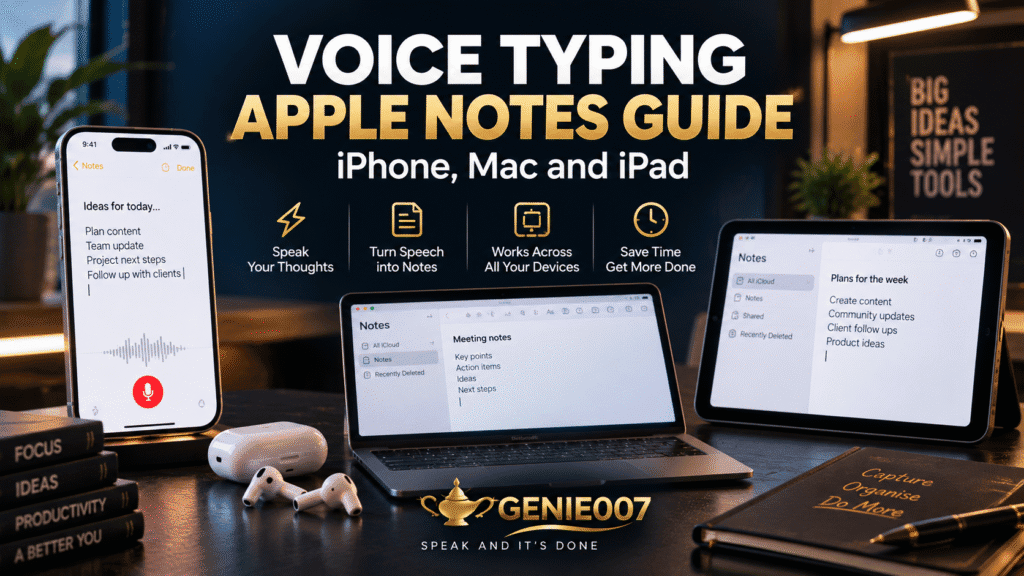
Voice typing apple notes works out of the box on iPhone, iPad and Mac: tap the microphone key on iOS or iPadOS, or press the Fn key twice on a Mac, and Apple’s Dictation turns your speech into text inside any note, with automatic punctuation and no extra app required.
That’s the short version. This guide walks through the real setup steps for iPhone, iPad and Mac, the Fn Fn shortcut Apple assigns to Dictation, the separate offline audio transcription feature built into Notes since iOS 18.1, where the built-in tools run out of road, and how Genie 007’s think-to-text approach picks up from there.
Voice Typing Apple Notes on iPhone and iPad
To use voice typing apple notes features on iPhone or iPad, open Settings > General > Keyboard and confirm Enable Dictation is switched on — it’s on by default on most devices, but worth checking after a software update. Once it’s enabled, dictation works in Notes exactly as it does in Messages or Mail.
- Open the Notes app and tap into a new or existing note.
- Tap the microphone icon on the keyboard (next to the space bar on iPad).
- Speak naturally — text appears on screen as you talk, with Apple adding basic punctuation automatically.
- Tap the keyboard icon, or simply start typing, to stop dictating and switch back to touch input.
Because the keyboard stays open during dictation, you can switch between talking and typing mid-note — handy for adding a line manually or fixing a misheard word. Apple Notes dictation also responds to spoken formatting: say “new line” or “new paragraph” for line breaks, or spell a name letter by letter (“Stephen, S-T-E-P-H-E-N”) when Apple guesses the wrong spelling.
Voice Typing in Apple Notes on Mac: the Fn Fn Shortcut
On a Mac, Dictation is switched on in System Settings > Keyboard > Dictation, and Apple’s default trigger is what most people call the Fn Fn shortcut — press the Fn key twice in quick succession and a small microphone indicator appears wherever your cursor is sitting.
- Open System Settings, go to Keyboard, then Dictation, and turn it on.
- Click into a note in the Notes app to place your cursor.
- Press Fn twice, or choose Edit > Start Dictation from the menu bar.
- Speak your note, saying “comma”, “period” or “new paragraph” for punctuation.
- Press Fn again, or click Done, to stop and drop the text into your note.
If your keyboard doesn’t have an Fn key, or you’ve remapped it, the shortcut can be changed from the same Dictation settings pane. On Apple silicon Macs, you can also keep typing while dictation is active — the highlighting pauses while your fingers are on the keyboard and dictation resumes the moment you stop, so voice and keyboard input genuinely overlap in the same note.
Offline Audio Transcription in Notes: a Different Feature
It’s easy to confuse two separate Apple features that both live inside Notes. Dictation converts your live speech into typed text as you talk. Audio transcription, added with iOS 18.1, iPadOS 18.1 and macOS Sequoia 15.1, instead transcribes a recording: tap the record button in a note, capture a conversation or a lecture, and Notes generates a written transcript alongside the audio, entirely on-device and without needing an internet connection.
The distinction matters because audio transcription suits meetings, lectures or voice memos you want captured verbatim and reviewed later, while Dictation is for composing a note as you go. Transcription requires an iPhone 12 or later (or an equivalent iPad or Mac) plus a one-time download from within the Notes app, after which it runs offline every time. On supported devices, Apple Intelligence can also summarise a long transcript into a shorter set of key points, though setting up summarisation itself needs an internet connection the first time round.
Why Voice Typing Isn’t Working in Apple Notes
When dictation in Notes stops responding, the cause is almost always one of these, in likely order:
- Dictation is switched off — check Settings > General > Keyboard on iPhone or iPad, or System Settings > Keyboard > Dictation on Mac.
- A third-party keyboard has replaced the microphone key — switch back to Apple’s own keyboard, since most third-party keyboards don’t support the dictation button at all.
- Voice Control is turned on — on Mac, Voice Control and Dictation can’t run at the same time, so turn one off to use the other.
- A Screen Time restriction is blocking it, particularly on managed or family devices.
- The microphone is busy or blocked — a call, a voice memo recording, a case covering the mic port, or a connected Bluetooth headset can all stop audio reaching Notes.
Work through that list in order; a restart usually clears up whatever’s left.
The Ceiling: Where Built-In Voice Typing Falls Short
None of this makes Apple Notes dictation a bad tool — it’s free, it’s built into every note, and in a quiet room it holds up well. But it has real limits worth knowing before you build a workflow around it.
- It transcribes literally. Ramble through a thought and Notes writes down the ramble, filler words and all — there’s no equivalent of turning rough speech into a clean paragraph.
- Standard Dictation needs an internet connection on most devices; only the separate audio-transcription feature runs fully offline.
- Punctuation and editing rely on memorised voice commands (“new paragraph”, “delete that”) rather than plain language.
- It stays inside Apple’s own apps and whatever else supports the system dictation key — it doesn’t carry your voice-typing habit into every app you actually work in.
- There’s no live translation: dictate in French and you get French text, full stop.
None of that is a knock on Apple’s engineering — a Stanford and Baidu study found speech input on a phone runs roughly three times faster than typing (161 words per minute versus 53), with a 20% lower error rate, and Apple’s Dictation delivers a good share of that speed for free. It’s just built to transcribe, not to think alongside you.
Beyond Dictation: Genie 007’s Think-to-Text for Apple Notes and Everywhere Else
This is the gap Genie 007 was built to close. Its Voice Typing mode gives you fast, accurate dictation with automatic formatting and your own writing style, no “comma, period” required — extending voice typing on Mac (and iPhone, iPad, Windows and browser) far beyond what Notes can do alone. Genie Mode goes further still: think through what you want a note to say and Genie 007 produces the finished text — tidy meeting notes, a structured to-do list, a polished paragraph out of a rambling voice memo — rather than a literal transcript you have to clean up afterwards.
Say you’ve just left a client call and want to turn ten minutes of scattered thoughts into something you can act on: instead of dictating sentence by sentence into Apple Notes and editing the transcript by hand, you talk through what happened and what’s next, and Genie 007 turns it into a structured note in whichever app you’re already using — Notes, Mail, Slack, Notion or your CRM.
Genie 007 also processes everything in-browser and on-device rather than sending your voice to a server — “Your boss can’t see it. We can’t see it” — and supports 140+ languages with live translation built in, so dictating in Spanish and getting polished English text out is a single workflow rather than a copy-paste-translate loop. For more on the approach itself, see our guide to what think-to-text actually means.
| Feature | Apple Dictation (Notes) | Genie 007 |
|---|---|---|
| Works inside Notes | Yes | Yes |
| Works in every other app (Mail, Slack, CRM, etc.) | Limited to system-supported apps | Yes |
| Executes intent, not just transcribes | No | Yes (Genie Mode) |
| Offline processing | Only for recorded-audio transcription | Yes, in-browser and on-device |
| Live translation | No | Yes, 140+ languages |
| Platforms | iPhone, iPad, Mac only | Windows, Mac, mobile and browser extension |
If you’re comparing built-in options across your devices, our platform guides cover how to dictate on iPhone, how to dictate on Mac and the best dictation app for iPad in more depth. Genie 007 starts at £5/month for Mini and £10/month for Ultra, with a free trial and no credit card required — see the full breakdown on the pricing page.
Frequently Asked Questions About Voice Typing in Apple Notes
How do I turn on voice typing in Apple Notes on iPhone?
Go to Settings, General, Keyboard on your iPhone and make sure Enable Dictation is switched on, then open Notes, tap into a note and tap the microphone key on the keyboard. Speak naturally and your words appear as typed text, with basic punctuation added automatically as you talk.
Why is dictation not working in Apple Notes?
Dictation usually breaks for one of five reasons: it’s switched off in Settings, a third-party keyboard has replaced the microphone key, Voice Control is running instead of Dictation on Mac, a Screen Time restriction is blocking it, or the microphone is busy with a call or recording. Working through those in order fixes almost every case.
Can Apple Notes transcribe recorded audio offline?
Yes, but it’s a different feature from Dictation. Since iOS 18.1, iPadOS 18.1 and macOS Sequoia 15.1, Notes can record audio and generate a written transcript entirely on-device, without an internet connection, on an iPhone 12 or later. Live Dictation, by contrast, typically needs an internet connection to convert speech into text.
What is the keyboard shortcut for dictation on Mac?
Press the Fn key twice in quick succession to start Dictation wherever your cursor is placed — this is Apple’s default shortcut, set in System Settings, Keyboard, Dictation. You can also choose Edit, Start Dictation from any app’s menu bar instead of using the keyboard shortcut.
Does Apple’s Dictation work without an internet connection?
Standard live Dictation on iPhone, iPad and Mac generally requires an internet connection to convert speech to text. The separate audio-transcription feature in Notes and Voice Memos is the exception — added in iOS 18.1 and macOS Sequoia 15.1, it processes recorded audio entirely on-device, with no internet needed.
Try Genie 007 Free
If Apple’s Dictation has shown you how much faster talking is than typing, Genie 007 takes that further — think-to-text that executes what you mean, works in every app you actually use, and speaks 140+ languages.
Download Genie 007 free — available for Windows, Mac, mobile and as a browser extension. No credit card required.
Written by Bill Kiani, founder of Genie 007.