The best dictation app for iPad depends on what you need next: Apple’s built-in Dictation is free, private, and roughly 96% accurate in a quiet room, but it only transcribes. If you want spoken thoughts turned into finished, formatted text — for lectures, emails, or Safari browsing — Genie 007’s think-to-text goes further.
Apple’s Built-In Dictation on iPad: What It Actually Does
Every iPad with a microphone already has a dictation tool, and it’s a genuinely good one. Tap the microphone key on the on-screen keyboard, speak, and your words appear in whatever text field you’re using — Notes, Mail, Safari, Pages, almost anywhere the standard keyboard shows up. Processing happens on-device or via Apple’s servers depending on your settings, so for privacy-conscious users it’s a reasonable starting point when comparing the best dictation app for iPad.
Apple Dictation handles basic punctuation if you say it aloud — “comma”, “period”, “new line” — and inserts emoji by name. In a quiet room with clear speech, accuracy sits around 96%, which is respectable for straightforward sentences. It’s also completely free, with no subscription and no account required.
The honest limitation is that it stops listening after roughly 30 seconds of silence and has to be restarted, and it produces a literal transcript rather than a cleaned-up draft. Say “um” or change your mind mid-sentence, and that filler goes straight onto the page. Technical terms, proper nouns, and unfamiliar accents also trip it up more often than plain conversational speech. For quick notes, it’s fine. For anything that needs to look finished — an email, a report, a social post — you’ll spend real time editing afterwards.If Dictation won’t activate at all, the fault is usually one of three things: microphone permission hasn’t been granted to the app you’re using (check Settings > Privacy & Security > Microphone), the dictation language set in Settings > General > Keyboard > Dictation Languages doesn’t match what you’re actually speaking, or you’ve lost your internet connection and Enhanced Dictation isn’t downloaded for offline use. Working through those three checks fixes the vast majority of iPad dictation problems.
What Is the Best Speech-to-Text App for iPad?
Answering “what is the best speech to text app for iPad” honestly means splitting the question in two: best for pure transcription, and best for turning speech into finished output. For pure, no-frills transcription, Apple Dictation wins on price and privacy — it’s hard to beat free and on-device.
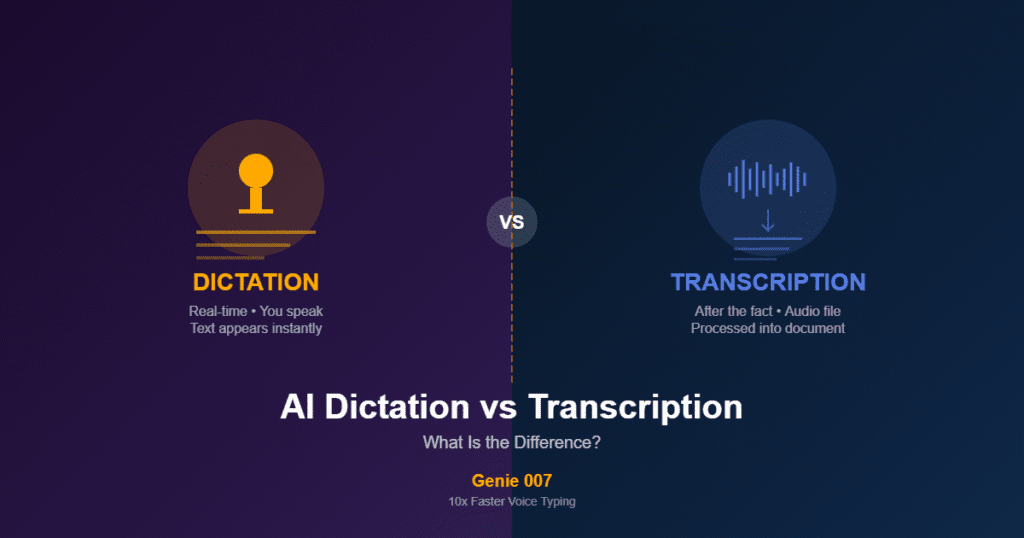
But most people searching for a speech-to-text app aren’t just trying to get words on a screen; they’re trying to get a message sent, an assignment written, or a note structured well enough to study from later. That’s a different job, and it’s where Genie 007 fits. Instead of transcribing exactly what you said, Genie 007 uses think-to-text: you speak your intent, and it delivers polished, punctuated, properly formatted text — a finished email rather than a raw transcript you still have to tidy up.
Neither approach is wrong. If you only ever need short, simple notes, the built-in option covers you. If you’re regularly dictating anything longer than a sentence or two — lecture notes, client emails, LinkedIn posts — the editing time you save with an intent-aware tool tends to add up fast, which is the real answer to which iPad dictation option is “best” for you.
Best Free Speech-to-Text App for iPad: Free vs Paid
If you’re specifically after the best free speech to text app for iPad, Apple Dictation is it — genuinely free, no word caps, no watermark, built into every device. There’s no catch, and for students on a budget or anyone dictating the occasional message, it’s a sensible default.
Where free options generally fall short is formatting and intent. A free transcription tool gives you raw words; turning those into a polished document, a professionally toned email, or study-ready notes is manual work every single time. That manual step is the real cost of “free” — it’s paid in minutes, not money.
Genie 007 sits on the paid side of that line, with plans from £5 a month and a free trial that doesn’t require a credit card, so you can test the think-to-text difference before committing. See current plans on the pricing page. The honest trade-off: if your dictation needs are light and occasional, stick with the free built-in option. If you dictate daily and the editing time is eating into your day, the upgrade tends to pay for itself quickly.
Students vs Professionals: Different Needs on iPad
Students and professionals both dictate on iPad constantly, but they’re solving different problems, and the best dictation app for iPad for one isn’t automatically right for the other.
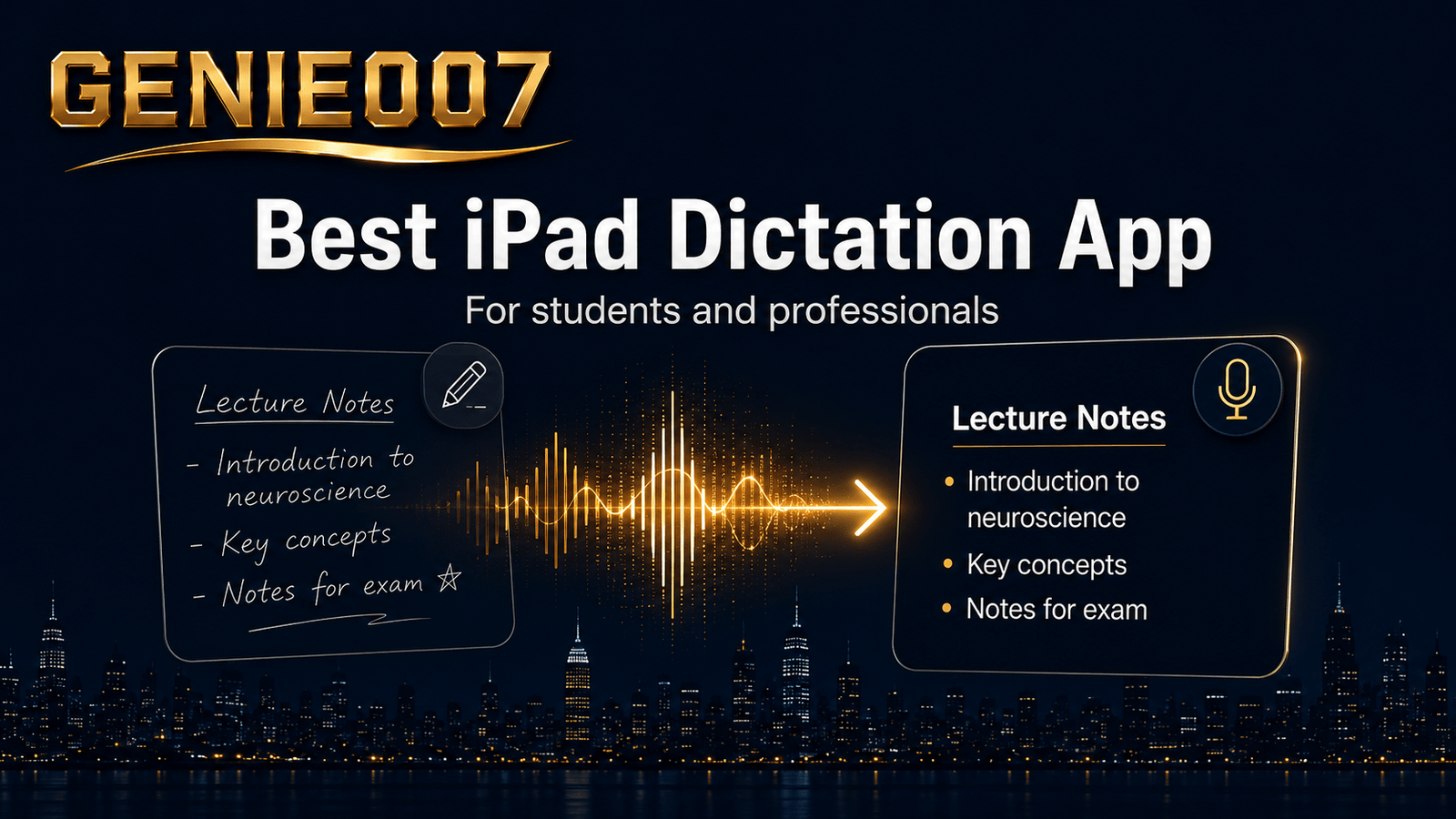
Students mostly need speed and structure during lectures — capturing what’s said in real time, with technical terms and proper nouns intact, in a format they can revise from later. Apple Dictation works for this, but expect to spend time after each lecture fixing misheard terms and adding structure. Many students pair it with handwritten diagrams on the Apple Pencil and dictated explanations alongside. For a deeper look at exam-season workflows and note structuring, see our guide to voice typing for students.
Professionals — sales reps, consultants, anyone drafting emails or messages between meetings — care more about tone and speed-to-send. A dictated email that still needs rewriting before it goes to a client isn’t actually saving time. This is where the gap between transcription and think-to-text matters most: dictating the gist of a message and getting back a client-ready draft, rather than a raw transcript to polish, is a genuinely different workflow, not just a faster version of the same one.
If you also dictate on a laptop, the same logic carries over — our guide to how to dictate on Mac covers the desktop side of this same built-in-vs-upgrade decision.
Voice to Text App iPad: External Keyboard and Safari Use
A voice to text app on iPad needs to work whether you’re typing on the glass keyboard or a physical one, and this is where people most often get caught out. Attach a Magic Keyboard or Smart Keyboard Folio, and the on-screen microphone button disappears along with the software keyboard. Dictation still works — you just need to enable it first. Go to Settings > General > Keyboard and turn on Enable Dictation, then tap the Dictation key in the shortcuts bar, or use the dedicated dictation key/shortcut on supported keyboards to start speaking. Apple documents the exact steps for dictating with an external keyboard if your setup differs.
Safari doesn’t have its own separate voice-typing feature or extension — there’s no microphone icon built into the browser chrome. Instead, you use the same system-level Dictation: click into any text field on a webpage (a comment box, a search bar, a form) and press the microphone key, or Fn twice on an external keyboard, exactly as you would in Notes or Mail. You can even dictate URLs and searches into the address bar by speaking domain names naturally.
This matters for anyone treating their iPad as a lightweight laptop — writing in Google Docs, filling out forms, or replying to messages through a browser tab rather than a native app. The dictation experience is consistent across Safari and most other apps, which is one of the built-in option’s underrated strengths.
Genie 007 on iPad: Mobile App and Browser
On iPad, Genie 007 runs through its mobile app, available on the App Store, rather than as the desktop Chrome browser extension — Chrome extensions don’t run on iPadOS, so that’s worth knowing before you go looking for one. What the mobile app does cover is broader than a single app: it works inside your iPad’s mobile browser (Safari included) as well as native apps like Mail, Notes, Slack, WhatsApp, and LinkedIn, using the same keyboard-level integration you’d use for Apple Dictation.
The practical difference shows up the moment you speak. Say into a client email on your iPad: “tell them we love the project scope but we need to push the timeline back two weeks.” Apple Dictation gives you that sentence, filler words and all, exactly as spoken. Genie 007 strips the hesitation, recognises you’re drafting a professional message, and delivers a formatted, properly toned paragraph ready to send — no rewriting required.
It also carries over the features that make Genie 007 worth the upgrade on other platforms: support for 140+ languages with live translation (speak in one language, get polished text in another), and a privacy-first approach — content isn’t stored or used to train models, and processing stays private by design. For a student switching between English lecture notes and a second language, or a professional emailing international clients from an iPad in transit, that’s a real, practical advantage over transcription alone.
A concrete example: a nursing student sitting in a pharmacology lecture on an iPad says, “the drug reduces blood pressure by blocking calcium channels in vascular smooth muscle, main side effects are dizziness and swelling in the ankles.” Apple Dictation would capture that sentence more or less verbatim, technical terms included if you’re lucky, then leave you to add headings and structure after class. Genie 007 recognises the study-notes context and returns the same information formatted with clear breaks and consistent capitalisation on drug names, so the note is usable for revision without a rewrite pass.
Getting Started: Setting Up Dictation on iPad
Setting up either option takes a couple of minutes. For Apple’s built-in tool:
- Open Settings > General > Keyboard and confirm Enable Dictation is switched on.
- Set your spoken language under Dictation Languages so it matches what you’ll actually say.
- Tap into any text field, press the microphone key on the keyboard (or Fn twice with an external keyboard), and start speaking.
For Genie 007 on iPad:
- Download the Genie 007 mobile app from the App Store — no credit card needed for the free trial.
- Grant microphone access when prompted, then sign in to sync your writing style and language preferences.
- Open Mail, Notes, Safari, or any other app, tap into a text field, and use the Genie 007 keyboard trigger to speak your intent rather than dictating word for word.
iPad Speech to Text App: Which One Should You Choose?
Choosing an iPad speech to text app comes down to one question: do you need a transcript, or do you need a finished piece of writing? The table below summarises the honest trade-offs.
| Feature | Apple Dictation | Genie 007 |
|---|---|---|
| Cost | Free, built in | Free trial, then from £5/month |
| Where it runs | Any app with the standard keyboard | Mobile app across native apps and mobile browsers (Safari included) |
| Output | Literal transcript | Formatted, intent-aware draft |
| Punctuation & formatting | Manual voice commands | Automatic |
| Languages | One at a time, set in Settings | 140+ with live translation |
| Best for | Short notes, quick messages, privacy purists | Emails, essays, lecture notes, social posts, anything client-facing |
If your iPad dictation needs stop at the occasional quick note, Apple’s built-in tool is genuinely enough — don’t pay for something you won’t use. If you’re regularly turning speech into finished writing, the editing time saved by think-to-text is the deciding factor, not the accuracy numbers alone.
Frequently Asked Questions
What is the best speech-to-text app for iPad?
For pure, free transcription, Apple’s built-in Dictation is the best speech-to-text app for iPad — it’s private, on-device, and roughly 96% accurate in quiet conditions. If you want spoken thoughts delivered as finished, formatted writing rather than a raw transcript, Genie 007’s think-to-text on the mobile app is the better fit.
Is there a free speech-to-text app for iPad?
Yes. Apple Dictation is the best free speech-to-text app for iPad because it’s built into every device with a microphone, has no word limits or subscription, and processes speech without an extra app download. It’s genuinely free, though you’ll still need to manually punctuate and format anything longer than a quick note.
Can you use voice to text in Safari on iPad?
Yes. Safari doesn’t have its own separate dictation feature, but you can use Apple’s system-level Dictation in any Safari text field by tapping the microphone key or pressing Fn twice on an external keyboard. This works in forms, comment boxes, the address bar, and web-based apps like Google Docs.
Does dictation work with an external keyboard on iPad?
Yes. Attaching a Magic Keyboard or Smart Keyboard Folio hides the on-screen microphone button, but Dictation still works once enabled in Settings > General > Keyboard > Enable Dictation. From there, tap the Dictation key in the shortcuts bar to start speaking into any text field.
Does Genie 007 work on iPad?
Yes. Genie 007 runs on iPad through its mobile app rather than the desktop browser extension, working inside Safari and other mobile browsers as well as native apps like Mail, Notes, and Slack. It uses think-to-text to turn spoken intent into formatted, ready-to-send writing instead of a literal transcript.
Try Genie 007 Free
Whichever iPad dictation habit you’re building — lecture notes, client emails, or quick browser replies — Genie 007 takes the same spoken thought and hands you back finished, ready-to-send writing instead of a transcript to clean up.
Download Genie 007 free — available for Windows, Mac, mobile and as a browser extension. No credit card required.
Written by Bill Kiani, founder of Genie 007.
iPad users comparing built-in options against third-party apps should also read our guide to voice typing apple notes, which covers iPad dictation and the newer offline audio transcription feature in Notes.