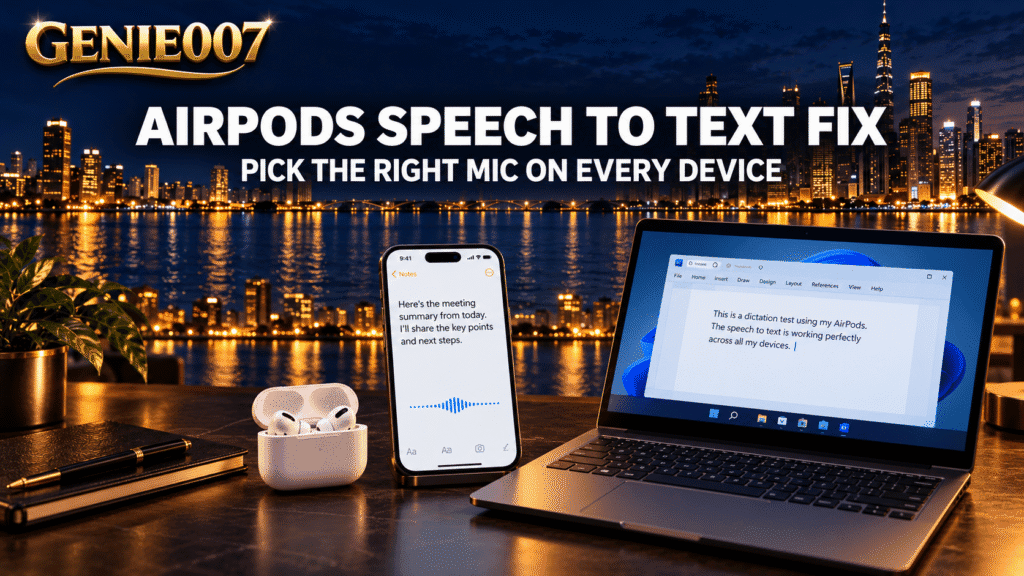
Speech to text not working with AirPods usually comes down to the wrong microphone being selected, not a broken earbud. Your phone or computer may still be listening through its built-in mic, through the AirPod sitting in the case, or, on Windows, through a low-quality hands-free link. Here is how to fix each case.
Quick fix:
- Wear both AirPods and confirm they are connected.
- On iPhone or Mac, set the AirPods microphone to Automatically Switch AirPods.
- Choose the AirPods as the input device in your sound settings.
- Check the app has microphone permission.
- Put the AirPods in the case for 30 seconds, then reconnect.
If speech to text not working with AirPods turns out to be a settings issue, the fix sits in a different place on each system:
| Device | Where to pick the AirPods mic | Usual culprit |
|---|---|---|
| iPhone | Settings > [your AirPods] > Microphone | Mic locked to the AirPod in the case |
| Mac | System Settings > Sound > Input and Keyboard > Dictation > Microphone source | Dictation still using the built-in mic |
| Windows 11 | Settings > System > Sound > Input | Hands-free mode makes your voice thin and muffled |
| Android | Gboard Settings > Voice typing | Gboard listens through the phone’s own mic |
iPhone: dictation not working with AirPods
An iPhone normally dictates through the AirPods mic once they are connected and in your ears. The voice to text AirPods iPhone setup has three parts to check, in this order:
- Open Settings, tap your AirPods’ name, then Microphone (or Audio & Routing > Microphone) and choose Automatically Switch AirPods.
- Turn Settings > General > Keyboard > Enable Dictation off and on again.
- Make a short phone call. If the other person hears you clearly, the AirPods mic works.
Step one matters most. Apple’s AirPods settings guide explains that with Always Left AirPod or Always Right AirPod selected, that earbud stays the microphone even when it is in the case. Wear only the other one and dictation hears nothing.
If dictation fails without the AirPods too, the earbuds are not the cause; see our iPhone dictation not working fixes.
Mac: choose AirPods as the input for dictation
Speech to text not working with AirPods on a Mac usually means Dictation is still using the built-in microphone, because it keeps its own microphone choice.
- Connect the AirPods from Control Centre > Sound.
- In System Settings > Sound > Input, select the AirPods and raise the input volume slider if words are missed.
- In System Settings > Keyboard > Dictation, change Microphone source from Automatic to your AirPods. Automatic does not always pick the pair in your ears.
- Click your AirPods’ name in the sidebar, then Microphone (or Audio & Routing > Microphone), and choose Automatically Switch AirPods.
If Dictation works but a browser cannot hear the AirPods, allow it in System Settings > Privacy & Security > Microphone. Turn Voice Control off too: Apple notes standard Dictation is unavailable while it is on. Our guide to dictation not working on a Mac covers faults that affect every microphone.
Windows: AirPods voice typing sounds quiet or garbled
On Windows, speech to text not working with AirPods is usually a sound-quality problem rather than silence. Listening uses the A2DP stereo profile, which has no microphone channel. When an app opens the AirPods mic, Windows switches to the hands-free profile (HFP): mono audio at 16 kHz in wideband mode or 8 kHz in narrowband mode. Microsoft’s Bluetooth audio documentation notes that some headsets fall back to narrowband with certain PC Bluetooth radios.
| Bluetooth mode | When Windows uses it | What you get |
|---|---|---|
| A2DP (stereo) | Playback only, mic closed | Full-quality stereo, no microphone |
| HFP wideband | An app opens the AirPods mic | Mono at 16 kHz, fine for dictation |
| HFP narrowband | Mic open on a PC without wideband support | Mono at 8 kHz, muffled and harder to recognise |
- Pair them in Start > Settings > Bluetooth & devices with Add device. For pairing mode, hold the case’s setup button (or double-tap the front of newer cases) until the light flashes white.
- In Settings > System > Sound, under Input, pick the AirPods in Choose a device for speaking or recording. On Windows 10, the AirPods mic is listed as a Hands-Free device.
- Open the device’s properties, run Start test and adjust Input volume.
- In Settings > Privacy & security > Microphone, turn on Microphone access, Let apps access your microphone and Let desktop apps access your microphone.
- Stay online: Win+H voice typing needs an internet connection.
Still muffled? Dictate through the laptop’s built-in mic or a USB mic and keep the AirPods for listening, so they stay in stereo. Don’t disable the hands-free telephony service, as some guides suggest: that removes the AirPods mic entirely. Our best microphone for dictation guide compares better options.
Android: voice typing ignores the AirPods mic
AirPods pair with Android as a standard Bluetooth headset: put them in pairing mode, then pick them in Settings > Connections > Bluetooth on Samsung phones (names vary by brand). Siri won’t work, but calls and listening do.
The catch is Gboard, which has long used the phone’s own mic for voice typing even with earbuds connected, so speech to text not working with AirPods on Android often means Gboard is listening to the phone in your pocket. Google has tested a Use Bluetooth microphone switch in Gboard’s voice typing settings, as PhoneArena reported.
Tap Settings at the top of the keyboard, then Voice typing, and turn that switch on if you see it. If not, keep the phone near your mouth and check that Settings > Apps > Gboard > Permissions > Microphone is set to Allow only while using the app.
Still stuck with speech to text not working with AirPods?
If the AirPods mic is still not working for dictation after every setting above, test the hardware:
- Clean the mic mesh. On AirPods Pro, remove the ear tips and check the mesh for debris.
- Charge them. Leave both in the case for 30 seconds and check each one is charging.
- Update firmware. It installs automatically while the AirPods charge near an iPhone, iPad or Mac on Wi-Fi.
- Forget and reset. Forget them in Bluetooth settings, then follow Apple’s AirPods reset steps. On cases with a setup button, hold it for about 15 seconds until the light flashes amber, then white. Newer cases without a button use a series of double-taps on the front, which Apple’s page explains.
- Try another device. If the mic fails everywhere, contact Apple Support.
And if dictation also fails with the built-in mic, the AirPods were never the problem.
Once the mic works: let your voice finish the message
Fixing speech to text not working with AirPods gets your words on screen, but built-in dictation still types exactly what you say, false starts included. On a walk or a commute, you usually want a finished reply, not a transcript to tidy later.
That is where Genie 007 fits. In Genie Mode you say what you want done: “Tell Priya the deck moves to Friday because the client data came late, and ask if Monday still works.” Genie 007 understands the context and gives you a finished message in your tone, ready for Slack, Gmail or WhatsApp: “Hi Priya, quick heads-up: the deck is moving to Friday because the client data arrived late. Does Monday still work for you?” Voice typing mode adds punctuation for you, and live translation covers 140+ languages. More in what think-to-text means.
Related guides: WhatsApp voice typing not working and voice typing shortcut keys for every app.
Frequently Asked Questions
Why doesn’t dictation work with my AirPods?
Speech to text not working with AirPods usually means your phone or computer is listening through a different microphone, such as its own built-in mic, the AirPod you left in the case, or a low-quality hands-free Bluetooth link on Windows, so select the AirPods as the input and set their mic to switch automatically.
How do I use the AirPods mic for dictation on a Mac?
Connect the AirPods, open System Settings, choose Keyboard and change the Microphone source pop-up under Dictation from Automatic to your AirPods, then go to Sound, choose Input and select the AirPods there as well, so both the Mac and Dictation listen through the earbuds rather than the built-in microphone.
Why is voice typing quiet or garbled with AirPods on Windows?
Windows switches AirPods from their stereo listening mode to the Bluetooth hands-free profile whenever an app uses their microphone, and that profile sends mono audio at 16 kHz or, on some PCs, only 8 kHz, so your voice reaches voice typing thin and muffled, which gives speech recognition less detail to work with.
Can I use AirPods for voice typing on Android?
You can pair AirPods with an Android phone as a normal Bluetooth headset, but Gboard voice typing has traditionally used the phone’s own microphone even with earbuds connected, so open the Gboard settings, tap Voice typing and turn on a Bluetooth microphone option if your version shows one.
Try Genie 007 Free
With the AirPods mic sorted, Genie 007 turns what you say into finished messages inside the apps you already use. Private by design: nothing is stored.
Free to try, no card needed. Add the browser extension, get the mobile app, or request access to the desktop apps for Windows and Mac.
Written by Bill Kiani, founder of Genie 007.