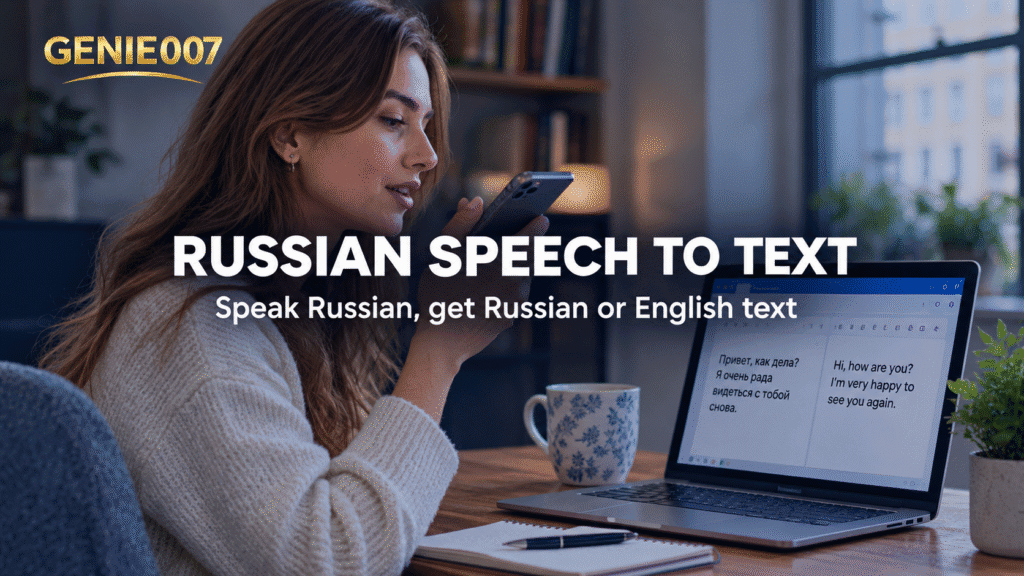
Russian speech to text is built into Windows 11 voice typing, Google Docs and Apple Dictation, and Word’s Dictate lists Russian as a preview language for Microsoft 365 subscribers. Gboard on Android needs a Russian keyboard added first. To turn spoken Russian into English text, you need a translation step, covered below.
Who needs Russian speech to text, and what to expect
Russian is written in Cyrillic, a 33-letter alphabet, so typing it on a UK or US keyboard means switching layouts. Speaking is faster for a student taking notes, a translator drafting a first pass, or a manager writing to a Russian-speaking supplier.
Two jobs are easy to confuse. Dictation writes Russian as Russian, and every built-in tool below does that. Turning spoken Russian into English text is a second job that none of them does alone. We checked each vendor’s help pages on 13 October 2026.
Russian speech to text: which built-in tools support it
| Tool | Russian support | What you need |
|---|---|---|
| Windows 11 voice typing (Win+H) | Yes: Russian | Russian added as a language, internet |
| Word Dictate | Preview language: Russian | Microsoft 365 subscription, internet |
| Google Docs voice typing | Yes: Russian | Microphone, Chrome, Edge or Safari |
| Apple Dictation (Mac, iPhone) | Yes: Russian (Russia) | Russian added as a language or keyboard |
| Gboard on Android | Russian keyboards listed; test voice with one sentence | Russian keyboard added in Gboard |
| Genie 007 | Yes, plus Russian to English | Free to try, no card needed |
Sources: Microsoft’s Windows voice typing page, the Word Dictate page, Google’s Docs voice typing help, Apple’s iOS feature availability page (the macOS page agrees) and Google’s Gboard setup page.
Russian voice typing in Windows 11
Windows voice typing writes in your current input language, so the key step is adding Russian. It needs an internet connection, a working microphone and your cursor in a text box.
- Open Start > Settings > Time & language > Language & region, select Add a language and install Russian.
- Click into your text box and press Windows logo key + Spacebar until the Russian input is active.
- Press Windows logo key + H, wait for the “Listening…” alert and speak.
If Latin letters appear, the input language is still English.
Dictate in Russian in Word and Google Docs
Word has its own Dictate button, but Microsoft lists Russian only as a preview language, which may mean lower accuracy or limited punctuation. It needs a Microsoft 365 subscription and a reliable internet connection.
- Open a document and choose Home > Dictate.
- Select the gear icon and choose Russian under Spoken Language (documented for Word for the web; desktop menus vary).
- Wait for Dictate to listen, then speak.
Google Docs lists Russian among its voice typing languages, works in Chrome, Edge and Safari, and needs no Microsoft 365 subscription.
- Open a document and choose Tools > Voice typing.
- Set the language in the microphone box to Russian.
- Click the microphone, speak at a normal pace and click it again to stop.
Google says voice commands work only in English and punctuation might not be available in every language, so add commas yourself.
Russian voice typing on Mac, iPhone and Android
Apple lists Russian (Russia) for Dictation on iOS and macOS, but not under Auto-Punctuation. On a Mac:
- Open Apple menu > System Settings > Keyboard and turn on Dictation.
- Next to Languages, click Edit and select Russian (Russia).
- Click into a text field, then press the Microphone key or your Dictation shortcut, or choose Edit > Start Dictation. Press Escape to stop.
On an iPhone, add a Russian keyboard and tap the keyboard’s microphone; menu names vary by iOS version. On Android, Gboard needs a Russian keyboard first:
- Tap a text field, tap the Settings icon at the top of the keyboard, choose Languages > Add keyboard, pick Russian and a layout, then tap Done.
- Touch and hold the space bar to switch to Russian.
- Tap the microphone and speak when you see “Speak now”.
Google’s Gboard help notes that talk-to-text does not work with all languages, so test one sentence. Other platforms are in our voice typing guides.
Cyrillic output and keyboard layout tips
Russian speech to text types the letters for you, so you do not need Cyrillic key labels to speak. You need a Russian keyboard for fixing a name or adding a comma. On a Mac, add it under System Settings > Keyboard > Text Input > Edit. Switch layouts with Windows logo key + Spacebar, Control-Space on a Mac (last source used) or a touch and hold on the Gboard space bar.
- Keep an English layout too. Brand names, email and web addresses inside Russian sentences may come out as Cyrillic spellings, so retype them in Latin letters.
- Many writers type е where a dictionary has ё, and tools vary, so proofread names.
Russian to English voice translator: from spoken Russian to English text
Every tool above writes Russian as Russian, so English needs a second step. Three routes are common.
- The Google Translate app: choose Russian and English, tap Speak and wait for “Speak now”. If Speak is greyed out, Google says that spoken language cannot be translated. It suits a phrase, not an email.
- OpenAI Whisper, an open speech model: its README documents speech translation into English and warns that performance varies widely by language. You run it yourself, so it suits developers.
- Dictate Russian, paste it into a translator and fix the English by hand: three steps for every message.
Accuracy and nuance in Russian speech to text
Windows voice typing and Word need an internet connection. Google’s tips apply: speak at a normal pace, in a quiet room or with an external microphone.
- Check endings. Russian endings carry case, gender and number, so one misheard ending gives a real-looking but wrong word.
- Add punctuation yourself unless you have tested it, as the Word, Google Docs and Apple notes above show.
- Expect stiff translations. Russian has no articles, and its ты and вы carry a formality that English drops.
- Choose Russian, not Ukrainian or Belarusian, and proofread names and numbers.
Speak Russian, get English text with Genie 007
The limit of plain dictation is the loop above: it transcribes, you translate, you fix the tone. With live voice translation, you speak Russian and finished English appears in Gmail, WhatsApp or Slack. Russian is one of the 140+ languages Genie 007 understands.
In Genie Mode you give the order, not every word:
Ответь клиенту, что заказ задержится на два дня, извинись и скажи, что отправим его в пятницу.
That means “reply to the customer: the order will be two days late, apologise, and say we will send it on Friday”. Because Genie 007 understands the context, you get a finished English message in your tone:
Hello, I’m sorry to let you know your order is running two days late. We will send it out on Friday. Thank you for your patience.
That is think-to-text: it does your work, not your words. For plain Russian speech to text, voice typing mode adds punctuation and grammar automatically, so you never say “comma”. It is private by design, and nothing is stored.
Related guides: the Punjabi to English voice translator guide, Tamil voice typing and Bengali voice typing.
Frequently Asked Questions
Does Windows 11 voice typing support Russian speech to text?
Yes, Microsoft lists Russian among the languages Windows 11 voice typing supports: add Russian under Settings, Time and language, Language and region, switch to it with Windows key plus Spacebar, click into a text box and press Windows key plus H. You need an internet connection.
How do I dictate in Russian in Google Docs?
Open your document in Chrome, Edge or Safari, choose Tools then Voice typing, set the language in the microphone box to Russian, click the microphone and speak at a normal pace, then click it again to stop; Russian is on Google’s supported list, but voice commands work only in English.
Does Apple Dictation support Russian speech to text?
Yes, Apple’s feature availability pages list Russian (Russia) for Dictation on iPhone and Mac, though not under Auto-Punctuation: on a Mac, turn on Dictation in System Settings, Keyboard, add Russian with Edit next to Languages, then press the Microphone key or your Dictation shortcut and add punctuation yourself.
Can I speak Russian and get English text?
Not with the built-in dictation tools alone, because Windows, Word, Google Docs, Apple Dictation and Gboard write down the language you speak, but you can chain a translator such as the Google Translate app, or use a live translation tool such as Genie 007 inside Gmail, WhatsApp, Slack and most other apps.
Try Genie 007 Free
Russian speech to text gets your words onto the page. Genie 007 goes a step further: tell it in Russian what the message should do, and send the English version without a translator tab.
Free to try, no card needed. Request access on Windows or Mac, or use Genie 007 on mobile and as a browser extension.
Written by Bill Kiani, founder of Genie 007.