Codex dictation turns your speech into prompt text in the ChatGPT desktop app: select Dictate in the composer, talk, then review and edit before sending. OpenAI separates it from ChatGPT Voice, which is a live conversation. For the CLI and VS Code, the free Win + H and Mac Dictation routes type into the terminal.
What Codex dictation is and where it works
OpenAI’s own pages describe two different things, and mixing them up causes most of the confusion. OpenAI’s Codex voice page says ChatGPT Voice is for a live conversation, and to “use voice dictation when you only want to turn speech into prompt text before sending it”. With Voice you can interrupt, ask a follow-up or change direction. Dictation just types what you said.
Codex dictation lives in the ChatGPT desktop app. OpenAI’s prompting guide says to select Dictate in the composer, then start talking. It adds that your speech is transcribed into the composer so you can review and edit it before sending the prompt. OpenAI’s download page offers the app for macOS, Windows and Linux.
Voice has its own requirements. The Codex voice page says it is available in the ChatGPT desktop app on Plus, Pro, Business, Edu or Enterprise plans, and that availability depends on rollout status and workspace settings. It also says only one voice chat can be active across the desktop app at a time.
| Feature | What it does | Where OpenAI documents it |
|---|---|---|
| Dictation | Converts speech to prompt text before you send it | ChatGPT desktop app, Dictate in the composer |
| Voice (voice chat) | Live spoken conversation about your tasks | ChatGPT desktop app, Start voice chat |
| CLI voice | Voice conversations, microphone and speaker choice | Codex changelog entries only |
How to turn on and use Codex dictation
On the official side, the steps are short. Open the ChatGPT desktop app, open a Codex task or start a new one, select Dictate in the message box, speak, then read the text and send it. OpenAI’s prompting guide gives no separate settings switch for it.
Some users report a “Dictation” section in the app’s General settings with a shortcut you can set, and a version that types into other apps. We could not find that on any OpenAI page, so treat it as a user report and check your own Settings screen, because labels change between versions.
For Voice, the Codex voice page gives these steps.
- Open an existing Codex task, or start a new chat or task.
- Select Start voice chat in an existing task, or Start new voice chat in a new one.
- The first time, allow microphone access and choose a voice.
- Select Stop voice chat when you finish.
The same page says you can set a Voice shortcut in Settings > Voice > Voice chat hotkey. On macOS, screen context is optional and can ask for Screen & System Audio Recording and Accessibility permissions. If Start voice chat is missing, OpenAI says to update the desktop app and the Codex host.
Codex Dictation Not Working? Quick fix
- Quit the ChatGPT desktop app completely, not just the window, then open it again.
- Update the app to the latest version, then retry.
- Allow microphone access for the app in Windows or macOS settings.
- Sign out, sign in again, and check that your plan includes the feature.
- Still stuck? Send OpenAI the app version and a /feedback ID, as OpenAI staff ask.
Microphone permission on Windows
Microsoft’s page on camera, microphone and privacy says that on Windows 11 you go to Start > Settings > Privacy & security > Microphone. Make sure Microphone access is on, along with Let apps access your microphone and Let desktop apps access your microphone. Desktop apps that are not listed individually are covered by the last switch.
Microphone permission on Mac
Apple’s guide to controlling which apps can use the microphone says to open the Apple menu, choose System Settings, click Privacy & Security, then click Microphone. Turn the toggle on for the ChatGPT app. Then quit and reopen the app so it picks up the change.
Sign in again and check your plan
OpenAI’s troubleshooting advice for Voice is to check your plan, rollout and workspace availability first, then microphone permissions, then whether another voice chat is already active. That list is written for Voice, but it is a sensible order for dictation too. Signing out and back in is a general step, not an OpenAI instruction for dictation.
What OpenAI staff say on the developer forum
One thread on the OpenAI developer forum, Codex desktop app: microphone dictation does not activate reliably, comes from Windows users. They report that the dictation button often needs a second click, and that dictation sometimes switches off partway through a chat. The first poster says no usage-limit message or banner appeared.
OpenAI staff replied on 9 October 2026 that dictation converts audio to text before the message is sent, so changing the thinking level should not require two clicks. Staff said the team was working through a backlog and asked for the app version and a /feedback ID from a failed attempt. The thread shows no confirmed fix, and no workaround was offered, so treat anything beyond the steps above as unproven.
“Codex dictation usage limit reached”
This is the part OpenAI has not explained. We found no OpenAI help or documentation page that publishes a dictation limit, or that explains this message. So we cannot tell you what the limit is, whether it is separate from your Codex usage, or when it resets.
What exists is user reports. A forum thread titled a user is shown the “Codex dictation usage limit reached” error message in the macOS ChatGPT app has two users reporting it. One is on a Free plan. The other says the recording meter moves, the error appears after they stop or press send, and Settings shows 96% of the monthly limit remaining. Both say dictation worked on the web or on a phone using the same account.
The thread shows no OpenAI staff reply and no fix. Users there say reinstalling and updating did not help. A reasonable stop-gap, based on what they report, is to dictate somewhere else and paste the text in. Win + H and Mac Dictation, covered below, do not depend on OpenAI at all.
Codex voice input in the CLI and VS Code
Here OpenAI’s pages say less than people expect. The Codex CLI and IDE pages on learn.chatgpt.com do not describe a dictation feature, and the CLI slash command list does not include a voice command. The Codex changelog does mention voice work in the CLI. Version 0.161.0 (7 October 2026) lets you choose your microphone, speaker and input channels for voice conversations, with preferences saved locally. Version 0.163.0 (15 October 2026) moves voice mute to F9.
Several third-party blogs claim Codex CLI has hold-Space voice input, or that it was removed. None of that is on OpenAI’s pages, so we do not repeat it. Check the changelog and your installed version for what your build supports. For the same question in Claude Code, see our guide to voice dictation for Claude Code.
Whatever Codex offers, your operating system can type into the terminal or the VS Code editor for free, because to Codex it is just text.
Windows: Win + H
Microsoft’s voice typing guide says to put your cursor in a text box and press the Windows logo key + H on a hardware keyboard. You need an internet connection and a working microphone. Wait for the “Listening…” alert before you speak.
Mac: Apple Dictation
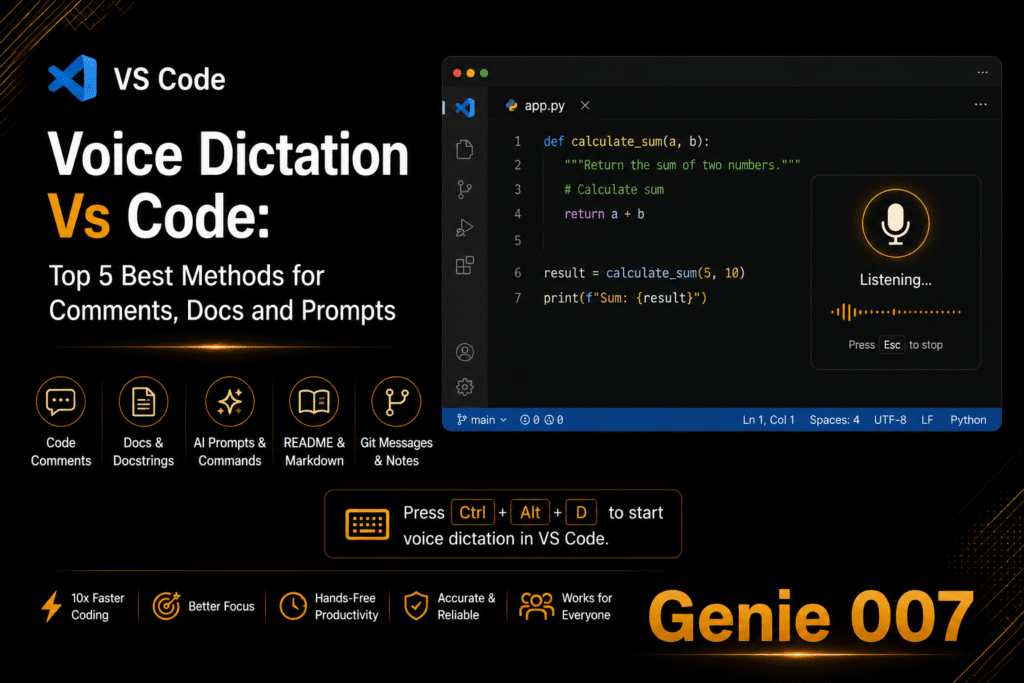
Apple’s Dictate messages and documents on Mac guide says to open System Settings, click Keyboard, and switch on Dictation. Click where you want text, then press the Microphone key or your Dictation shortcut, or choose Edit > Start Dictation. For editor tips, see voice dictation in VS Code.
When Codex’s own dictation stops: Genie 007
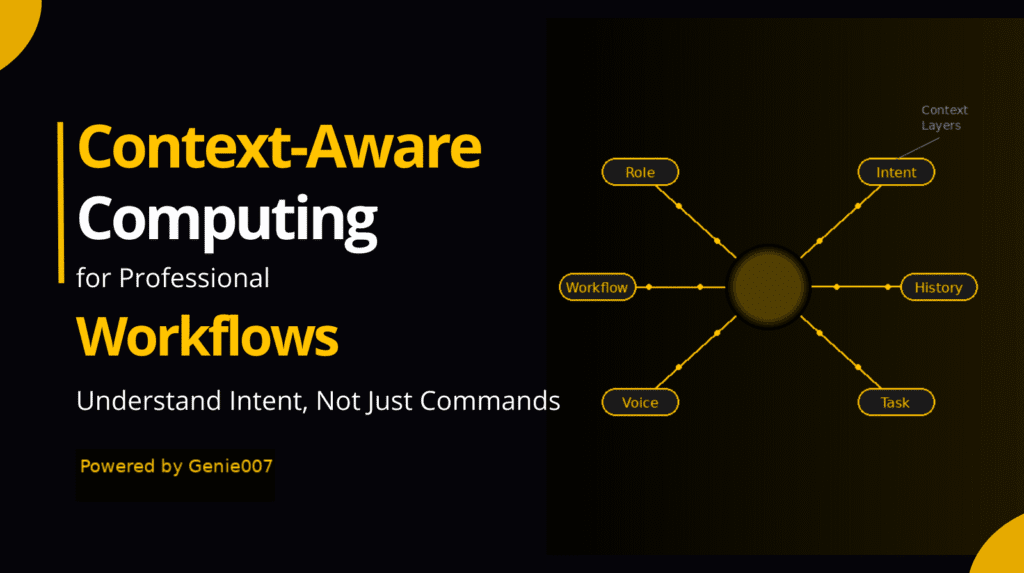
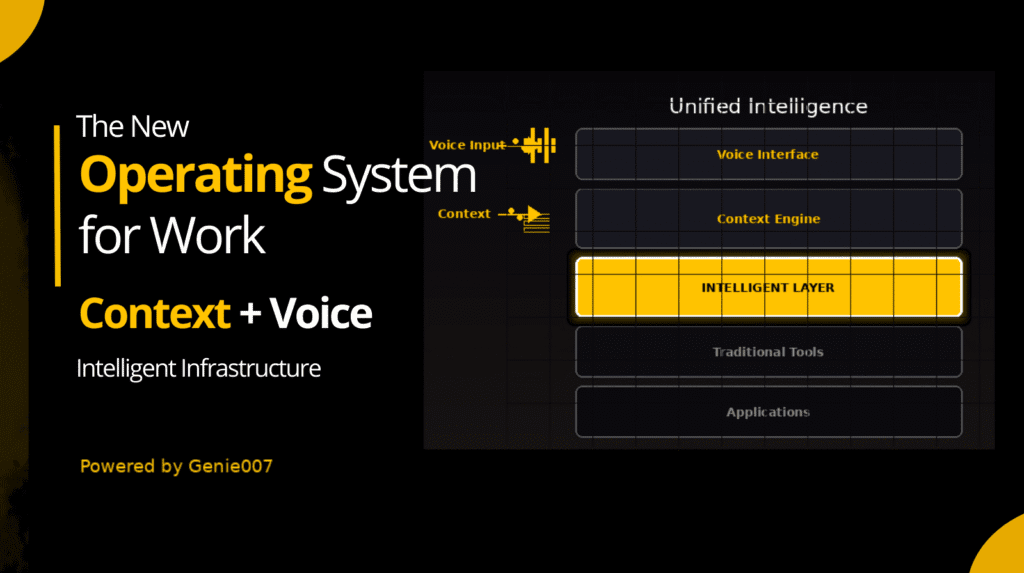
Both free routes give you a transcript, and you still say every word. That is the limit of plain dictation for coding: a prompt for an agent is rarely something you want to read out in full. Think-to-text starts from what you want instead.
The Genie 007 desktop app for Windows and Mac types where your cursor is, so it works in the Codex message box, in a terminal and in VS Code. It also works on mobile and supports 140+ languages, privately. Click where you want the text, then use one of two keys.
- Press Q (or any key or combination you choose), say what you want, and Genie writes the finished prompt for you. It understands the context of where you are working.
- Press X (or any key or combination you choose) to type your own words, cleaned up, with punctuation added.
For example, click into the Codex composer, press Q and say: “Ask Codex to add input validation to the signup form and write tests for the empty-field case.” The finished prompt appears in the box, ready for you to read before you send it.
It is a different tool from Codex’s own button, so a dictation outage on OpenAI’s side does not stop it. More ways to work this way are in developers prompting by voice and our voice typing guides. If a similar problem hits another AI app, see Claude dictation not working and ChatGPT voice dictation not working.
Frequently Asked Questions
Does Codex support voice input?
Yes, in the ChatGPT desktop app. OpenAI documents Dictate in the composer, which turns speech into prompt text you can edit before sending, and a separate Voice feature for live conversation. OpenAI’s CLI and IDE pages describe no dictation feature, though its changelog lists CLI voice conversation settings.
Why is Codex dictation not working?
Common causes are an out-of-date app, blocked microphone access, or a plan or rollout issue. Quit and reopen the app, update it, and check the microphone setting in Windows or macOS. Users on the OpenAI developer forum also report a button that needs a second click, and staff have asked for the app version and a /feedback ID.
What does Codex dictation usage limit reached mean?
OpenAI has not published an explanation or a dictation limit that we could find. Users on its developer forum report the message in the macOS ChatGPT app, including on Free plans and with usage showing as remaining, and say it works on the web or phone. Treat that as a user report, not OpenAI’s word.
Can I use voice input in the Codex CLI?
OpenAI’s pages describe voice conversation settings in the CLI changelog, such as choosing a microphone, but no CLI dictation feature. For plain dictation, Windows voice typing (Windows logo key + H) and Mac Dictation type into a terminal because they work in any text box. Genie 007 also types at your cursor.
Does Codex have speech to text in VS Code?
OpenAI’s Codex IDE page describes no dictation or speech to text feature. You can still dictate into VS Code with Windows voice typing (Windows logo key + H) or Mac Dictation, which type wherever your cursor is. Genie 007 does the same on Windows and Mac and can write a finished prompt from what you say.
If you also use GitHub’s tools, our guide to GitHub Copilot voice covers /voice in Copilot CLI and dictation in VS Code.
If you also code with Google’s agent tool, our guide to Antigravity voice input covers its microphone button, the CLI /voice command and what to do when it stops.
Try Genie 007 Free
When Codex’s own dictation lets you down, Genie 007 types at your cursor in the Codex message box, your terminal or VS Code. Press Q, say what you want, and it writes the prompt for you.
Request access to the desktop app from the Windows or Mac page and try it on your next Codex task. Genie 007 works on Windows and Mac.
Written by Bill Kiani, founder of Genie 007.