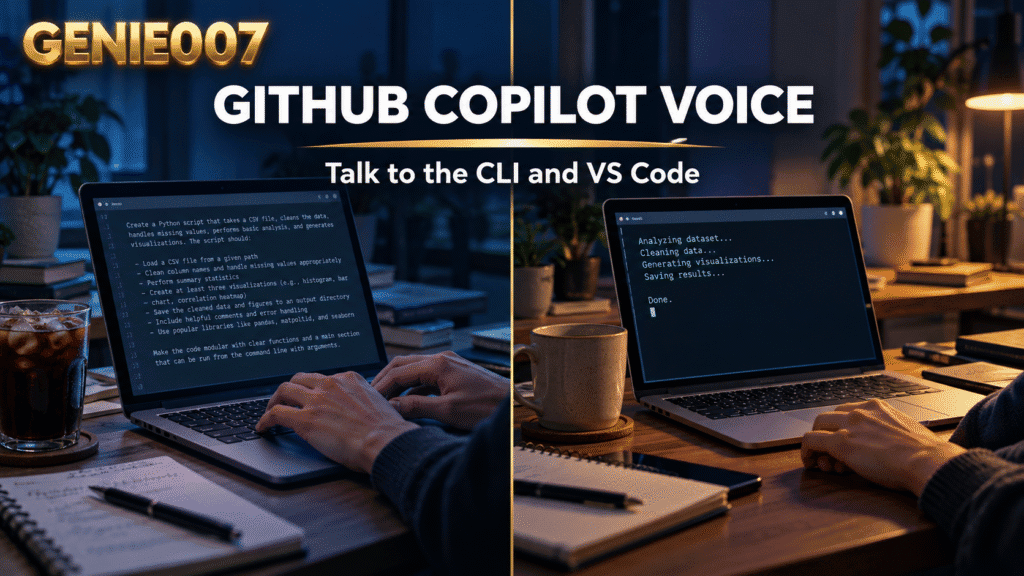
Yes, GitHub Copilot voice exists. Copilot CLI has /voice, which lets you hold Space to dictate a prompt. VS Code has built-in dictation for chat, started from the microphone button, and an experimental Voice Mode. The CLI runs transcription on your device. Some systems, including Intel Macs for the CLI, are not supported.
GitHub Copilot CLI voice input
GitHub Copilot CLI voice is a speech-to-text feature for dictating prompts. GitHub’s voice input page says you need a working microphone and that, by default, it uses your system’s default microphone. GitHub’s changelog of 2 June 2026 announced it as generally available, alongside the rubber duck agent.
The docs list the supported platforms: Windows (x64 and ARM64), Linux (x64) and macOS on Apple Silicon. They state that voice input is not available on Intel-based Macs.
Turn it on
- Start an interactive Copilot CLI session and enter /voice.
- When prompted, select Continue to download the voice runtime. It downloads in the background.
- At the model prompt, press Enter on Download default model for the multilingual model. For the English or Spanish model, choose Browse models, pick one, press Enter to download it, then press Esc.
GitHub says your model choice and whether voice is on are saved in ~/.copilot/settings.json.
Dictate a prompt
For a short prompt, hold the Space bar. After a brief moment recording begins. Speak, then release Space. For a longer prompt, press Ctrl + X, then V to start recording, speak, and press any key to stop and insert the text.
GitHub adds that Ctrl + Space works as an alternative in some terminals, but only if your terminal and operating system pass it through. The text lands at the cursor, so you can edit it before you submit.
To change microphone, enter /voice devices, pick a device with the arrow keys and press Enter. GitHub says transcription “runs entirely on your local machine” and that audio is not sent over the network.
Voice input for Copilot Chat in VS Code
GitHub Copilot voice input and dictation in the editor work differently from the CLI. VS Code’s voice support page describes built-in GitHub Copilot dictation for chat, which it marks as experimental. The setting is dictation.enabled, and it defaults to true. On first use on a supported desktop, VS Code downloads a speech model. If your network blocks that download, the page says to run Chat: Install Dictation Model from Local Package… and select a ZIP file or prepared model folder.
You can start dictation in three places.
- Chat: select the microphone button in the chat input, or press Cmd + I on Mac (Ctrl + I on Windows and Linux) to start and stop. It inserts text but does not submit the request. Press Escape to cancel and remove the text.
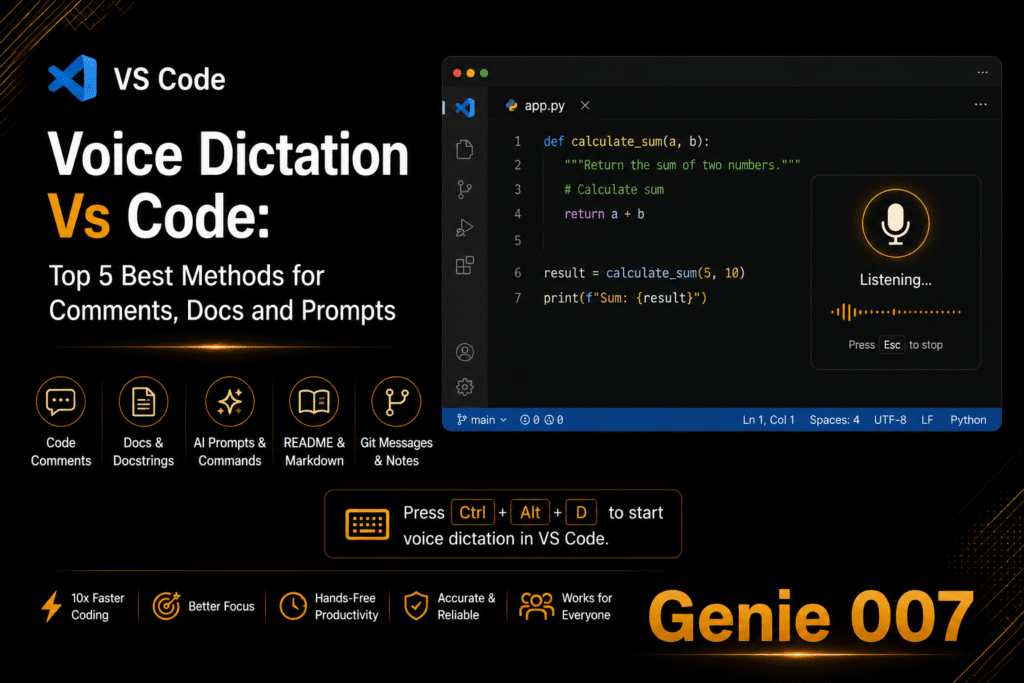
- Editor: press Option + Cmd + V on Mac (Ctrl + Alt + V on Windows and Linux), or run Voice: Start Dictation in Editor. You can also press and hold a dictation shortcut for push-to-talk.
- Terminal: run Voice: Start Dictation in Terminal, and stop it with Voice: Stop Dictation in Terminal.
To pick a microphone, use Chat: Dictate: Select Microphone. It applies to all the dictation surfaces. On desktop, the default model processes audio locally and works offline after the download. VS Code for the Web is different: it streams audio to the Microsoft AI voice service and needs a network connection and GitHub sign-in.
Dictation stops automatically after 20 minutes and keeps the text transcribed so far. Built-in dictation is not available on Intel-based Macs, 32-bit and Arm32 systems, or musl-based Linux such as Alpine. On those, VS Code’s page says to install its ms-vscode.vscode-speech extension.
Voice Mode is experimental
GitHub Copilot voice mode is a separate, experimental feature. Turn on agents.voice.enabled, then select the Voice Mode button in the chat input, or press Shift + Cmd + Space (Ctrl + Shift + Space on Windows and Linux).
VS Code’s page says hosted Voice Mode needs an eligible individual GitHub Copilot plan and is not available with Copilot Business or Enterprise. It adds that organisations can turn off Copilot preview features by policy.
GitHub Copilot voice not working
If VS Code Copilot voice input or the CLI will not listen, work through this list.
GitHub’s CLI page has no troubleshooting section, so this list comes from the requirements both pages state, plus the checks on VS Code’s own page.
- Check your system is supported: Windows, Linux x64 or an Apple Silicon Mac for the CLI.
- Let the runtime and model finish downloading, then try again.
- Pick the right microphone: /voice devices in the CLI, Chat: Dictate: Select Microphone in VS Code.
- In VS Code, check that AI features are on and dictation.enabled has not been turned off.
- Allow microphone access in Windows or macOS settings.
Unsupported platform
Check this first. The CLI does not run voice on Intel Macs, and its docs list Linux x64 only. VS Code lists Linux Arm64 with glibc 2.34 or later for its own dictation, but not Intel Macs. If you are on an Intel Mac in VS Code, install the Speech extension named on the VS Code page.
Download not finished, or wrong microphone
If you dismissed a CLI prompt, run /voice again and follow it through. In VS Code, the first use downloads a model, so dictation may not start until that finishes.
If recording starts but nothing sensible appears, the wrong device may be selected. Run /voice devices in the CLI or Chat: Dictate: Select Microphone in VS Code, and speak while checking your system’s input level.
The dictation.enabled setting
VS Code’s page says a missing dictation option means checking two things: that AI features are enabled and that dictation.enabled is on. It defaults to on, so open settings, search for it and make sure it is ticked.
Microphone permission in Windows and macOS
Microsoft’s page on camera, microphone and privacy says on Windows 11 to open Start > Settings > Privacy & security > Microphone. Check that Microphone access and Let apps access your microphone are on. Let desktop apps access your microphone covers desktop apps such as VS Code and most terminals.
Apple’s guide to controlling which apps can use the microphone says to open the Apple menu, choose System Settings, select Privacy & Security, click Microphone and turn on access for the app. For the CLI, that app is the terminal you run it in. Quit and reopen it afterwards.
When Copilot’s voice is not enough: Genie 007
Copilot’s own voice is free and on your device, so use it first. It also stops at the edges of what GitHub and Microsoft built it for. The CLI voice feature is not available on Intel Macs. VS Code dictation covers VS Code only. Neither helps in other editors, in the text boxes on GitHub.com, or in the apps around your code.
It also gives you what you said. A good agent prompt is rarely something you want to read out in full, and think-to-text starts from what you want instead.
The Genie 007 desktop app for Windows and Mac types where your cursor is, so it works in any text box. It supports 140+ languages, and all the data stays on your device. Check the Mac page for the Macs it supports. Click where you want text, then use one of two keys.
- Press Q (or any key or combination you choose), say what you want, and Genie writes the finished text for you. It understands the context of where you are working.
- Press X (or any key or combination you choose) to type your own words, cleaned up, with punctuation added.
For example, click into a GitHub pull request comment box, press Q and say: “Thank them for the fix, ask for a test on the empty list case, and say I will merge once it passes.” The finished comment appears for you to read before you post it.
For other tools, see our guides to Codex dictation and voice dictation for Claude Code. For wider workflows, read vibe coding with voice dictation, developers prompting by voice, voice dictation in GitHub and the full set of voice typing guides.
Frequently Asked Questions
Does GitHub Copilot have voice input?
Yes. Copilot CLI has voice input through the /voice command, where you hold Space to dictate. VS Code has built-in dictation for chat, started from the microphone button or Cmd + I (Ctrl + I on Windows and Linux), plus an experimental Voice Mode. Support depends on your platform.
How do I use voice in Copilot CLI?
Enter /voice in an interactive session, select Continue to download the runtime, then download the default model. After that, hold Space to record a short prompt, or press Ctrl + X then V for a longer one and press any key to stop. Use /voice devices to change microphone.
Does VS Code have built-in dictation?
Yes. VS Code has built-in dictation, controlled by the dictation.enabled setting, which defaults to true. It downloads a speech model on first use. Start it from the chat microphone button, Cmd + I or Ctrl + I, or the editor and terminal commands. It stops automatically after 20 minutes.
Is Copilot voice on-device and private?
GitHub says Copilot CLI transcription runs entirely on your local machine and audio is not sent over the network. VS Code says its default desktop model processes audio locally and works offline after download. VS Code for the Web is different: it streams audio to the Microsoft AI voice service.
Why is Copilot voice not working on an Intel Mac?
GitHub’s docs say Copilot CLI voice input is not available on Intel-based Macs, and VS Code says its built-in dictation is not available there either. For VS Code, install the ms-vscode.vscode-speech extension the VS Code page names. For other apps, use a tool that types at your cursor.
Antigravity has its own microphone too: our Antigravity voice input guide shows how to dictate in its app and CLI, and where its voice stops.
Try Genie 007 Free
When Copilot’s own voice stops at your Mac, your editor or a GitHub text box, Genie 007 types at your cursor. Press Q, say what you want, and it writes the prompt or comment for you.
Request access to the desktop app from the Windows or Mac page and try it on your next Copilot task. Genie 007 works on Windows and Mac.
Written by Bill Kiani, founder of Genie 007.