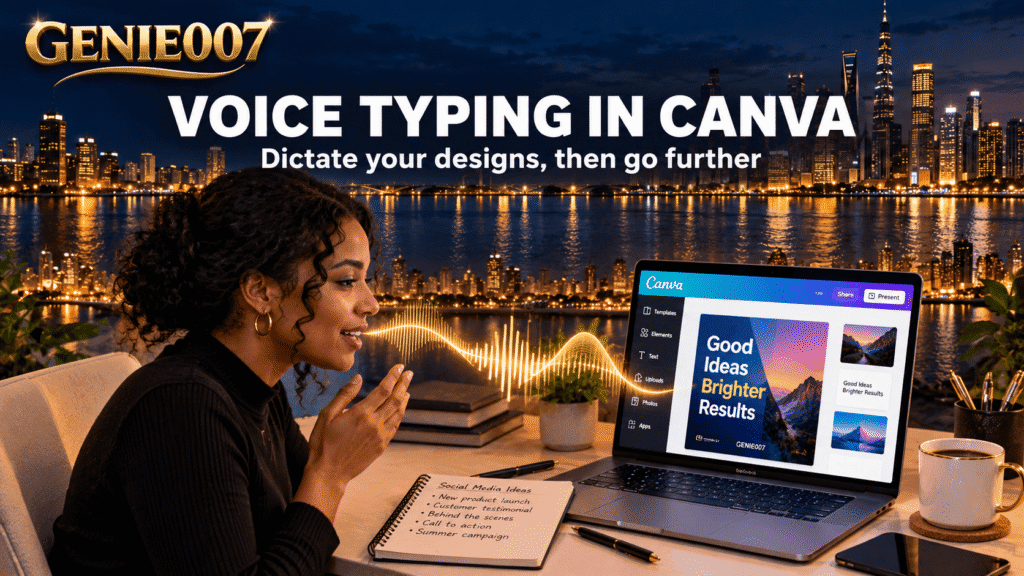
Voice typing in Canva is not a built-in feature that Canva documents, so you dictate with your device instead: Windows voice typing (Win+H), Mac Dictation, or the microphone on your iPhone or Android keyboard. Canva does offer a microphone for Canva AI prompts, and an AI Voice that turns text into speech, which is the opposite.
Does Canva have voice typing?
Not in the way most people mean. Canva’s help pages for creating Canva Docs and for editing text describe no dictate button and no voice shortcut. Canva does have four voice-related tools, but none types your speech into a design’s text box or a doc.
| Canva tool | What it does | Is it voice typing? |
|---|---|---|
| Microphone icon in Canva AI | Lets you speak a prompt to Canva AI | Partly: it fills the AI prompt, not a text box |
| AI Voice | Turns text you type into spoken narration | No, it is text to speech |
| Record voiceover | Records your voice as an audio track | No, it saves sound, not words |
| Speech to text | Transcribes an uploaded audio or video file | No, it works on finished recordings |
On the microphone, Canva’s help for Canva AI says to select Canva AI in the side navigation on the homepage, then select the microphone icon and speak your prompt. Some features depend on your plan, language and region.
AI Voice is the mirror image of dictation: in Canva’s AI Voice guide you type text, pick a language and voice style, and Canva generates the narration.
Canva speech to text is a different job again. The speech to text page on Canva’s site describes uploading a recording, under 500 MB and 90 minutes, or pasting a YouTube link, then transcribing it. Some apps in Canva’s apps marketplace come from outside developers, so check who built an app and what it can access before you use it.
Voice typing in Canva on Windows
Windows voice typing works wherever your cursor sits in a text box. Microsoft’s voice typing guide does not mention Canva, but a Canva text box you are editing should qualify.
- Double-click the text box you want to change, so the cursor blinks inside it.
- Press the Windows logo key + H and wait for the “Listening…” alert.
- Speak your text. To stop, say “Stop listening” or select the microphone button on the voice typing menu.
You need a working microphone, an internet connection, because Microsoft’s voice typing uses online speech recognition, and a supported language. Our voice typing shortcut key guide lists the equivalents for every other platform.
Voice typing in Canva on Mac
Mac Dictation is built into macOS. Apple’s Dictation guide covers the setup.
- Open Apple menu > System Settings > Keyboard, turn on Dictation and click Enable.
- Choose your shortcut from the Shortcut pop-up menu in that same section.
- Double-click the Canva text box, then press the Microphone key, your shortcut, or choose Edit > Start Dictation.
- Press Escape, the Microphone key or your shortcut to stop. Dictation also ends after 30 seconds without speech.
If Voice Control is switched on, standard Dictation is unavailable, so turn Voice Control off first.
Dictate in Canva on iPhone and iPad
In the Canva app, dictation comes from the iOS keyboard, not from Canva. See Apple’s guide to dictating text on iPhone.
- Select the text in your design and open it for editing, so the on-screen keyboard appears.
- Tap the microphone icon on the keyboard and speak.
- Tap the microphone again, or switch back to the keyboard, when you finish.
No microphone icon? Check that Dictation is on under Settings > General > Keyboard, though the wording shifts a little between iOS versions. On iPad, the on-screen keyboard has the same microphone, so the steps should match.
Dictate in Canva on Android
Many Android phones use Gboard for voice typing, and Google’s Gboard voice typing page lists the steps.
- Open your design in the Canva app and open the text for editing, so the keyboard appears.
- Tap the microphone icon at the top of the keyboard.
- When “Speak now” appears, say what you want written.
Gboard understands spoken punctuation: Period, Comma, Exclamation point, Question mark, New line and New paragraph, though not in every language. If you use a different keyboard, look for its own microphone key.
Canva Docs voice typing
Canva Docs is a document editor inside Canva, started from Create > Docs on the homepage. Its help pages mention no dictate option, so voice typing in Canva Docs means using your device’s tool: click into the page until the cursor blinks, then start Win+H, Mac Dictation or the phone keyboard microphone as above. Dictation types plain text, so add headings afterwards from the slash menu, which Canva calls the Canva Assistant shortcut.
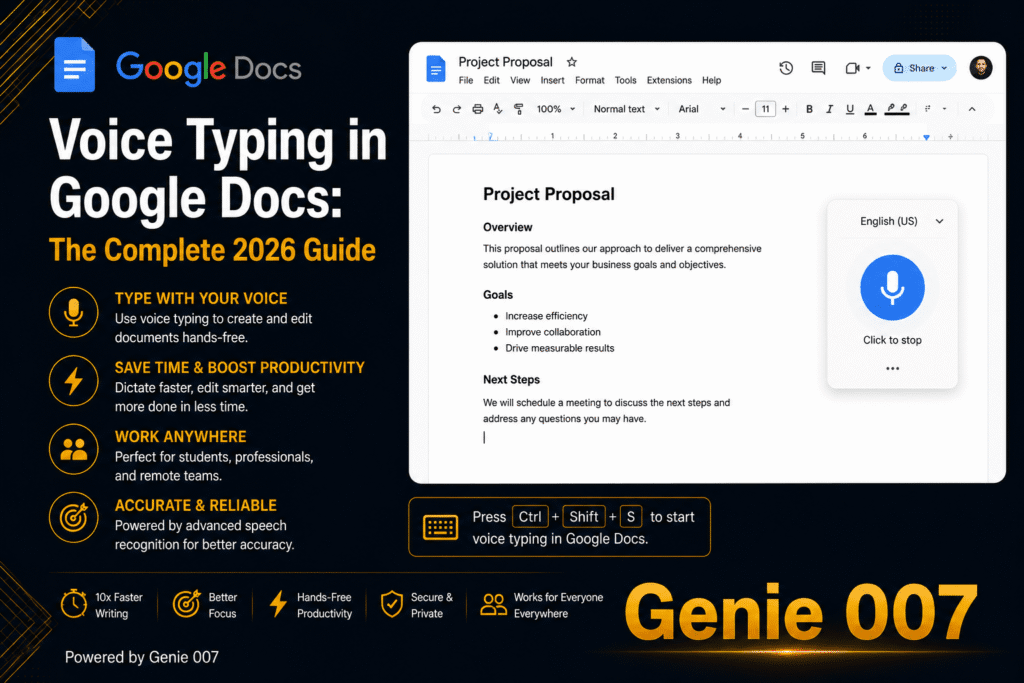
For a long first draft, speak it into Google Docs with Tools > Voice typing, which Google lists as working in the latest Chrome, Edge and Safari, then paste it into Canva. See our guide to voice typing in Google Docs. Canva’s help also describes generating text in a blank doc from the Canva AI tab, and the Canva AI prompt on the homepage accepts a spoken request, so try that on your account too.
Voice typing in Canva not working: fixes by device
When voice typing in Canva fails, the cause is almost always the device. Match your symptom below.
| Symptom | Likely cause | Fix |
|---|---|---|
| Win+H does nothing | Cursor is not inside a text box | Double-click the text so it blinks, then press Win+H again |
| Listening, but no words | Wrong or quiet microphone | Start > Settings > System > Sound, pick the mic under Input, run Start test |
| Windows blocks the mic | Privacy switches are off | Settings > Privacy & security > Microphone, turn on app and desktop app access |
| Mac shortcut ignored | Dictation off, or Voice Control on | System Settings > Keyboard > Dictation, and turn Voice Control off |
| No iPhone microphone icon | Dictation is off | Settings > General > Keyboard |
| Android mic does nothing | Keyboard lacks permission | Settings > Apps, choose Gboard, then Permissions |
Run the same tool in Notepad on Windows or Notes on Mac. If it works there but not in Canva, the fault is in that Canva field, so dictate elsewhere and paste the text across. To rule out hardware, Canva’s microphone test checks whether Canva can reach your microphone.
On a Mac, System Settings > Privacy & Security > Microphone controls which apps may listen. More walkthroughs are in our voice typing guides.
A faster way than dictating into Canva
Plain voice typing in Canva has a ceiling. It writes down what you say, so a headline, caption or flyer line still needs you to compose it and make it fit a small text box. Most Canva text is short and has to be right, and re-dictating a line five times is slower than typing it.
Genie 007 changes the job. Voice typing mode is fast dictation with automatic punctuation and grammar, so you never say “comma” or “period”. Genie Mode skips dictation altogether: tell Genie 007 what you want done, not word by word, just the order. Say “Write a two-line caption for our Saturday bake sale, warm tone, school hall at ten”, and you might get “Fresh bakes, friendly faces. Join us at the school hall this Saturday at ten.” It understands the context and delivers the finished text in your tone.
It works in any website or app, so you can use it where you edit Canva text in your browser. It handles 140+ languages, including speaking in one language and getting text in another for multilingual designs, and it is private by design: nothing is stored. See what think-to-text means, or compare options in our guide to the best speech to text Chrome extension.
Related guides: voice typing in Google Slides and Obsidian voice to text.
Frequently Asked Questions
Can you voice type in Canva?
Yes, but voice typing in Canva runs through your device, because Canva’s help pages describe no dictate button for text boxes, so click inside a text box and start Windows voice typing with Win+H, Mac Dictation, or the microphone key on your iPhone or Android keyboard.
Is Canva AI Voice the same as voice typing?
No, Canva AI Voice does the opposite of voice typing, because it takes text you have typed and turns it into spoken narration for videos, presentations and social media posts, while voice typing turns your own spoken words into written text.
How do I dictate in Canva Docs?
Open the doc, click in the page until the cursor blinks, then start your device’s dictation tool, which is Win+H on Windows, Dictation on a Mac, or the keyboard microphone on a phone, because Canva’s help pages describe no dictate option inside Canva Docs.
Does Canva have speech to text?
Canva has a speech to text tool for files, not for live dictation, because its speech to text page describes uploading an audio or video file, or pasting a YouTube link, and transcribing it into editable text, with upload limits of under 500 MB and 90 minutes.
Can you speak a prompt to Canva AI?
Yes, Canva’s help says you can select the microphone icon in Canva AI and speak your prompt instead of typing it, starting from Canva AI in the side navigation on the homepage, although the features you see depend on your plan, language and region.
Try Genie 007 Free
Voice typing in Canva gets your words into a text box, and Genie 007 goes on to your work: describe the headline, caption or doc you need and get the finished text in your tone.
Free to try, no card needed. Add the browser extension, use it on mobile, or request access to the desktop apps for Windows and Mac.
Written by Bill Kiani, founder of Genie 007.