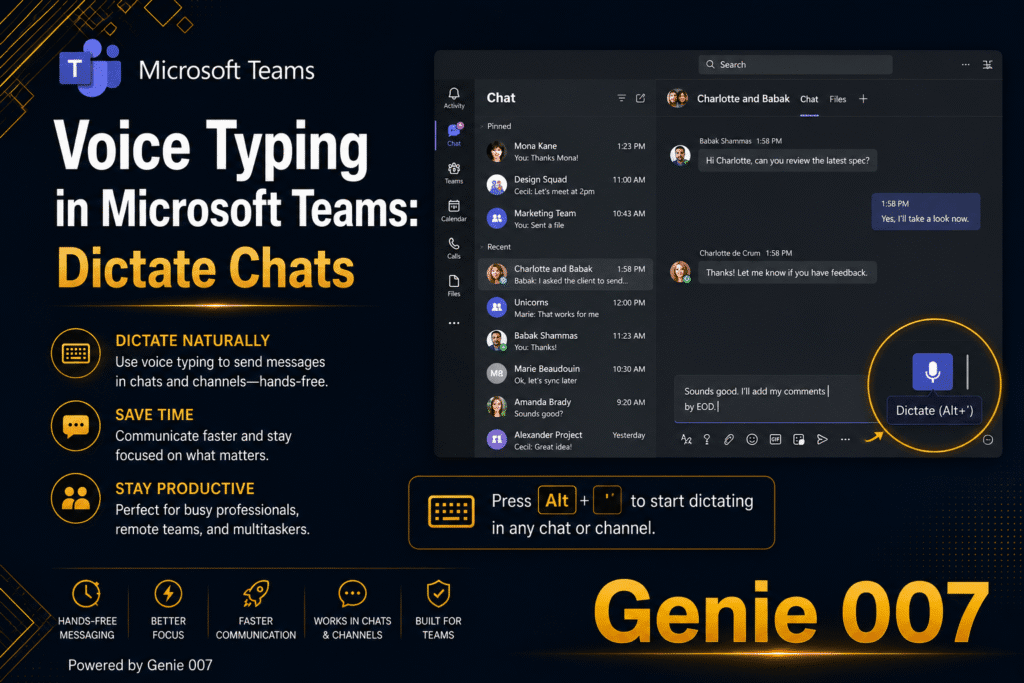
Voice typing in Microsoft Teams is possible right now, even though Teams has no built-in dictation button in its chat compose box. Windows Voice Typing (Win+H), macOS Dictation, and Genie 007 all work at operating-system level, typing directly into the Teams message field — at roughly 150 words per minute versus typing at 40.
That gap matters when you spend a working day inside Microsoft Teams. A quick channel reply, a project status update, a meeting agenda sent before a call — all of it takes less than half the time when you speak instead of type. This guide covers every method that works in 2026, explains why Teams meeting transcription is a completely separate feature, and shows where Genie 007’s think-to-text approach goes further than the built-in OS tools.
Does Microsoft Teams Have a Built-In Dictation Button?
No. As of September 2026, Microsoft Teams has no dedicated dictation button in its chat or channel compose box, and the feature is not on Microsoft’s public Teams roadmap. There is no setting to enable, no hidden toolbar option, and no Teams-specific keyboard shortcut for composing a chat message by voice. This surprises many people who use Word’s built-in Dictate button daily — the two products were built on different foundations and the compose box in Teams was not designed with a speech-to-text hook.
The workarounds that actually work all operate one layer higher — at the operating-system level — so they type into any focused text field on your computer, including the Teams compose box. That means you do not lose dictation when you switch from Teams to your email client, your project management tool, or your browser. One habit, one shortcut, consistent results across every app you use.
How to Use Windows Voice Typing (Win+H) in Microsoft Teams
Windows Voice Typing is Microsoft’s built-in, OS-level dictation tool, available on Windows 10 and Windows 11 at no extra cost. It works in any focused text field, which means it works perfectly in the Teams chat compose box. Press Win+H and a small floating toolbar appears; once it shows “Listening…”, speak and your words appear in real time. No installation, no account, no add-in required.
Step-by-step: dictating a Teams message on Windows
- Open Microsoft Teams and navigate to the chat or channel you want to message.
- Click inside the compose box to place your cursor there.
- Press Win+H to open the Windows Voice Typing toolbar.
- Wait for the toolbar to show “Listening…” before you begin speaking.
- Speak your message naturally — Voice Typing transcribes in real time.
- Use spoken punctuation commands such as “full stop”, “comma”, or “new line” where needed.
- Press Win+H again, or say “Stop listening”, to end the session.
- Review your message in the compose box, then press Enter to send.
Windows Voice Typing includes an auto-punctuation setting — toggle it on via the toolbar’s gear icon — which inserts commas and full stops without spoken commands. For a full breakdown of the punctuation and editing commands that work across Windows Voice Typing and other dictation tools, see our guide to dictation punctuation commands.
Two caveats worth knowing before you rely on it: Win+H processes audio through Microsoft’s cloud servers, so a reliable internet connection is needed; and it transcribes literally, so a rambling or imprecise message lands in the compose box exactly as spoken — ready for a tidy-up before sending. That works well for quick replies; it creates more friction on longer, considered messages.
Using macOS Dictation in Microsoft Teams
On a Mac, Apple’s built-in Dictation serves the same purpose. Click inside the Teams compose box, then go to Edit > Start Dictation, or use the keyboard shortcut you have configured in System Settings — two quick taps of the Fn key is the default on most Macs. macOS Dictation types into any active text field, including Teams, and performs well in quiet environments. For offline use, enable Enhanced Dictation in System Settings to download a local language model that works without an internet connection — particularly useful when working from a location with patchy Wi-Fi.
Remote and hybrid workers often find that voice typing and Teams go together naturally: both are part of the same shift away from synchronous in-person communication and towards written async messaging. For broader guidance on voice tools and remote-working patterns, see our full article on voice typing for remote work.
Dictating in Teams on Mobile: The Built-In Keyboard Mic Button
On Android and iOS, no additional tools are needed. The standard mobile keyboard — Gboard on Android, Apple’s native keyboard on iPhone — includes a microphone button alongside the space bar. Tap it, speak your Teams message, and the text appears directly in the compose field. This is the simplest path for mobile Teams users: no shortcuts to remember and no toolbar to summon. Accuracy is generally reliable because mobile keyboards are closely tuned to each device’s microphone. As with all basic dictation, the output is a literal transcript — reviewing before sending remains a good habit, especially on longer replies.
Teams Meeting Transcription Is a Different Feature Entirely
A very common point of confusion is worth clearing up directly. Teams does have a voice-related feature built in: live transcription and recording for meetings and calls. This captures what every participant says during a call and produces a timestamped, downloadable transcript. That is a genuinely useful feature — but it has nothing to do with composing a chat message by voice. Meeting transcription operates during a call to record spoken conversation for reference afterwards. Chat dictation is about composing a text message in the compose box using your operating system’s dictation tool. If you have read articles about “voice features in Teams” that discuss transcript settings or recording permissions, they are addressing an entirely different problem. The Win+H, macOS Dictation, and Genie 007 methods in this guide are specifically for sending a typed chat message by voice.
Why Voice Typing Is Worth Learning for Teams Chat
The speed case is strong and well-evidenced. The average office worker types at around 40 words per minute; the average speaking pace sits at around 150 words per minute. That is a roughly 3x speed advantage on every message you compose, consistently supported by independent research. Across a working day in Teams — channel replies, direct messages, project updates, meeting agenda notes sent ahead of calls — that difference compounds into a meaningful time saving. For professionals who handle a high volume of Teams communication daily, voice typing is one of the highest-return productivity habits available without switching any of the tools they already use.
There is also a quality-of-life argument. For anyone spending several hours at a keyboard each day, speaking some of that workload reduces physical strain on wrists and fingers. And for longer, more considered messages — explaining context, setting up a project brief, responding in detail to a client question — speaking tends to flow more naturally than composing a multi-paragraph message under time pressure. The message often comes out clearer, too, because most people speak more fluently in their own voice than they write under a deadline. For a broader view of what it means to drive your whole workflow by voice, see our guide on what think-to-text actually is.
Genie 007 in Microsoft Teams: Beyond Basic Dictation
Windows Voice Typing and macOS Dictation are both free, already installed, and genuinely useful for fast transcription. But they share a hard ceiling: they transcribe what you say, word for word. If you speak clearly and precisely, the result is usable. If what you say is conversational, imprecise, or the rough shape of an idea, the transcript needs editing before it is fit to send — and that editing loop partially cancels out the speed advantage.
Genie 007’s Genie Mode approaches the problem differently. Instead of capturing words, it captures intent. Say “ask the team about the project deadline” and Genie 007 drafts a polished, professional message into the Teams compose box — correctly structured, appropriate in tone, ready to review and send. The difference matters in a Teams context where messages are often time-sensitive and tone-sensitive: a quick voice brief to Genie 007 produces a message that reads well, even when your spoken prompt was imprecise. Genie 007’s Voice Typing mode handles the fast, literal-dictation use case with accurate transcription and auto-punctuation, without the need for spoken commands at every comma.
Teams chats are sensitive by nature — project decisions, client names, internal strategy. Genie 007 encrypts your audio in transit, processes it in real time and stores no recordings and no transcripts. That is a meaningful distinction from Win+H, which routes audio through Microsoft’s cloud. Genie 007 is available for Windows, Mac, mobile, and as a browser extension — so it follows you from Teams into every other tool you use, rather than stopping at the edge of one app. For the wider Microsoft ecosystem, see our companion guide on voice prompts for Microsoft Copilot.
| Feature | Windows Voice Typing (Win+H) | Genie 007 |
|---|---|---|
| Works in Teams chat | Yes | Yes |
| Works in every other app (OS-level) | Yes | Yes |
| Drafts polished messages from brief voice prompt | No | Yes (Genie Mode) |
| Auto-punctuation without spoken commands | Yes (toggle) | Yes |
| Keeps recordings or transcripts | Microsoft privacy terms apply | No |
| Available on Mac | No | Yes |
| Mobile app | No | Yes |
Voice to Text in Teams Chat
Voice to text in Teams chat comes from your computer or phone keyboard, not from Teams itself: Microsoft’s own list of Teams keyboard shortcuts contains no dictation command. What makes it fast is pairing Teams’ shortcuts with the system dictation key, so you can answer a message without reaching for the mouse.
| Where you use Teams | Jump to the message box | Start dictating |
|---|---|---|
| Teams desktop app on Windows | Ctrl+R | Win+H |
| Teams on the web, on Windows | Alt+Shift+R | Win+H |
| Teams app on a Mac | Control+R | Microphone key or your Dictation shortcut |
| Teams on a phone | Tap the message box | The mic on Gboard or the Apple keyboard |
A Routine for Longer Messages
- Press Ctrl+Shift+X (Command+Shift+X on a Mac) to expand the compose box before you speak, so a long update has room.
- Dictate in short chunks. Shift+Enter (Shift+Return on a Mac) starts a new line without sending.
- Fix slips by voice on Windows: “select that” picks out what you just said and “delete that” removes it.
- Add @mentions, emoji and formatting by hand. A dictated name stays plain text until you pick the person from the mention list.
- Send with Ctrl+Enter (Command+Enter on a Mac).
On a Mac, Dictation turns itself off after 30 seconds without speech, which is handy when you stop to think but means restarting it for the next paragraph. If Win+H does nothing in Teams, try it in Notepad: if it fails there too, the fault is in Windows rather than Teams, and our guide to Windows 11 voice typing not working walks through the fixes.
Voice to Text in a Teams Meeting
Voice to text in Teams meeting calls covers three separate features that behave very differently. Live captions are real-time subtitles you switch on in your own meeting controls; transcription is a saved written record with timestamps and speaker names, and everyone is told when it starts; meeting chat dictation is simply voice typing into the chat panel. Microsoft is clear that captions are not kept: Teams does not save them, so turn on transcription if you need a record.
| Feature | How to turn it on | Saved afterwards? |
|---|---|---|
| Live captions | More actions > Language and speech > Show live captions | No |
| Transcription | More actions > Record and transcribe > Start transcription, in the Teams desktop app | Yes. Organisers and co-organisers can download it as a .docx or .vtt file from the Recap tab in the meeting chat. |
| Meeting chat dictation | Ctrl+Shift+R opens the meeting chat in the Windows desktop app; then press Win+H | Yes, as ordinary chat messages |
If captions or the transcript fill up with nonsense, check the spoken language first. Microsoft says the transcript language must match the language being spoken. The organiser, a co-organiser or whoever started transcription can change it under Caption settings > Language settings > Meeting spoken language for captions or Transcript settings > Spoken language for the transcript, and the change applies to everyone in the meeting.
Before you dictate into the meeting chat, mute yourself with Ctrl+Shift+M (Command+Shift+M on a Mac). Otherwise the meeting hears you reading your message aloud, and the captions and transcript pick it up too; in a typical setup, voice typing still hears you while Teams is muted. If you cannot find the transcription option, remember that live transcription only runs in the Teams desktop app (the mobile app shows the transcript once the meeting ends), and your IT admin may have turned transcription or live captions off in the meeting policy. Microsoft’s guide to live transcription in Teams meetings lists the licences that include it.
Frequently Asked Questions About Voice Typing in Microsoft Teams
Does Microsoft Teams have a built-in voice typing or dictation button?
No. As of September 2026, Microsoft Teams has no built-in dictation button in its chat compose box, and it is not on Microsoft’s public Teams roadmap. To dictate into Teams, use Windows Voice Typing (Win+H), macOS Dictation, or a tool such as Genie 007 — all of which work at operating-system level and type into any focused text field, including Teams.
How do I use the Win+H shortcut to dictate in Microsoft Teams?
Click inside the Teams chat compose box to place your cursor, then press Win+H to open the Windows Voice Typing toolbar. Wait for the Listening prompt before speaking. Your words appear in the compose box in real time. Press Win+H again, or say Stop listening, to end the session — then press Enter to send your message.
Is Teams meeting transcription the same as voice typing for chat messages?
No — they are completely different features. Teams meeting transcription records and timestamps what participants say during a call, producing a downloadable transcript for reference. Voice typing for chat is about composing and sending a text message in the compose box using your operating system’s dictation tool, not anything built into Teams itself.
Can I dictate in Microsoft Teams on a Mac?
Yes. Click inside the Teams compose box, then use macOS Dictation via Edit then Start Dictation, or your configured shortcut. It types into any active text field, including Teams. For offline dictation, enable Enhanced Dictation in macOS System Settings to download a local language model that works without an internet connection.
Is my dictated content private when voice typing in Teams?
It depends on the tool. Windows Voice Typing (Win+H) and macOS Dictation both process audio through Microsoft’s and Apple’s cloud servers respectively. Genie 007 encrypts your audio in transit, processes it in real time and stores no recordings and no transcripts, an important distinction when composing messages about sensitive projects, clients, or internal decisions.
A note on the speed evidence: Microsoft’s own voice typing documentation confirms that Win+H works in any focused text field on Windows, including Teams, and independent research consistently puts voice dictation at two to three times faster than keyboard input. For high-volume Teams communicators — those composing dozens of messages, updates, and replies every day — that speed differential is one of the most practical and immediate productivity gains available right now, with no new tools required to get started.
Try Genie 007 Free in Microsoft Teams
If you want more than a literal transcript in Teams — messages that are polished, context-aware, and drafted from a brief voice prompt — Genie 007 takes dictation further. Works in Teams, and in every other app you use.
Download Genie 007 free — available for Windows, Mac, mobile, and as a browser extension. No credit card required. See all plans on the pricing page.
Written by Bill Kiani, founder of Genie 007.