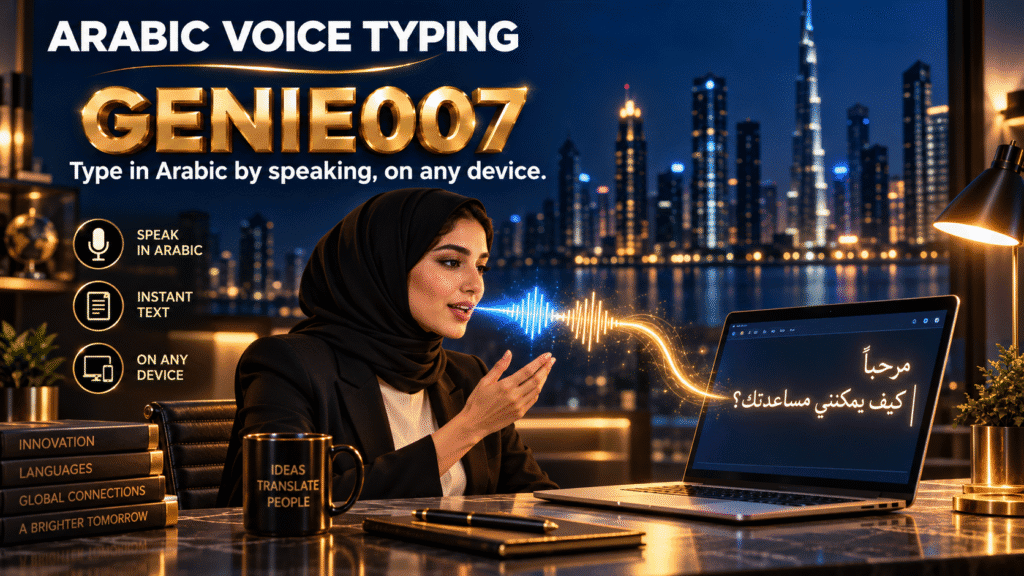
Arabic voice typing turns spoken Arabic into typed text using your device’s microphone and speech engine, so you can produce Arabic script without hunting for keys on a Latin keyboard. Gboard, iPhone dictation, Google Docs and Windows each handle it differently, and support for dialects and right-to-left formatting varies a lot between them.
If you’ve already compared tools for accuracy, our Arabic speech-to-text tool comparison covers that ground in detail. This guide is the practical answer to how to type Arabic by voice on the device you already own: turning on voice typing in Arabic, fixing the right-to-left mess it can create, and switching between Modern Standard Arabic and your own dialect without starting the whole document over.
Why Typing Arabic by Voice Is Harder Than It Looks
Arabic is spoken by roughly 400 million people worldwide, and linguists count more than 25 distinct spoken dialects across the Arab world, according to figures compiled by Istizada’s Arabic language statistics. That scale is exactly why “Arabic voice typing” isn’t one problem — a speech engine tuned for Modern Standard Arabic (MSA) news broadcasts doesn’t automatically understand Gulf, Egyptian, or Levantine everyday speech. Recognition quality generally tracks distance from MSA: formal Arabic and Egyptian Arabic tend to be recognised most reliably, while Gulf and especially Maghrebi dialects see more mistranscriptions on most consumer keyboards.
Then there’s the script itself. Arabic is written right to left, but numbers, punctuation, and any English words dropped mid-sentence still render left to right — so a single dictated line can flip direction two or three times. Most keyboards handle this reasonably well for short text and start getting it wrong the moment you mix languages, which is common for Arabic speakers who code-switch with English or French in business writing.
How to Turn On Arabic Voice Typing on Every Device
Every major keyboard and OS ships some form of Arabic voice input today, but you have to switch it on manually — none of them dictate in Arabic while your keyboard is still set to English. Here’s the actual path on each device.
Android (Gboard)
Open Settings → System → Languages & input → On-screen keyboard → Gboard → Languages → Add keyboard, then add Arabic and enable it. Once Arabic is an active Gboard language, the microphone icon turns your keyboard into an Arabic voice keyboard that dictates directly into Arabic script — Gboard and the Samsung keyboard both support Arabic speech-to-text this way.
iPhone and iPad
Go to Settings → General → Keyboard → Keyboards → Add New Keyboard and add Arabic. Apple has supported Arabic as a dictation language since iOS 8 and OS X Yosemite, and on newer devices it runs on-device rather than sending audio to Apple’s servers. Switch keyboards with the globe key before tapping the microphone, or dictation will default back to your primary language.
Windows (Voice Typing, Win+H)
This is the one genuine gap. Microsoft’s own supported-language list for Voice Typing does not include Arabic, and Microsoft’s own community forum has an open thread asking directly why Arabic dictation isn’t enabled. You can still add an Arabic on-screen keyboard for typing, but Win+H itself won’t dictate Arabic speech.
Mac (System Dictation)
Open System Settings → Keyboard → Dictation, add Arabic under languages, and turn dictation on. Like iOS, Mac dictation has included Arabic since the Yosemite era, and Apple’s on-device processing option keeps audio off Apple’s servers when it’s available for your Mac model.
Google Docs
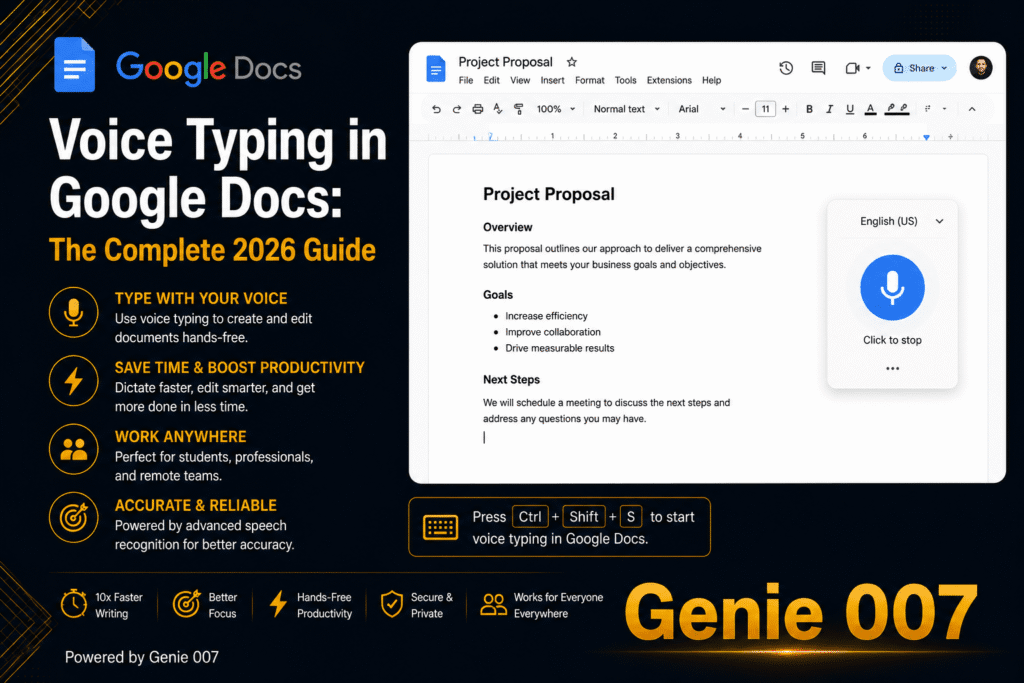
Open a document, then Tools → Voice typing (or press Ctrl+Shift+S on Windows, Cmd+Shift+S on Mac). Click the language dropdown and choose Arabic — Google’s own Voice typing documentation lists Arabic plus roughly 16 regional variants, including Egypt, Saudi Arabia, and Algeria, so pick the one closest to how you actually speak.
WhatsApp has no voice typing engine of its own — it simply uses whichever keyboard mic is active on your phone. Add Arabic to Gboard or your iPhone keyboard first, then tap the microphone inside any WhatsApp chat box; the dictated text lands right-to-left in the message bubble automatically.
| Device | Native Arabic voice typing? | Where to enable it |
|---|---|---|
| Android (Gboard) | Yes | Languages & input → Gboard → Add Arabic |
| iPhone / iPad | Yes (since iOS 8) | Settings → Keyboard → Add Arabic |
| Windows (Win+H) | No | Not supported on Microsoft’s language list |
| Mac dictation | Yes (since Yosemite) | System Settings → Keyboard → Dictation |
| Google Docs | Yes, 16+ regional variants | Tools → Voice typing → language dropdown |
| Inherits device keyboard | Enable Arabic on Gboard/iOS keyboard first |
Fixing the Right-to-Left and Dialect Headaches
Even once Arabic voice typing is switched on, two problems keep coming back. The first is the RTL/LTR mix: dictate a sentence with a date, a percentage, or an English product name, and the cursor can jump in ways that scramble word order when you go back to edit. The second is dialect drift — you speak in your everyday Gulf or Levantine Arabic, and the transcript comes back half-MSA, half-guesswork, because the engine is normalising toward formal Arabic rather than transcribing what you actually said.
Neither problem is really about your accent. It’s that most built-in dictation tools were designed around one language variety at a time, so switching between Arabic and English mid-sentence — routine in Gulf business writing — or moving between MSA and a dialect forces you to stop, change keyboard language, and re-punctuate by hand. We cover the mechanics of switching languages mid-message in more detail in our guide to dictating across languages mid-sentence, which is worth reading if this is a daily annoyance rather than an occasional one.
A Voice Keyboard That Handles Arabic the Same Way Everywhere: Genie 007
The device-by-device workarounds above get you typing Arabic by voice, but you’re stuck with a different toolset — and a different set of quirks — on your phone, your Windows laptop, and Google Docs. Genie 007 is built to remove that inconsistency: install it once as a Windows app, Mac app, browser extension, or on mobile, and Arabic voice typing works the same way inside Gmail, WhatsApp Web, Notion, Google Docs, or a Slack message — including on Windows, where Microsoft’s own dictation still won’t touch Arabic.
In practice: dictate a client reply in Gulf Arabic mixed with a couple of English terms, and Genie 007’s think-to-text engine delivers punctuated, correctly-ordered text instead of a literal, RTL-scrambled transcript — no manual language switching mid-sentence. It also handles 140+ languages with live translation, so you can speak in Arabic and have the message land in English (or the reverse) for a colleague who doesn’t read Arabic, without a separate translate-and-copy step. Genie 007 encrypts your audio in transit, processes it in real time and stores no recordings and no transcripts. Plans start at £5/month, with a free trial and no credit card required.
Arabic Voice Typing FAQ
Does Windows support Arabic voice typing?
Not natively. Microsoft’s own supported-language list for Windows Voice Typing (Win+H) does not include Arabic, and Microsoft’s community forum has open questions asking why. You can still type Arabic on Windows with an on-screen Arabic keyboard, or use a cross-platform tool like Genie 007 to add Arabic voice typing to any Windows app.
How do I turn on Arabic voice typing on Android (Gboard)?
Go to Settings, then System, then Languages & input, then On-screen keyboard, then Gboard, then Languages, and add Arabic. Once it’s active, tap the microphone icon on the Gboard keyboard to dictate directly into Arabic script — no separate app is needed.
Does Google Docs support voice typing in Arabic?
Yes. Open Tools, then Voice typing (or press Ctrl+Shift+S on Windows, Cmd+Shift+S on Mac), then choose Arabic from the language dropdown. Google Docs lists Arabic alongside roughly 16 regional variants, including Egypt, Saudi Arabia, and Algeria.
Can I voice type in Arabic and English in the same sentence?
Built-in dictation tools generally can’t — you have to stop, switch keyboard language, and re-punctuate manually, which breaks right-to-left formatting. Tools built for code-switching, including Genie 007, handle mixed Arabic-English speech in one pass without that manual switch.
Why does my dictated Arabic text look wrong, with numbers or English words out of order?
This is a right-to-left/left-to-right formatting clash. Arabic reads right to left, but numbers and any English words in the same line still render left to right, so a single sentence can flip direction more than once. It’s a known limitation of most consumer voice typing tools, not a sign your dictation was inaccurate.
Try Genie 007 Free
If you’ve been switching keyboards, re-typing RTL text, and copy-pasting between Arabic and English all week, Genie 007 turns that into one voice keyboard that works the same way on every app and device.
Download Genie 007 free — available for Windows, Mac, mobile and as a browser extension. No credit card required.
Written by Bill Kiani, founder of Genie 007.