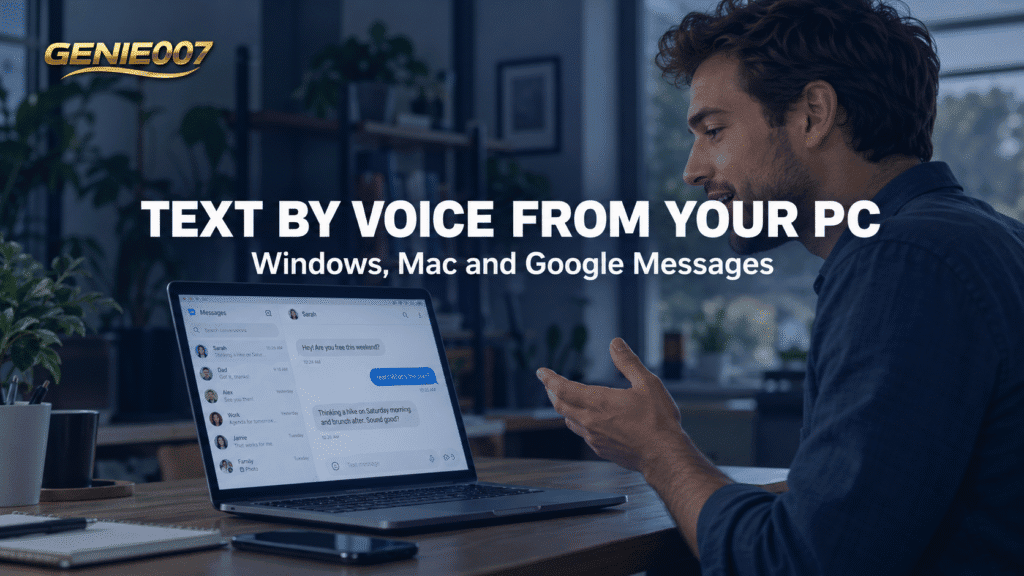
You can send text messages from computer by voice, but it takes two steps: link your phone to your computer, then dictate into the message box. Use Phone Link on Windows 11, the Messages app on a Mac or Google Messages for web, then start Windows voice typing or Mac Dictation and speak.
How to send text messages from computer by voice: your options
Texts travel through your phone and your phone number, so every way to send text messages from computer by voice begins by pairing the two. After that, the message box is an ordinary text box, so your computer’s own voice typing can fill it.
| Your phone | Your computer | Texting tool | Voice step |
|---|---|---|---|
| Android | Windows 11 | Phone Link | Windows voice typing |
| iPhone | Windows 11 | Phone Link, with limits | Windows voice typing |
| iPhone | Mac | Messages | Mac Dictation or Siri |
| Android | Windows or Mac | Google Messages for web | Windows voice typing or Mac Dictation |
Apple ties texting from a Mac to an iPhone, so a Mac owner with an Android phone needs Google Messages for web.
Windows with Phone Link: Android and iPhone
Phone Link is the Windows 11 app that puts your phone’s texts on the PC: open it and select Messages. Microsoft’s Phone Link texting page covers the Android steps, and its guide to connecting a phone covers the iPhone.
Android phone
- Open Phone Link on the PC and choose Android. Scan the QR code with the Link to Windows app on your phone, approve the permissions, allow access to your messages when asked and confirm on both devices.
- Select Messages, then New message, enter a contact’s name or number and select the contact.
- Click in the message box, press Windows logo key + H, wait for Listening… and speak. Say “Stop listening” when you finish, then check the text and send it.
Microsoft notes that MMS is supported, RCS is available only on select Samsung devices, only the last 30 days of messages appear and you cannot manage or delete messages from the PC.
iPhone
An iPhone connects over Bluetooth and needs iOS 14.0 or later. In Phone Link choose iPhone, pair when prompted and approve the pairing code and permissions on both devices. Microsoft lists messaging, including iMessage, but with limits: group chats and media sharing such as photos or videos are not supported, and messages are session based, so they only come through while the phone is connected to the PC.
That makes Phone Link on an iPhone best for one-to-one replies. For group chats or photos, use the Messages app on a Mac or the phone itself. Dictate the same way: click in the message box and press Windows logo key + H.
Mac with Messages
The Messages app is the smoothest way for an iPhone owner to send text messages from computer by voice. iMessages go to other Apple devices in blue bubbles, and texts to Android phones leave as SMS, MMS or RCS in green bubbles through your iPhone, which must be on and online. Apple’s Text Message Forwarding page explains the pairing.
- On the iPhone, open Settings > Apps > Messages > Text Message Forwarding and switch on your Mac. Both devices need the same Apple Account.
- On the Mac, open Messages, choose Messages > Settings > iMessage and check the account matches.
- Click Compose, enter a name, number or Apple Account in the To field, then click the message box.
- Start Dictation, speak, then press Return to send.
With Messages in iCloud, Apple says forwarding is built in and needs no separate setup.
Apple’s guide to sending messages says you can dictate text, and that you can ask Siri, for example “Message Mum that I’ll be late”. Turn Dictation on first in System Settings > Keyboard. Our guide to how to dictate on Mac covers shortcuts and limits.
Google Messages for web on Windows or Mac
Google Messages for web lets an Android phone owner send text messages from computer by voice, using Chrome, Firefox, Safari or Edge on Windows or Mac, with nothing to install. Google lists Android 5.0 or higher and the latest Google Messages as the phone requirements in its Messages for web help.
- On the phone, open Google Messages, tap your account menu, tap Device Pairing and choose your account.
- On the computer, open messages.google.com/web and sign in with the same Google Account.
- Tap the emoji on the phone that matches the one on the computer screen. The phone vibrates when pairing finishes.
Only one computer can be active at a time, and carrier fees apply as in the phone app. Google says QR code pairing is no longer available in the US, so older guides that tell you to scan a code may be out of date. For a voice text desktop setup that does not depend on Microsoft or Apple, this is the most flexible route.
Voice typing in each: dictate texts from PC or Mac
However you send text messages from computer by voice, the voice step is the same, because you are dictating into a text box. This table shows how to dictate texts from PC or Mac, plus two hands-free options.
| Tool | Start | Stop | Good to know |
|---|---|---|---|
| Windows voice typing | Windows logo key + H, then wait for Listening… | Say “Stop listening” or press the microphone button on the voice typing menu | Uses online speech recognition, so it needs an internet connection |
| Mac Dictation | Microphone key, your Dictation shortcut or Edit > Start Dictation | Escape, the Microphone key or your shortcut | Turn it on in System Settings > Keyboard; it stops after 30 seconds without speech |
| Windows Voice access | Settings > Accessibility > Speech | Alt+Shift+B puts it to sleep | Needs Windows 11 version 22H2 or later; Microsoft says it can work without an internet connection |
| Mac Voice Control | System Settings > Accessibility > Voice Control | Switch it off in the same place | Needs a one-time download from Apple, then works offline; standard Dictation is unavailable while it is on |
To text from computer hands free, the two accessibility tools can also click for you. Say “Show numbers” in Voice access, or “Click” followed by an item’s name or number in Voice Control, and you can reach the message box and the send button without a mouse. Button names vary by app, so test with a harmless message first.
Read the message before sending, because dictation can mishear names and numbers. Our voice typing shortcut key guide lists more shortcuts, and voice typing on Android covers the phone side. Microsoft’s voice typing guide lists the supported languages.
A faster way: tell Genie 007 what to text
Built-in voice typing writes down exactly what you say, so you still compose every sentence aloud and fix the wording yourself. If you send text messages from computer by voice all day, that is a lot of talking.
Genie 007 works from the order, not the wording. With the browser extension open in Google Messages for web, you might say: “Reply to Dan, I’m ten minutes late, start without me.” Genie 007 understands the context and writes: “Hi Dan, I’m running about ten minutes late. Please start without me and I’ll join as soon as I can.” You check it, then send it. Voice typing mode is there when you only want dictation, with automatic punctuation and grammar, so you never say “comma”.
You can also speak in one language and send text in another, across 140+ languages. It does not replace the pairing step, because your phone still carries the text. It is private by design and nothing is stored. See what think-to-text means or browse the voice typing guides.
Related guides: WhatsApp voice typing not working, voice to text in Facebook Messenger and dictation not working on Mac.
Frequently Asked Questions
Can I dictate a text from my computer?
Yes, you can dictate a text from your computer once your phone is paired: use Phone Link on Windows 11, the Messages app on a Mac or Google Messages for web, click into the message box, then start Windows voice typing with Windows logo key plus H or Mac Dictation, speak, check the words and send.
Can I send iMessages by voice from a Mac?
Yes, because Messages on a Mac sends iMessages to other Apple devices, so click Compose, choose the recipient, click the message box, start Dictation with the Microphone key, your shortcut or Edit then Start Dictation, speak your message, and press Return.
Does Phone Link work with iPhone?
Yes, Phone Link connects an iPhone running iOS 14.0 or later to a Windows 11 PC over Bluetooth, and Microsoft lists messaging, calls and notifications, but group chats and media sharing such as photos or videos are not supported, and messages come through only while the phone is connected to the PC.
Can I text from my computer hands free?
Yes, once your phone is linked, Voice access on Windows 11 version 22H2 or later and Voice Control on a Mac can dictate into the message box and click items by name or number, so you can write and send a text without touching the keyboard or mouse.
Try Genie 007 Free
Learning to send text messages from computer by voice saves your thumbs. Genie 007 does your work, not your words: say what the reply should do and get the finished message in your tone.
Free to try, no card needed. Add the browser extension for Google Messages for web, use it on mobile, or request access to the desktop apps for Mac and Windows.
Written by Bill Kiani, founder of Genie 007.