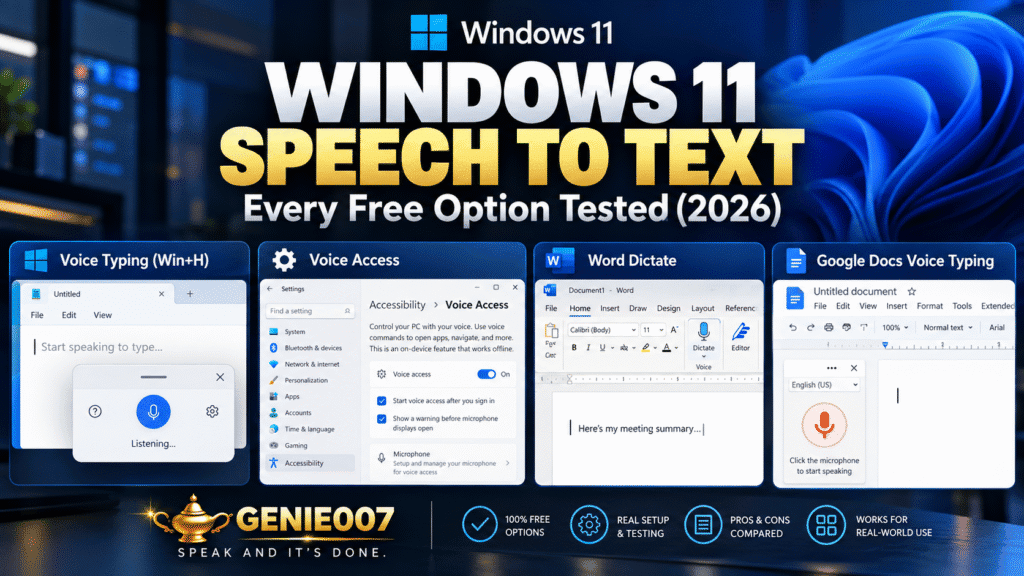
Speech to text Firefox users can rely on comes from the operating system, not the browser. Firefox keeps its speech recognition interface switched off by default, so there is no built-in dictation for web pages. Use Windows voice typing (Windows logo key + H) or Mac Dictation, which both type into Firefox text fields.
| Option | How to start | In Firefox |
|---|---|---|
| Windows voice typing | Windows logo key + H | Types where you click; needs internet |
| Windows voice access | Settings > Accessibility > Speech | Works offline after setup |
| Mac Dictation | Your Dictation shortcut | Types wherever you can type |
| Google Docs voice typing | Tools > Voice typing | Listed for Chrome, Edge and Safari only |
| Add-ons using the speech interface | Toolbar button | Firefox keeps that feature off by default |
Why many voice typing extensions don’t work in Firefox
Most voice typing extensions built for Chrome rely on the SpeechRecognition interface of the Web Speech API. MDN labels it “Limited availability”, meaning it does not work in some widely used browsers, and notes that in browsers such as Chrome it sends your audio to a web service, so it will not work offline.
Firefox is one of those browsers. MDN’s compatibility data lists Firefox support only in preview builds, and Can I use shows it as disabled by default in current releases. An add-on that relies on it does nothing in a normal window. We would not rely on a preview build or a hidden setting to turn it on: neither is meant for everyday use, and each site must be written to use it.
Mozilla’s own attempts ended in 2021, when its Voice Fill and Firefox Voice Beta extensions were retired as the Mozilla Speech Proxy Server was decommissioned. In May 2026 a community contributor on Mozilla Support said on-device recognition is still at an early stage.
Is there a Firefox voice typing extension you can trust?
Speech to text Firefox add-ons do exist, but we do not recommend one, because a voice add-on handles your microphone and everything you say. Mozilla says Recommended Extensions get a technical review by security experts, while others have not been vetted by Mozilla. Before installing any:
- Look for the Recommended badge on the add-on’s page.
- Read the permissions Firefox lists in the install prompt, and decline any you cannot justify.
- Read the privacy policy to see where your audio goes, then review microphone choices in the Permissions section of Firefox Settings (under Privacy & Security or Permissions and data, depending on your version).
Also on Chrome? Our guide to the best speech to text Chrome extension options covers the trade-offs there. Want Firefox to read a page aloud instead? Reader View has a Read aloud option on Windows, macOS and Linux when your system has a voice for that language.
Speech to text Firefox on Windows: voice typing and voice access
Windows voice typing is part of Windows 11, so the speech to text Firefox needs on Windows is already built in. Microsoft says you need an internet connection, a working microphone and your cursor in a text box.
- Click into a text field in Firefox.
- Press Windows logo key + H and wait for the “Listening…” alert.
- Speak, using voice typing commands for punctuation marks.
- Say “Stop listening” or press the microphone button to finish.
Add other languages under Start > Settings > Time & language > Language & region, then switch with Windows logo key + Spacebar. If Windows cannot hear you, pick your microphone under Settings > System > Sound and turn on Let desktop apps access your microphone under Settings > Privacy & security > Microphone, as Microsoft’s microphone guide describes.
For offline use, try voice access in Settings > Accessibility > Speech on Windows 11, version 22H2 or later. After a first-time setup that needs internet, day-to-day use works offline; say “Dictation mode” to type only, as Microsoft’s get started guide explains. More shortcuts are in our voice typing shortcut key guide.
Mac dictation in Firefox
Speech to text Firefox can use on a Mac is Apple’s own Dictation, which types into Firefox like any other app. Apple says you can dictate anywhere you can type, so click into a web form or webmail window and start there.
- Open Apple menu > System Settings > Keyboard, switch on Dictation and click Enable.
- Click into a text field in Firefox.
- Press the Microphone key or your Dictation shortcut, or use Edit > Start Dictation if the menu shows it, then wait for the cursor to pulse.
- Speak, then press Escape or the shortcut to stop. It also stops after 30 seconds without speech.
Under Dictation you can also change the Shortcut, Languages and Microphone source. The text below the switch says whether audio is processed on your Mac or sent to Apple. If Voice Control is on, standard Dictation is unavailable.
Google Docs voice typing and Firefox
Google Docs voice typing is separate from the speech to text Firefox gets through Windows or Mac dictation. Google lists it for the latest Chrome, Edge and Safari; Firefox is not named, so Tools > Voice typing is not dependable there. Google’s browser guidance adds that other browsers may work, but not every feature.
Open the document in Chrome, Edge or Safari when you want Voice typing (see voice typing not working in Chrome if it misbehaves there), or stay in Firefox and use Windows voice typing or Mac Dictation at the cursor. Google does not document that combination, so try one short sentence first.
Firefox voice input on your phone
Speech to text Firefox offers on Android is limited to search: Mozilla’s voice input page describes a microphone icon in the address bar for spoken searches. To dictate into a page’s text fields, use your keyboard: with Gboard, tap a field, tap the Microphone icon and speak when you see “Speak now”, as Google describes.
More walkthroughs are in our voice typing guides.
A faster way: say what you want done
Windows voice typing and Mac Dictation are the usual speech to text Firefox answers, but they do one job: they write down what you say. You still choose every word and tidy the result. Genie 007 starts from the outcome, and its Windows and Mac apps work in any app you can type in, so Firefox is just another window.
Say Gmail is open in Firefox. In Genie Mode you say: “Reply to Priya, thanks for the invoice, I’ll pay it Friday, ask for a PO number.” Genie 007 understands the context and writes the finished reply in your tone. Voice typing mode gives you your own words with automatic punctuation and grammar, so you never say “comma”.
You can also speak in one language and get text in another, across 140+ languages. Genie 007 is private by design and nothing is stored. See think-to-text for the idea, or Genie 007 for Windows and Genie 007 for Mac.
Related guides: the “speech services are managed by your organization” fix and voice typing in Google Slides.
Frequently Asked Questions
Does Firefox have voice typing?
No, Firefox has no built-in voice typing for web pages, because its speech recognition interface is not switched on in standard releases, but you can dictate in Firefox with Windows voice typing (Windows logo key + H), Mac Dictation or an app that works outside the browser.
Why doesn’t Google Docs voice typing work in Firefox?
Google lists Google Docs voice typing for the latest Chrome, Edge and Safari, and Firefox is not among them, so open the document in a supported browser, or stay in Firefox and use Windows voice typing or Mac Dictation, which type at the cursor.
Is there a speech to text extension for Firefox?
Dictation add-ons exist on addons.mozilla.org, but any that rely on the browser’s speech recognition interface do nothing in Firefox, so look for Mozilla’s Recommended badge, read the permissions and privacy policy before installing, and prefer your operating system’s built-in dictation for everyday use.
How do I dictate in Firefox on Windows 11?
Click into a text box in Firefox, press Windows logo key + H, wait for the Listening alert, speak, and say Stop listening to finish, as long as you have an internet connection and a working microphone, which Microsoft lists as requirements.
Will Firefox get built-in speech recognition?
Mozilla has not announced a date that we could find: MDN lists Firefox support for SpeechRecognition only in preview builds, and a May 2026 community answer on Mozilla Support describes on-device recognition as early stage, so use your operating system’s dictation for now.
Try Genie 007 Free
Dictation gets your words into Firefox. Genie 007 does your work, not your words: say what you want done, not word by word, just the order.
Free to try, no card needed. Request access to the desktop apps for Windows and Mac, use it on mobile, or see the browser extension page for the browsers it supports.
Written by Bill Kiani, founder of Genie 007.