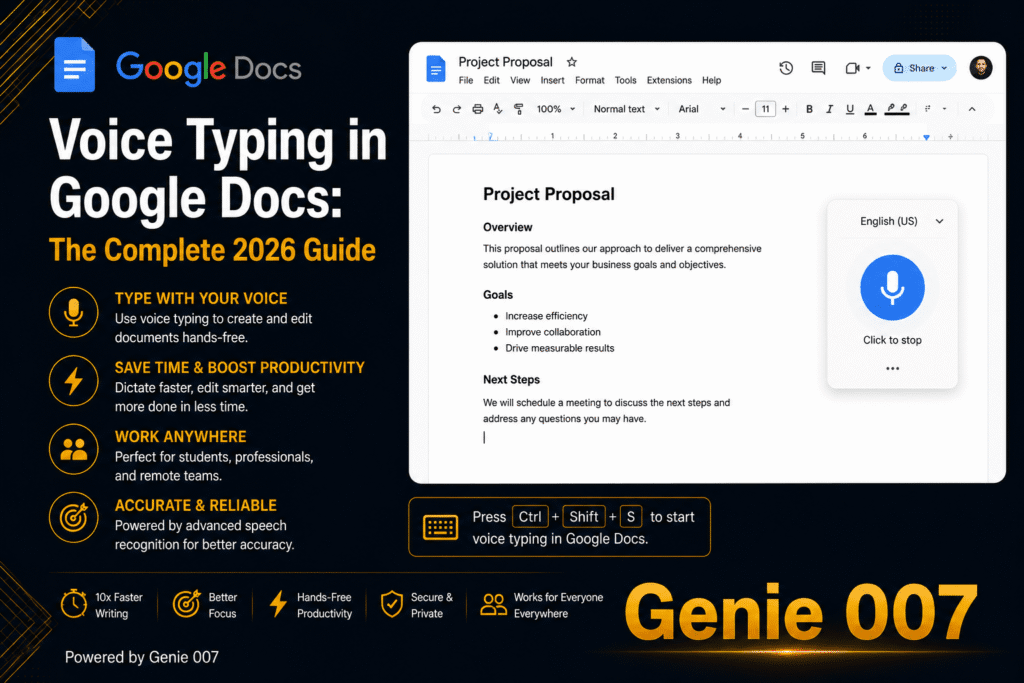
The voice typing shortcut key on Windows is Win+H: put the cursor in any text box and press it to start talking. On a Mac, press the Microphone key or your Dictation shortcut. Google Docs uses Ctrl+Shift+S (Cmd+Shift+S on a Mac), Word for Windows uses Alt plus the grave accent key, and a Chromebook uses Search+D.
Below is the full list, checked against Microsoft, Apple and Google help pages in October 2026, plus how to change a shortcut and fix one that does nothing. More walkthroughs live in our voice typing guides.
The voice typing shortcut key for every platform
Most people need one row. Click where the words should go, press the keys and speak.
| Platform or app | Shortcut to start | Good to know |
|---|---|---|
| Windows 10 and 11 (any app) | Win+H | Needs internet. Say “stop listening” to stop. |
| Word for Windows | Alt + the grave accent key (left of 1) | Needs Microsoft 365. Say “exit dictation”. |
| Word for Mac and the web | Home > Dictate, or Option+F1 on a Mac | Option+F1 is Microsoft’s documented Mac shortcut. |
| Classic Outlook for Windows | Alt + the grave accent key | Cannot be remapped in Outlook. |
| New Outlook, Outlook on the web | Message > Dictate | Alt + the grave accent key resumes dictation. |
| Outlook for Mac | Message > Dictate or Option+F1 | Option+F1 is Microsoft’s documented shortcut. |
| Google Docs (Windows, ChromeOS) | Ctrl+Shift+S | Listed for Chrome. Say “stop listening”. |
| Google Docs (Mac) | Cmd+Shift+S | Menu route: Tools > Voice typing. |
| Mac system dictation | Microphone key or your Dictation shortcut | Often Fn or Globe pressed twice. Esc stops it. |
| Chromebook | Search+D or Launcher+D | Turn Dictation on in Accessibility first. |
| Android (Gboard) | No shortcut: tap the microphone on the keyboard | Works in any app. |
| iPhone and iPad | No shortcut: tap the microphone key | Dictation must be on in keyboard settings. |
| Microsoft Teams desktop | No dictation button of its own | Use Win+H or your Mac shortcut. |
System shortcuts work in almost any text field. App shortcuts (Word, Outlook, Docs) only work inside that app but know more editing commands.
Windows voice typing shortcut: Win+H
The Windows voice typing shortcut is the Windows logo key plus H, and it is the one voice typing shortcut key that works in almost any Windows app. Click into a text field, press it, wait for the listening prompt, then speak. On a touch keyboard, tap the microphone key next to the space bar instead.
Microsoft’s voice typing help page explains that it uses online speech recognition powered by Azure, so you need internet, a working microphone and a supported language. Voice access in Windows 11 is a different tool for full voice control: turn it on in Settings > Accessibility > Speech, then Alt+Shift+B wakes it or puts it to sleep.
Shortcut key for voice typing in Word and Outlook
The shortcut key for voice typing in Word for Windows is Alt plus the grave accent key, to the left of 1 on US and UK keyboards. Microsoft’s Word dictation accessibility guide also lists the ribbon route Alt+H, D. Dictate is a Microsoft 365 subscriber feature, so sign in and stay online. On a Mac, click Home > Dictate or press Option+F1. Our guide on how to dictate in Word covers the rest.
Classic Outlook for Windows uses the same Alt combination, and Outlook, unlike Word, has no option to remap it. In new Outlook and Outlook on the web, select Message > Dictate. Teams is the odd one out: Microsoft’s community moderators have said the desktop chat box has no built-in dictation, so use Win+H or your Mac shortcut there.
Google Docs voice typing shortcut
The Google Docs voice typing shortcut is Ctrl+Shift+S on Windows and ChromeOS, or Cmd+Shift+S on a Mac. Google’s Docs keyboard shortcuts list marks it as available in Chrome. Voice typing also runs in the latest Edge and Safari, where Tools > Voice typing is the reliable route.
Voice commands such as “new paragraph” only work when your account and document language are both English. In Google Slides, use Tools > Dictate speaker notes. Our Google Docs voice typing guide lists every command.
Mac dictation shortcut
There is no single voice typing shortcut key on a Mac: you choose it. The Mac dictation shortcut lives in System Settings > Keyboard > Dictation, under Shortcut. Recent keyboards have a Microphone key in the top row; press and release it to dictate, since holding it calls Siri. Pressing Fn (or Globe) twice is a common alternative, and Edit > Start Dictation also works.
Press Esc to stop. Apple’s Mac dictation guide notes that Dictation also stops after 30 seconds without speech. For time limits and accuracy tips, see how to dictate on Mac.
Chromebook, Android and iPhone
The Chromebook voice typing shortcut is Search+D or Launcher+D, but only after you switch Dictation on: select the time at the bottom right, then Settings > Accessibility, and turn on Dictation under Keyboard and text input. Say “cancel” to stop. Our roundup of dictation software for Chromebook covers its limits.
Phones have no keyboard shortcut. With Gboard on Android, tap the microphone at the top of the keyboard; our Android voice typing guide covers the options. On iPhone and iPad, tap the microphone key on the on-screen keyboard.
Can you change the voice typing shortcut?
If you want a different voice typing shortcut key, only some platforms allow it.
| Platform | Changeable? | Where |
|---|---|---|
| Windows (Win+H) | No | No setting to remap it |
| Mac Dictation | Yes | System Settings > Keyboard > Dictation > Shortcut, including a custom option |
| Word for Windows | Yes | File > Options > Customize Ribbon, then the keyboard shortcuts Customize button |
| Outlook for Windows | No | No option to customise shortcut keys |
| Google Docs | No | Use Tools > Voice typing if keys clash |
On a Mac, choosing the Fn option also switches the Press fn key to setting to Start Dictation. If Fn opens emoji or changes keyboard language instead, check that setting.
Voice typing shortcut key not working? Quick checks
When a voice typing shortcut key does nothing, the cause is usually one of these:
- Click into a text field first, so the words have somewhere to go.
- Allow the microphone: Settings > Privacy & security > Microphone on Windows, System Settings > Privacy & Security > Microphone on a Mac, or the site permission in your browser.
- On Windows, turn on Online speech recognition in Settings > Privacy & security > Speech. If it says managed by your organization on a work PC, ask IT.
- On a Mac, confirm Dictation is on and check the Shortcut and Microphone source.
- For Word and Outlook, sign in to Microsoft 365. On layouts where the grave accent key sits elsewhere, click Dictate instead.
The menu route (Home > Dictate, Tools > Voice typing) starts the same tool. If the menu works but the keys do not, the shortcut is the problem, not your microphone.
A faster way than any shortcut
A voice typing shortcut key saves typing, not writing. Every tool above turns speech into the exact words you said, so you still compose each sentence, tidy the phrasing and remember a different key per app.
Genie 007 starts from the other end: tell it what you want done, not word by word. In Gmail you might say: “Reply to Priya, thanks for the proposal, can’t do Thursday, offer Friday at ten.” Genie Mode understands the context and returns a finished, polite email in your tone. When you want plain dictation, voice typing mode adds punctuation automatically, and you can speak in one language and get text in another across 140+ languages, in Outlook, Slack, WhatsApp or Notion. Read what think-to-text means for more.
Related guides: Windows 11 voice typing commands, dictation not working on Mac, voice typing in Google Slides and Obsidian voice to text.
Voice Typing Shortcut Key on a Laptop
The voice typing shortcut key on a laptop is the same as on a desktop: Win+H on a Windows laptop, and the Microphone key or your Dictation shortcut on a MacBook. Laptop keyboards add two wrinkles, which are missing keys and top-row keys that behave differently, so here is what each one means in practice.
On a Windows laptop, the shortcut key for voice typing in a laptop is the Windows logo key plus H. Microsoft’s voice typing help page describes it as the shortcut for a hardware keyboard, so there is no Fn key to hold. If your laptop is a tablet-style 2-in-1 with the on-screen keyboard showing, tap its microphone button instead.
To turn voice typing on for the first time:
- Click into a text box, such as an email or a document.
- Press Win+H and wait for the listening prompt.
- Open the gear icon in the voice typing window if you want to pick the microphone or switch on the voice typing launcher, which Microsoft describes as a quick way to start when you are in a text box.
- If nothing is heard, work through the microphone and speech checks in the quick checks section above.
Win+H works on every Windows 11 laptop keyboard, so it is the dependable choice even if your laptop has extra media or AI keys.
On a MacBook, press the Microphone key if your keyboard has one in the row of function keys. Apple’s Mac dictation guide says to turn Dictation on in System Settings > Keyboard, and the Shortcut menu there lets you choose another way to start it. Press Esc, the Microphone key or your shortcut again to stop.
If pressing a top-row key triggers F5 or another function instead, your laptop is treating the row as standard function keys. Apple’s function keys guide says to hold Fn (or Globe) while you press the key, or to change it in System Settings > Keyboard > Keyboard Shortcuts > Function Keys. Chromebook laptops use Search+D, covered in the Chromebook section above.
Any speech to text shortcut is tied to the laptop’s operating system and its keyboard. Genie 007 on Windows and Mac uses one key on any laptop: Press Q (or any key or combination you choose) to have it write the finished text, or Press X (or any key or combination you choose) to type your exact words.
Frequently Asked Questions
What is the shortcut key for voice typing?
The voice typing shortcut key on Windows 10 and 11 is Win+H. On a Mac, press the Microphone key or the Dictation shortcut set in System Settings, Keyboard, Dictation. Google Docs uses Ctrl+Shift+S, or Cmd+Shift+S on a Mac, and a Chromebook uses Search+D.
What is the shortcut for voice typing in Word?
In Word for Windows, press Alt with the grave accent key, the key left of 1, to start Dictate, and say exit dictation to finish. It needs a Microsoft 365 subscription and internet. On a Mac, click Home, then Dictate, or press Option+F1.
How do I voice type in Google Docs with a shortcut?
Open your document in Chrome, click where you want the text, and press Ctrl+Shift+S on Windows or ChromeOS, or Cmd+Shift+S on a Mac. Click the microphone to start and say stop listening when done. If nothing happens, use Tools, then Voice typing.
Can I change the voice typing shortcut?
It depends on the platform. On a Mac you can choose or record any Dictation shortcut in System Settings, Keyboard, Dictation, and Word for Windows lets you assign keys in File, Options, Customize Ribbon. Win+H, Outlook and the Google Docs shortcut cannot be changed.
Why is Win+H not working?
Win+H usually fails because no text field is selected, microphone access is blocked, or online speech recognition is off. Check Settings, Privacy and security, Microphone and Speech, and confirm you are online. If it says managed by your organization, ask your IT team.
Try Genie 007 Free
A shortcut gets your voice onto the page. Genie 007 gets the finished message there, in your tone, inside Gmail, Outlook, Slack or Google Docs. It is private by design, and nothing is stored.
Free to try, no card needed. Add the browser extension, request access to the desktop apps for Windows and Mac, or use Genie 007 on your phone with the mobile app.
Written by Bill Kiani, founder of Genie 007.