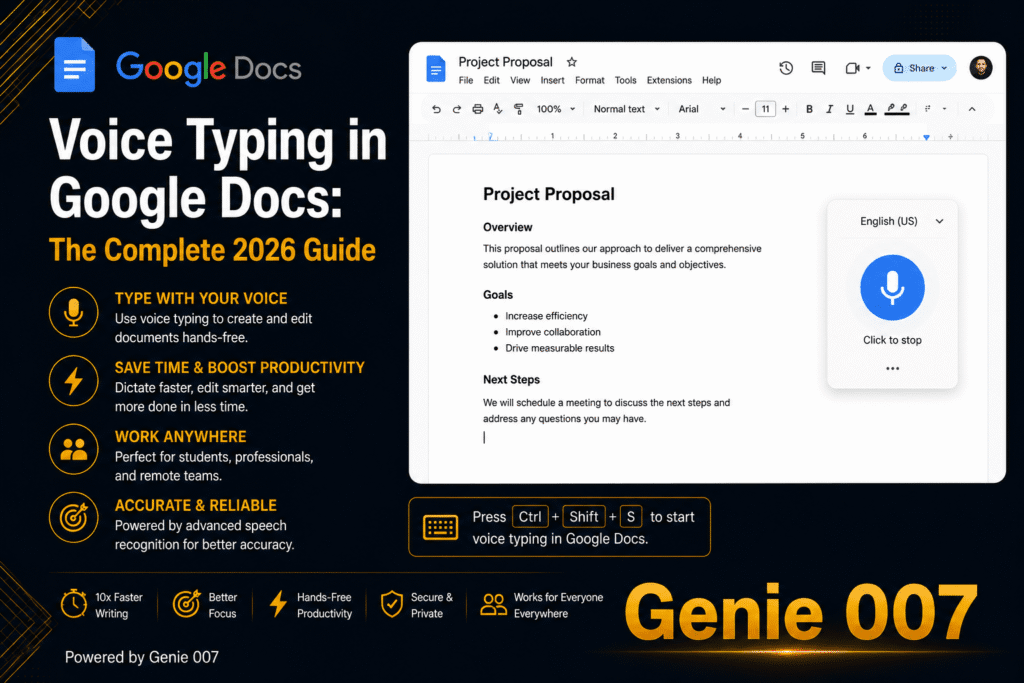
Google Docs voice typing not working is usually caused by an unsupported browser, blocked microphone permissions, a .docx file format, or an admin-level Workspace restriction. Voice typing only runs in Chrome, Edge or Safari, needs live microphone access, and requires a native Google Doc — fixing these four areas resolves most cases within minutes.
You’re not alone — voice typing not working in Google Docs is one of the most common frustrations for anyone who dictates reports, emails or notes for a living. The good news is that almost every case traces back to a short list of fixable causes, not a broken feature. This guide walks through all 11 of them in order of how often they actually happen, and if you want the complete walkthrough for setting voice typing up properly from scratch, our full Google Docs voice typing guide covers that in detail.
Why Google Docs Voice Typing Stops Working
Voice typing in Google Docs isn’t built into the document itself — it’s a feature your browser controls. According to Google’s own documentation, the browser runs the speech-to-text service, decides how your speech is processed, and only then sends the resulting text into the document. That single fact explains most of the problems people run into: the browser has to be one that supports the feature, it has to have microphone access, and it has to be doing so on a real Google Doc, not an uploaded Word file.
Google expanded voice typing beyond Chrome to Edge and Safari in 2024, but Firefox is still not supported at all — no setting fixes that. On top of the browser requirement, organisations using Google Workspace can switch the feature off entirely at the admin level, which means the fix sometimes isn’t something you can control from your own account settings.
- Wrong or outdated browser (Firefox, or an old build of Chrome/Edge/Safari)
- Microphone blocked at the browser or operating-system level
- File saved or uploaded as .docx instead of a native Google Doc
- Document language set differently from the language you’re speaking
- An admin-level Workspace policy has disabled the feature
11 Fixes for Google Docs Voice Typing Not Working
Work through these in order — the first few resolve the majority of cases, and the later ones catch the edge cases that trip up managed work and school accounts.
1. Check You’re Using a Supported Browser
Voice typing works in Chrome, Edge and Safari (latest versions), not Firefox. If you’ve been troubleshooting in Firefox, switch browsers first — nothing else on this list will help until you do.
2. Update Your Browser to the Latest Version
Older browser builds sometimes lose access to the speech engine after a Google-side update. Check for pending updates, restart the browser, and try Tools > Voice typing again.
3. Allow Microphone Access for docs.google.com
Click the padlock or mic icon in the address bar of a Google Doc. If it shows “blocked”, switch it to “allow” and reload. This is the single most common fix — most people simply dismissed the permission prompt the first time it appeared.
4. Fix Operating System Microphone Permissions
Browser permission isn’t the whole story — your OS has its own gate in front of it. On Windows, go to Settings > Privacy & security > Microphone and confirm your browser is allowed; see our Windows 11 voice typing troubleshooting guide for the full walkthrough. On a Mac, check System Settings > Privacy & Security > Microphone.
5. Make Sure the Right Microphone Is Selected and Free
If you use a headset, Chrome may still be listening to your laptop’s built-in mic, or the mic might be muted or in use by another app. Close anything else holding the mic and check the correct input is selected in your sound settings.
6. Turn Off Extensions That Block or Interfere with the Microphone
Ad blockers, privacy tools, script blockers and meeting/recording extensions can quietly interfere with microphone access. Test in an Incognito window (extensions are off by default); if it works there, disable extensions one at a time to find the culprit — our guide to speech-to-text Chrome extensions is a useful reference.
7. Convert the File to a Native Google Doc (Not .docx)
Voice typing doesn’t run on files still saved in Word format inside Drive. Go to File > Save as Google Docs to create a native copy, then try again on that version.
8. Match the Voice Typing Language to What You’re Speaking
A mismatched document language can grey out the mic icon or mishear everything you say. Go to Tools > Voice typing and pick the correct language and accent before dictating.
9. Check Whether an Admin Has Restricted Voice Typing
On a school or work account, an administrator can disable voice typing organisation-wide. If it’s missing from the Tools menu entirely, rather than just greyed out, this is the likely cause — only your IT admin can re-enable it.
10. Check Your Internet Connection
Speech-to-text processing happens through your browser’s cloud service, not on your device, so a weak or dropped connection will cause dictation to stall mid-sentence. Switch networks or move closer to your router.
11. Keep the Document Tab Active and Speak Clearly
Voice typing pauses the moment the Docs tab loses focus, so switching tabs mid-dictation is a common reason it “stops working” rather than a fault. Keep the tab active, speak at a normal pace, and pause briefly around punctuation commands.
Google Docs Microphone Not Working? Extra Fixes to Try
If you’ve worked through the list above and the microphone icon still won’t respond at all — not greyed out, just silent — treat it as a hardware or driver issue rather than a Google Docs one. Test the same microphone in another app, like a voice memo recorder or a video call, to confirm it’s actually picking up sound before you keep troubleshooting inside the browser.
Bluetooth headsets are a frequent culprit: some switch to a lower-quality call-audio profile the moment a browser requests microphone access, which can make speech sound garbled or drop out. Try a wired microphone or your device’s built-in one to rule this out, and update your audio drivers if you’re on a work laptop that hasn’t been restarted in a while.
The Ceiling of Browser-Based Voice Typing
Even once you’ve fixed every item above, Google Docs voice typing was only ever built to do one job: turn your speech into a literal transcript, inside one document, in one browser. It stops the instant you switch tabs, it can’t turn rough notes into a finished paragraph, and it’s locked to Chrome, Edge and Safari with no equivalent in Gmail, Slack, LinkedIn or anywhere else you write.
That’s the gap Genie 007 closes. Instead of transcribing every word, its Genie Mode lets you speak your intent and get a finished result — for example, dictate rough bullet points into a Google Doc, then say “turn this into a two-paragraph client update in a professional tone” and Genie 007 writes it directly into the document, in your own phrasing style, ready to send. Its separate Voice Typing mode handles plain dictation with automatic punctuation and formatting, and because it runs as an app or browser extension rather than relying on Google’s speech service, it isn’t limited to one browser or one site.
| Feature | Google Docs Voice Typing | Genie 007 |
|---|---|---|
| Where it works | Google Docs only | Google Docs plus Gmail, Slack, LinkedIn and every app or site |
| Browser requirement | Chrome, Edge or Safari only | Any Chromium browser, plus Windows, Mac and mobile apps |
| What it produces | Literal transcript only | Literal dictation or, in Genie Mode, a finished, intent-based result |
| Languages | 120+ for dictation | 140+ languages, with live translation between them |
| Processing | Via the browser’s cloud speech service | Real-time processing, nothing stored |
The live translation angle is worth calling out on its own: if you draft in one language but need the document in another, Genie 007 lets you speak in your own language and get polished text out in a second one, directly inside the same Google Doc — no copying into a separate translation tool and back.
FAQ: Google Docs Voice Typing Not Working
Why is Google Docs voice typing not working?
The most common causes are an unsupported browser (Firefox isn’t supported at all), blocked microphone permissions at the browser or OS level, a file still saved as .docx, or an admin-level Workspace restriction on a school or work account.
Why is Google Docs voice typing greyed out?
Voice typing usually greys out when the document’s set language doesn’t match what you’re speaking, when the file is a .docx rather than a native Google Doc, or when the browser doesn’t currently have microphone permission for docs.google.com.
What browsers support Google Docs voice typing?
Google Docs voice typing works in the latest versions of Chrome, Edge and Safari, following Google’s 2024 rollout beyond Chrome-only support. Firefox has never supported the feature, so switching browsers is the first fix if you’re troubleshooting there and nothing else has worked.
Why is voice typing missing from the Tools menu entirely?
If voice typing doesn’t appear in the Tools menu at all, rather than just being greyed out, an administrator has likely disabled it for your Google Workspace organisation, and only that admin can turn it back on for your account.
Can my school or company block Google Docs voice typing?
Yes. Google Workspace admins can disable voice typing and other microphone-based features organisation-wide for managed school or work accounts, and there is no personal account setting that overrides that policy from your side of things.
Does Google Docs voice typing work on mobile?
Google Docs voice typing on mobile relies on your device’s own keyboard dictation (like Gboard) rather than the desktop browser feature, so mobile fixes are different from the desktop ones covered in this guide.
Gemini has its own microphone button, and our guide to Gemini dictation not working explains what to check when it fails.
Try Genie 007 Free
If you’ve fixed Google Docs voice typing and still find yourself retyping half of what it hears, the real upgrade isn’t a better microphone setting — it’s a tool that understands what you mean, not just what you say.
Download Genie 007 free — available for Windows, Mac, mobile and as a browser extension. No credit card required.
Written by Bill Kiani, founder of Genie 007.