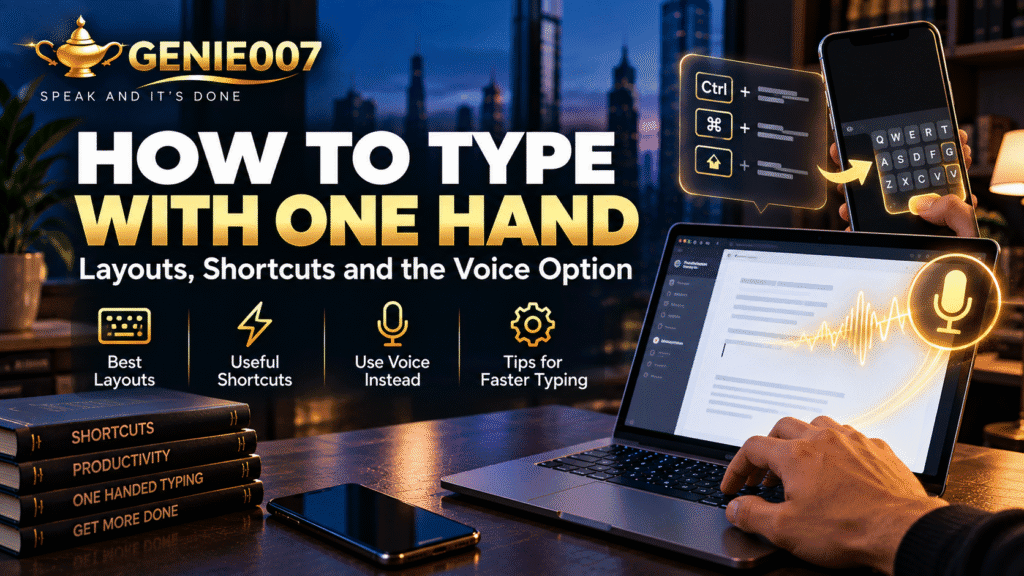
Wondering how to type with one hand? The short answer: stay on your normal keyboard, anchor your fingers on the home row of the half you’re using, turn on Sticky Keys (Windows or Mac) so shortcuts don’t need two hands, and expect 40–70% of your old speed within a few weeks of daily practice — or skip the relearning curve entirely and dictate instead.
Whether it’s a broken wrist, a permanent injury, a temporary sling, arthritis flaring in one hand, or simply holding a baby while you answer emails, one-handed typing is a skill worth building properly rather than hunting-and-pecking your way through it. This guide covers the layouts and settings that actually help — on Windows, Mac and mobile — plus the point at which voice becomes the faster option outright.
How to Type With One Hand: The Core Method
Most people who need to type one-handed, whether for a few weeks or permanently, do best staying on a standard QWERTY keyboard rather than buying specialist hardware. The National Assistive Technology Training Service and typing tutors like EdClub both recommend this route because the skill transfers everywhere — your laptop, a shared office keyboard, a friend’s computer — rather than being tied to one device.
The technique itself is simple to describe, if not instantly comfortable. Anchor your index finger on F if you’re typing right-handed, or J if you’re typing left-handed, then let your other fingers fall naturally across the row either side of it. For letters that belong to your “missing” hand, shift your whole hand across the keyboard, strike the key, and return to your anchor position. It feels slow and deliberate at first — that’s normal. The goal in week one isn’t speed, it’s building a consistent, repeatable path your fingers can find without you looking down.
Research into Half-QWERTY typing — a specialised one-handed keyboard layout developed at York University — found that new users reached roughly 13 words per minute with over 84% accuracy in their very first session, hit half their old two-handed speed after about 8 hours of practice, and were typing at 41–73% of their two-handed speed after 10 hours. That progression curve holds roughly true even on a standard keyboard: quick early gains, then a longer climb toward real fluency.
One-Handed Keyboard Layouts Worth Knowing
If you’re typing one-handed for more than a few weeks, a dedicated layout can meaningfully cut finger travel and fatigue compared to reaching across a full standard keyboard.
One-hand Dvorak is the most established option, and it’s built into Windows, macOS and most Linux distributions — no extra software required. It rearranges the most frequently used letters onto the strongest fingers of whichever hand you’re typing with, so vowels and common consonants sit closer to your resting position instead of being scattered across the far side of the board. It takes real relearning, but it’s a genuine, tested layout rather than a workaround.
Half-QWERTY takes a different approach: you type your own hand’s keys exactly as normal, and hold down the space bar to “mirror” the other hand’s keys onto your side of the keyboard. Because half of your old muscle memory carries over directly, many people find it faster to pick up than Dvorak, even though it tops out a little lower on maximum speed.
Mirrored QWERTY software works similarly — hold a modifier key and the layout flips, so the missing half of the keyboard appears under your active hand. If you’re not ready to commit to a new layout at all, sticking with plain QWERTY and just covering more ground with one hand remains the simplest option, and it’s what most people do instinctively during a short-term injury.
Windows and Mac Settings That Make One-Handed Typing Easier
Before you touch a new layout, turn on your operating system’s built-in accessibility tools — they solve the most common one-handed frustration, which isn’t letters, it’s keyboard shortcuts.
On Windows, Sticky Keys lets you press modifier keys like Ctrl, Alt, Shift and the Windows key one at a time instead of holding them down while pressing a second key. Turn it on via Settings > Accessibility > Keyboard, or tap Shift five times as a shortcut. Once it’s on, a combination like Ctrl+P for print becomes two separate taps instead of an awkward one-handed stretch. Windows also offers Filter Keys, which ignores brief or repeated keystrokes — useful if an old injury makes your keypresses less precise.
On a Mac, the equivalent is also called Sticky Keys, found under System Settings > Accessibility > Keyboard > Hardware, and it does exactly the same job for shortcuts like Command+Tab. Mac also has Slow Keys, which adds a short delay before a keypress registers — handy if tremor or reduced dexterity means you sometimes brush keys by accident. Both can be toggled quickly with Option-Command-F5, or by pressing Touch ID three times in a row on supported Macs.
Neither setting changes your typing layout — they just remove the two-handed shortcuts that otherwise force an awkward stretch or a second hand you don’t have free.
Typing One-Handed on a Phone
Phones are usually easier to manage one-handed than laptops, because both major mobile operating systems build one-handed typing in as a first-class feature rather than an accessibility afterthought.
On iPhone, press and hold the emoji or globe icon in the bottom-left of the keyboard and choose the left or right-hand layout — this shrinks the keyboard and shifts it to whichever side you’re typing from, so every key sits within thumb’s reach. Apple’s separate Reachability feature (Settings > Accessibility > Touch > Reachability, or a swipe down on the bottom edge on newer models) pulls the whole screen down toward your thumb, which helps for tapping buttons even outside the keyboard.
On Android, Google’s Gboard has a built-in one-hand mode: press and hold the comma key for left-hand mode or the enter key for right-hand mode, and the keyboard docks to that side of the screen at a smaller size. Samsung and other manufacturers also offer a system-wide one-handed mode that shrinks the entire display, accessible from the notification shade or by double-tapping the home button on older models.
When Typing Stops Being the Right Tool
Here’s the ceiling every one-handed typist eventually hits, no matter how good their layout or how fast their Half-QWERTY speed climbs: you’re still moving one hand across a keyboard designed for two, for every single word. A 2025 multi-country clinical study measured typing against dictation across 72 accents and found a median dictation speed of 93 words per minute against a median typing speed of just 21.5 words per minute — a 4.3x gap even for people typing normally with both hands. For someone typing one-handed, that gap is wider still.
That’s not a criticism of learning to type one-handed — it’s a genuinely useful, transferable skill, and the layouts above are worth building if you’re typing one-handed for the long term. But if the underlying goal is simply getting words onto the screen — an email, a report, a message to a client — voice removes the physical bottleneck completely rather than working around it. You don’t need a keyboard at all, one hand or two.
Genie 007: The Zero-Hands Option
This is where think-to-text changes the equation rather than just speeding up the old one. Genie 007 doesn’t ask you to dictate word-for-word into a text box, hoping the punctuation lands right — you speak your intent, and Genie Mode writes the finished email, message, or document for you, in a tone that matches the app you’re in. If you’re recovering from an injury, living with a permanent limb difference, managing arthritis or carpal tunnel in one hand, or simply holding a baby with your free arm, that’s the difference between typing being a daily obstacle and it not being part of the equation at all.
It works across Windows, Mac, mobile and as a browser extension, so the same voice-first workflow follows you from your desktop at work to your phone on the sofa. And because it supports over 140 languages, it doesn’t force you to think in English if that’s not your first language — you can speak naturally and get clean text out the other end. Genie 007’s hands-free computer control extends the same idea beyond text entry: navigating and commanding your computer without needing a functioning second hand at all.
If you’re recovering from a specific injury like a broken arm or wrist, our guide on typing with a broken arm covers the recovery-specific workarounds in more detail, and if reduced hand control is an ongoing condition rather than a temporary one, our piece on voice typing for Parkinson’s covers a related set of accommodations worth knowing about.
Building a Realistic Practice Routine
If you do want to build real one-handed typing speed rather than relying on voice for everything, treat it like learning to touch-type the first time: short, daily sessions beat one long frustrating attempt. Ten to fifteen minutes a day on low-stakes text — a journal entry, a text message, a to-do list — builds the muscle memory faster than sporadic hour-long sessions, and most people see a noticeable jump in comfort within the first two weeks.
Resist the urge to look down at the keyboard, even though it feels slower at first. Watching your hand reinforces a habit of hunting for each key visually, which caps your speed far lower than building the physical memory to find keys without looking. Pair your practice with Sticky Keys or Slow Keys turned on from day one, so you’re not simultaneously fighting shortcuts and letters — solve the shortcut problem once, then focus all your attention on the typing itself.
This article is for general information only and is not medical advice. If you are experiencing pain or other symptoms, please consult a qualified healthcare professional.
How do you type with one hand on a standard keyboard?
Anchor your index finger on F (right hand) or J (left hand), let your other fingers cover the nearby keys, and shift your whole hand across the board to reach keys on the opposite side. Speed builds gradually — most people reach 40-70% of their old two-handed speed within a few weeks of daily practice.
Is there a keyboard layout designed for one-handed typing?
Yes — one-hand Dvorak is built into Windows and Mac and arranges common letters under your strongest fingers, while Half-QWERTY lets you mirror the missing hand’s keys onto your typing hand using the space bar. Both cut finger travel compared to using a standard QWERTY layout one-handed.
How do I turn on Sticky Keys for one-handed typing?
On Windows, go to Settings > Accessibility > Keyboard and toggle Sticky Keys on, or tap Shift five times. On a Mac, it’s under System Settings > Accessibility > Keyboard > Hardware, or press Option-Command-F5. Sticky Keys lets you press shortcut keys like Ctrl or Command one at a time instead of holding them together.
Can you type one-handed on a phone easily?
Yes, more easily than on a laptop. iPhone offers a one-handed keyboard mode (hold the emoji key, then choose left or right), and Android’s Gboard has a built-in one-hand mode activated by holding the comma or enter key, docking a smaller keyboard to one side of the screen.
Is voice typing faster than typing with one hand?
Significantly. A 2025 multi-country study found median dictation speed at 93 words per minute against 21.5 words per minute for typing with two hands, and one-handed typing is naturally slower still. For most everyday writing, speaking is the faster and less physically demanding option.
Try Genie 007 Free
Whatever the reason you’re typing one-handed today — an injury, a permanent change, or just a baby asleep on your other arm — Genie 007 lets you get words onto the screen without a keyboard fight at all.
Download Genie 007 free for Windows, or check pricing and plans to find the right fit. No credit card required for the free trial.
Written by Bill Kiani, founder of Genie 007.