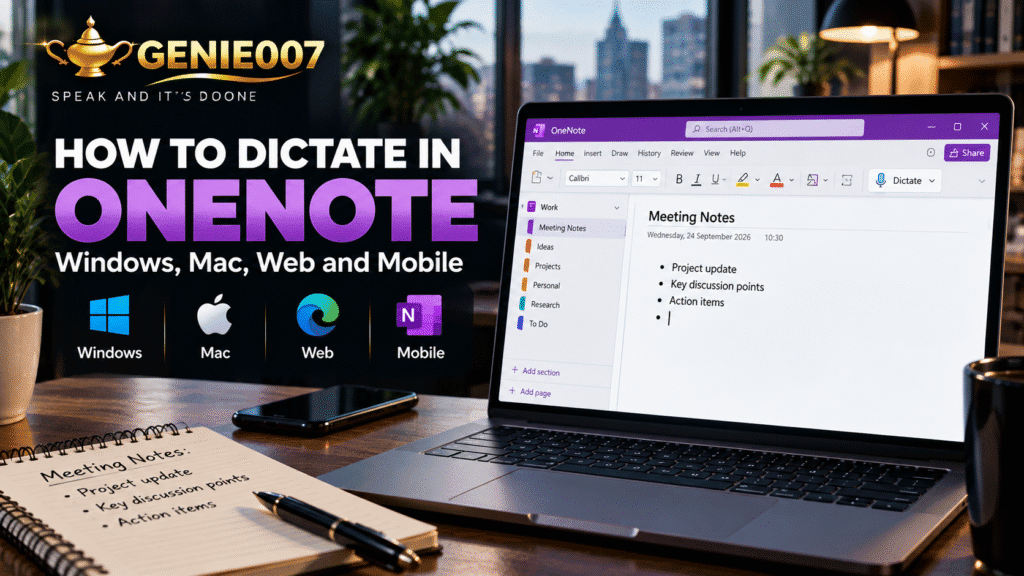
To dictate in OneNote, open the app while signed into Microsoft 365, go to Home > Dictate (or press Win + H on Windows for a subscription-free shortcut, or use the Mac’s own dictation), and start talking — OneNote turns your speech into notes with automatic punctuation. Mobile users dictate through their phone’s keyboard microphone instead.
That’s the fast version. OneNote voice typing has quietly matched Word’s Dictate for years, but most people never learn what it can do beyond turning speech into words. This guide covers real setup steps for Windows, Mac, web and mobile, the commands worth learning, and how Genie 007’s think-to-text picks up where OneNote’s built-in dictation stops.
What You Need Before You Dictate in OneNote
Before you dictate in OneNote, check three things: an active Microsoft 365 subscription for the desktop apps (the free, install-only version of OneNote skips the Dictate button), a working microphone with OS-level permission, and a stable connection, since Microsoft processes the audio in the cloud.
Dictate is built into OneNote for Windows, Mac and the web — no separate purchase, just a Microsoft 365 Personal, Family or business plan. Sign-in status matters more than tier: if Dictate is greyed out, check you’re signed into the same account across your OS and OneNote.
How to Dictate in OneNote on Windows, Mac and the Web
The steps are nearly identical across the three, with small differences in where the button sits and what subscription-free fallback each offers.
On Windows
- Open a notebook and confirm you’re signed into Microsoft 365.
- Go to Home > Dictate, or press Win + H for Windows’ own voice typing, which works in any OneNote text box without needing a Microsoft 365 subscription.
- Wait for the microphone icon to turn red, then start speaking.
- Say “stop dictation,” or click Dictate again, to finish.
On Mac
- Open OneNote for Mac and sign in with your Microsoft 365 account.
- Select Home > Dictate to start listening.
- Speak naturally, then click Dictate again to stop — or use macOS’s own dictation (Edit menu > Start Dictation, or tap Fn twice) as a subscription-free fallback.
In OneNote for the Web
- Open your notebook at onenote.com in a browser.
- Click Home > Dictate and allow microphone access when your browser prompts you.
- Speak your notes, then click Dictate again to stop.
Dictating in OneNote on Mobile (iPhone and Android)
OneNote’s own Dictate button doesn’t exist on the mobile apps — both iPhone and Android route dictation through the phone’s system keyboard instead. On iPhone, tap the microphone on the on-screen keyboard, and Apple’s on-device dictation fills in the text with no audio sent to a server. On Android, OneNote switched from its own dictation tool to Gboard’s voice typing, so tap the keyboard microphone rather than hunting for a Dictate button.
Worth knowing before you go looking for a setting that isn’t there: OneNote voice typing on mobile is really “whatever your phone’s keyboard can do,” so accuracy and language support depend on your phone’s OS, not your Microsoft 365 plan.
OneNote Dictation Commands and Supported Languages
Once dictation is running, OneNote listens for command phrases as well as words, so you can punctuate hands-free.
| Category | Example commands | What happens |
|---|---|---|
| Punctuation | “period”, “comma”, “new paragraph” | Inserts the symbol instead of the spoken word |
| Editing | “delete that”, “delete last sentence” | Removes the most recently dictated text |
| Formatting | “bold last word”, “underline last sentence” | Applies formatting to what you just said |
| Control | “stop dictation”, “pause dictation” | Starts or stops the listening session |
Microsoft lists more than 50 languages and locales for OneNote’s Dictate, though roughly three dozen sit in preview with rougher recognition and fewer formatting commands. Switching languages mid-page means opening Dictation Settings manually — there’s no automatic detection.
Copilot in OneNote: What’s Changing for Voice Notes in 2026
Microsoft is pushing OneNote past plain transcription. A multimodal capture feature for Copilot Notebooks — combining audio, photos and typed notes on one page — began rolling out to OneNote for Windows in July 2026, letting Microsoft 365 Copilot subscribers record a meeting and have it woven into a structured, searchable notebook automatically.
That’s a different job from Dictate: Dictate turns speech into text as you talk, while Copilot’s capture summarises a recording afterwards. Both need a paid tier, and neither turns a rambling thought into a clean paragraph in real time — where plain Dictate still falls back to literal transcription.
The Ceiling: Where OneNote’s Built-In Dictate Falls Short
None of this makes Dictate a bad tool. For a meeting note or a shopping list it’s included in your subscription and reasonably accurate in a quiet room. But it has a hard ceiling worth knowing.
- It only works inside OneNote and a handful of Microsoft 365 apps — switch to Gmail or Slack and you’re back to typing.
- It transcribes literally, filler words and all, with no way to turn a ramble into a clean paragraph.
- Windows and Mac need an active Microsoft 365 subscription; there’s no offline or perpetual-license option.
- Processing happens in Microsoft’s cloud, a concern if you’re noting anything client-confidential.
Compose OneNote Pages by Voice, Beyond Dictate: Genie 007’s Think-to-Text
This is the gap Genie 007 was built to close. Genie Mode listens to what you mean and produces the finished text — a structured meeting note or clean brief out of a rambling voice memo — while Voice Typing mode gives fast dictation in your own style with automatic formatting, no “comma, period” required.
Say you need to compose OneNote pages by voice for a client brief: talk through the point you’re making and Genie 007 turns it into a structured page you can read straight through, inside OneNote itself, without switching tools.
Genie 007 works inside OneNote desktop and web without needing a Microsoft 365 subscription — and everywhere OneNote’s own dictation can’t follow: Gmail, Slack, Teams, Notion, your CRM and dozens more, on Windows, Mac, mobile and as a browser extension. Processing happens in-browser and on-device, so your notes stay private, and 140+ languages with live translation mean a note started in one language comes out polished in another. See our guide to what think-to-text actually means.
| Feature | OneNote’s Dictate | Genie 007 |
|---|---|---|
| Works inside OneNote | Yes | Yes — desktop and web, no Microsoft 365 needed |
| Works everywhere else (Gmail, Slack, CRM, etc.) | No | Yes |
| Executes intent, not just transcribes | No | Yes (Genie Mode) |
| Languages | 50+ (many in preview) | 140+ |
| Live translation | No | Yes |
| Processing | Cloud (Microsoft servers) | In-browser / on-device |
| Requires Microsoft 365 subscription | Yes (desktop apps) | No |
Genie 007 starts at £5/month for Mini and £10/month for Ultra, with a free trial and no credit card required — see the full breakdown on the pricing page. If you split your note-taking between OneNote and the rest of Office, it’s worth reading how to dictate in Word, how to dictate in Excel, and how to use voice prompts with Microsoft Copilot.
Frequently Asked Questions About Dictating in OneNote
Do I need a Microsoft 365 subscription to dictate in OneNote?
Yes, for the desktop apps. OneNote’s Dictate button on Windows and Mac needs an active Microsoft 365 subscription; the free, install-only version of OneNote doesn’t include it. If Dictate is missing, check both your sign-in and subscription status.
Why is OneNote’s Dictate button greyed out or not showing up?
The usual causes are a missing Microsoft 365 sign-in, an unsupported dictation language, blocked microphone permissions, or a weak internet connection, since Dictate processes audio in the cloud. Signing out and back in with the right account fixes most cases.
What is the keyboard shortcut to dictate in OneNote on Windows?
Press Win + H to open Windows’ built-in voice typing in any OneNote text box, no Microsoft 365 subscription needed. It’s separate from Home > Dictate, OneNote’s own feature, which needs an active subscription to appear.
Can I dictate in OneNote on my phone?
Yes, but through your phone’s keyboard rather than a OneNote-specific button. Tap the microphone on the on-screen keyboard on iPhone, or on Gboard on Android. OneNote’s mobile apps don’t include their own dedicated Dictate feature.
How many languages does OneNote’s Dictate support?
OneNote’s Dictate covers more than 50 languages and locales, though around three dozen are still in preview with rougher accuracy and fewer commands. Genie 007 goes further, supporting 140+ languages with live translation built in.
One more number worth knowing: a Stanford and Baidu study measured English speech input at roughly three times faster than typing on a phone keyboard (161 words per minute versus 53), with a 20% lower error rate — the same basic advantage that makes learning to dictate in OneNote worth the five minutes it takes.
Try Genie 007 Free
If OneNote’s Dictate has shown you how much faster talking is than typing, Genie 007 takes it further — think-to-text that executes what you mean, works in every app you actually use, and speaks 140+ languages.
Download Genie 007 free — available for Windows, Mac, mobile and as a browser extension. No credit card required.
Written by Bill Kiani, founder of Genie 007.