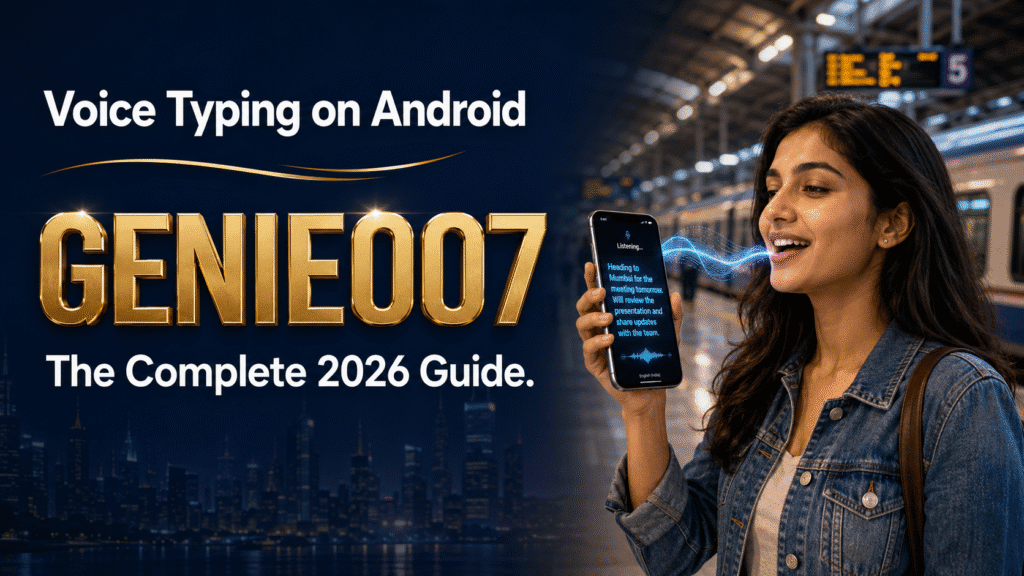
Voice to text google gemini works through a microphone icon in the prompt box: tap it, speak, and Gemini transcribes your words into the text field in real time, on the web app, Android, iOS, and now Mac via Fn-key dictation. Gemini Live adds two-way spoken conversation on top of this basic dictation.
Gemini has become one of the fastest-growing AI apps on the planet, and voice is a big part of why. This guide covers exactly how Gemini’s mic button and Gemini Live voice mode work today, where the built-in dictation runs out of road, and how to layer proper think-to-text dictation on top so you can speak polished prompts into Gemini — and everywhere else you type — without cleaning up the transcript afterwards.
How Voice Typing Works in Google Gemini
Open Gemini on the web at gemini.google.com or in the mobile app and look at the prompt bar at the bottom of the screen. There’s a microphone icon sitting next to the text field. Tap or click it, speak your prompt at a normal pace, and Gemini voice typing converts your speech to text live, dropping the words straight into the box so you can review, edit, or add to them before hitting send. Stop talking and the recording ends automatically.
The experience varies slightly by platform. On Android, if Gemini is set as your default assistant, you can say “Hey Google” to launch it hands-free. On iOS and the standalone Android app, you tap the mic icon directly. Mac users got a new option on 29 July 2026: a long press of the Fn key now triggers Gemini dictation in whichever app is under your cursor, not just inside Gemini itself. Google is also testing a redesigned voice input toolbar for Gboard with Gemini-powered dictation built in, so the mic experience across Google’s own keyboard and the Gemini app is starting to converge.
Gemini Live: Voice Conversation vs Simple Dictation
It’s worth separating two different things Google calls “voice” in Gemini. The mic icon on the prompt bar does simple dictation — speech in, text out, one turn at a time. Gemini Live is a different mode entirely: a real-time, back-and-forth spoken conversation where you talk, Gemini answers out loud, and you can interrupt mid-sentence the way you would with a person. To reach it, tap the mic icon on the Gemini home screen and select the Live option rather than the standard dictation prompt.
Gemini Live also pulls in visual and app context that plain voice typing doesn’t — pointing your camera at something for Gemini to analyse, pulling live directions from Maps, or drafting an email in Gmail by voice mid-conversation. Google has a “microphone lock” feature in testing that turns the mic icon into a stop button so longer voice commands aren’t cut off mid-thought, which tells you something about the current limitation: today’s mic still expects short, clean turns rather than a rambling stream of thought.
Where Gemini’s Built-in Voice Input Hits a Ceiling
Gemini’s mic does exactly what it says: it transcribes. Say something with false starts, filler words, or a change of direction halfway through, and that’s precisely what lands in the prompt box — you’re still the one tidying it into something worth sending. Accuracy also isn’t uniform. Independent testing shows modern speech recognition reaches 95–98% accuracy on clear, quiet audio, but drops to roughly 70–90% with accents or background noise, according to Resemble AI’s 2026 voice recognition accuracy report. If you’re dictating from a busy office or a call, expect more corrections.
Privacy is the other consideration. Even after you turn off Gemini Apps Activity, Google’s own help documentation notes that conversations reviewed by human raters can be retained for up to three years, per Google’s Gemini Apps Privacy Hub. That’s a reasonable trade-off for a free, cloud-based assistant, but it’s worth knowing before you dictate anything sensitive.
The bigger practical limit, though, is scope. Gemini’s mic only works inside Gemini. The moment you take an idea Gemini helped you shape and need to turn it into a LinkedIn post, a client email, or a Google Doc, you’re back to typing it out by hand or copy-pasting between tabs — voice typing that stops at the edge of one app isn’t really solving the problem of getting your thoughts down quickly everywhere you work.
Voice to Text Google Gemini with Genie 007: Think-to-Text
This is where Genie 007 changes the workflow. Instead of transcribing literally, Genie 007 is built around “think-to-text”: you say what you mean, roughly, and it delivers what you meant — punctuated, formatted, and shaped in your own writing style — not a raw word-for-word transcript. Because it runs as a browser extension and native desktop app rather than living inside one product, it works directly in Gemini’s own prompt box, in Gmail underneath it, in the Google Doc you open next, and in every other tab you touch that day. Read more about the concept in what is think-to-text.
In practice: say you want Gemini to draft a project brief. Instead of typing it, or using Gemini’s mic and then editing the messy transcript, you speak your rough idea aloud with Genie 007 running — “brief for the Q3 client onboarding project, needs a timeline, three milestones, and a note about the budget cap” — and Genie Mode turns that into a clean, structured prompt that lands in Gemini’s chat box ready to send, punctuation and formatting included. Once Gemini responds, you can keep dictating: turning its output into a client email, a Slack update, or a polished paragraph in a Google Doc, using the same voice layer the whole way through. If you split time between Gemini and other assistants, the workflow is identical — see our guide to voice typing for ChatGPT for the same approach applied there, or voice typing in Google Docs for what happens after Gemini’s answer needs writing up properly.
Genie 007 also handles the multilingual side Gemini’s basic dictation doesn’t attempt: speak a prompt in one language and get polished text out in another, across 140+ languages, useful if you’re researching in Gemini in English but need the final draft in French or Portuguese for a client.
Genie 007 vs Gemini’s Built-in Dictation
Here’s how the two compare when you line them up feature by feature.
| Feature | Gemini built-in voice | Genie 007 |
|---|---|---|
| Works across apps, not just one assistant | No — Gemini only | Yes — every app and site, including Gemini |
| Executes intent (not just transcribes) | No — literal transcription | Yes — Genie Mode shapes messy speech into finished text |
| Platforms | Web, Android, iOS, Mac (Fn key) | Windows, Mac, mobile, browser extension |
| Languages | Wide, single-language per session | 140+ languages with live translation |
| Processing | Cloud, activity may be reviewed | Encrypted in transit, no audio stored |
| Price | Free with a Google account | From £5/month, free trial, no card required |
To be fair to Google: if all you need is the odd quick prompt typed by voice and you’re happy editing the result, Gemini’s own mic is free and already sitting there. Genie 007 encrypts your audio in transit, processes it in real time and stores no recordings and no transcripts.
Getting Started with Genie 007 for Gemini
Setup takes a few minutes. Install the Genie 007 browser extension if you mostly use Gemini at gemini.google.com, or the desktop app if you want the same voice layer available system-wide, including in native apps outside the browser. Grant microphone permission when prompted, open Gemini as usual, and either click the Genie icon or use the assigned hotkey to start speaking instead of reaching for Gemini’s own mic button.
Speak naturally — pauses, corrections and all — and Genie 007 delivers a finished prompt or piece of text rather than a rough transcript. If you want a different tone (more formal for a client brief, more casual for a Slack message), Genie Mode adapts automatically to the platform you’re typing into. There’s a free trial with no credit card required, and full pricing is on the pricing page if you want to compare tiers before committing. For a wider look at what else is out there, our roundup of the best free dictation software in 2026 covers built-in options across every major platform, Gemini included.
How do I turn on voice typing in Google Gemini?
Open Gemini on the web or in the mobile app and tap the microphone icon in the prompt bar at the bottom of the screen. Speak your prompt, and Gemini transcribes it into the text box in real time; tap the mic again or pause to stop recording, then edit the text before sending.
What is the difference between Gemini Live and Gemini voice typing?
Voice typing is simple one-way dictation: you speak, Gemini turns it into text in the prompt box. Gemini Live is a full back-and-forth spoken conversation where Gemini replies out loud, handles interruptions, and can pull in live camera, Maps, Gmail, and Calendar context as you talk.
How accurate is Gemini’s voice input?
Modern speech recognition, including Gemini’s, typically reaches 95–98% accuracy on clear audio in a quiet room, but accuracy can drop to around 70–90% with background noise or strong accents, according to 2026 voice recognition testing. Results improve with a good microphone and steady, natural pacing.
Does Google Gemini save my voice recordings?
Gemini processes voice input on Google’s servers, and even with Gemini Apps Activity turned off, conversations reviewed by human raters can be retained for up to three years according to Google’s own privacy documentation. Privacy-conscious users dictating sensitive material may prefer an on-device voice tool instead.
Can I dictate directly into Gemini using Genie 007?
Yes. Genie 007 runs as a browser extension and desktop app that sits underneath whatever you’re typing into, including Gemini’s own prompt box, so you can speak a rough idea and have Genie Mode turn it into a clean, formatted prompt without touching Gemini’s built-in mic at all.
Is there a shortcut to dictate in Gemini?
Gemini itself has no dictation shortcut. On gemini.google.com you click the microphone icon in the prompt box, and in the mobile app you tap the mic. If you want a hotkey, use a voice typing tool that works in any text field: Genie 007 runs in Chrome and starts from a shortcut you set yourself.
Can Gemini do voice to text on a desktop computer?
Yes. Open gemini.google.com in Chrome, click the microphone icon in the prompt box and speak. Gemini turns your words into text in the box and you press Enter to send. If the icon does nothing, allow the microphone for gemini.google.com under the lock icon in the address bar.
Try Genie 007 Free
If Gemini’s mic gets your words down but leaves you editing the result, Genie 007 is the voice layer that finishes the job — dictating polished, ready-to-send prompts into Gemini and everywhere else you write.
Try the Genie 007 browser extension free — also available for Windows, Mac, and mobile. No credit card required.
Written by Bill Kiani, founder of Genie 007.