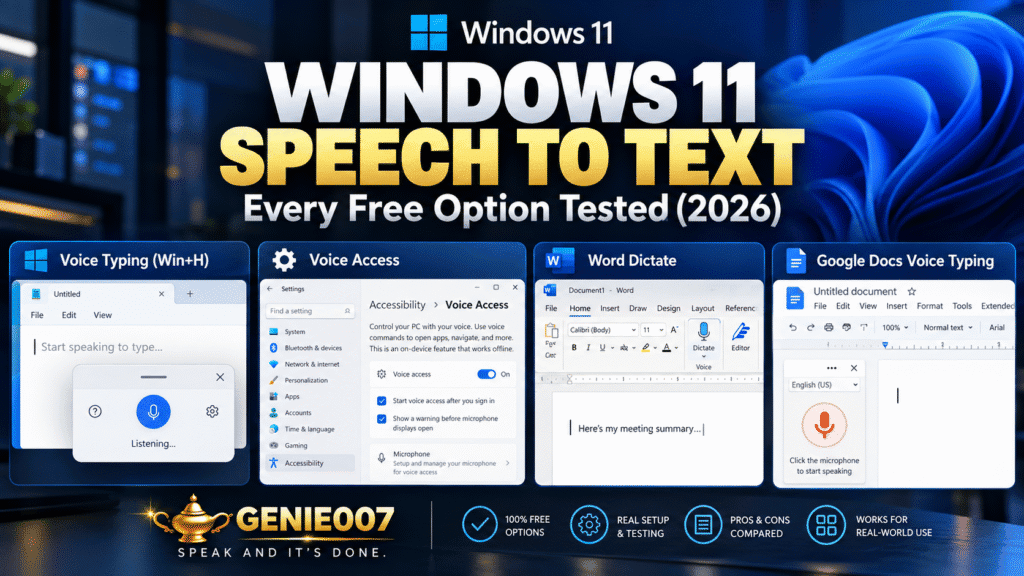
Windows 11 speech to text comes free out of the box in two forms: Voice Typing (Win+H) for quick dictation into any text field, and Voice Access for hands-free, on-device PC control. Word’s Dictate button and Google Docs voice typing add two more app-specific options. Together they cover most everyday needs without paying for anything.
Windows 11 dictation isn’t one feature: it’s at least four different tools wearing similar names, built by two different companies, with different privacy models and different ceilings. This guide tests every free option that actually ships with Windows 11 in 2026, gives real setup steps for each, and is honest about where free speech to text windows 11 tools stop being enough. For when Win+H simply refuses to respond, see our guide to fixing Windows 11 voice typing when it stops working.
For note-taking specifically, our guide to voice typing in OneNote shows how to dictate notes hands-free on Windows.
Speech to Text Windows 11: What’s Built In vs What’s Missing
Every copy of Windows 11 includes speech recognition of some kind, but “some kind” hides real differences. Voice Typing handles dictation into text fields via Microsoft’s cloud. Voice Access handles hands-free control of the whole operating system, on-device. Word’s Dictate button lives inside Microsoft 365 specifically. Google Docs voice typing lives inside a browser, tied to a Google account rather than a Windows one.
None of them share a settings panel, a keyboard shortcut, or a codebase. Treating them as one blurry “Windows dictation” feature is exactly why so many people give up after Win+H doesn’t do what they expected inside Word or a browser tab. The rest of this guide treats each one separately, with its own setup steps and its own honest limits.
Windows 11 Voice Typing (Win+H): The Default Free Option
Voice Typing is the tool most people mean when they search for Windows 11 voice typing. Press Win+H in any text field (email, browser address bar, word processor, chat window) and a small floating toolbar appears with a live microphone. Speak, and the words appear as you go.
It’s free, built into every Windows 11 installation, and requires no separate download or Microsoft account. An internet connection is required, though. Voice Typing processes audio on Microsoft’s servers, not on your device.
Setting Up Voice Typing
- Click into any text field where you want to dictate.
- Press Win+H. The dictation toolbar appears near the top of the screen.
- The microphone activates automatically: start speaking.
- Open the settings cog on the toolbar to turn on auto-punctuation and the profanity filter.
- Adjust the wait-time slider if you speak slowly or pause mid-sentence; this setting was added in early 2026 specifically to stop commands firing before a thought is finished.
Accuracy for clear English in a quiet room sits around 80–88%, which is enough for casual notes, quick emails and rough drafts. Auto-punctuation is the biggest improvement over older Windows dictation: commas and full stops appear without saying “comma” or “full stop” out loud. Basic commands like “delete that” and “select that” cover simple corrections.
The catch: every word you dictate leaves your device and travels to Microsoft’s cloud for processing, which matters if you handle anything confidential. There’s no custom vocabulary for technical terms or unusual names, editing commands stop at the basics, and the tool has no memory of your writing style. It produces a transcript and nothing more. If Win+H stops responding altogether, this troubleshooting guide covers the permissions and focus issues that usually cause it.
Windows 11 Voice Typing Official Support: What Microsoft Actually Documents
Microsoft’s own support article, “Use voice typing to talk instead of type on your PC”, is the official documentation, meaning this is a maintained feature, not a legacy tool left to rot. Windows 11 voice typing official support currently covers well over 100 language locales through cloud-based speech models, though quality varies by language and your chosen recognition language has to match the speech pack installed in Settings, under Time and Language, then Speech.
Windows Voice Access: Hands-Free Control, Not Just Dictation
Voice Access is a different tool built for a different job: controlling the entire Windows interface by voice, not just filling in a text box. You can open apps, click buttons, scroll, switch windows and dictate text, all hands-free. It was designed originally for users with mobility needs, but works for anyone who wants a voice-first PC.
The architectural difference that matters most: Voice Access runs on-device. Your audio never reaches a server. That single fact is why voice to text windows 11 users worried about privacy tend to land on Voice Access rather than Win+H: nothing leaves the machine.
Setting Up Voice Access
- Open Settings and go to Accessibility.
- Select Voice access and toggle it on.
- Tick Start voice access automatically when I sign in if you want it always running.
- Say “Voice access help” at any point to see the full command list.
Voice Access currently supports English (US, UK, Australia, India, Canada, New Zealand), Spanish, French, German, Italian, Japanese and Simplified Chinese, a shorter list than Voice Typing’s, because on-device models are harder to build for every locale than cloud ones. Accuracy depends on your device’s processing power rather than an internet connection.
Choose Voice Access over Win+H if you want to navigate menus, launch apps and browse hands-free rather than just fill in one field, if RSI or a mobility need makes a mouse difficult, or if sending audio to a cloud server isn’t acceptable for your work. For pure dictation speed, Voice Typing still wins in most conditions.
Word’s Dictate Button: Speech to Text Inside Microsoft 365
If most of your writing happens in Word, there’s a third free option that sits inside the app itself. Word’s Dictate button (under Home, then Dictate, on a Microsoft 365 subscription) uses a similar underlying speech engine to Voice Typing but adds document-aware commands: bold, italicise, underline, insert a bullet list, or move the cursor by voice, all without leaving the ribbon.
It requires an active Microsoft 365 subscription rather than a one-off Office licence, a working microphone, and a reliable internet connection, since dictation is processed in the cloud. The keyboard shortcut is Alt+` once you’re signed in. Saying “delete” removes the last word; “delete that” removes the last full utterance, useful when a whole sentence needs a re-take rather than a single correction.
Our complete walkthrough on how to dictate in Word covers every voice command, formatting trick and version requirement in more depth than fits here.
Google Docs Voice Typing on Windows: The Browser-Based Option
The fourth free route doesn’t come from Microsoft at all. Google Docs voice typing runs inside Chrome or Edge on Windows 11, tied to a Google account rather than a Windows one, useful if your writing already lives in Docs rather than Word.
To turn it on: open a genuine Google Doc, not a .docx file merely viewed in Docs (save it as a Google Doc first), then go to Tools, then Voice typing, or press Ctrl+Shift+S. A small microphone panel appears on the left; click it once, wait for it to turn red, and start speaking. The first use will prompt your browser for microphone permission.
Because it runs through the browser rather than the operating system, it works identically on a Chromebook, a Mac or Windows 11, but it only works inside Google Docs itself, not in Gmail, Sheets, or any other text field. Our dedicated guide to voice typing in Google Docs covers the full command list, including punctuation and formatting commands specific to Docs.
Whatever Happened to Windows Speech Recognition?
If you’ve used Windows for a long time, you might be looking for Windows Speech Recognition, the classic tool dating back to Windows Vista, accessed through Control Panel, with its own training wizard. It’s no longer being developed. Microsoft confirmed the feature is deprecated and pointed users toward Voice Access as its replacement on Windows 11 version 22H2 and later, with the transition landing in September 2024.
Windows Speech Recognition hasn’t been ripped out of older Windows 10 installations, and it will keep functioning where it already exists, but it receives no new features and no further investment. If you’re setting up dictation on a Windows 11 machine today, Voice Access is the direct successor: same on-device philosophy, far more capable, and actively maintained. Windows Central’s coverage of the change is a useful reference if you want the full history.
Windows 11 Speech to Text: Comparing All Four Free Options
Here is how the four tools stack up once you put them side by side. None of them cost anything, but each one trades off speed, privacy and formatting power differently:
| Feature | Voice Typing (Win+H) | Voice Access | Word Dictate | Google Docs Voice Typing |
|---|---|---|---|---|
| Where it works | Any text field, any app | Entire OS plus text fields | Microsoft Word only | Google Docs only |
| Internet required | Yes | No (on-device) | Yes | Yes |
| Subscription needed | No | No | Microsoft 365 | Free Google account |
| Formatting commands | Basic | Basic | Advanced (bold, lists, navigation) | Moderate (punctuation, formatting) |
| Custom vocabulary | No | No | No | No |
| Privacy | Cloud (Microsoft) | Real-time, nothing stored | Cloud (Microsoft) | Cloud (Google) |
| Cost | Free | Free | Free with Microsoft 365 | Free |
The pattern across all four: each one transcribes faithfully within its own app or its own on-device model, and none of them understand what you’re trying to say. They wait for words, convert them to text, and stop. That’s the ceiling every free speech to text windows 11 tool eventually hits, no matter which one you pick.
Genie 007 on Windows: When a Transcript Isn’t Enough
There’s a real difference between transcribing what you say and understanding what you mean. All four built-in options do the former. None of them attempt the latter.
Picture the same scenario in Outlook: you click into a reply and dictate “write a follow-up to Daniel confirming Tuesday’s call and asking him to share the agenda in advance.” Voice Typing produces exactly those words in the email body: a prompt, not a finished email. Genie 007 for Windows reads the same instruction and generates the complete, ready-to-send email inside Outlook, with no tab-switching and no copy-paste.
That’s think-to-text in practice: you share the thought, the tool delivers the output you actually needed. This is Genie Mode, and it runs inside every app on a Windows machine: Teams, Slack, LinkedIn, Gmail, Notion, Google Docs, and anywhere else you write.
Setting Up Genie 007 on Windows
- Visit genie007.com/windows and download the Windows app.
- Sign in with your email: no credit card required for the free trial.
- Choose a hold-to-talk shortcut during the short onboarding.
- Open any app, hold the shortcut, and speak naturally.
- Release: Genie 007 either types your words or generates the content you described, depending on which mode is active.
Beyond Genie Mode, Genie 007 also runs a fast Voice Typing mode of its own (the same job as Win+H, but with automatic punctuation, personal style learning, and support for 140+ languages including live translation). Speak in French, get polished English text. Speak in Spanish, produce a LinkedIn post written for an English-speaking audience. The trade-off every one of these tools is really chasing is speed: the average person speaks at roughly 120–150 words a minute against roughly 40 words a minute typing, a gap Wikipedia’s words-per-minute reference lays out clearly.
Genie 007 is free to try, with no credit card required. See the pricing page for the plans available once the trial ends. A decent microphone still matters more than people expect for any of these tools; our guide to the best microphone for dictation covers what actually moves the accuracy needle.
Related guides: what happened to Windows Speech Recognition, Windows Voice Access alternatives, the best dictation software for Windows, the best free dictation software, offline dictation software, how to dictate in Excel, iPhone dictation not working, dictation software for Chromebook, voice typing for Parkinson’s, voice typing for dyslexia, dictation software for small business, an AI voice assistant for small business, how to dictate a book and how to type faster without typing.
Frequently Asked Questions
Does Windows 11 have free speech to text built in?
Yes. Windows 11 speech to text is built in for free through two tools: Voice Typing (Win+H), which dictates into any text field using Microsoft’s cloud recognition, and Voice Access, which handles full hands-free PC control using on-device recognition. Word’s Dictate button and Google Docs voice typing add two more free options for those specific apps.
What is the difference between Windows 11 voice typing and Voice Access?
Voice Typing (Win+H) is a dictation-only tool that types into any text field using Microsoft’s cloud speech engine and needs an internet connection. Voice Access is a full hands-free control system for the whole Windows interface, launching apps, clicking, scrolling and dictating, that runs entirely on-device, making it more private but limited to fewer languages.
What happened to Windows Speech Recognition?
Windows Speech Recognition, the classic dictation tool dating back to Windows Vista, has been deprecated by Microsoft and is no longer in active development. It was formally replaced by Voice Access on Windows 11 version 22H2 and later, starting in September 2024, though it still runs on older Windows 10 installations where it was already set up.
Is Windows 11 voice typing officially supported by Microsoft?
Yes. Windows 11 voice typing official support comes directly from Microsoft’s own support documentation, and the feature receives ongoing updates, including a wait-time slider added in early 2026 and Fluid Dictation on Copilot+ PCs. It is not a legacy or abandoned tool; it is Microsoft’s primary free dictation feature going forward.
Can I use free speech to text in Word and Google Docs on Windows 11?
Yes. Word’s Dictate button, found under Home then Dictate, is free with an active Microsoft 365 subscription and adds formatting commands like bold and bullet lists. Google Docs voice typing is free with any Google account, runs through Chrome or Edge, and is switched on via Tools then Voice typing, or the Ctrl+Shift+S shortcut.
Is Windows 11 speech to text accurate enough for professional work?
For everyday emails, notes and drafts, yes. Voice Typing manages roughly 80 to 88 percent accuracy in a quiet room with a decent microphone, which is usable but still needs proofreading. For technical vocabulary, strong accents, or anything requiring real formatting and structure, none of the four free tools has the custom vocabulary or context awareness that professional dictation work really needs.
Free voice typing can also be switched off by a policy, so if Windows says speech services are managed by your organization, check who set the block before you look for another tool.
Win + H also works as a free route for LibreOffice users, as our guide to LibreOffice voice typing explains.
Try Genie 007 Free
If the built-in Windows options are covering your needs, use them. They’re free for a reason. When you hit the ceiling and want voice input that actually thinks, Genie 007 picks up exactly where Win+H stops.
Download Genie 007 free: available for Windows, Mac, mobile and as a browser extension. No credit card required.
Written by Bill Kiani, founder of Genie 007.
If you’re starting out, our dictation tips for beginners shows how to build accuracy and speed in your first week.