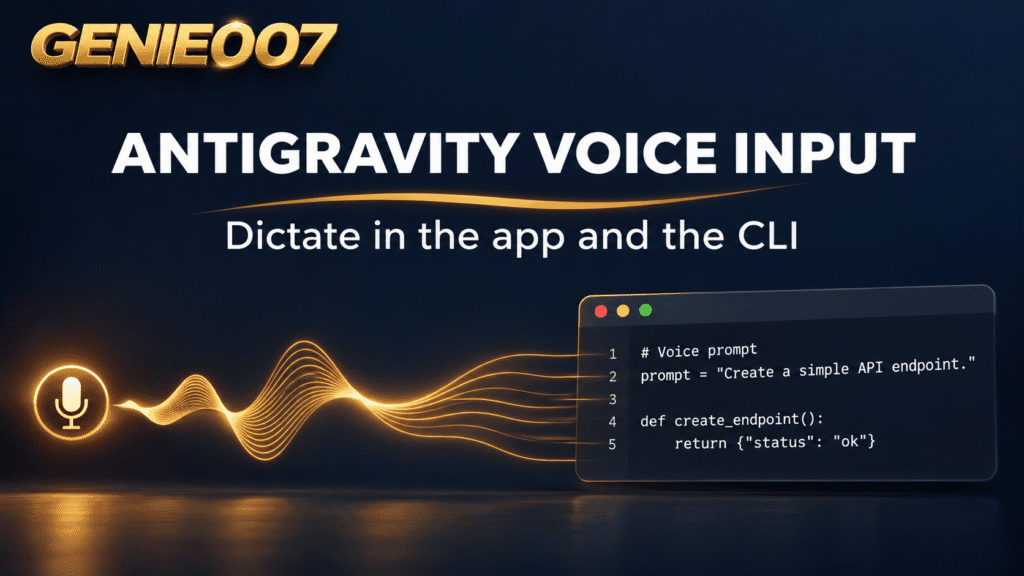
Yes, Antigravity voice input is built in: the app and the CLI both have live voice transcription. In the app, click the microphone button next to the message box or press Ctrl+M. In the CLI, type /voice or press F5. Your words land in the prompt box and nothing is sent until you send it.
Quick steps
- App: click the microphone button next to the message box, or press Ctrl+M, and start talking.
- CLI: type /voice (or /record) or press F5 and wait for the “Recording” status.
- Stop with the same key: Ctrl+M in the app, Enter or F5 in the CLI.
- Read and edit the text, then send it yourself.
- If nothing happens, jump to the fixes below.
If you searched for Google Antigravity voice input, antigravity voice mode or antigravity voice to text, this is the same feature under different names. Google describes it in two places: the Antigravity features documentation covers the app and a short summary of the CLI, and the CLI voice dictation page covers keys, SSH and troubleshooting. Everything about Antigravity in this guide comes from those pages and the official changelog, checked on 1 November 2026. The docs describe voice for the app and the CLI, so this article does not claim it for editor extensions.
How to Use Antigravity Voice Input in the App
Open a conversation in the Antigravity app and click the microphone button next to the message box. Start speaking and your words are transcribed in real time straight into the message box. Click the button again to stop, or press Ctrl+M to start and stop without touching the mouse.
You can use it in two places: the message box, where you talk to the agent, and artifact comments, where you leave inline feedback on a plan or document the agent produced. Speaking a comment is often quicker than typing one, especially when you are reviewing several artifacts in a row.
One detail is worth knowing. According to Google’s docs, the speech recogniser receives your recent conversation and the text around your cursor. That helps it spell project-specific terms such as function names, package names and the odd product name that a generic recogniser would mangle. Still read the text before you send it: Google says the context helps with project terms, not that it gets every word right.
The changelog also adds a useful small change. Version 2.12.0 (2 September 2026) says you can now send a message with the send button while dictation is still running, instead of having to stop recording first. If you are on an older build, stop the recording before you send.
Antigravity CLI Voice: /voice and F5
For Antigravity CLI voice, type /voice (the alias is /record) or press F5. The status line shows “Connecting…” and then “Recording”, with the elapsed time and a hint about the keys. Speak, and the transcript is written into the prompt box when you stop.
| Key | What it does |
|---|---|
| Enter or F5 | Stops recording and inserts the transcript |
| Esc | Discards the recording and restores your previous prompt |
| Ctrl+Z (after dictating) | Reverts the whole dictation as one undo |
Other keys are ignored while recording. Dictation never submits the prompt, so you always get a chance to edit before sending. If the prompt box already holds text, the transcript is appended to it rather than replacing it.
If F5 clashes with something on your setup, run /keybindings and remap the action called voice.start_dictation. Two more details from the docs matter. If your session was signed in before voice dictation arrived, run /logout and sign in again once, otherwise transcription can fail with a permissions message. And dictation needs an interactive terminal session: it is disabled in print mode (–print), so scripts and one-shot runs cannot use it.
The CLI also needs microphone access at operating system level for your terminal. On a Mac, open System Settings > Privacy & Security > Microphone, allow your terminal, then restart it. On Windows, open Settings > Privacy & Security > Microphone and turn on “Let desktop apps access your microphone”.
Antigravity Voice Input Over SSH
If the CLI runs on a remote machine, your microphone is on the wrong computer. Google’s workaround streams audio from your local machine through a reverse tunnel. Install the CLI on both machines, then:
- On your local machine, run agy mic-serve. It listens on 127.0.0.1:4713 and should stay on loopback so nothing else on your network can reach the audio.
- Still locally, open the tunnel: ssh -R 24713:127.0.0.1:4713 <remote-machine>.
- On the remote machine, set ANTIGRAVITY_MIC=127.0.0.1:24713 and start agy.
- Press F5 or run /voice. The mic-serve window logs a line when a recording starts.
The docs also show the variable line for PowerShell and cmd.exe, so copy the one for your shell from the CLI page. Audio is sent uncompressed, so a slow link can cost you words.
Antigravity Voice Input Not Working?
Google’s own troubleshooting list covers sign-in, microphone permissions, account type and SSH. Here it is, in the order I would try it:
- Permissions message when transcribing. Run /logout, sign in again and retry. This is a one-time step for sessions that began before dictation existed. If the message persists, check the account type: business and enterprise accounts are not supported in the CLI.
- Recording is silent. Give your terminal microphone access in the operating system (the paths are in the CLI section above). On a Mac, restart the terminal afterwards.
- Wrong microphone (SSH). mic-serve uses your system default input device, so change it in your OS sound settings.
- Connection fails straight away over SSH. Check that both agy mic-serve and the ssh -R tunnel are running. If the server closed the connection, the tunnel or mic-serve has stopped.
- Choppy or dropped words over SSH. The audio is uncompressed, so latency or a saturated connection can drop packets. Try a better connection.
- Nothing at all in a script. Dictation is disabled with –print. Start an interactive session instead.
For the app, the docs give no troubleshooting list, so start with the basics: confirm the operating system lets the app use the microphone, and that the right input device is selected. If your Antigravity microphone is not working in the app after that, update the app and check the changelog, because the docs do not list an app-specific fix.
What other users report
These are user reports, not confirmed Google behaviour. On Google’s AI Developers Forum, one user posted in August 2026 in a thread titled “Antigravity – Speech-To-Text [Bug]” that transcription can take 30 to 45 seconds to start, though it stays accurate once it does. The thread had no official Google reply when I read it. Another forum user wrote in May 2026, on an older IDE build (1.23.2), that only one voice message per session was possible. Treat both as anecdotes: if you hit a long delay, stopping and starting the recording is a cheap thing to try.
Where Antigravity’s Voice Stops
Antigravity voice input does what it says, and it is worth being clear about the edges before you build a habit around it.
Business and enterprise accounts. The CLI page says dictation is not currently supported for business or enterprise accounts. If your employer manages your Antigravity sign-in, expect the permissions message and no fix on your side.
It only types into Antigravity. The microphone belongs to the message box and artifact comments. It will not help with the pull request description you write in your browser, the Slack reply to a teammate, the ticket in your tracker or the email asking for review.
It transcribes, it does not rewrite. Google’s CLI page says the transcript sits in the prompt box as if you had typed it. That is fine for a short instruction to an agent. For a long, careful prompt it means you still have to organise your thinking out loud, then tidy the result.
Dictate Prompts Anywhere With Genie 007
Genie 007 is think-to-text, voice-to-action AI that understands the context and writes for you in any app, on Windows, Mac and mobile, in 140+ languages, and it is private. That makes it a companion to Antigravity’s own mic rather than a replacement: use Antigravity’s button inside Antigravity, and Genie 007 everywhere else, including on a business or enterprise account, where the CLI’s own dictation is not supported.
There are two ways to use it. Press Q (or any key or combination you choose), say what you need, and Genie 007 writes it: a finished prompt, not only the words you said. Try “write a prompt asking the agent to add pagination to the orders table, keep the existing tests passing and explain what changed” and a structured request lands where your cursor is. Press X (or any key or combination you choose) and it types what you said, cleaned up, which suits quick comments and replies.
One honest note: Genie’s own default is to stop after about 9 seconds of silence. There is an Auto-stop on Silence switch that turns that off, and recordings are limited to 5 minutes. If you like to think quietly mid-prompt, switch it off.
The same approach works with other AI coding tools. See our guides on Codex dictation, GitHub Copilot voice, voice dictation for Claude Code, prompting by voice for developers and vibe coding with voice dictation. If the idea of speaking the order rather than the sentence is new, what is think-to-text explains it.
FAQ
Does Antigravity have voice input?
Yes. Antigravity has built-in live voice transcription in the app and the CLI. In the app, click the microphone button next to the message box or press Ctrl+M. In the CLI, use /voice or F5. The text appears in the box and is not sent until you send it. Google’s docs describe it for the app and the CLI.
How do I use voice in the Antigravity CLI?
Type /voice (alias /record) or press F5 in an interactive session. Wait for the Recording status, speak, then press Enter or F5 to insert the transcript, or Esc to discard it. Ctrl+Z undoes the whole dictation. It never submits the prompt, and you can remap the key with /keybindings.
Why is Antigravity voice input not working?
Google’s troubleshooting points to a sign-in that needs refreshing, blocked microphone access or an unsupported account. Run /logout and sign in again, allow your terminal to use the microphone in your operating system, and avoid –print mode. Over SSH, check that agy mic-serve and the tunnel are both running.
Can I use Antigravity voice dictation with a business or enterprise account?
Not at the moment in the CLI. Google’s CLI voice page says dictation is not currently supported for business or enterprise accounts, and a permissions message after /logout and sign in is the usual sign. Check Google’s page for updates.
Does the Gemini CLI have voice input?
Google’s Antigravity docs include a Migrating from Gemini CLI guide, and the Antigravity CLI has a /voice command. This article does not cover whether the Gemini CLI itself offers voice, so check Google’s own Gemini CLI documentation for that.
Try Genie 007 Free
Antigravity’s microphone covers Antigravity. If you want to speak a prompt, a review comment or a reply anywhere else on your computer, Genie 007 does it in whichever app you are in.
Start with the free trial, no credit card needed. Genie 007 works on Windows and Mac, and on mobile.
Written by Bill Kiani, founder of Genie 007.