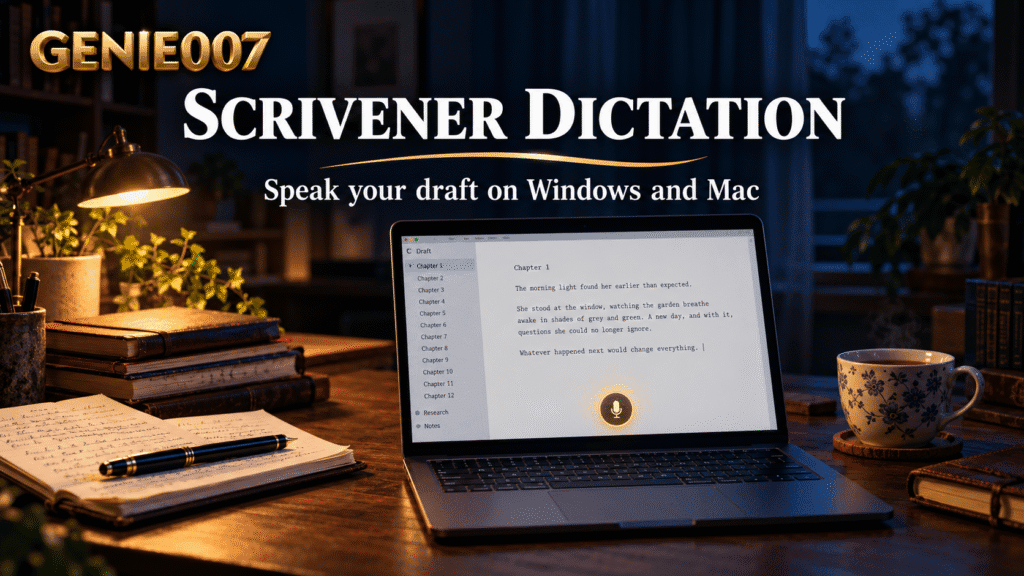
Scrivener dictation works through your computer, not inside Scrivener itself: the app has no dictation tool of its own. On Windows you press the Windows key + H to start voice typing, and on a Mac you turn on Dictation in System Settings, then speak. Either one types straight into the Scrivener editor.
The tools are already on your machine. This guide covers both setups step by step, iPad and iPhone, a quick list for when dictation stops, tips for long drafts, and where the built-in tools run out.
Does Scrivener Have Dictation?
Not as a feature of its own. Literature & Latte, the company that makes Scrivener, explains on its blog that you can dictate straight into Scrivener using the speech recognition built into your operating system. In its article Write with Your Voice: How to Use Dictation with Scrivener, it names Windows key + H on Windows and Settings > Keyboard > Dictation on a Mac.
So if you have asked “can you dictate into Scrivener?”, the answer is yes, with a caveat. Scrivener is the place the words land. Your computer does the listening. So the quality of your scrivener voice to text and scrivener speech to text results depends on your system’s tool and your microphone.
| Where you write | What does the listening | How to start |
|---|---|---|
| Scrivener on Windows | Windows voice typing | Windows key + H |
| Scrivener on Mac | macOS Dictation | Turn on in System Settings > Keyboard > Dictation, then press your shortcut |
| Scrivener on iPad or iPhone | Apple’s dictation, or a recording you paste in | See the iPad and iPhone section below |
How to Dictate in Scrivener on Windows
This is the quickest way to dictate in Scrivener on a Windows PC. Microsoft’s support page, Use voice typing to talk instead of type on your PC, says to press the Windows logo key + H on a hardware keyboard, and that once you turn voice typing on, it starts listening automatically.
- Open your project in Scrivener and click inside the document where you want the text to go.
- Press the Windows key + H. The voice typing menu appears with a microphone button.
- Wait for the listening alert, then speak at a steady pace.
- Say punctuation out loud, such as “period” or “comma”. Microsoft says voice typing commands insert punctuation marks.
- To stop, say “Stop listening” or press the microphone button on the voice typing menu.
Microsoft also says that to switch voice typing languages you need to change the input language you use.
On the Literature & Latte forum, users report mixed results. One user in the thread Scrivener 3.0, Windows 11, and Voice to Text reported that voice typing worked, but that some editing commands, such as deleting previously written text, did not, and that using the keyboard turned the microphone off. Another user in the same thread replied that Windows has voice typing built in and that it will type what you say in Scrivener. These are user reports, so test on a short passage first.
How to Dictate in Scrivener on a Mac
On a Mac, Scrivener dictation runs on Dictation, part of macOS. Apple’s guide Dictate messages and documents on Mac says to go to System Settings, open Keyboard, then go to Dictation and turn it on. If you want a full walkthrough of the Mac side, see our guide to how to dictate on Mac.
- Open System Settings > Keyboard > Dictation and turn Dictation on.
- In the same place, click the Shortcut pop-up menu and choose a shortcut to start Dictation.
- Click into your Scrivener document where the text should go.
- Press the Microphone key or your Dictation shortcut, then speak.
- When you are done, press the Escape key, the Microphone key (if available) or the Dictation shortcut.
The Literature & Latte article gives F5, the key with the microphone symbol, as the default shortcut, and says you can change it in the Dictation settings. It also says you need to speak punctuation and paragraph breaks, because the computer does not know when you want to punctuate or start a new paragraph. Apple adds that in supported languages Dictation inserts some punctuation for you.
Apple says you can dictate text of any length without a timeout, but that Dictation stops automatically when no speech is detected for 30 seconds. That second line matters when you pause to think, and it comes up again below.
Scrivener on iPad and iPhone
The Literature & Latte article gives no step-by-step for dictating directly inside Scrivener on iOS or iPad. What it does suggest is recording your voice with an app, such as Voice Memos, or a transcription app, then copying and pasting the text into your Scrivener project. Apple’s own instructions for typing with your voice are in its iPad User Guide article, Dictate text on iPad.
For short bursts on a tablet or phone, the record and paste route works, and long drafting is usually more comfortable on a computer.
Scrivener Dictation Not Working? Quick Fixes
If dictation has stopped or never started in Scrivener, work through this list in order. Each step takes under a minute.
- Click inside the Scrivener document so the cursor is blinking where the text should land.
- Check that the right microphone is selected and that it is not muted in your system sound settings.
- Restart dictation: press the Windows key + H again, or your Mac Dictation shortcut.
- On a Mac, confirm Dictation is switched on in System Settings > Keyboard > Dictation.
- Test the same tool in another app. If it works there and not in Scrivener, the microphone is fine and the problem sits between the tool and Scrivener.
A common reason a Mac stops mid-draft is the pause rule: Apple says Dictation stops automatically when no speech is detected for 30 seconds. Press your shortcut again to carry on. On Windows, the user in the forum thread above saw a note by the microphone pop-up saying some features may not work in this application; they reported that dictation itself worked well, that deleting earlier text by voice did not, and that the microphone turned off when they used the keyboard. So speak without typing in between, and do your edits by hand.
If it still fails, the Literature & Latte article describes another route: record or transcribe in a separate app, then copy and paste the text into your Scrivener project. It is slower, but it separates a Scrivener problem from a dictation problem.
Tips for Dictating a Novel or Long Draft in Scrivener
Dictating a book is a skill, and the Literature & Latte article says as much: you need to form sentences and paragraphs in your head as you speak. For a longer look at the process, read our guide on how to dictate a book and our overview of voice typing for writers.
- Use a good microphone. The article warns that a computer’s internal microphone may not give great audio, and suggests a headset with a boom arm for freedom of movement.
- Treat it as a first draft. The same article advises refining the text during editing, so do not stop to fix every word.
- Dictate scene by scene. Create one Scrivener document per scene, click into it and speak. Short documents make it easy to restart if a tool stops.
- Plan the next paragraph before you speak. A pause of more than 30 seconds will end Mac Dictation, so know where the sentence is going.
- Say punctuation and breaks as you go. Microsoft lists voice typing commands such as “period” and “new line”; or plan time to add them while editing.
The honest limit of the built-in tools is also in the article: they do not learn your corrections. Invented names and places can come out wrong the same way every time.
Dictate in Scrivener with Genie 007
Windows voice typing and macOS Dictation are free and good enough to try. Where they stop is the editing: they type the words you said, they do not learn your corrections, and turning spoken notes into finished prose is still your job. If you want to compare options, our guide to the best dictation software for writers and authors covers what to look for. For Scrivener dictation that goes beyond the built-ins, this is where Genie 007 comes in.
Genie 007 is an AI voice assistant for Windows and Mac that types where your cursor is, so it works in any app where you can type, including Scrivener’s editor. Click into your document, then press one of two keys (X and Q out of the box, or any key or combination you choose).
- Press X and it types what you said, cleaned up: filler words removed, punctuation and grammar added, so you do not say “comma” or “period” out loud.
- Press Q and it writes the finished text from what you say and understands the context. Give it the order, such as “write a short blurb for the back cover about a lighthouse keeper who finds a letter”, and it writes the text where your cursor is.
Press the key to start, talk, then press it again to stop. By default it also stops by itself after about 9 seconds of silence (Auto-stop on Silence, a switch in its Settings), and each recording can run up to 5 minutes, after which it types what you said so far. If you highlight a passage, press Q and say “make it shorter” or “in Spanish”, the highlighted text is replaced. It supports 140+ languages, which helps if you draft in one language and publish in another. That idea is called think-to-text.
A workflow: dictate the rough scene with X, then highlight a clunky paragraph, press Q and ask it to tighten it. There is a free trial and no credit card is required. For more guides like this one, browse our voice typing guides.
FAQ
Does Scrivener have dictation?
Scrivener has no dictation tool of its own, but you can dictate into it using your computer’s built-in tools. On Windows press the Windows key + H for voice typing, and on a Mac turn on Dictation in System Settings > Keyboard > Dictation. Literature & Latte, Scrivener’s maker, describes both options on its blog.
Does Scrivener work with Windows 11 voice typing?
Yes, Windows voice typing types into the Scrivener editor, but results are mixed. Users on the Literature & Latte forum report that dictation works while some editing commands, such as deleting previous text, do not, and that using the keyboard can turn the microphone off. Test it on a short passage first.
How do I dictate in Scrivener on a Mac?
Open System Settings > Keyboard > Dictation and turn Dictation on, then choose a start shortcut. Click into your Scrivener document, press the Microphone key or your shortcut and speak. Press Escape, the Microphone key or your shortcut when you are done. Literature & Latte names F5 as the default shortcut.
Why does dictation stop in Scrivener?
On a Mac, Apple says Dictation stops automatically when no speech is detected for 30 seconds, so a long pause ends it. Press your shortcut to restart. On Windows, a forum user reported the microphone turning off when they used the keyboard. Click back into the document and start again.
Can I dictate a whole book into Scrivener?
Yes, you can dictate a whole book into Scrivener a section at a time. Apple says Mac Dictation has no timeout on text length, but you must keep speaking within 30 seconds of silence. Dictate scene by scene, treat the result as a first draft and edit afterwards.
Try Genie 007 Free
If you want Scrivener drafts typed cleanly the first time, try Genie 007 on a single scene and compare it with the built-in tool.
Request access to the Windows or Mac app and start with the free trial, no credit card required. Genie 007 works on Windows, Mac, mobile and as a browser extension.
Written by Bill Kiani, founder of Genie 007.