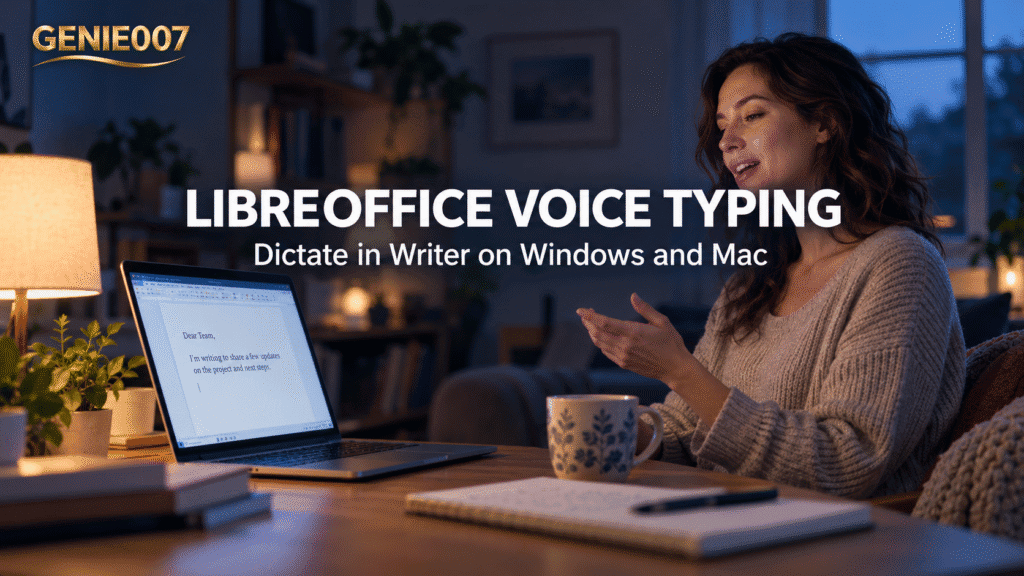
LibreOffice voice typing does not exist as a built-in feature, so you borrow it from your computer. On Windows, press Win + H and speak into Writer; on a Mac, turn on Dictation and use its shortcut. For finished text rather than a raw transcript, Genie 007 writes straight into the document.
Does LibreOffice have voice typing?
No. LibreOffice Writer has no microphone button, no dictation menu and no speech to text setting of its own. Community answers on ask.libreoffice.org say the same: voice input comes from the operating system or from separate software, not from LibreOffice. That is why people who search for libreoffice voice to text tend to land on forum threads rather than a help page.
That does not mean you are stuck. Both Windows and macOS ship their own dictation that types into whichever text box has your cursor. The steps below are Microsoft’s and Apple’s own, applied to Writer, so test with one short sentence first.
| Route | Platform | How you start it | What you get |
|---|---|---|---|
| Windows voice typing | Windows 11 | Win + H | A transcript typed at the cursor |
| Apple Dictation | Mac | Dictation shortcut, Microphone key or Edit > Start Dictation | A transcript typed at the cursor |
| Genie 007 | Windows and Mac | Press X or Press Q (or any key or combination you choose) | Cleaned-up text, or text written from your instruction |
Free option on Windows: voice typing with Win + H in LibreOffice Writer
Microsoft’s own guide, Use voice typing to talk instead of type on your PC, gives the steps. You need an internet connection, a working microphone and your cursor in a text box, because voice typing uses online speech recognition.
- Open your document in Writer and click where the text should go.
- Press Win + H on a hardware keyboard.
- Wait for the "Listening…" alert, then speak.
- To stop, say "Stop listening" or press the microphone button on the voice typing menu.
If it picks the wrong microphone, Microsoft says to open the gear icon on the voice typing menu and choose the "Default microphone" option. More options are in our guide to dictation software for Windows.
Free option on Mac: Dictation in LibreOffice Writer
Apple’s guide, Dictate messages and documents on Mac, covers the setup. Choose Apple menu > System Settings, click Keyboard, go to Dictation, switch it on and click Enable.
- Click into your Writer document where the text should appear.
- Start Dictation: press the Microphone key if your keyboard has one, use the Dictation keyboard shortcut, or choose Edit > Start Dictation if that item appears in Writer’s Edit menu.
- Wait for the cursor to pulse or for the tone, then speak.
- To finish, press Escape, the Microphone key or the Dictation shortcut. Dictation also stops on its own after 30 seconds without speech.
To change the shortcut, go to Keyboard settings > Dictation, open the Shortcut menu and pick one from the list, or choose Customise and press the keys you want. Apple also notes that standard Dictation is not available while Voice Control is on. Our full guide to dictating on Mac goes deeper.
Fix: dictation not typing into LibreOffice
Because the dictation comes from your operating system, the fixes you can rely on are the ones from Microsoft and Apple.
- Click inside the document first. Both Microsoft and Apple say your cursor must be in a text box or document for text to appear.
- On Windows, check you are online. Microsoft states that voice typing uses online speech recognition.
- On Windows, open the gear icon on the voice typing menu and check the "Default microphone" option.
- On Mac, check Keyboard settings > Dictation is on, and that Voice Control is off, since Apple says standard Dictation is unavailable while it is on.
- On Mac, if Edit > Start Dictation is missing in Writer, use the Dictation shortcut or Microphone key instead.
If libreoffice dictation still fails, try Notepad or TextEdit. If it works there, the operating system is fine and Writer is the sticking point.
Write in Writer with Genie 007
Built-in dictation gives you a transcript: every um, every false start, every sentence you would have worded differently. You still edit afterwards. This is the limit of libreoffice speech to text through the operating system, and it is the gap think-to-text is built to close.
The Genie 007 desktop app for Windows and Mac works the same way for libreoffice writer dictation as for any other window: text lands where your cursor is. Click into the document and use one of two keys.
- Press X for Voice Typing. It types what you said, cleaned up: filler words removed, punctuation and grammar sorted.
- Press Q for Genie Mode. You say what you want written and Genie writes it, understanding the context of where you are working.
Q and X are only the defaults: you can set any key or combination you choose under Keyboard Shortcut in the app. For a quick refresher on picking keys that do not clash, see our voice typing shortcut key guide.
A cover letter paragraph from three rough points
Say you are writing a cover letter in Writer. Click into the body, Press Q, and say: "Write a paragraph saying I have six years in operations, I cut delivery delays at my current job, and I want the team lead role." Genie writes the paragraph at your cursor, ready to read through.
Prefer to write it yourself? Press X, talk through the paragraph naturally, and Genie types it with punctuation. If you would rather speak punctuation aloud, see our list of dictation punctuation commands.
Desktop access is by request: ask for it on the Windows page or the Mac page.
Linux users and LibreOffice voice typing
To be plain about it: LibreOffice has no voice typing on Linux either, and Genie 007 has no Linux app. If you use LibreOffice on Linux, the Genie 007 desktop route above is not available to you.
The Genie 007 Chrome extension works in web text boxes, not inside the LibreOffice desktop app, so it will not type into Writer. More platform guides are in our voice typing guides.
Does LibreOffice have voice typing?
No, LibreOffice has no voice typing of its own. Writer has no microphone button or dictation menu. You use your operating system’s dictation instead: Win + H on Windows, or Dictation in System Settings on a Mac. Both type wherever your cursor is, including a Writer document.
How do I dictate in LibreOffice?
Click into your Writer document, then start your system’s dictation. On Windows, press Win + H and wait for the Listening alert. On a Mac, turn on Dictation in System Settings > Keyboard, then use the Dictation shortcut or Microphone key. Speak, then stop dictation when you have finished.
Can you dictate in LibreOffice Writer on a Mac?
Yes, through Apple’s Dictation rather than a LibreOffice feature. Switch Dictation on under System Settings > Keyboard, click into your Writer document, and start it with the shortcut, the Microphone key, or Edit > Start Dictation if Writer shows it. Press Escape to stop. Voice Control must be off.
Does LibreOffice have speech to text?
Not built in. LibreOffice has no speech to text feature, so any dictation comes from Windows voice typing, Apple Dictation or a separate tool. Genie 007 is one such tool for Windows and Mac: Press X to type what you said cleaned up, or Press Q to have it write from your instruction.
How do I enable the dictate feature in LibreOffice Writer?
There is no dictate setting to enable in Writer, because the feature belongs to your operating system. On Windows, press Win + H with your cursor in the document. On a Mac, switch Dictation on in System Settings > Keyboard, then start it with its shortcut. Check your microphone if nothing appears.
Try Genie 007 Free
Dictating into Writer should end with a paragraph you can send, not a transcript you have to repair. Genie 007 types at your cursor and can write the text from a short instruction.
Request access to the desktop app from the Windows or Mac page and start with one cover letter paragraph. Genie 007 works on Windows, Mac, mobile and as a browser extension.
Written by Bill Kiani, founder of Genie 007.