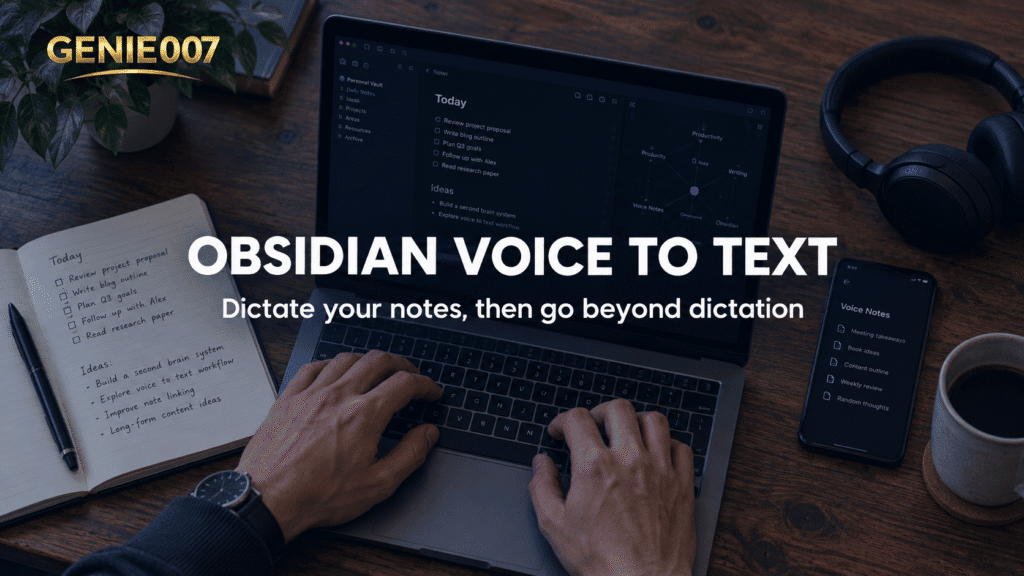
Obsidian voice to text relies on your device, because Obsidian has no built-in transcription: its core Audio recorder only saves audio into a note. To dictate, use Windows voice typing or Mac Dictation on a computer, your keyboard’s microphone on a phone, or a community plugin that sends audio to a speech service.
Is there built-in Obsidian voice to text?
No. Obsidian’s help lists the Audio recorder among its core plugins, but no core plugin that transcribes speech. The recorder is still useful: enable it under Settings > Core plugins, open a note, then click the ribbon icon labelled Start/stop recording. Click it again to stop.
The recording is saved in your vault and embedded at the end of the note you had open. Deleting it from the note does not delete the file; remove the file from the File explorer. You get audio, not words, so nothing in it can be searched unless something transcribes it first.
Searches for voice notes Obsidian usually mean one of two things: an audio clip attached to a note, or the spoken words typed into it. The recorder does the first. Every other route to Obsidian voice to text does the second.
| Route | Needs internet? | What you get |
|---|---|---|
| Audio recorder (core plugin) | No | An audio file in your note |
| Windows voice typing | Yes | Typed text |
| Windows 11 Voice access | Only for the first language setup | Typed text and PC control |
| Mac Dictation | Shown in Keyboard settings | Typed text |
| Phone keyboard microphone | Depends on the keyboard | Typed text |
| Community plugin | Cloud: yes. Local: no | Typed or transcribed text |
Obsidian speech to text plugin options and what they need
Community plugins are the only way to add Obsidian voice to text inside the app itself. Turn off Restricted mode, then open Settings > Community plugins > Browse and search for words such as dictation or speech, as Obsidian’s community plugins page explains. The category splits two ways.
- Cloud plugins record audio and send it to a speech service, often OpenAI’s Whisper models, using an API key from that provider. OpenAI’s speech to text guide says you send the audio file to its transcription endpoint, with a 25 MB file limit, so your audio leaves your computer.
- Local plugins run a speech model on your own computer once you install it. They can work offline, but many are desktop only and need a capable machine: the Whisper project lists models that need roughly 1 GB to 10 GB of video memory.
Read each listing before installing. The supported platforms shown on each listing tell you whether a plugin runs on mobile, and some listings say little about where your audio goes.
Take the privacy side seriously. Obsidian’s plugin security page says community plugins can access files on your computer, connect to the internet and install extra programs, and that Obsidian cannot reliably limit them to specific permissions. It suggests an independent audit if you handle sensitive data. This guide does not recommend a particular plugin.
Dictate into Obsidian on Windows and Mac
To dictate into Obsidian on a computer, use the speech tool your operating system already has; that is the simplest Obsidian voice to text setup. It types into whichever text box has focus, so click into a note in Live Preview or Source mode first. Reading view is not editable, so dictation has nowhere to land there.
Windows voice typing
- Click in your note, then press Windows logo key + H.
- Wait for the “Listening…” alert, then speak.
- Say “Stop listening” or press the microphone button on the voice typing menu to stop.
Microsoft says voice typing uses online speech recognition, so it needs a connection. For offline use on Windows 11 version 22H2 or later, turn on Settings > Accessibility > Speech > Voice access. Microsoft says voice access works without internet after a one-off language setup.
Mac Dictation
- Open System Settings > Keyboard, turn on Dictation and click Enable.
- Click into your note, then press your Dictation shortcut or the Microphone key, if your keyboard has one.
- Press Escape or the shortcut again to stop. It also stops after 30 seconds without speech.
Per Apple’s Dictation guide, commas, full stops and question marks are added automatically in supported languages. You can switch that off with Auto-punctuation, and Keyboard settings show whether your Mac processes speech on the device.
One Obsidian-specific warning. The Obsidian forum thread on dictation holds user reports, mostly from 2021 to 2023, of Mac Dictation lagging or stopping in Obsidian while working elsewhere. One user got it working by restarting Obsidian and trying Dictation in another app first. That is a forum tip, not official guidance. Our voice typing shortcut guide lists the keys for each platform.
Plain dictation types words only, so headings, links and checkboxes are usually still yours to add by keyboard.
Voice notes in Obsidian on your phone
Obsidian voice to text on a phone is simplest through the keyboard. Obsidian’s mobile apps run on iOS, iPadOS and Android, so tap into a note and use the microphone. On Android, Gboard shows the microphone at the top of the keyboard and prompts “Speak now”. On iPhone, tap the microphone on the keyboard; Apple’s guide to dictating text is the place to check, and menu names vary by iOS version.
For faster capture, the mobile Quick Action runs one command when you pull down from the top of the app. Set it under Settings > Interface > Configure mobile Quick Action > Configure. If you use the Daily notes core plugin, choose the Open today’s daily note command, then pull down, tap into the note, tap the microphone and talk.
A faster way: say what you want in your note
Obsidian voice to text through plain dictation is still typing by voice. You compose every sentence, fix the punctuation afterwards and add the structure yourself. Genie 007 works from the outcome instead. Tell Genie 007 what you want done. Not word by word. Just the order.
Voice typing mode is fast dictation with automatic punctuation and grammar, so you never say “comma”. Genie Mode takes an instruction instead. After a meeting you might say, “Turn that into a meeting note: three decisions, then action items with a name against each, short bullets.” Genie 007 understands the context and writes the finished note in your tone, ready to file in your vault.
You can also speak in one language and get text in another, across 140+ languages, which helps if you keep notes in a second language. It works in any app you can type into, Obsidian included, and it is private by design: nothing is stored. Read more about think-to-text. If your notes also live elsewhere, see voice typing in Notion and OneNote.
Related guides: voice typing in Canva and voice typing in Google Slides.
Frequently Asked Questions
Can you dictate into Obsidian?
Yes, you can dictate into Obsidian with the speech tool built into your device, even though Obsidian has no dictation feature of its own: Windows voice typing with Windows logo key + H, Mac Dictation switched on in Keyboard settings, or the microphone on your phone keyboard. Click into an editable note first.
Is there an Obsidian speech to text plugin?
Yes, the community plugin directory lists several, though none of Obsidian’s own plugins transcribes speech, and they split into cloud plugins that send your audio to a speech service using your own API key and local plugins that run a speech model on your computer. Read each listing and Obsidian’s plugin security page first, because plugins can reach your files.
Does Obsidian voice typing work offline?
It depends on the tool: Windows voice typing needs an internet connection, Windows 11 Voice access works without one after a one-off language setup, Mac Dictation shows in Keyboard settings whether it needs the internet, and local plugins that run a speech model on your computer can work offline.
Can Obsidian record audio?
Yes, the core Audio recorder plugin records from your microphone into the open note, but it only records and does not turn speech into text, so you still need dictation or a plugin to get the words on the page. Switch it on in Core plugins under Settings, then use the ribbon icon labelled Start/stop recording.
Can I dictate into Obsidian on my phone?
Yes, tap into a note in the Obsidian app and use the microphone on your keyboard: Gboard on Android shows it at the top of the keyboard and prompts Speak now, and on iPhone you tap the microphone on the keyboard. Check your language is supported, as Gboard says talk-to-text does not work with every language.
Try Genie 007 Free
Getting Obsidian voice to text working is the easy part. Genie 007 does your work, not your words: say what the note should contain and get it written.
Free to try, no card needed. Add the browser extension, use it on mobile, or request access to the desktop apps for Mac and Windows.
Written by Bill Kiani, founder of Genie 007.