Windows 11 voice typing commands are short phrases you say while Win+H voice typing is listening: “stop listening” ends it, “delete that” removes your last phrase, “new line” starts a new line, and words such as “comma” add punctuation. Below is Microsoft’s full English list, the key settings and a free printable cheat sheet.
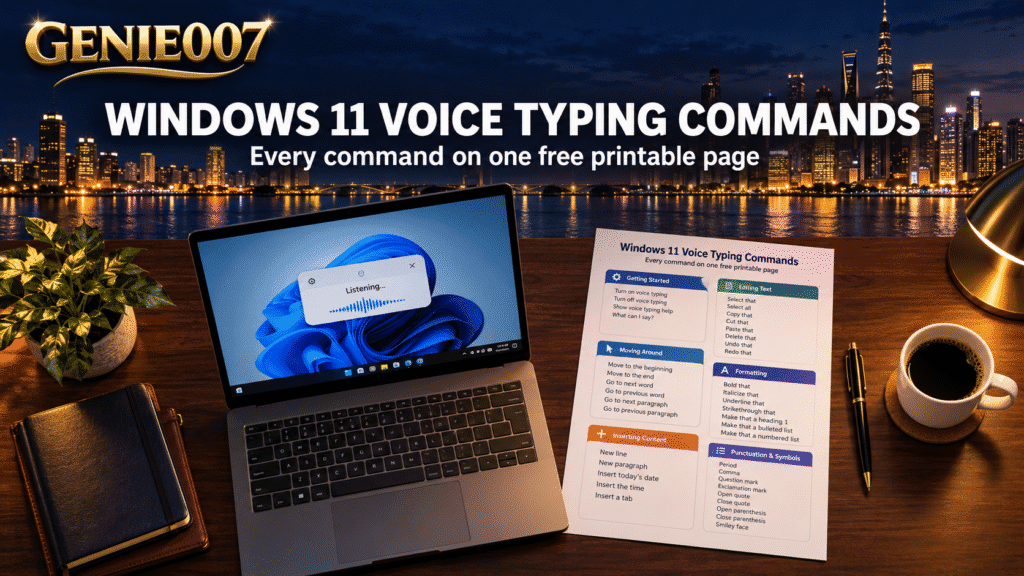
Want it on paper? Download the free printable Windows 11 voice typing commands cheat sheet (PDF): one A4 page, every command below, no email needed.
How to start and stop voice typing in Windows 11
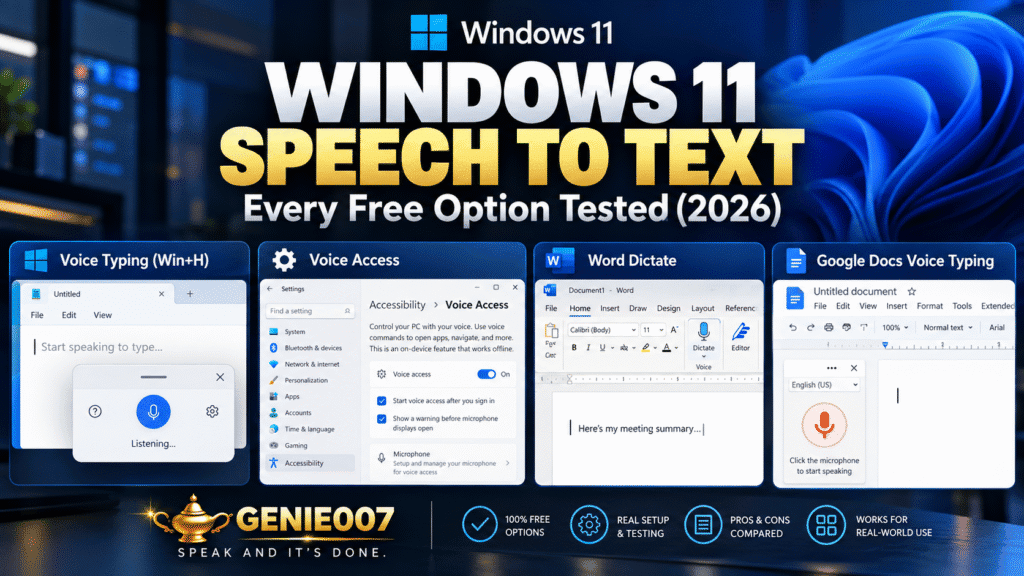
Windows 11 voice typing commands only work while voice typing is listening. Click into any text box and press Windows logo key + H, or tap the microphone key on the touch keyboard, then wait for the “Listening…” alert before you speak.
To finish, say “stop listening” or select the microphone button. You need an internet connection, because voice typing uses online speech recognition powered by Azure Speech services. New to it? Our Windows 11 voice typing setup guide covers microphones and languages first.
The full Windows 11 voice typing commands list
This Windows voice typing commands list comes from the English tables on Microsoft’s voice typing support page, checked on 13 October 2026. Where Microsoft gives several phrases for one action, any of them works.
Control and editing commands
| Say this | What happens |
|---|---|
| Stop listening, stop voice typing, stop dictation, stop dictating, stop voice mode | Stops voice typing |
| Pause voice typing, pause dictation, pause voice mode | Pauses voice typing |
| Delete that, erase that, scratch that | Deletes your last phrase or the selected text |
| Select that | Selects your last phrase |
| Undo that, revert | Undoes the last change |
| Press Enter | Presses Enter |
| Backspace, press Backspace | Presses Backspace |
| Tab, press Tab | Presses Tab |
| Insert space, press space | Adds a space |
| New line, next line | Starts a new line |
| New paragraph | Starts a new paragraph |
Punctuation and symbol commands
| Say this | You get |
|---|---|
| Full stop, period | . |
| Comma | , |
| Question mark | ? |
| Exclamation mark, exclamation point | ! |
| Colon | : |
| Semicolon | ; |
| Ellipsis, dot dot dot | … |
| Hyphen | – |
| Minus sign | A minus sign |
| N-dash, m-dash | A short (en) or long (em) dash |
| Apostrophe-s | ‘s |
| Open quotes, close quotes | Double quotation marks |
| Open single quote, close single quote | Single quotation marks |
| Open parentheses, close parentheses | ( ) |
| Open square bracket, close square bracket | [ ] |
| Open curly brace, close curly brace | { } |
| Less than sign, greater than sign | < > |
| At sign | @ |
| Number sign, pound sign | # |
| Pound sterling sign, dollar sign, euro sign, yen sign | £ $ € ¥ |
| Percent sign | % |
| Ampersand, and sign | & |
| Asterisk | * |
| Plus sign, equal sign | + = |
| Plus or minus sign, multiplication sign, division sign | ± × ÷ |
| Forward slash, backslash | / \ |
| Underscore | _ |
| Vertical bar, pipe character | | |
| Caret symbol, tilde symbol | ^ ~ |
| Backquote, backtick | The grave accent mark |
| Degree sign, section sign, paragraph sign | ° § ¶ |
| Copyright sign, registered sign | © ® |
| Smiley face, frowny face, winky face | 🙂 🙁 😉 |
| Heart emoji | <3 |
With English (United Kingdom) as your voice typing language, Microsoft lists “ignore that” instead of “scratch that”. Other languages have their own lists on the same page.
Voice typing punctuation commands: how Windows handles them
The voice typing punctuation commands Windows recognises are ordinary words: say the mark where it belongs. “Thanks for the update comma see you Monday full stop” puts the comma and full stop in place. “Period” and “full stop” both work, so British and American habits are covered.
- Paired marks need both halves: “open quotes” then “close quotes”, “open parentheses” then “close parentheses”.
- “New paragraph” separates ideas; “new line” suits addresses and short lists. Say “press Enter” when an app needs the key itself.
Prefer not to speak punctuation? Turn on automatic punctuation (below) and keep spoken marks for exact ones, such as a colon before a list. For Mac and Google Docs equivalents, see our guide to dictation punctuation commands.
Turn on automatic punctuation and other voice typing settings
Voice typing keeps its options in its own menu. Press Windows logo key + H, then select the gear icon:
| Setting | What it does |
|---|---|
| Voice typing launcher | Lets you start voice typing quickly from any text box |
| Automatic punctuation | Adds punctuation based on how you speak |
| Filter profanity | Blocks or allows profane words |
| Default microphone | Picks the microphone voice typing uses |
| Wait time before acting | Sets how long voice typing waits before running a voice command |
| Fluid dictation (Copilot+ PCs) | Fixes grammar, punctuation and filler words as you speak, using on-device models; English only, on by default |
If Fluid dictation rewrites a phrase you wanted kept, say “revert” or “undo that”, or press Ctrl + Z. It switches itself off in password and PIN fields.
Editing by voice: what Win+H commands can and cannot do
Most Windows 11 voice typing commands for editing act on your most recent speech. “Select that” highlights the last phrase you said, “delete that” removes it (or any selected text), and “undo that” reverses the previous change.
The gaps matter as much. Microsoft’s list has no command to jump to an earlier word, select a word by name, change capitals or apply bold; for those, use the keyboard or voice access. A good habit: pause between sentences and check, so one “delete that” fixes the mistake.
Voice access: the bigger set of Windows voice commands
Voice access, in Windows 11 version 22H2 and later, goes further than Windows 11 voice typing commands: it controls the whole PC, from opening apps and clicking buttons to editing text anywhere. Microsoft is replacing the older Windows Speech Recognition with it, according to its list of deprecated Windows features.
Turn it on in Settings > Accessibility > Speech. Alt + Shift + B wakes it or puts it to sleep, and Alt + Shift + C turns its microphone on or off. Microsoft says it works without an internet connection. Its automatic punctuation is off by default; switch it on from the voice access bar under Settings > Manage options.
| Say this | What it does |
|---|---|
| Voice access wake up, voice access sleep | Starts or pauses listening |
| What can I say | Shows the command list |
| Open plus an app name | Opens the app |
| Click plus an item name | Clicks that button or link |
| Show numbers, show grid | Labels items or adds a grid for precise clicks |
| Select plus the words | Selects that text |
| Capitalize that, bold that | Changes the case or formatting of your last dictated text |
Microsoft’s full voice access command list has the rest. If it feels heavy for everyday writing, our Windows voice access alternative page explains where it falls short.
Win+H commands not working? Check these first
When Windows 11 voice typing commands seem to be ignored, the cause is usually simple:
- Wait for the “Listening…” alert before you speak.
- Say commands in your voice typing language; switch with Windows logo key + Spacebar.
- Keep the cursor in a text box and stay online.
- Check Default microphone in the gear menu.
Still stuck? Our guide to Windows 11 voice typing not working covers permissions and language packs, and more walkthroughs sit in our voice typing guides.
Beyond commands: say what you want done
Windows 11 voice typing commands make dictation more precise, but they keep you narrating: every comma, line break and correction is spoken, and you still compose each sentence word by word. For a quick note that is fine; for a careful client reply it is slow.
Genie 007 takes the other route. In Genie Mode you give the instruction, not the words: “Reply to Priya, thanks for the draft, I need the sales figures by Friday, keep it friendly.” In Gmail or Outlook you get a finished reply in your tone:
Hi Priya, thanks for sending the draft over, it reads really well. Could you send me the sales figures by Friday so I can finish my review? Many thanks.
Its voice typing mode punctuates automatically, so there is no “comma” to remember, and live translation lets you speak one language and get text in another across 140+ languages. We call that shift think-to-text.
Related guides: the “speech services are managed by your organization” fix, voice typing shortcut keys for every app, speech to text in Firefox and voice typing statistics.
Frequently Asked Questions
What can I say during Windows voice typing?
You can say the words you want typed, punctuation names such as comma, full stop or question mark, and short commands such as stop listening, delete that, select that, undo that, new line and press Enter, which act on the text instead of being typed out as words.
How do I add punctuation with voice typing?
Say the name of the mark where it belongs, such as comma, full stop, question mark, colon or open quotes, or turn on Automatic punctuation from the gear icon in the voice typing menu so Windows adds most everyday marks for you as you speak.
How do I stop voice typing by voice?
Say stop listening while voice typing is active; Microsoft also accepts stop voice typing, stop dictation, stop dictating and stop voice mode, or pause voice typing, pause dictation and pause voice mode, and you can select the microphone button in the voice typing menu instead.
Is there a printable list of Windows voice typing commands?
Yes, Genie 007 offers a free one-page A4 PDF of Windows 11 voice typing commands, covering stop and editing commands, punctuation, brackets and symbols, with no email needed, while Microsoft’s support page holds the official lists for every language as one long web page.
Does Windows 11 voice typing work offline?
No, Microsoft lists an internet connection as a requirement for Windows 11 voice typing because it uses online speech recognition powered by Azure Speech services, so for voice commands without a connection use voice access instead, which Microsoft says works without an internet connection.
Try Genie 007 Free
Keep the Windows 11 voice typing commands cheat sheet for quick notes. When you want the finished email or message instead of a transcript, tell Genie 007 what you want done; it is private by design.
Free to try, no card needed. Add the browser extension, request access to the desktop apps for Windows and Mac, or use Genie 007 on mobile.
Written by Bill Kiani, founder of Genie 007.