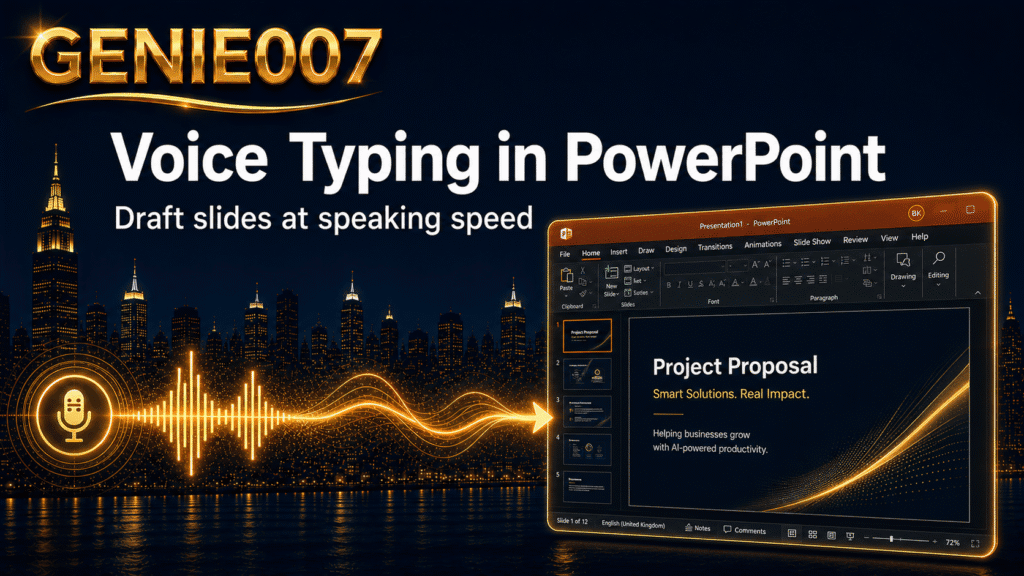
Building a presentation is one of those tasks that looks like a thinking job but spends most of its time being a typing job. When you dictate in PowerPoint, you swap keyboard effort for spoken thought — slide text, bullet points, and speaker notes come out faster, with fewer interruptions to your train of thought. This guide covers every practical way to use PowerPoint voice typing: Microsoft’s built-in Dictate feature, what it requires, where it hits a ceiling, and how Genie 007 fills the gap for teams who want more than plain transcription.
How to Dictate in PowerPoint Using Microsoft’s Built-In Tool
Microsoft 365 includes a Dictate button directly in the PowerPoint ribbon, under the Home tab. It is a cloud-powered speech to text PowerPoint tool that inserts spoken words wherever your cursor is sitting — inside a slide text box, a title placeholder, or the speaker notes panel at the bottom of the screen.
Before you begin, three things need to be in place: a Microsoft 365 subscription (Personal, Family, or a work or school plan), an active internet connection, and a working microphone. The built-in Dictate feature is not available in standalone Office 2016 or 2019, and it will not start without internet, as all audio processing happens in Microsoft’s cloud.
Dictating Text on Your Slides
- Open your presentation and click inside any text placeholder or text box on a slide.
- Go to Home → Dictate (the microphone icon in the Voice group, towards the right of the ribbon).
- Wait for the microphone to switch on — a floating dictation toolbar appears on screen.
- Speak clearly at a natural pace. Text appears on your slide in real time.
- To insert punctuation, say the word: “comma”, “full stop”, “new line”, “new paragraph”, “question mark”.
- To resume after a pause, press Alt + ‘ or click the microphone icon again.
You can correct typos with your keyboard at any point without switching the microphone off, which keeps the workflow moving.
Dictating Speaker Notes in PowerPoint
To dictate speaker notes, click inside the notes panel at the bottom of Normal view, then activate Dictate from the ribbon as normal. The Dictate button follows your cursor, not the slide, so it works anywhere you can place text — notes included.
Speaker notes are where voice dictation earns its keep most clearly. A typical slide carries three bullet points, but the notes for that slide might run to several paragraphs. Dictating them rather than typing saves time that compounds across a full-length deck. For the official walkthrough, see Microsoft’s support page: Dictate your presentations and slide notes in PowerPoint.
PowerPoint Voice Typing Without a Microsoft 365 Subscription
If you are on a standalone copy of Office 2016, Office 2019, or PowerPoint Online without a subscription, the built-in Dictate button is either absent or greyed out. Two system-level options cover this gap without any additional cost.
Windows Voice Typing (Win + H). Press Windows key + H on your keyboard to open Microsoft’s system-level voice typing panel. It is free, requires no Microsoft 365 subscription, and works across every text field — including PowerPoint slide text boxes and the notes panel. On Windows 11, it can process on-device once the language pack is installed, so it functions without an internet connection.
Mac Dictation. Go to System Settings → Keyboard → Dictation and switch it on. Press your dictation shortcut (usually Fn + Fn) while your cursor is inside PowerPoint. Like Windows Voice Typing, it operates at the operating system level and works regardless of your Office licence.
Both options handle straightforward dictation of slide text and notes. Neither applies formatting beyond line breaks, and neither understands context — they transcribe literally, word for word.
Where the Built-In Tools Fall Short
Microsoft Dictate is reliable for its stated purpose. But if you use it for anything beyond the occasional text box, a few patterns emerge that slow the workflow down.
Always-on internet dependency. If your connection drops or you are working offline, Dictate stops completely. There is no partial fallback — it will not start until you are back online.
Manual punctuation. Saying “full stop, new line, new paragraph” every few seconds is not natural speech. The microphone is on, but your attention is split between what you want to say and the syntax commands you need to announce.
Literal transcription. Dictate types what you say — nothing more. A half-formed spoken thought becomes a half-formed sentence on your slide. There is no reshaping of rough language into a clean bullet point, no removal of filler phrases, no editorial judgement.
Audio leaves your device. Microsoft’s documentation confirms that speech utterances are sent to its servers for processing. They are not retained after transcription, but if you are building slides around confidential client information or commercially sensitive strategy, that is worth knowing.
| Feature | Microsoft Dictate | Windows Voice Typing | Genie 007 |
|---|---|---|---|
| Requires Microsoft 365 | Yes | No | No |
| Works offline | No | Yes (Win 11) | Yes |
| Auto-punctuation | No (say aloud) | No | Yes |
| Works in speaker notes | Yes | Yes | Yes |
| AI intent understanding | No | No | Yes (Genie Mode) |
| Audio stays on device | No | Depends | Yes |
| Cost | Included with M365 | Free | From £5/month |
How Genie 007 Extends PowerPoint Voice Typing
Genie 007 runs across your whole system — on Windows, Mac, mobile, and as a browser extension — so it is available inside PowerPoint whether or not you have a Microsoft 365 subscription. It works in any text field you can click into, including slide text boxes, title placeholders, and the speaker notes panel.
Voice Typing mode gives you fast, accurate dictation with automatic punctuation and formatting. You speak naturally, and Genie 007 inserts clean, punctuated text without you needing to announce “comma” or “full stop”. Genie 007 encrypts your audio in transit, processes it in real time and stores no recordings and no transcripts.
Genie Mode goes further. Speak a rough thought — a slide theme, a key message, the argument you want to land — and Genie 007 turns it into polished, presentation-ready text. You are not transcribing a sentence; you are expressing an idea, and the tool does the editorial work. This is the practical difference between speech to text and Think-to-Text. The same approach applies when you dictate in Word to build a full outline before importing it into PowerPoint.
Setup takes a couple of minutes. Download Genie 007 for Windows, grant microphone permission, and it is active inside PowerPoint on your next session — no ribbon customisation, no Microsoft sign-in required. Personal plans start from £5 per month; see the full Genie 007 pricing page for details.
Advanced Workflows: Dictating Your Whole Presentation by Voice
Once voice typing is working reliably, a few patterns make it considerably more productive than replacing the keyboard one text box at a time.
Voice-first outlining. Open a blank presentation, switch to Outline view (View → Outline View), and dictate your complete structure before touching any slide design. This separates the thinking from the layout work and stops the common habit of adjusting fonts before the content is settled.
Notes before visuals. Draft your speaker notes for every slide before you begin the visual design. If you can speak a slide’s notes fluently, the argument is clear; if you cannot, the slide needs more thought. Dictating notes straight into the panel is faster than typing and produces a word-for-word script you can also use for recorded narration.
Meeting to presentation pipeline. After a productive meeting, move directly from your spoken notes to slide content without retyping anything. If you are already dictating meeting notes by voice, the content flows straight into your next deck. The same voice-first habits carry across the whole Office suite — the setup you build for PowerPoint works identically when you are dictating in Excel or drafting follow-up emails in Outlook.
Frequently Asked Questions
Can you dictate speaker notes in PowerPoint?
Yes. Click inside the speaker notes panel at the bottom of Normal view, then activate Dictate from the Home tab in Microsoft 365. The Dictate button follows your cursor, so it works in the notes panel exactly as it does in slide text boxes. Genie 007 works in the notes panel the same way — click into it, start speaking, and your dictated text appears with automatic punctuation.
Does PowerPoint Dictate work without internet?
Microsoft’s built-in Dictate requires an active internet connection, as it sends audio to a cloud recognition service. If you are offline it will not start. Windows Voice Typing (Win + H) works offline on Windows 11 once the language pack is installed. Genie 007 encrypts your audio in transit, processes it in real time and stores no recordings and no transcripts.
Why is the Dictate button missing in PowerPoint?
The Dictate button only appears with an active Microsoft 365 subscription — Personal, Family, or a work or school plan. It is not included in standalone Office 2016 or Office 2019. If you have a valid subscription but the button is absent, updating PowerPoint via File → Account → Update Options → Update Now usually restores it. In some organisations, IT policies that disable cloud-connected Office features will also remove the Dictate button.
The same voice-first approach extends beyond slides — Genie 007’s microsoft copilot voice input guide shows how to dictate Copilot prompts in Word, Outlook and Edge.
Try Genie 007 Free
If you want voice typing that works in PowerPoint without a Microsoft 365 subscription, auto-punctuation you do not have to speak aloud, and a Genie Mode that turns rough spoken ideas into polished slide text — Genie 007 covers all three from the moment you install it.
Download Genie 007 free — available for Windows, Mac, mobile and as a browser extension. No credit card required.
Written by Bill Kiani, founder of Genie 007.
For the Word equivalent of this workflow, see our complete guide to how to dictate in Word, covering Windows, Mac, Word for the web and every version back to 2019.