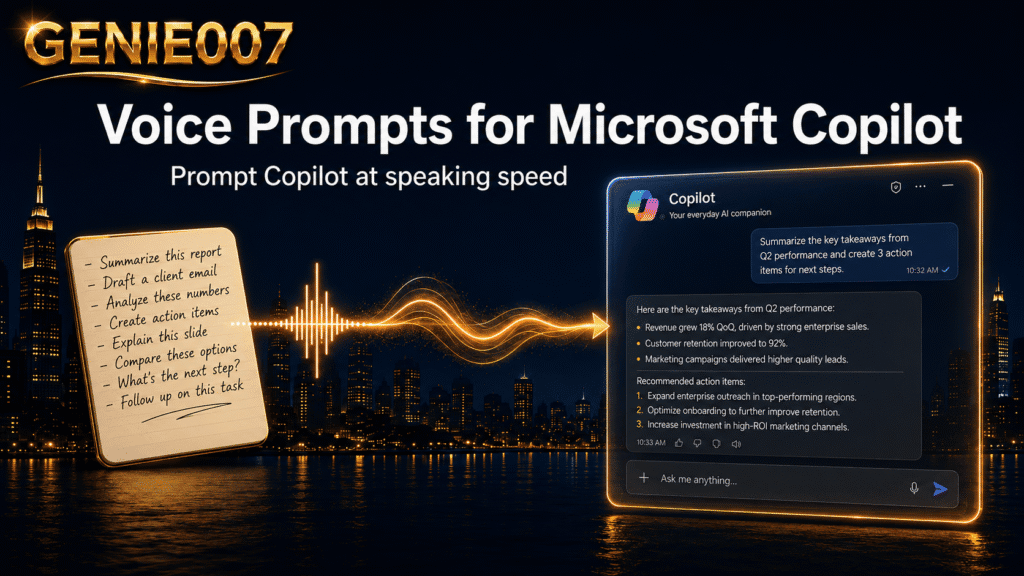
Copilot dictation is Microsoft’s built-in way to speak your prompts into the Copilot panel instead of typing them: click the microphone in the prompt box, talk, and your words appear as text ready to send. It works inside Word, Outlook and Edge — but only inside the Copilot pane, not everywhere you write.
This guide covers exactly how copilot dictation works in Word, Outlook and Edge, the real gaps in Microsoft’s rollout, and how to dictate to Copilot everywhere else — Excel, Teams, third-party tools, and any app that hasn’t received the native microphone yet.
What Is Copilot Dictation? Dictation vs Voice Chat Explained
Microsoft’s voice features for Copilot come in two distinct forms, and mixing them up is the most common source of confusion. Dictation is copilot speech to text in its simplest form: a microphone icon in the Copilot prompt box transcribes what you say into the text field, ready for you to review and send. Voice Chat is different — it opens a spoken dialogue where Copilot replies aloud, and you can interrupt mid-response to redirect it.
According to Microsoft’s own support documentation, microsoft copilot voice to text features began rolling out from November 2025 through early 2026, and access is still expanding gradually rather than switching on for every account at once. Word, PowerPoint and Outlook support both dictation and Voice Chat on desktop and web, and the standalone Microsoft 365 Copilot app carries both modes across desktop, web and mobile — iOS and Android. Coverage in Excel, Teams channels and OneNote sits on a slower, separate schedule, and voice features generally require a Microsoft 365 Copilot licence, which is a separate purchase from a standard Microsoft 365 subscription.
How to Dictate to Copilot in Word, Outlook and Edge
The controls for how you dictate to Copilot differ by app, and some are easy to miss. Here’s a step-by-step walkthrough for the three most common Microsoft 365 contexts.
Word
Open a document in Word on the desktop or in your browser. Click the Copilot icon in the ribbon to open the Copilot pane on the right-hand side of the screen. At the bottom of the pane, inside the prompt field, you’ll see a small microphone icon labelled Start dictation. Click it, wait for the pulsing indicator, then speak your prompt. The text is transcribed in real time and inserted into the field. Review it and press Enter to send.
For a full conversational experience, click Start a new voice chat at the top of the Copilot pane. This puts Copilot into Voice Chat mode: it listens, responds aloud, and you can cut in at any point to change direction. Voice Chat is particularly useful for working through document structure, brainstorming headings, or refining a draft by talking your way through edits rather than typing each instruction. Note that Voice Chat requires a Microsoft 365 Copilot licence, separate from a standard Microsoft 365 subscription. You can also enable the “Hey Copilot” wake word in Quick View settings to start voice chat hands-free on Windows.
Outlook
In Outlook, the voice controls appear inside the Copilot compose pane. Open a new message, click the Copilot icon in the compose toolbar, and the sidebar opens with a prompt field at the bottom. Click the microphone to begin dictating your instruction — for example, “Write a concise follow-up to James asking whether the proposal has been reviewed and keep the tone professional.” Copilot transcribes and acts on your spoken prompt exactly as it would a typed one. For more on combining voice with email writing, see our guide to dictating in Outlook.
Of all Microsoft 365 apps, Outlook has the broadest voice support — available on desktop, web and mobile. On mobile, you can tap Voice catch up inside the Copilot panel to ask about your inbox by speaking rather than typing. Being able to say “What are the three most urgent messages I need to action today?” and hear Copilot reply aloud is considerably faster than composing the same prompt by thumb. You can interrupt Copilot mid-reply to redirect it, which makes spoken exchanges feel natural.
Microsoft Edge
Open the Copilot sidebar in Edge by clicking the icon in the top-right corner of the browser window. Inside the sidebar, look for the vertical bars icon (or the microphone) to start talking with Copilot. Alternatively, open copilot.microsoft.com in any tab and click the microphone icon in the prompt field. This is useful when you want Copilot to summarise the page you’re reading, help draft a reply to an online thread, or research a topic — all without lifting your hands from the mouse.
The Edge sidebar’s voice dictation produces a text transcript that Copilot acts on — it doesn’t reply aloud through the sidebar the way Voice Chat does in the Microsoft 365 apps. The full spoken-dialogue experience, where Copilot listens and speaks back, requires the Microsoft 365 Copilot app or copilot.microsoft.com rather than the Edge sidebar panel. If you want a voice dialogue while browsing, open the Copilot app in a separate window alongside Edge.
Where Copilot’s Built-In Voice Input Falls Short
Native copilot voice input works well within the apps that support it. The gaps show up the moment you step outside those conditions. Copilot dictation and Voice Chat are available only inside the dedicated Copilot panel — not in the main editing area of a given app. In Word, you can speak a prompt to Copilot, but you can’t voice-type the document body using the Copilot microphone; for that, you need Word’s separate built-in dictation tool. In Excel, Copilot voice input isn’t yet available inside the spreadsheet grid or formula bar at all.
Some capabilities are voice-chat-only and don’t extend to dictation at all — Microsoft’s own FAQ confirms that image creation, file creation and @-mentioning agents are still text-only in a voice chat, and Copilot agents don’t support voice chat yet either. Coverage across enterprise tenants is uneven too: some Microsoft 365 configurations disable Copilot voice features at the admin level, and some regional tenants received the rollout on a delayed schedule, meaning voice controls simply don’t appear even with a valid Copilot licence. For anyone who switches between multiple Microsoft 365 apps throughout the day — Outlook to Word to Excel to a browser — the lack of a consistent, always-available voice entry point is a real constraint on an otherwise voice-first working style.
Copilot Dictation Tool: Built-In Panel vs a Voice Assistant That Works Everywhere
Here’s the honest comparison. Copilot’s native dictation is genuinely good at what it does: it’s built into the panel, costs nothing beyond your existing Microsoft 365 Copilot licence, and needs no separate install. If all your prompting happens inside Word, Outlook or Edge and a Microsoft 365 Copilot licence already covers you, the native microphone is the simplest option — there’s no reason to add a second tool just to fill the same box.
Where a dedicated copilot dictation tool earns its place is dictating into that same Copilot prompt box — not replacing Copilot’s microphone, but adding a voice layer underneath it that works whether or not the native controls have arrived. Genie 007 wins in three specific ways when you’re prompting Copilot: long prompts, because Genie Mode restructures a rambling, multi-part instruction into a clean paragraph rather than transcribing every false start and filler word the way Copilot’s own dictation does; 140+ languages, so you can think through a prompt in Spanish, Hindi or Japanese and have clean English text land in the Copilot box, without touching your Microsoft 365 language settings; and coverage of every Copilot surface — the Word pane, the Outlook sidebar, the Edge sidebar, copilot.microsoft.com, and any Excel, Teams or third-party Copilot integration where the native microphone hasn’t shown up yet.
The trade-off runs the other way for Voice Chat specifically. Genie 007 dictates text into a prompt box — it doesn’t hold a spoken conversation back with you. If you want Copilot to talk back and let you interrupt mid-response, native Voice Chat is the right tool for that, not a replacement for it.
| Feature | Copilot’s Built-In Dictation | Genie 007 Dictating Into Copilot |
|---|---|---|
| Requires a Copilot licence | Yes | No |
| Works in Excel, Teams, OneNote | Not yet | Yes |
| Languages | Limited to Copilot’s supported list | 140+ with live translation |
| Long, rambling prompts | Transcribed literally | Cleaned into a structured prompt (Genie Mode) |
| Works when admin disables Copilot voice | No | Yes |
| Audio processing | Sent to Microsoft’s servers | On-device / in-browser |
| Spoken back-and-forth (Voice Chat) | Yes | No — dictation only |
| Cost | Included in a Copilot licence | From £5/month, free trial |
How Genie 007 Extends Copilot Dictation to Every App on Your Machine
Genie 007 is a think-to-text voice assistant that operates at the operating system level. It works in any text field on your computer — every Copilot prompt box, every Microsoft 365 app, every browser tab, and every third-party tool you use alongside them. Press a hotkey, speak, and your words appear wherever your cursor is positioned. There’s no microphone icon to locate, no panel to open, and no dependency on whether a given app has rolled out native voice support yet.
Genie 007 runs in two modes. Voice Typing delivers fast, accurate transcription with automatic punctuation — useful for composing long Copilot prompts without touching the keyboard, and the same habit that speeds up drafting slide text, covered in our guide to dictating in PowerPoint. Genie Mode goes further: it interprets your intent and produces clean, structured text even if you speak in fragments or change direction mid-sentence — the same approach that fills the gap when you dictate in Excel, where Copilot’s own voice input hasn’t landed at all. If you already dictate prompts to other AI tools, the same hotkey and workflow carry across without reconfiguration — see how it works for voice dictation for Claude Code if you split your day between Copilot and a coding assistant. That’s the practical difference between Copilot’s own dictation and system-wide copilot dictation: one works in a handful of panels, the other works everywhere you type.
Supporting over 140 languages with live translation, on-device or in-browser processing, AES-256 encryption and no audio storage, Genie 007 is GDPR compliant and HIPAA ready — a sound fit for healthcare, legal and financial teams using Microsoft 365 Copilot with sensitive data. Plans start at £5 per month, with a free trial and no credit card required.
Frequently Asked Questions
Does Copilot have voice mode?
Yes. Microsoft Copilot has two voice modes: copilot dictation, which transcribes your spoken words into the prompt box, and Voice Chat, a two-way spoken conversation where Copilot replies aloud and you can interrupt it mid-response. Both generally require a Microsoft 365 Copilot licence and are rolling out gradually across Word, Outlook, Edge and the Copilot app.
What is the best copilot dictation tool for prompts outside the Copilot panel?
For prompts that never leave the Copilot panel, the native microphone is enough. For prompting Copilot from Excel, Teams, a third-party tool, or anywhere the native microphone hasn’t appeared, a system-level copilot dictation tool like Genie 007 dictates directly into the prompt box using a single hotkey, in 140+ languages, without needing a Copilot licence to work.
How do I dictate to Copilot in apps where the microphone icon doesn’t appear?
When the built-in microphone is absent — common in Excel, OneNote, Visio or third-party tools that integrate with Microsoft 365 — a system-level voice tool covers the gap. Genie 007 activates with a hotkey in any text field, so you can dictate to Copilot regardless of whether the current app has a native microphone icon.
Does Microsoft Copilot have speech to text for prompts?
Yes. Copilot speech to text is built into the Copilot panel in supported Microsoft 365 apps. Click the microphone icon — labelled Start dictation — in the prompt field, speak, and your words are transcribed and inserted in real time. This is separate from the system-level dictation built into Windows and macOS, which can also type text into a Copilot prompt field but isn’t managed by Copilot itself.
Is Microsoft Copilot voice to text available on mobile?
Yes. Voice features in Microsoft 365 Copilot are available on mobile through the Microsoft 365 Copilot app and through Outlook for iOS and Android. On Outlook mobile, tap Voice catch up inside the Copilot panel to interact by speaking. Genie 007’s mobile app extends voice input to other apps on your phone, including contexts where Copilot’s native voice controls aren’t yet present.
What’s the difference between Copilot voice input and Copilot Voice Chat?
Copilot voice input usually refers to dictation — speaking to fill the prompt box with text you then send. Voice Chat is a separate, more interactive mode: a spoken back-and-forth conversation where Copilot replies aloud and you can interrupt it mid-response. Dictation is about typing by voice; Voice Chat is about talking with Copilot directly.
Try Genie 007 Free
Copilot dictation covers the Word, Outlook and Edge panels Microsoft has switched on — Genie 007 covers everywhere else, with one hotkey, 140+ languages, and no Copilot licence required.
Download Genie 007 free — available for Windows, Mac, mobile and as a browser extension. No credit card required.
Written by Bill Kiani, founder of Genie 007.
Related reading: Why Prompt Writing is Dead.