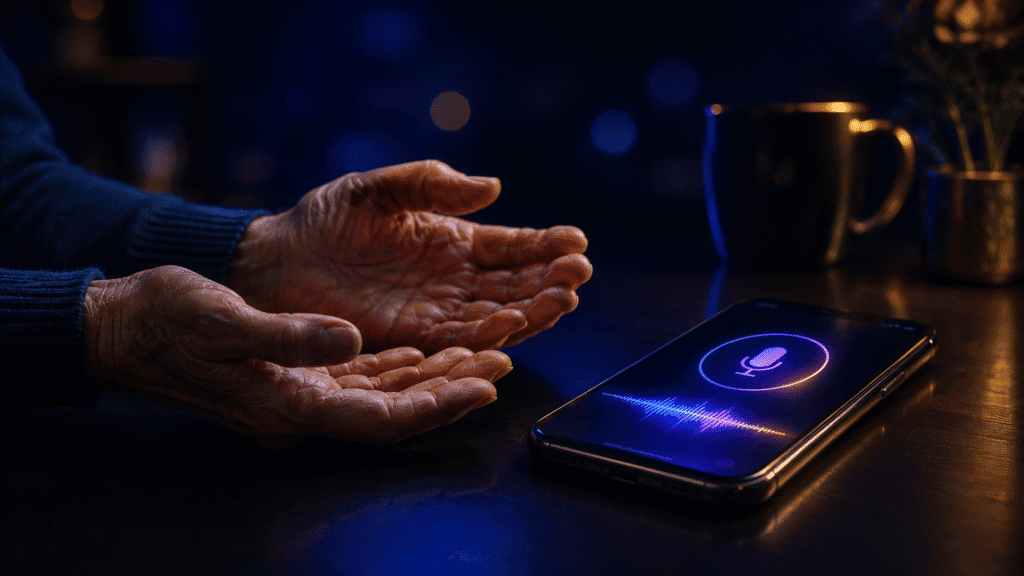
Voice to text for seniors doesn’t require special equipment: the phone, tablet, or computer you already own can turn speech into text with the right app. Built-in tools from Apple, Google, and Microsoft work today for free, while Genie 007 adds automatic punctuation and a big-text interface with no voice commands to memorise.
Typing becomes harder as we age. Arthritis stiffens fingers. Tremors make the keyboard unpredictable. Low vision turns small keys into a guessing game. For millions of older adults, voice to text for seniors isn’t a nice-to-have — it’s a gateway back to independence. Dictation for elderly users is transformative: it restores the ability to communicate without pain. Adult children often help parents set this up when physical typing becomes painful or impractical, and the good news is that setup takes minutes, not a trip to an electronics shop.
Speech to Text Device for Seniors: Do You Need One?
Short answer: no. There’s no special speech to text device for seniors that you need to buy. Whatever you already own — an iPhone, an Android phone, an iPad, a Windows laptop, or a Mac — already has voice-to-text built in, and it’s switched on for free in the settings menu. The “device” question usually comes from marketing for standalone dictation recorders and medical alert gadgets, but for everyday writing (emails, texts, notes), the phone or computer in your bag does the job better and for nothing extra.
What actually matters isn’t the hardware, it’s three things: how simple the setup is, how large and clear the on-screen text and buttons are, and whether you have to memorise spoken commands like “comma” or “new paragraph” to make it work properly. A £5-a-month app with a one-tap start button and automatic punctuation will serve a 78-year-old better than an expensive dedicated device with a manual to read first. This is backed by real adoption data: research into older adults’ technology adoption consistently finds that “effort expectancy” — how hard something feels to learn — is the single biggest barrier to seniors using voice technology, not the hardware itself.
The Easiest Setup, Device by Device
Every major device you’re likely to already own has a free dictation tool built in. Here’s the honest rundown, including where each one struggles.
iPhone and iPad (Apple Dictation)
Go to Settings, then General, then Keyboard, and turn on “Enable Dictation”. After that, a small microphone icon appears on the keyboard in every app. Tap it once, speak, tap again to stop. Apple’s dictation processes on-device for short dictations, handles punctuation reasonably well if you say “period” or “comma”, and works in Messages, Mail, and Notes without any extra download. The limitation: for longer dictation it can time out, and correcting a misheard word still means tapping and retyping, which is awkward with arthritis or tremor.
Android Phones and Tablets (Google Voice Typing)
On most Android phones, tap the microphone icon on the Gboard keyboard — it’s usually already there in Gmail, Messages, and WhatsApp. If it isn’t visible, go to Settings, System, Languages & input, and enable Voice Typing. It’s cloud-based, so it tends to be fast and fairly accurate in a quiet room, but the audio is sent to Google’s servers for processing, and you still need to say punctuation aloud for a clean result.
Windows PCs and Laptops
Windows 11 includes Voice Access as a free accessibility feature. Go to Settings, Accessibility, then Speech, and turn on Voice Access. Press the Windows key plus H, or say “start listening,” and it will type into any text box — email, Word, a web form. It’s genuinely free and works offline, but it requires you to say punctuation aloud, and editing by voice command (“select the word Tuesday”, “delete that”) has a learning curve that many seniors find fiddly at first.
Mac Computers
On a Mac, open System Settings, then Keyboard, then Dictation, and switch it on. Afterwards, tap the fn key twice (or your chosen shortcut) in any app to start talking. Like the iPhone version, it processes on-device, so nothing leaves your Mac, and it handles spoken punctuation better than most. The trade-off is the same as elsewhere: it transcribes literally, so you still have to think about “period” and “new paragraph” as you speak.
Setting Up Voice to Text for a Parent or Grandparent
If you’re an adult child setting this up remotely for a parent, the process is simpler than it sounds — most of it can be done over a phone call or a quick video chat.
- Check what they already have. Ask which phone or computer they use daily — that’s the device to set up on, not a new gadget. Nine in ten adults aged 50 and over already own a smartphone, so in most cases there’s nothing to buy.
- Walk through the settings together on a video call. Screen-share (FaceTime, WhatsApp video, or a simple phone call with them describing what they see) while you talk them through turning on Dictation or Voice Access, following the steps above for their specific device.
- Increase text size first. Before touching dictation settings, go into display settings and increase the font size and enable larger buttons. A bigger, clearer interface reduces mis-taps far more than any voice feature does.
- Set up Genie 007 for the apps they use most. If your parent regularly emails, texts, or messages family on WhatsApp, install Genie 007 remotely by sending them the download link for their device and staying on the call while they install it — the setup wizard talks them through a hotkey and a short voice calibration.
- Do one practice message together. Have them dictate a real message to you right there on the call — “tell me you got this working” — so they see it work before you hang up. Confidence on the first try is what determines whether they keep using it.
- Leave a one-line cheat sheet. A sticky note by the screen with “press the button, talk, tap send” beats a printed manual every time.
Where Built-In Tools Fall Short
Free tools work for casual notes and simple emails. But they share a critical flaw: they transcribe literally, not what you actually mean. Accessible dictation should remove friction; instead, these built-in tools create more work exactly when you need help most.
Say you’re composing an email to your grandchild’s teacher. You think: “Let them know the class sounds brilliant, and we’re grateful.” Windows Voice Access types: “let them know the class sounds brilliant and were grateful.” You then have to correct “were” to “we’re” manually — several minutes of tapping and re-finding your place if you have arthritis or tremor.
A 95% accuracy rate means roughly 1 in 20 words is wrong. In a 100-word email, that’s around five errors to catch and fix. If your accent is regional or English is your second language, errors climb further, and switching between two languages mid-message means manually changing the keyboard’s language setting and starting again — there’s no live translation built in.
Accessibility Benefits: Arthritis, Tremor, and Low Vision
Voice to text isn’t just a convenience for older adults — for many, it’s the difference between staying independent with correspondence and giving up on it. The benefits stack up differently depending on the specific challenge.
Arthritis and hand pain. Every keystroke can trigger a small flare when your joints are inflamed, and a full email can mean minutes of accumulated pain. Removing the keyboard removes the trigger entirely. Our detailed guide to voice typing for arthritis covers ergonomic setup and hands-free workflows in depth.
Tremor and Parkinson’s. Shaky hands make hitting the right key — and not the one next to it — genuinely difficult, and correcting mistypes often causes more frustration than the original task. Voice removes the fine-motor requirement altogether; see our guide on voice typing for Parkinson’s and hand tremors for push-to-talk setups that avoid accidental triggering.
Low vision. Reading a keyboard layout under heavy screen magnification is slow, and switching between a zoomed-in keyboard and zoomed-out text doubles the effort of every sentence. Dictating first and magnifying only to proof-read afterwards flips that workflow around; our guide to voice typing for low vision walks through exactly how magnification and dictation work together.
Across all three, the common thread is the same: a large, forgiving interface and a tool that fixes its own punctuation matters more than raw accuracy numbers.
Voice to Text for Seniors: Why Genie 007 Is the Simplest Cross-Device Option
Genie 007 is built around “think-to-text” — you share your thoughts, and it delivers what you mean rather than a word-for-word transcript. For older adults, this single difference removes most of the manual correction that makes built-in dictation tiring.
Download Genie 007 on whichever device you already use — Windows, Mac, mobile, or as a browser extension — and it works the same way everywhere, so there’s only one thing to learn, not four. Press one hotkey (or say a wake phrase), speak your message, and Genie 007 produces complete, punctuated text automatically. No “comma period” commands, no manual cleanup.
Example: you think, “send the kids a message about Sunday dinner.” Genie 007 outputs: “Hi, looking forward to seeing you both on Sunday for dinner. Let me know what time works.” — a full, ready-to-send message. Review it, and if it isn’t quite right, just say “make it warmer” and Genie 007 rewrites it in place. It works inside Gmail, Outlook, WhatsApp, LinkedIn, Word, and Google Docs — any app already installed, with no tab switching and no copy-paste.
A few things matter specifically for older users:
- Private by design. Genie 007 encrypts your audio in transit, processes it in real time and stores no recordings and no transcripts.
- Automatic punctuation and formatting. Speak naturally; Genie 007 adds the periods, commas, and line breaks for you.
- Handles accents and regional speech. Genie 007 is trained on 140+ languages and understands regional accents — Yorkshire, Scottish, Southern American, Indian English, and more — so a lifetime accent doesn’t mean lower accuracy.
- One-hotkey activation. No menus to hunt through. Press the hotkey once, speak, done — simplicity that matters most if dexterity or memory is a concern.
Real Workflows for Seniors Using Genie 007
Email: Open Gmail, press the hotkey, and say “reply to John saying I’m excited about the holiday and asking when he arrives.” Genie 007 generates: “Hi John, I’m so excited about the upcoming holiday! When does your flight arrive?” Edit if needed, then send.
Messaging family: Open WhatsApp, hotkey, “send Emma a message asking if she needs anything from the shops.” Result: “Hi Emma, I’m heading to the shops — do you need anything picked up?” Natural, ready to send.
Bilingual messages: Say “write in English but I’ll speak Spanish.” Genie 007 listens to your Spanish and outputs polished English — no language-switching menus, no separate translation app.
Voice notes: Dictate “note: book the dentist for next Tuesday morning,” and Genie 007 types it cleanly into Notes — searchable later, not a rambling voice memo you’ll never find again.
Pricing and Getting Started
Genie 007 costs £5 a month (Mini) for one device, or £10 a month (Ultra) to use across every device you own — Windows, Mac, mobile, and browser. Both include a free trial with no credit card required. Adult children often set this up as a gift for a parent, turning a painful typing problem into a few minutes of setup and years of easier, pain-free communication. See the pricing page for full plan details, including family and team options.
Smartphone ownership among adults aged 50 and older climbed from 55% in 2016 to 90% in 2025, according to AARP’s technology trends research — which is exactly why the “right app on the device you already own” approach works better for most seniors than buying anything new.
Frequently Asked Questions
Is voice to text safe and private for older adults?
Yes, when you choose the right tool. Apple and Windows dictation stay on-device; Google’s is cloud-based but deletes audio after processing. Genie 007 uses encrypted processing and stores no audio at all. If you’re dictating health or family information, pick a tool that is clearly on-device or states it deletes data immediately.
Do seniors need a special speech to text device, or does a phone work?
A phone, tablet, or laptop you already own is enough — no separate device is needed. iPhone, Android, Windows, and Mac all include free dictation, and Genie 007 installs on the same device in minutes for a simpler, punctuation-free experience.
Do I need to say punctuation out loud with voice typing?
Not with Genie 007. Built-in tools such as Windows Voice Access, Apple Dictation, and Google Voice Typing require you to say “period” or “comma” aloud. Genie 007 adds punctuation automatically, so you just speak naturally and it punctuates for you — a real time-saver with arthritis or tremor.
What if I have an accent — will voice to text still work?
It depends on the tool. Built-in options are tuned for standard American or British English and can slip to 85–90% accuracy with a strong regional accent or non-native speech. Genie 007 is trained on 140+ languages and regional accents, including Scottish, Welsh, Irish, and Indian English, and improves further the more you use it.
How do I set up voice to text for an elderly parent remotely?
Ask which device they already use daily, then walk them through turning on Dictation or Voice Access over a video call, increasing the display text size first. For a simpler one-tool setup across every app, install Genie 007 together on the call and dictate one practice message before you hang up.
Try Genie 007 Free
Voice to text for seniors should be effortless — no special device, no manual punctuation, no fumbling with settings. Genie 007 delivers finished writing from your voice on whichever phone, tablet, or computer you already own, making communication accessible again for older adults with arthritis, low vision, tremor, or simply a preference for speaking over typing.
Download Genie 007 free — available for Windows, Mac, mobile and as a browser extension. No credit card required.
This article is for general information only and is not medical advice. If you are experiencing pain or other symptoms, please consult a qualified healthcare professional.
Written by Bill Kiani, founder of Genie 007.