Windows Voice Access is free and built into Windows 11, but many users looking for a windows voice access alternative quickly discover its limitations. Punctuation commands don’t work reliably, formatting requires manual adjustment, and the accuracy drops in any environment with background noise. If you’ve tried Windows Voice Access and found it frustrating, you’re not alone—millions of professionals, students, and business owners are switching to smarter dictation solutions that actually understand what you mean.
What Windows Voice Access Does Well
Let’s start with the honest bits. Windows Voice Access is genuinely free, requires no subscription, and integrates directly into Windows 11. For users who need basic voice control of their computer—opening applications, navigating menus, clicking buttons—it provides a functional foundation. The feature is designed primarily for accessibility, helping users with mobility challenges control their PC through voice commands. It ships with every Windows 11 installation, so there’s no setup friction.
The voice recognition engine has improved over the years, particularly with recent updates. Users in quiet environments with clear audio input often report acceptable accuracy for straightforward dictation tasks. If you need a zero-cost, no-install solution and have simple, occasional dictation needs, Windows Voice Access technically gets the job done.
Where Windows Voice Access Falls Short
The limitations become obvious the moment you try real work. Punctuation commands—essential for professional writing—are unreliable. Saying “period” or “comma” frequently fails to register, forcing you to stop, manually type punctuation, and resume dictating. This shatters your flow and kills productivity. Formatting is another blind spot: Windows Voice Access doesn’t understand context, so it can’t automatically capitalise proper nouns or adjust tone for different platforms.
Accuracy degrades sharply in any noisy setting—coffee shops, open offices, video calls. Background chatter, keyboard clicks, and ambient noise confuse the engine, producing garbled text you’ll spend more time correcting than typing. The system also struggles with accents, regional dialects, and technical terminology. For multilingual users or anyone working outside North American English, accuracy plummets further.
Perhaps most frustrating: Windows Voice Access was designed as a control interface, not a writing tool. It’s clunky for actual dictation workflows. You’ll waste time saying “click here” and “select all” when you should be focusing on expressing ideas.
How Windows Voice Access Compares
| Feature | Windows Voice Access | Google Voice Typing | Genie 007 |
|---|---|---|---|
| Cost | Free (built-in) | Free (in Google Docs) | £5–£10/month |
| Platform support | Windows only | Browser only | Windows, Mac, mobile, browser |
| Punctuation handling | Unreliable | Automatic (partial) | Automatic, contextual |
| Formatting | Manual | Limited | Intelligent, platform-aware |
| Accuracy in noise | Poor | Fair | Excellent |
| Languages supported | ~10 | ~100 | 140+ |
| Think-to-text (intent mode) | No | No | Yes |
| Privacy (on-device) | Local processing | Cloud-based | On-device processing |
The Real Difference: Think-to-Text vs. Transcription
The core problem with Windows Voice Access—and most free dictation tools—is that they transcribe literally. You say “I think hiring freelancers will solve this” and it writes exactly that, comma placement and all. With think-to-text technology, the tool understands your intent and delivers polished output instantly. Say the same thought to Genie 007 in its Genie Mode, and it generates a complete, ready-to-send Slack message: “We should explore hiring freelancers as a scalable solution.”
This is the difference between a transcription machine and an AI assistant. Windows Voice Access requires you to do the thinking and the editing. Genie 007 does both, so you can focus on what matters: your ideas, not your dictation technique.
How Genie 007 Works for Windows Users
Switching to Genie 007 on Windows takes minutes. The app installs as a native application on Windows 10 and 11, and you activate it with a customisable hotkey. Open any application—Gmail, Slack, Microsoft Word, LinkedIn, Excel, your browser—and press your chosen key. Genie 007’s microphone opens in a floating window. You speak; the tool delivers formatted text or executes your intent.
In Voice Typing mode, say “email to Sarah: thanks for the quick turnaround” and Genie 007 writes it with proper punctuation and formatting, ready to send. In Genie Mode, describe a LinkedIn post idea and it generates three polished versions. Switch languages mid-sentence if you need to—Genie 007 handles 140+ languages with automatic translation, a lifesaver for international teams.
Genie 007 encrypts your audio in transit, processes it in real time and stores no recordings and no transcripts. That’s not marketing bluster; it’s encryption in transit and at rest with nothing stored after processing. Genie 007 encrypts your audio in transit, processes it in real time and stores no recordings and no transcripts.
For Windows-specific workflows, Genie 007 integrates seamlessly with Outlook, Excel, Word, and Teams. Voice-type emails with automatic professional formatting. Dictate spreadsheet data without wrestling with punctuation commands. Call in to a Teams meeting and automatically generate accurate meeting notes.
When Windows Voice Access Is Better
To be entirely transparent: Windows Voice Access wins in one scenario—cost. If you never plan to use voice dictation again, installing nothing and paying nothing is technically superior. That’s it. If accessibility is your primary goal and you need occasional voice control of Windows menus, Windows Voice Access serves that purpose adequately, especially if you’re in a quiet environment and have clear North American English diction.
But if you’re a professional writer, journalist, student, business owner, or anyone who dictates regularly, Windows Voice Access’s limitations—particularly unreliable punctuation, poor formatting, and single-platform availability—make it a frustrating dead-end. Genie 007’s £5-per-month investment pays for itself the first time you avoid rewriting paragons of text corrections.
Switching from Windows Voice Access to Genie 007
Here’s the straightforward migration path. First, download Genie 007 for Windows and create a free account—no credit card required. Install the desktop app. Run through the quick microphone calibration (one minute). Assign a hotkey (we recommend Windows + G for muscle memory). That’s the setup.
Next, give it a real test. Open an email draft and dictate a paragraph. Notice the automatic punctuation and formatting. Try Genie Mode by describing what you want written instead of dictating word-for-word. The learning curve is shallow because the tool is designed to work the way you think, not the way legacy dictation software demands.
If you’re currently using Windows Voice Access voice commands for accessibility, you might keep that layer active for application control while using Genie 007 exclusively for writing and messaging. The two can coexist without conflict.
Free trials are available on all platforms, and Genie 007’s team offers flexible pricing starting at £5 monthly if you decide to commit. Most users see measurable time savings within the first week.
Real Scenarios Where a Windows Voice Access Alternative Matters
Consider a solicitor drafting client correspondence between meetings. Windows Voice Access can technically open Outlook and start a new email by voice, but the moment they begin dictating detailed legal language, missing punctuation and capitalisation errors mean every message needs a manual read-through before sending. That review time defeats the entire point of dictating in the first place. A student writing lecture notes hits the same wall: technical terminology and rapid speech get mangled, and formatting headings or bullet points requires switching back to the keyboard anyway.
Small business owners running customer support chats report a similar pattern. Windows Voice Access handles short, simple replies reasonably well in a quiet office, but as soon as a call centre environment introduces background chatter, accuracy drops enough that agents abandon voice input altogether and return to typing. Remote workers on video calls face the same problem in reverse: their own microphone picks up notification sounds, pets, or family members, and Windows Voice Access has no way to filter that noise the way a dedicated dictation engine can.
These aren’t edge cases — they’re the everyday reality of anyone trying to use Windows Voice Access for real professional output rather than basic accessibility navigation. The gap between “voice control that opens apps” and “voice tool that produces publishable text” is exactly where a proper windows voice access alternative earns its keep.
Voice Access Not Working in Windows 11
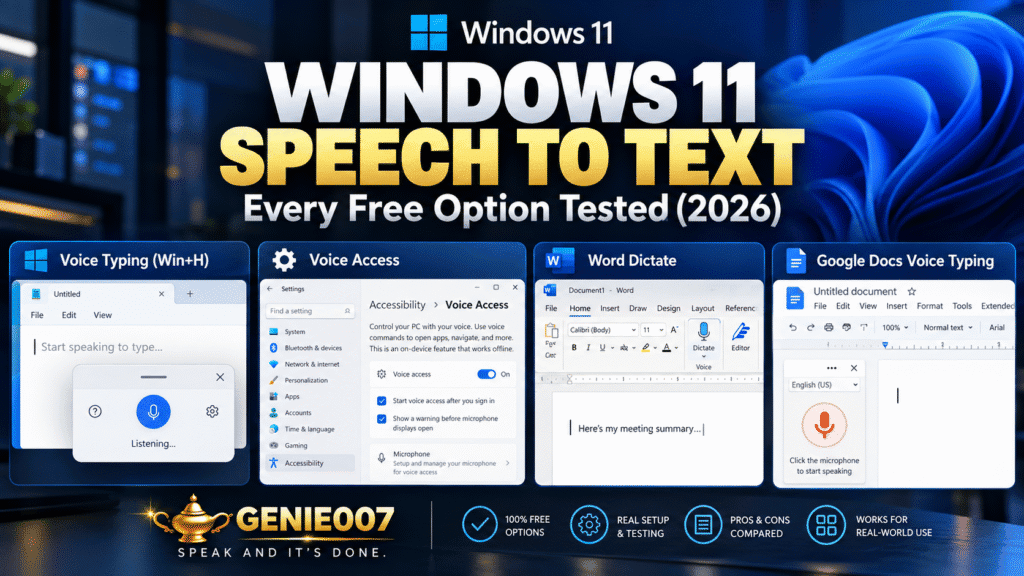
Voice access not working Windows 11? Check the basics first: voice access needs Windows 11, version 22H2 or later (see Settings > System > About), and its first launch needs an internet connection to download the speech files it then uses on your device.
The Voice Access Toggle Won’t Stay On
The Voice access switch is under Settings > Accessibility > Speech. If it is off again after every restart, that is normal: tick the option below it to start voice access after you sign in to your PC.
If the switch flips straight back off, setup probably never finished. Voice access restarts setup if you exit before the language download completes, and the error “We can’t download the required language files right now” means Windows could not reach the Microsoft Store catalogue. On a work PC where the Store is blocked, ask IT to deploy the language package.
Microphone Not Detected
If the microphone button on the voice access bar shows it is off, voice access hears nothing, so press Alt + Shift + C to turn it back on. Then select the Settings button on the bar, open Select default microphone and choose the device you are speaking into.
If it still hears nothing, go to Settings > Privacy & security > Microphone and turn on both Let apps access your microphone and Let desktop apps access your microphone.
Language Not Supported
Voice access covers far fewer languages than Windows voice typing. Microsoft’s voice access setup guide lists English (US, UK, India, New Zealand, Canada, Australia), Spanish (Spain, Mexico), German, French (France, Canada), Simplified Chinese, Traditional Chinese (Taiwan), Japanese and Italian.
If no speech model matches your Windows display language, you are offered English (US) instead. To switch, open voice access settings and choose Languages: some are ready to use, others download a speech pack first.
Commands Not Recognised
In sleep mode voice access ignores everything except “Voice access wake up”, and dictation only mode is for text, so say “Switch to default mode” to get commands back.
Say “What can I say” to see the command list, and if “Click” fails on a button, say “Show numbers” and use the number. Add names and jargon with Add to vocabulary in voice access settings. If it is Win+H voice typing that fails instead, see our fixes for Windows 11 voice typing not working.
FAQ
Why doesn’t Windows Voice Access punctuation work reliably?
Windows Voice Access uses simplified command-based dictation (“say period for a full stop, comma for a comma”) rather than natural language processing. Background noise, microphone quality, and audio latency cause the engine to misinterpret your punctuation commands as regular dictation, leaving them out of the final text. The system simply wasn’t engineered for the precision required in professional writing, which is why it frustrates users attempting serious dictation work.
Can Windows Voice Access be trained to recognise my accent or dialect?
Windows Voice Access offers minimal training options compared to premium dictation tools. The system ships with limited language support (roughly ten languages) and offers no user-specific training interface. If you have a regional accent, non-native English, or technical vocabulary, accuracy suffers without recourse. Genie 007, by contrast, adapts to your speech patterns automatically and supports 140+ languages with excellent accent handling.
Is Windows Voice Access completely free, or are there hidden costs?
Windows Voice Access is genuinely free—it’s built into Windows 11 with no subscription. However, the cost of your time spent correcting errors, retyping, and manually formatting output often exceeds the monthly cost of a professional dictation tool. When you factor in lost productivity and frustration, the “free” option becomes expensive very quickly.
Does switching away from Windows Voice Access mean losing accessibility features?
No. Windows Voice Access can stay active purely for system-level accessibility — controlling menus, launching applications, navigating with commands like “click” or “scroll down” — while a dedicated dictation tool such as Genie 007 handles the actual writing. The two layers serve different purposes and don’t conflict, so users who rely on voice control for mobility reasons keep that support while gaining accurate, formatted dictation for emails, documents, and messages on top of it.
Try Genie 007 Free
Stop wrestling with Windows Voice Access. Genie 007 is built for professionals who dictate daily—delivering accurate, intelligently formatted output in every app and every language you use. Genie 007 encrypts your audio in transit, processes it in real time and stores no recordings and no transcripts.
Download Genie 007 free — available for Windows, Mac, mobile and as a browser extension. No credit card required.
Written by Bill Kiani, founder of Genie 007.